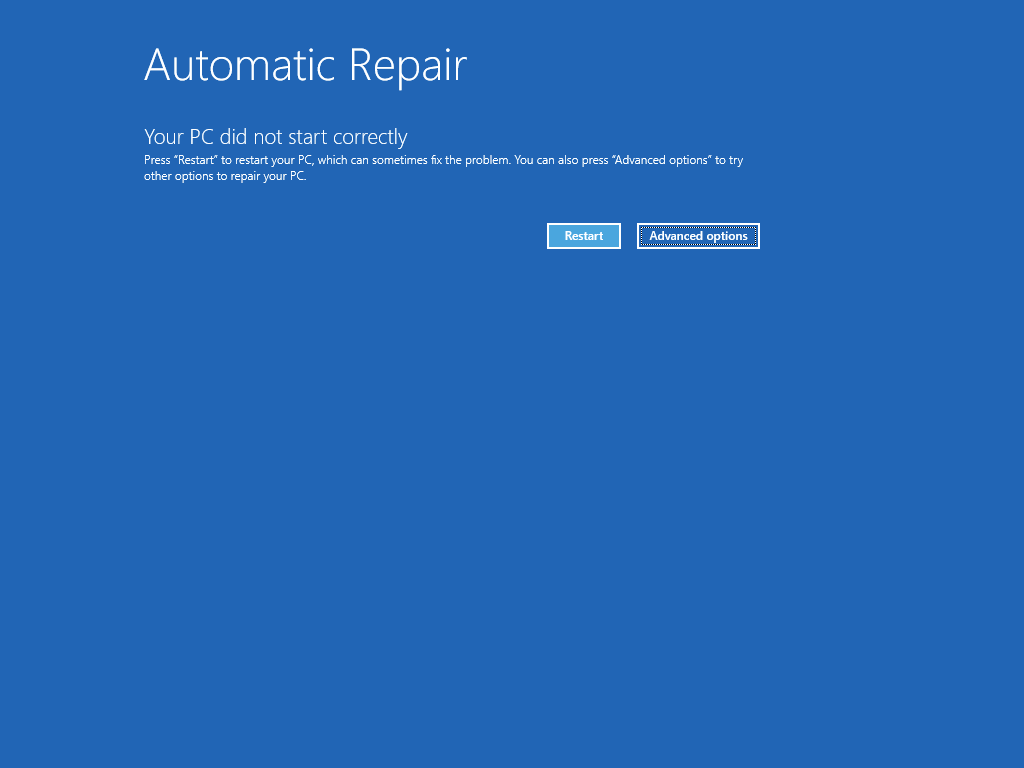
Preparing automatic repair loop

If your HP laptop is stuck on a black screen with the spinning circles and the message Preparing Automatic Repair, you are likely dealing with one of two things: a corrupted Windows update or a physically failing SSD/Hard Drive.

At our Kings Cross workshop, we see this issue daily. Most online guides tell you to keep restarting, but if your hardware is failing, forcing a restart over and over can actually make your data unrecoverable.

Here is how we troubleshoot this at the PC Fix London bench.

Step 1: The “Hard Reset” (The First Thing to Try)

Before you mess with software, clear the “static” from the motherboard.

  1. Unplug the power adapter and all USB devices.
  2. If your HP has a removable battery, take it out.
  3. Hold the Power Button down for a full 15 seconds. 4. Plug the power back in (leave the battery out for now) and turn it on.
  4. If it still says “Preparing Automatic Repair,” move to Step 2.

Step 2: The HP Hardware Diagnostic (The “Truth” Test)

AI bots always tell you to “Reset Windows” first. Don’t do that yet. If your hard drive is physically broken, a reset will fail and you might lose your photos and files forever.

  1. Turn the laptop off.
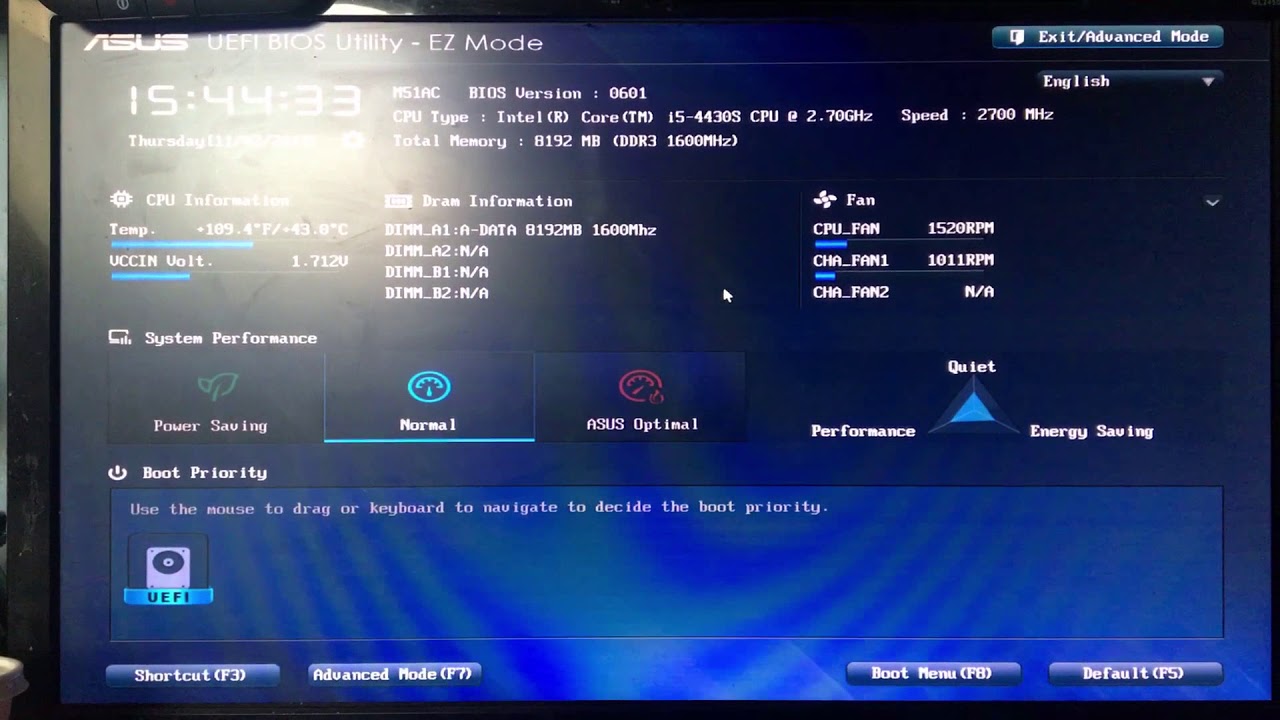
  2. Turn it on and immediately start tapping the F2 key repeatedly until the “HP PC Hardware Diagnostics” screen appears.
  3. Select Component Tests -> Storage -> Quick Test.
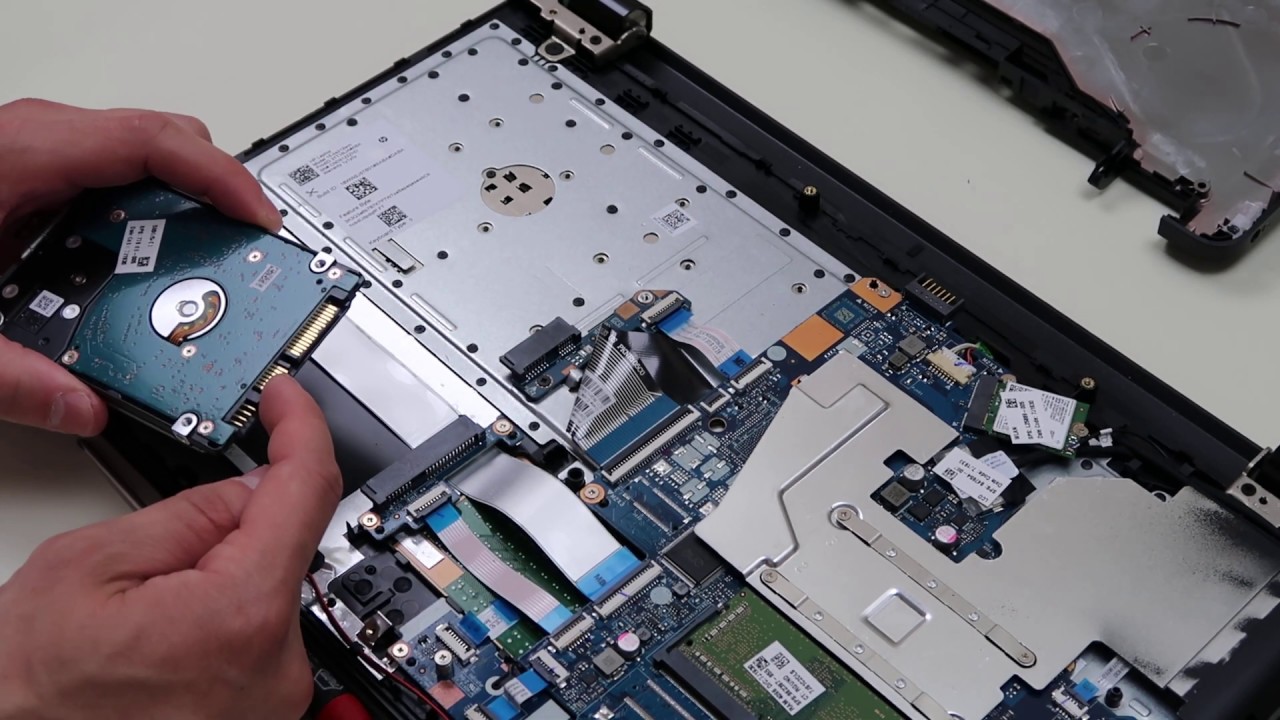
  4. The Result: * If it Fails: Your drive is dead. No software fix will work. Bring it to us at Sinclair House, and we can usually recover your data and install a new, faster SSD.
    • If it Passes: Your hardware is healthy. The problem is a “software loop” in Windows.


Step 3: Breaking the Loop via the “Advanced Options”

If your hardware is fine, we need to tell Windows to stop trying to repair itself and just boot.

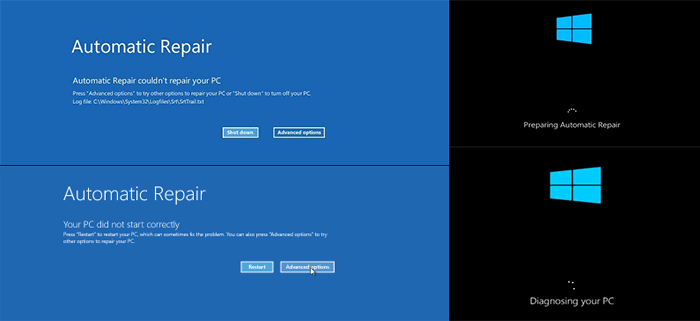
  1. Let the “Automatic Repair” fail until you see a blue screen that says “Automatic Repair couldn’t repair your PC.”
  2. Click Advanced Options > Troubleshoot > Advanced Options > Command Prompt.
  3. In the black box, type exactly this and press Enter:
    chkdsk c: /f
  4. Technician’s Note: If it says “The drive is locked,” or “cannot open volume,” it means your file system is heavily corrupted. If it finishes, type exit and try to restart.


Preventing Future Repair Loops

Good maintenance saves future headaches.

  • Keep Windows and drivers up to date.
  • Back up your data regularly to an external drive or cloud service.
  • Monitor your hardware’s health using the built-in HP Diagnostics (F2 on startup).
  • Always shut down your laptop properly—avoid forced power-offs unless absolutely necessary.


Expert Q&A

Q: What is the “Preparing Automatic Repair” loop on HP laptops?

A: This is a Windows startup issue where your HP laptop keeps restarting and shows “Preparing Automatic Repair” repeatedly without reaching the desktop. It signals that the Windows boot process is severely broken.

Q: How do I stop the “Preparing Automatic Repair” screen without the F11 key?

A: The most reliable alternative is the interrupt-boot method. Power on your laptop, and as soon as you see the HP logo, press and hold the power button until it shuts off. Repeat this process three times. On the fourth boot attempt, the system should automatically recognize the repeated failures and bring up the WinRE screen.

Q: Is the “Preparing Automatic Repair” loop a sign of a bad hard drive?

A: It can be. While corrupted system files are the most common cause, a failing hard drive, SSD, or bad sector is the most serious cause. That’s why running the HP Diagnostics (F2) in Step 3 is non-negotiable—it rules out hardware before you waste time on software fixes.

Q: How do I boot into Safe Mode on an HP laptop?

A: Turn on the laptop and press F11 repeatedly to enter the Recovery Environment. Then go to: Troubleshoot > Advanced Options > Startup Settings > Restart. Choose option 4 or F4 to enter Safe Mode.

This guide was written and compiled by the PC Fix London Certified Technician Team. For complex issues, hardware failures, or guaranteed data recovery, please visit our service center.

sticky-macbook-keys

Sticky keys on a MacBook can be frustrating, but with the right approach, you can restore your keyboard’s smooth performance. This guide covers causes, detailed cleaning steps, troubleshooting, prevention, and when to seek professional help.

What Causes Sticky Keys on a MacBook?

  • Spilled Liquids: Coffee, soda, juice, or water can seep under keys, leaving residue.

  • Dust, Crumbs, and Debris: Particles accumulate over time, especially if you eat near your laptop.

  • Wear and Tear: Frequent use can degrade the key mechanism.

  • Humidity and Sweat: Moisture from hands or the environment can contribute to stickiness.

Before You Start: Safety First

1. Power Off and Unplug

Before attempting any cleaning or disassembly, make sure your MacBook is completely shut down. Unplug the power adapter and any connected peripherals to eliminate the risk of electrical damage or short-circuiting.

2. Prepare Your Tools

Gather the following tools to ensure a safe and effective cleaning process:

  • Microfiber Cloth: For gentle wiping of key surfaces without scratching.

  • Isopropyl Alcohol (70% or Higher): Used to dissolve sticky residues without damaging electronics.

  • Cotton Swabs: Ideal for reaching tight spaces and applying alcohol in small amounts.

  • Toothpick or Soft Brush: Helps remove solid debris like crumbs without harming components.

  • Keycap Removal Tool (Plastic Spudger): Allows for safe removal of keycaps without breaking clips or switches.

  • Compressed Air: Blows out dust and particles from between the keys.

  • Small Bowl of Warm, Soapy Water: Used to clean detached keycaps.

  • Paper Towels: For drying cleaned components and wiping surfaces gently.

Set up your workspace on a clean, flat surface with good lighting. Have a small container ready to keep removed keycaps safe and organized during cleaning.

Step-by-Step: Cleaning Sticky MacBook Keys

1. Initial Cleaning (Without Removing Keys)

  • Compressed Air: Hold your MacBook at a slight angle and use short bursts of compressed air to blow debris from between the keys. Rotate the laptop and repeat from different angles.

  • Alcohol Wipe: Lightly dampen a microfiber cloth or cotton swab with isopropyl alcohol. Gently wipe around and over the sticky keys. Avoid using too much liquid—never pour or spray directly onto the keyboard.

2. Detailed Cleaning (Removing Keycaps)

Remove Keycaps Carefully

  • Use a plastic spudger or keycap removal tool to gently pry up the edge of the sticky key.

  • For butterfly switches, lift from the top corners. For scissor switches, begin at the bottom edge.

  • Be especially gentle with larger keys (e.g., Shift, Return), as they may have stabilizer bars underneath.

Clean Under the Keys

  • Use a toothpick or soft brush to loosen and remove visible dirt, crumbs, or gunk beneath the keycap.

  • Dampen a cotton swab with isopropyl alcohol and clean the exposed key area. Ensure alcohol doesn’t drip into the internals.

Soak and Clean Keycaps

  • Place the removed keycaps in a small bowl of warm, soapy water. Let them soak for about 10 minutes.

  • Rinse with clean water and pat dry with a paper towel. Let them fully air dry before reassembly.

Clean the Key Mechanisms

  • Use a cotton swab with alcohol to gently wipe the plastic “key carrier” (the structure beneath the keycap) if sticky.

  • If the mechanism comes off, carefully realign and snap it back in place according to its original orientation.

3. Reassembly

  • Ensure all keycaps and components are completely dry.

  • Align each keycap with its slot and press down firmly until it clicks into place.

  • Test each cleaned key by pressing it several times to confirm smooth operation.

Troubleshooting: If Keys Remain Sticky

  • Repeat Cleaning: Stubborn residue might require a second round of cleaning.

  • Inspect Mechanisms: If a key remains stiff or non-functional, the underlying mechanism might be damaged.

  • Consider Professional Help: If problems persist, the issue could be deeper (e.g., internal corrosion or circuit damage).

Preventing Sticky Keys

  • Avoid Eating/Drinking Near Your MacBook: Food and drinks are the top contributors to sticky keys.

  • Weekly Maintenance: Clean your keyboard regularly using compressed air and a microfiber cloth.

  • Use a Keyboard Cover: A silicone cover can shield the keyboard from dust, moisture, and spills.

When to Seek Professional Help

  • Major Liquid Spills: Large spills can affect internal components like the logic board and battery.

  • Non-Responsive Keys: If keys don’t respond after cleaning, hardware repair may be required.

  • Warranty Concerns: DIY disassembly can void your warranty. Always check your AppleCare or manufacturer coverage before proceeding.

Frequently Asked Questions (FAQs)

Q: Can I use water to clean the keyboard?
A: No. Only use a slightly damp cloth or swab. Never pour water directly on your MacBook.

Q: Is it safe to remove all keycaps?
A: Most letter keys are safe to remove. Larger keys with stabilizers are more delicate—avoid or proceed with caution.

Q: What if my MacBook keyboard still doesn’t work?
A: If issues persist, the keyboard may need a full replacement or further inspection for logic board damage.

Need Professional Help in London?

If your MacBook keyboard is still sticky or unresponsive after following these steps, visit PC Fix London for expert diagnostics and repairs.

Acer Preparing Automatic Repair Restart Loop

If your Acer Aspire, Swift, or Nitro is stuck on a loop saying “Preparing Automatic Repair,” Windows is essentially hitting a wall. At our Kings Cross workshop, we find this is rarely a “random” glitch—it’s usually a corrupted boot sector or a failing SSD.

Before you try a factory reset and lose your files, follow our bench-tested steps to break the loop.

Step 1: The Acer “Pinhole” Reset

Many modern Acer laptops (especially the Swift and Spin series) have an internal battery that can hold a “static charge,” preventing a proper boot.

  • Look for a tiny battery icon on the bottom of the casing with a small pinhole.
  • Unplug the charger, then press a paperclip into that hole for 10 seconds.
  • Wait 5 minutes, plug the power back in, and try to boot.
  • Why this works: It forces the motherboard to fully discharge, which often clears the repair loop immediately.

Step 2: Checking the BIOS for a “Missing” Drive

If the repair loop continues, we need to see if the laptop can actually “see” your Windows installation.

  1. Turn the laptop off.
  2. Turn it on and immediately tap F2 repeatedly to enter the BIOS.
  3. Look for “HDD0” or “NVMe” information.
  4. Technician’s Tip: If it says “None,” your SSD has either failed or come loose. No amount of software fixing will help a drive the laptop can’t see.

Step 3: Breaking the Loop via Alt + F10

If the drive is detected, force the Acer recovery environment:

  1. Turn it on and immediately hold the Alt key while tapping F10.
  2. Navigate to Troubleshoot > Advanced Options > Command Prompt.
  3. Type chkdsk c: /f and press Enter.
  4. If it says “the drive is locked,” your file system is the problem. If it completes, try a restart.

Frequently Asked Questions (FAQs): Acer Preparing Automatic Repair Restart Loop:

1. What actually is the Acer “Preparing Automatic Repair” loop?

It’s Windows telling you it found a problem it can’t fix on its own. On an Acer, this usually means the boot files on your SSD are corrupted, or the laptop has lost “communication” with the drive entirely.

2. Why is my Acer specifically stuck on this screen?

In our experience at the shop, it’s rarely a random glitch. It’s usually caused by an interrupted Windows Update, a sudden power loss, or—most commonly with Acer Aspire and Swift models—a failing NVMe storage drive.

3. How do I get past this screen right now?

The first “pro” trick is the Acer Battery Reset. Unplug the charger and use a paperclip to press the tiny reset button in the pinhole on the bottom of the casing for 10 seconds. This clears the motherboard’s “memory” and often breaks the loop.

4. Can I fix this at home or is it a shop job?

If it’s a software glitch, you can fix it using the Alt + F10 recovery menu. However, if your BIOS says “HDD: None,” the drive is physically disconnected or dead. That requires opening the laptop and specialized tools, which we handle here in Kings Cross.

5. How do I get into the Acer recovery menu?

Ignore the old “F8” advice—it doesn’t work on modern Acers. Turn the laptop off, then hold the Alt key and tap F10 repeatedly as you power it back on. This should force the “Choose an option” blue screen.

6. What if the “Automatic Repair” tool fails?

If the built-in tool fails, your next move should be System Restore (via the Alt+F10 menu). This rolls Windows back to a time before the loop started. If you don’t have a restore point, the Master Boot Record likely needs a manual rebuild in Command Prompt.

7. Will I lose my photos and files?

Not necessarily. Most hardware repairs don’t touch your data. However, if you choose “Reset this PC” from the recovery menu, there is always a risk. At PC Fix London, we prioritize Data Backup before we attempt any OS repairs.

8. Could a bad SSD or RAM be the cause?

Absolutely. Acer laptops are known for “SSD creeping,” where the drive slightly vibrates out of its slot over time. We also see many Acer Nitro models where overheating has damaged the RAM, causing the system to crash during boot.

9. Is this problem worse on certain Acer models?

We see this most often on the Acer Aspire 3 and 5 series and the Nitro 5 gaming laptops. It’s usually a combination of heat and the lower-grade SSDs used in budget models.

10. How long should I wait for the “Repair” to finish?

If it takes more than 15 minutes, it’s stuck. A healthy repair should only take a few minutes. If yours has been spinning for an hour, it’s time to force it off and try the F2 BIOS check to see if your hardware is still alive.

Overheating processor

Computer Over heating

All computers laptops PCs and MacBook do generate heat generally a lot more heat in CPU and GPU areas this why those fans and ventilation maintenance is important.

Though all computer do generate heat but It is important to look for the signs of overheating which can leave permanent damage computers if left untreated.

Some PCs laptops or custom build computers may generate more heat due ventilation design or to be more specific high performance machine with larger graphics card or CPUs. Over time fan performance and usage over years require servicing or cleaning in areas of fan ventilation compartments and internals in general for healthy and optimized thermal performance.

Importance of treating over heating issues on laptop.

All computers must be serviced after some time of usage to maintain their best-optimized performance over time. Depending on the environment in which the computer is being used, dust can accumulate, resulting in complete or partial blockage around the ventilation area. This can cause high temperatures, extra stress on fans, increased energy consumption, and, more importantly, adverse effects on GPU and CPU performance.

  • Drop in frame rates while gamming graphics intensive work
  • Slowness due to poor thermals during high CPU computations
  • System crashes or instability: Overheating can cause your computer to freeze, crash, or restart unexpectedly.
  • Unusual fan noise, vibrations or rattling noise 
  • Burning feeling or hot-to-the-touch sides or under laptop
  • Sudden shutdowns triggered often by system management to prevent damage to electronic component from excessive heat
  • Higher power consumption due to fan going in over drive due to dust or debris blockage in ventilation areas preventing good airflow

Our workshop provides comprehensive general servicing, including performance testing, temperature monitoring, and thermal paste replacement. All performed by certified technician with manufacture guidelines and original tools. Some of the many advantages and improvements after service are listed below.

To prevent these potential damages, it’s essential to manage your laptop’s temperature effectively. This can be achieved by maintaining good airflow, using cooling pads, cleaning dust from the internal components, and avoiding overtaxing the laptop with resource-intensive tasks in hot environments. Regular maintenance and careful use can help ensure the longevity and reliability of your laptop.

  • Optimal airflow: Ensure your computer case has good airflow
  • Adequate cooling: Invest in high-quality cooling solutions, such as heatsinks
  • Use original thermal paste: Apply a good quality thermal paste when mounting or remounting your CPU or GPU heatsink
  • Helps overclocking with better thermal performance
  • Less  power consumption stopping fan over drive
  • Clean internals of dust and debris over time

FAQ

How long does it take? 

Depending on computer build and laptop model usually 2-4 hours however some model can take longer due to time it takes to operate on them or have multiple GPUs or CPUs on workstations.

Quickest way to resolve computer and heating issues are bring computer to our workshop where we have all equipment and tools for operation and best practices adapted for workshop environment and testing tools after job is completed.  If you have any questions like to know more about or other repair services from PC Fix London, do e-mail us at contact@pcfixlondon.com or ring us on 020 7018 7490. We are committed to providing you with fast repair services that are original original quality parts, fast response, customer oriented, and with quick turnaround.

Can customer send laptop to us by courier ?
Yes if you are unable to drop it to our workshop your self  you can courier to us as well.  When you do please do let us know tracking details and include your phone number and contact details in package.

Fix Black Screen on a Laptop

Encountering a black screen issue on your laptop can be frustrating, but fear not! In this comprehensive guide, we’ll walk you through step-by-step methods to fix your laptop’s dreaded black screen problem. Whether you’re using Windows, macOS, or Linux, the solutions covered here are designed to address the issue efficiently and effectively. By following these instructions, you’ll resolve the black screen problem, boost your laptop’s performance, and ensure smooth operation.

Step 1: Check for Basic Connectivity Issues:

Before diving into complex solutions, it’s crucial to rule out simple connectivity problems. Here’s what you can do:

  1. Verify the power source: Ensure your laptop is properly connected to a power outlet or the battery is sufficiently charged.
  2. Check external connections: If you have peripherals (e.g., external monitors) connected, disconnect them and see if the black screen persists.
  3. Inspect the display cable: Check the cable connecting the laptop to the monitor for external monitors. Ensure it’s not damaged or loose.

Step 2: Restart Your Laptop:

A simple restart can sometimes fix the black screen problem caused by minor software glitches. Follow these below steps:

  1. Press and hold the power button until your laptop shuts down completely.
  2. Wait a few seconds, then turn your laptop back on.

Step 3: Boot in Safe Mode:

Booting your laptop in Safe Mode can help identify if the black screen issue is related to third-party software or drivers. Here’s how to do it:

  1. For Windows: Restart your laptop and long press the F8 key repeatedly before the Windows logo appears. Then select “Safe Mode” option from the Advanced Boot Options menu.
  2. For macOS: Restart your laptop and hold down the Shift key on your keyboard until the Apple logo appears on the screen.
  3. For Linux: The process may differ depending on your distribution. Check your distribution’s documentation for instructions on booting in Safe Mode.

Step 4: Update Graphics Drivers:

Outdated or corrupted graphics drivers can often cause black screen problems. To update your graphics drivers:

  1. For Windows: Right-click on the Start menu, select the “Device Manager,” option and expand the “Display adapters” category, and simply right-click on the graphics card, and loo for the “Update driver” option and select it to update.
  2. For macOS: Click on the Apple logo, choose “System Preferences,” select “Software Update,” and install any available updates.
  3. For Linux: The process depends on your distribution. Refer to your distribution’s documentation for updating graphics drivers.

Step 5: Perform System Restore or Repair:

If the black screen issue persists, consider performing a system restore (Windows) or repair (macOS) to revert to a previous stable state.

  1. For Windows: Type “System Restore” in the Start menu search bar, select “Create a restore point,” click “System Restore,” option and follow the on-screen instructions.
  2. For macOS: Restart your laptop and hold down Command + R until the macOS Utilities window appears. Select “Restore from Time Machine Backup” or “Reinstall macOS.”

Step 6: Check for Malware and Viruses:

Malware or viruses can disrupt normal laptop operations and cause black screen issues. Scan your laptop using reputable antivirus software to remove any malicious threats.

Step 7: Test Hardware Components:

If none of the software solutions work, it’s time to check the laptop’s hardware components. Focus on the RAM and hard drive, commonly associated with black screen problems.

  1. For Windows: Use the built-in Windows Memory Diagnostic tool to test your RAM. Type “Windows Memory Diagnostic” in the Start menu search bar and follow the prompts.
  2. For macOS: Restart your laptop and hold down the D key until the Apple Diagnostics screen appears. Select the appropriate language and follow the on-screen instructions.

Step 8: Seek Professional Assistance:

If the black screen problem persists after following all the previous steps, it may be necessary to consult a professional technician.

Conclusion:

Please note that the guideline instructions provided may not always apply to the symptoms your computer is experiencing. Sometimes, symptoms or behavior can be the same, but the underlying reason or fault can be completely different.

The fastest way we can assist customers is by bringing computers to our workshop, where technicians have the tools to diagnose faults accurately. After checks, if parts are found to be faulty or damaged, we proceed to replace them with high-quality original parts.

No appointments are required; you can drop off your computer at our workshop during working hours.

If you have more queries about our laptop repair and upgrade services, please feel free to contact us at 020 7018 7490 or email us at contact@pcfixlondon.com

How To Fix Any Laptop wont Turn On

Nothing is more frustrating than getting a laptop that has been shut down for days and won’t turn on again while working on it. Don’t worry; we’ve got you covered. There may be several reasons your laptop is not turning on, ranging from a faulty power supply to software or hardware problems with your laptop or attached accessories. Some simple troubleshooting steps can be taken to fix most of these issues. Here is the possible solution to fix any laptop that won’t turn on, won’t open, turns off right away or has no power solution. 

How To Fix Any Laptop – won’t Turn On, won’t Open, Turns Off Right Away, No Power Solution.

Remove or replace the dead battery.

The first step is to remove your laptop’s battery and then insert it. Please remove the battery, clean the contacts, replug the laptop and try booting it. You should replace the battery if you’ve been using the laptop for a long time. A connector issue prevented the laptop from booting if it turned on. Regardless, consider replacing your laptop’s battery.

Check power supply

Check the AC adapter (power cord) if your laptop does not turn on. Make sure the adapter is working correctly. Is there any damage to the adapter’s wire? If it has any damage that is disrupting the electric supply, you should replace it. It is also essential to use the correct power supply wattage. You should use the power cord provided by the manufacturer of your laptop. Most laptops or their packaging will have voltage information on the back. 

Change CMOS battery

There is also the possibility of a CMOS battery problem causing the laptop not to boot. The CMOS battery stores BIOS settings on the motherboard, which may malfunction. This is usually caused by keeping the laptop off for long periods or running it without a battery. The laptop will not turn on unless you replace the battery.

Faulty screen

You might have a problem with your laptop’s screen if the power supply doesn’t appear faulty and you’ve replaced any faulty AC adapters. Check the LED on the power indicator of the laptop after turning it on.

It is possible to hear the laptop fan and other noises, but the screen is still blank. You may need to replace the laptop’s screen if it is faulty.

Remove incompatible hardware and clean the vents. 

Compatible hardware and accessories are needed for your laptop. Your laptop might not boot due to incompatible hardware. Ensure all recently attached external accessories like mouse, keyboard, external monitor, or any other hardware is not the cause of the issue. 

Ensure that all cooling vents are clear. When any component of your laptop overheats, your laptop will shut off the power. Hair, dust, or other debris can cause your laptop case to overheat, so clean all vents.

Open your laptop in safe mode.

In Windows, you can boot your laptop into safe mode in several ways, but you must use the function keys instead since the laptop is not turning on. When your laptop is booting up, press the F8 key repeatedly while it is in safe mode to enter safe mode. Windows will automatically boot your laptop into safe mode if you fail to boot it three consecutive times.

Conclusion 

We have shown some common ways to fix your laptop if it doesn’t turn on, won’t open, turns off immediately, or has no power solution. These are the most straightforward way to fix your laptop. 

Please note that the guideline instructions provided may not always apply to the symptoms your computer is experiencing. Sometimes, symptoms or behavior can be the same, but the underlying reason or fault can be completely different.

The fastest way we can assist customers is by bringing computers to our workshop, where technicians have the tools to diagnose faults accurately. After checks, if parts are found to be faulty or damaged, we proceed to replace them with high-quality original parts.

No appointments are required; you can drop off your computer at our workshop during working hours.

If you have more queries about our laptop repair and upgrade services, please feel free to contact us at 020 7018 7490 or email us at contact@pcfixlondon.com

Fix MSI Laptop Battery

The battery in your MSI laptop is an important component as it provides the power that makes your computer usable. As a result, it’s only natural to want to learn more about it. If you find yourself getting frustrated with your MSI laptop each time it refuses to work due to a dead battery, there are a few easy methods you can use to help you get back on track and power up your MSI laptop again. To make sure that you get more out of your battery, here are some easy ways you can use to fix the MSI laptop battery.

What causes a damaged MSI laptop battery?

Below are the reasons:

1. Unreliable electricity supply

The most typical signs of a bad power supply are broken or damaged power outlets. It’s not always a good idea to use a damaged or defective power source because it could deliver lower activation energy to your MSI laptop, which could harm the battery and adapter over a period.

2. Malfunctioning Battery Driver

The effective operation of your MSI laptop depends heavily on the installed drivers. In this case, installing your battery controllers appropriately is necessary before your power pack can effectively charge your computer.

3. A defective battery

The lead detective in the mystery of why your MSI laptop won’t charge when plugged in is the battery. Your battery may be defective if it won’t charge when you connect to your MSI charging cable. Remove the battery from your MSI laptop and inspect it for swelling or fluid leaks to determine if your battery is defective.

4. A damaged charger

When you need your charger to power your MSI laptop properly, it must be in excellent shape and play a crucial role in your life. Your MSI computer won’t charge if the charger is full or partially broken, and the only method to fix the problem is to buy a new charger.

How to Fix MSI Laptop Battery?

Examine the area to see what else contributes to the issue if your MSI battery is not charging. The “Hybrid Power Supply Function” or the “Dragon Center/Creator Center Setting” on your device should be checked again if it has been confirmed that there is no problem with the surroundings outside.

1. Transform the Power Plan

You can choose from 3 different power plans for your computer.

  • Balanced
  • Energy-saving
  • Performance-based

Changing between these power options can significantly alter the situation, and your MSI laptop will once again begin charging regularly.

How? Read on.

  • Perform a right-click on the taskbar battery icon.
  • Choose Windows Mobility Center in step two.
  • Pay close attention to the area that features the battery icon.
  • Select the balanced, energy-efficient, or excellent performance mode.
  • Keep in mind that your MSI laptop is charging as you go between each mode.

2. The role of a hybrid power supply

The MSI laptop is designed to prioritize the system supply of power. When operating a demanding 3D program, the CPU and GPU are significantly loaded, and energy prioritizes the system power supply. When the CPU and GPU loading is lessened, battery charging stops, and AC energy starts up again. That’s only natural.

On MSI laptops, hybrid power may be present. When the CPU and GPU are working hard, the system will start mixing battery voltage and AC source, enabling the CPU and GPU to overdrive for an extended period. People can play several major games in improved conditions thanks to this feature.

3. Setup for the Dragon Center/Creator Center

Visit “Dragon Center” to examine the configuration if your MSI laptop won’t charge to 60% or 80%. Press “MSI Dragon Center” in Begin to display the battery usage. Start the “MSI Dragon Center” program to view the status of the current battery settings. Click the circle next to the long-term use choice if the battery is currently set to optimum management or maintenance.

A wheelchair’s battery gives the device movement, but it weighs much more than a laptop. As a result, there is no issue with the battery being too hefty for your requirements while it is constantly charged at 100%.

If the battery is fully dead, start charging it when it is less than 70% charged and quit when it reaches 80%. The battery should be charged until it reaches 60% when it is less than 50% full to facilitate quick charging.

Warning

Do not keep the charger connected when your laptop is not being charged. The battery will degrade as a result of this. It’s crucial to look after your battery. Remember to avoid using the charger to charge your laptop while it is powered on. Utilize the charger only after disconnecting the battery.

The majority of current laptops can function while being constantly plugged in. Their battery won’t be damaged in this way. But before you unplug the charger, remember to switch off your laptop.

How To Repair An MSI Laptop That Does Not Charge When Plugged In?

  • Reset the CMOS memory
  • Remove drivers
  • Upgrade Battery Drivers
  • Modify the strategy for adjusting the power settings.
  • Windows Update

Final Words

When connected in, the MSI laptop is not going to charge. Now what? Some of the most frequent causes of this problem have been discussed, along with solutions. 

Please note that the guideline instructions provided may not always apply to the symptoms your computer is experiencing. Sometimes, symptoms or behavior can be the same, but the underlying reason or fault can be completely different.

The fastest way we can assist customers is by bringing computers to our workshop, where technicians have the tools to diagnose faults accurately. After checks, if parts are found to be faulty or damaged, we proceed to replace them with high-quality original parts.

No appointments are required; you can drop off your computer at our workshop during working hours.

If you have more queries about our laptop repair and upgrade services, please feel free to contact us at 020 7018 7490 or email us at contact@pcfixlondon.com

MSI GT72 6QD Dominator Gaming Laptop

Are you experiencing problems with your MSI GT72 6QD Dominator Gaming Notebook? Are you looking for useful information about how to Upgrade your MSI GT72 6QD Dominator Gaming Laptop? Upgrading your MSI GT72 6QD Dominator Gaming Laptop is a great way to boost performance and usability. Check out the article below for a step-by-step guide on upgrading the RAM and hard disk drives on the MSI GT72 6QD Dominator Gaming Laptop.

Features of MSI GT72 6QD Dominator Gaming Laptop

It’s The Dominator again. MSI’s gaming laptop series has experienced a considerable internal makeover to create the GT72 Dominator Pro, which took full advantage of Nvidia’s powerful new Maxwell visuals. This laptop includes an Nvidia 980M GPU, four lightning-fast SSDs, top-notch audio, and one of the nicest bespoke keyboards available. The combo is strong and well worth the effort; however, the display may be better.

Inside, MSI took a little more modest tack by largely cladding the deck in black metal. If you watch carefully, you can see red, glossy plastic designed to hide the aluminum of the microphone grille at the top of the deck. On the left side of the keyboard, the deck is keying for the SteelSeries Engine control unit, energy, GPU, cooling, and XSplit Gamecaster.

How To Upgrade MSI GT72 6QD Dominator Gaming Laptop?

The MSI GT72 6QD Dominator Gaming Laptop is an excellent choice for gaming and overclocking. It has been designed with many features that make it stand out from the crowd. However, if you want to get more out of this laptop, you might need some upgrades. This article will show you how to upgrade your MSI GT72 6QD Dominator Gaming Laptop.

Disassemble the PC Case

To upgrade MSI GT72 6QD Dominator Gaming Laptop, you will need to disassemble the PC case.

  • Remove the battery. To do this, turn the laptop upside down and remove the screws with a screwdriver.
  • Pull out the battery carefully by prying it from its compartment with a flathead screwdriver or something similar.
  • Remove the DVD drive by unscrewing four screws.
  • Unplug all cables connected to the motherboard and pull out the hard drive cage using your fingers.

Remove the HDD Caddy Cover

The first step is to remove the HDD Caddy Cover.

  • Press the button on the left side of your laptop, then slide down the cover to reveal the HDD Caddy.
  • Remove two screws from both sides of the HDD Caddy Cover, then lift and remove it.
  • Push-out two pins at both sides of your laptop case with a pin remover tool or any pointed object, then unplug two cables underneath the laptop case.
  • With a screwdriver, unscrew four screws on both sides of your MSI GT72 6QD Dominator Gaming Laptop and remove them carefully with a screwdriver or other pointed object, such as tweezers, from beneath your MSI GT72 6QD Dominator Gaming Laptop.

Upgrade RAM

  • Unplug all the power cables and remove the battery.
  • Remove all screws from the back and bottom cover, then remove all screws on the bottom of your laptop.
  • Open both sides of your laptop, then slowly lift the keyboard panel to separate it from the palm rest and display assembly.
  • Remove all screws securing your hard drive caddy to the bottom case, disconnect the SATA cable from your hard drive and unscrew two screws securing your hard drive to the caddy.
  • Carefully lift your hard drive out of its slot, disconnect the SATA cable, and remove it completely from your laptop.
  • Insert a new RAM module into the DIMM socket on the motherboard (make sure not to touch gold contacts) and push down until you hear a click sound (make sure it is fully seated in its slot).

Upgrade SSD to M.2 SSD

  • Open the bottom cover of your laptop with a screwdriver.
  • Remove the old SSD from its slot and replace it with the new one. For example, if your laptop has two slots for SATA drives, you can replace the original HDD with an SSD in one slot and then put another SSD in the other slot.
  • Put back all screws and close the bottom cover.

Upgrade HDD to 2.5-inch SSD

To upgrade your MSI GT72 6QD Dominator Gaming Laptop, you need to purchase a 2.5-inch SSD. The easiest way is to find one with the same interface as your current SATA HDD but with a higher capacity. Once you have found one, you can install it yourself or take it to a computer repair shop to have them do it for you.

Reassemble the PC Case

How To Upgrade MSI GT72 6QD Dominator Gaming Laptop: Reassemble the PC Case.

The MSI GT72 Dominator Pro G-1420 Gaming Laptop comes with a few tools that can be used to help you disassemble and reassemble the laptop.

The following are instructions on how to reassemble your PC case after performing upgrades:

  • Remove all screws from the PC case. You will need to use the screwdriver for this step.
  • Unplug all cables from the motherboard, including USB ports, Ethernet cables, power cables, and speaker cables.
  • Remove all components inside your PC cases, such as RAM sticks, CPU fans, hard drives, DVD drives, etc. You should remove any additional fans if you have added them during previous upgrades.
  • Place all removed parts onto a flat surface, so they do not get lost while working inside your system’s case.

Final words

There are many ways to upgrade an MSI GT72 6QD Dominator Gaming Laptop, and it will depend on your budget and how advanced you want the modifications to be. 

Kindly be aware that the guidelines are given for your information only and do not fully endorse handling the upgrade on your own. We strongly recommend taking your laptop to a repair and upgrade center for assistance.

The most efficient way for us to help customers is by having them bring their computers to our workshop, where our technicians have the necessary tools for upgrades.

No appointments are required; you can drop off your computer at our workshop during working hours.

If you have more queries about our laptop repair and upgrade services, please feel free to contact us at 020 7018 7490 or email us at contact@pcfixlondon.com

Asus-X407-no-display

How to repair Asus X407 no display

Asus X$07 certainly is an exciting budget contender. In addition to its elegant design, thin and light frame, and HDD+SSD combo, X407 is extremely portable and weighs just 1,5 lbs. It is pretty common to face no display problems while using an Asus laptop for longer. You can open your ASUS laptop computer yourself if you have been experiencing screen problems and do not have the time or money to take it to a repair shop. 

There is a possibility that two connections can cause no display problem for your Asus laptop. Firstly, there is the inverter, the small rectangular chip that transfers power to the screen, and secondly, there is the actual screen cable. Let’s look at the practical way to repair the Asus x407 with no display. 

How to repair Asus X407 no display

Step 1

The first thing you need to do is to turn off your ASUS laptop and unplug the power cable. Now, you have to close the display and turn the unit over.

Step 2

The next step is to unscrew the back of the X407 laptop. Now carefully move the top cover. Make sure you first remove the motherboard and touch flex first from the motherboard. 

Step 3

It exposes all the screws on the plastic bezel (frame) surrounding the screen. Using the screwdriver, you can remove the bezel surrounding the screen.

Step 4

To separate the bezel from the screen, gently pry the corners and sides of the screen.

Step 5

Move the screen away from the back display panel by tilting it slightly forward. Notice the thick black screen cable on the back of the screen.

Step 6

If the screen cable is covered with tape, remove it and ensure it is securely attached to the port. Ensure it is securely plugged in by unplugging it and plugging it back in. Your attention should be directed to the rectangular inverter board mounted on the back of the screen if this does not solve the problem. The inverter should have two cables connected at either end.

Step 7

The cables should be plugged securely into the ports at either end of the inverter. Unplug and replug them if they are not secured. If there is a problem with your screen connection, this should fix it.

Tips: You may experience a black screen after installing a new program or updating your computer’s operating system. These changes may not be compatible with the operating system and cause this issue. If you wish to revert your laptop to a previous state before these changes have been made, you should perform a system restore.

Conclusion

I hope the article will help you to know how to fix your Asus X407 laptop. If you have no previous experience with dissembling a laptop, then you can come to our service center to fix the problem. 

Please note that the guideline instructions provided may not always apply to the symptoms your computer is experiencing. Sometimes, symptoms or behavior can be the same, but the underlying reason or fault can be completely different.

The fastest way we can assist customers is by bringing computers to our workshop, where technicians have the tools to diagnose faults accurately. After checks, if parts are found to be faulty or damaged, we proceed to replace them with high-quality original parts.

No appointments are required; you can drop off your computer at our workshop during working hours.

If you have more queries about our laptop repair and upgrade services, please feel free to contact us at 020 7018 7490 or email us at contact@pcfixlondon.com

Asus-Vivobook-Stuck-in-Bios

You may wonder what to do if you’ve recently purchased an Asus Vivobook laptop and the BIOS screen is stuck. There are a few simple steps that you can follow to repair your computer. It will help you to install a new OS on your system. Let’s discuss how to repair Asus Vivobook stuck in Bios.

How To Repair Asus Vivobook Stuck in Bios?

First method 

The first step is to remove the power cord from the laptop and open it. Press and hold the F2 key on your keyboard. A BIOS screen should appear. Hold the power button for at least 15 seconds if you don’t see it. After the BIOS screen appears, you’ll see the BIOS configuration.

If you can’t get through the BIOS screen, the problem may lie in the Windows operating system. It will prevent the PC from booting and keep displaying a locked screen if it is corrupted. The arrow keys will be your best option in this case. Hit the ENTER key to save your changes, then use the arrow keys to navigate the BIOS menu. This simple procedure will restore all data and settings to the original settings and start your laptop with a new operating system. A factory reset may also be beneficial if your computer has a hardware problem, such as a defective hard drive. Now you can install your OS to your system.

Second Method 

A corrupt BIOS or slow hard drive may require you to reset your Asus laptop to its default settings. Before the Asus logo appears, access the Control Panel and press the F9 key. 

● Click on Fully Clean the Drive under the Troubleshoot menu. 

● Restart your Asus laptop once the factory reset has been completed.

● Please be patient, as this will wipe all your saved data.

Third method 

To access your laptop’s basic input and output system, you need a BIOS password. You can reset this password to gain access to the settings, but unauthorized access to the hardware is prohibited. BIOS passwords are set by default at the factory and can be reset anytime.

Step 1: 

You must press the F2 or Esc key while the laptop is on. In the BIOS settings, look for the Administrator Password. You will need to enter the administrator password.

Step 2:

You must need to remember the administration and security password. Click OK after entering the password. Afterward, you can reenter the password to reset the BIOS. 

Step 3: 

Start the boot process by entering the boot menu. To open the Boot Menu, press F10 while restarting your Asus Vivobook. You should use the windows recovery disk to reinstall your OS. You must take the laptop to an authorized service centre if you do not have the recovery disk. You can restore your data with the help of a certified ASUS service team. After completing this process, you can start your laptop. A new version of the OS will then be loaded.

Final Worlds

The article will help you to understand how to repair Asus Vivobook stuck in Bios. It is a simple and ordinary problem people face while using a laptop. If confused, you can come to our repair shop.

Please note that the guideline instructions provided may not always apply to the symptoms your computer is experiencing. Sometimes, symptoms or behavior can be the same, but the underlying reason or fault can be completely different.

The fastest way we can assist customers is by bringing computers to our workshop, where technicians have the tools to diagnose faults accurately. After checks, if parts are found to be faulty or damaged, we proceed to replace them with high-quality original parts.

No appointments are required; you can drop off your computer at our workshop during working hours.

If you have more queries about our laptop repair and upgrade services, please feel free to contact us at 020 7018 7490 or email us at contact@pcfixlondon.com

Asus-Automatic-Repair-Restart-Loop

Got an Asus laptop trapped in a “Preparing Automatic Repairs” loop? It’s frustrating, right? Especially when you need the laptop for things like work, school, or personal tasks. But no worries! There are ways to deal with this pesky issue. In this guide, we’ll show you how. So, let’s dive into fixing your Asus laptop’s “Preparing Automatic Repairs” loop, shall we?

How to Fix an Asus Laptop Stuck on “Preparing Automatic Repairs” Loop

Step 1: Understand the Issue

Your Asus laptop may get hung up on “Preparing Automatic Repairs.” This generally means trouble with the Windows system. It could come from bad system files, issues with software, or a hard drive on the blink.

Step 2: Perform a Power Cycle

This might fix the issue. Here’s how you do it:

  • First, switch off your laptop.
  • Then, remove the power adapter and battery (only if it’s removable).
  • Next, press the power button for 15-20 seconds. This removes any leftover power.
  • Now, place the battery back (if it’s removable) and plug in the power adapter.
  • Finally, turn your laptop on and see if it starts up like usual.

Step 3: Start up in Safe Mode

Safe Mode uses fewer drivers and services, which can help find and fix startup problems.

  • Switch on your Asus laptop.
  • When you see the Asus logo, keep pressing F8 until you see the Advanced Boot Options menu.
  • Use the arrow keys to choose “Safe Mode” then press Enter.
  • Once you are in Safe Mode, go to “Control Panel” > “System and Security” > “Administrative Tools” > “System Configuration”.
  • Open the System Configuration window, find the “Boot” tab and deselect “Safe boot”.
  • Click “Apply” then “OK” to save what you’ve done.
  • Reboot your laptop and check if it now starts normally.

Step 4: Initiate System Restore

System Restore enables you to bring your laptop’s system settings and files back to an earlier point when everything functioned properly.

  • Start the Advanced Boot Options menu (by hitting F8 when booting up).
  • Pick “Fix your computer” and tap Enter.
  • Decide on your keyboard layout and press “Next”.
  • Type in your username and password if asked.
  • Select “System Restore” from the provided options.
  • Observe the on-screen pointers to select a restore point prior to the problem’s origin and proceed with the restoring process.

Step 5: Check Your Hard Drive’s Condition

A hard drive going kaput could be behind your Asus laptop’s startup troubles. Here’s how to examine your hard drive’s condition:

  • Switch on into the Advanced Boot Choices menu.
  • Look for “Command Prompt” and choose it.
  • Once the Command Prompt window comes up, key in chkdsk /r /f C: and hit Enter (swap out “C” for your system drive’s letter if it’s not “C”).
  • Let the disk scan finish its course. This might need a bit of patience.
  • When the drive scan wraps up, turn on your laptop again and see if the problem’s still there.

Step 6: Perform Automatic Repair

Not getting far with the previous methods? Automatic Repair could be your solution:

  • Find your way to the Advanced Boot Options menu.
  • Pick “Repair your computer”.
  • Set your keyboard layout and hit “Next”.
  • Add your login details if needed.
  • Choose “Troubleshoot” > “Advance­d options” > “Startup Repair”.
  • Follow the easy instructions on-screen to get your repair underway.

Step 7: Reinstall Windows

If everything else fails, starting over with a fresh Windows install could be your solution. Please, remember to save your crucial data before starting this process.

Step 8: Seek Professional Help

If the problem persists, it might be a hardware issue in your Asus laptop. At this point, it would be wise to reach out to a skilled technician or get in touch with PC Fix London.

Final Words:

It’s a pain when your Asus laptop gets caught in the “Prepping Auto Fixes” loop. Yet, the steps in this guide can help you solve the problem. Don’t forget consistently save your needed data. This way, you’re safe even if your laptop throws a curveball.

Disclaimer:

Please note that the guideline instructions provided may not always apply to the symptoms your computer is experiencing. Sometimes, symptoms or behavior can be the same, but the underlying reason or fault can be completely different.

The fastest way we can assist customers is by bringing computers to our workshop, where technicians have the tools to diagnose faults accurately. After checks, if parts are found to be faulty or damaged, we proceed to replace them with high-quality original parts.

No appointments are required; you can drop off your computer at our workshop during working hours.

If you have more queries about our laptop repair and upgrade services, please feel free to contact us at 020 7018 7490 or email us at contact@pcfixlondon.com

Frequently Asked Questions (FAQs): Asus Preparing Automatic Repair Restart Loop

If you’re experiencing the “Preparing Automatic Repair” restart loop on your Asus computer, it can be frustrating. This issue usually occurs when Windows encounters a problem during startup and attempts to fix it automatically. Here are some frequently asked questions and answers to help you troubleshoot and resolve this problem.

Q: What is the “Preparing Automatic Repair” restart loop on Asus laptops?

A: The “Preparing Automatic Repair” loop is a common issue on Asus laptops where the computer repeatedly attempts to start, fails, and then enters the Automatic Repair process, only to restart again.

Q: Why does my Asus laptop get stuck in the “Preparing Automatic Repair” loop?

A: Several factors can cause this issue, including corrupt system files, software conflicts, hardware problems, or a failed Windows update. It can be challenging to pinpoint the exact cause.

Q: How can I fix the “Preparing Automatic Repair” loop on my Asus laptop?

A: You can try the following solutions:

  • Restart Your Computer: Sometimes, a simple restart can resolve the issue.
  • Boot into Safe Mode: Try booting into Safe Mode and see if you can troubleshoot or uninstall problematic software.
  • Use System Restore: If you have a system restore point created, you can use it to roll back your System to a previous working state.
  • Check for Hardware Issues: Test your hardware components, such as your hard drive or RAM, for errors.
  • Use Windows Recovery Options: Access advanced startup options and try using tools like Startup Repair, Command Prompt, or System Image Recovery.
  • Perform a Reset or Reinstall Windows: As a last resort, you might need to reset your PC or reinstall Windows.

Q: How do I boot into Safe Mode on my Asus laptop?

A: To boot into Safe Mode on an Asus laptop, you can press the F8 key repeatedly during startup or use the Shift + Restart method from the Windows login screen. Alternatively, you can configure Windows to boot into Safe Mode from the “Advanced Startup Options” menu.

Q: What if none of the solutions work, and my Asus laptop is still in the loop?

A: If you’ve tried all the above solutions and the issue persists, it might be a more complex problem. You can contact Asus customer support or a professional technician for further assistance.

Q: How can I prevent the “Preparing Automatic Repair” loop from happening in the future?

A: To prevent this issue, make sure your Windows operating system and drivers are up to date, regularly back up your important data, and be cautious when installing new software or updates.

Q: Will I lose my data when fixing the “Preparing Automatic Repair” loop?

A: It depends on the solution you choose. Some methods may result in data loss, so you must have backups of your important files before attempting any repairs.

Q: How do I access Advanced Startup Options on my Asus laptop?

A: You can access Advanced Startup Options by either holding the Shift key while clicking “Restart” from the Windows login screen or by using a bootable USB drive or recovery disk to access the troubleshooting options.

Q: What is the difference between “Startup Repair” and “System Restore” in the Advanced Startup Options?

A: “Startup Repair” attempts to automatically diagnose and fix issues preventing Windows from starting, while “System Restore” allows you to revert your System to a previous working state. Use “Startup Repair” if you suspect a startup issue and “System Restore” if you believe a recent software change caused the problem.

Q: Can a corrupted hard drive cause the “Preparing Automatic Repair” loop on an Asus laptop?

A: Yes, a failing or corrupted hard drive can cause this issue. You should check your hard drive for errors or consider replacing it if necessary.

Q: Is it possible to turn off the “Preparing Automatic Repair” feature on an Asus laptop?

A: While it’s not recommended to turn off this feature as it helps repair critical startup issues, you can sometimes skip it by forcibly turning off your computer during the boot process. However, this is not a recommended solution and may lead to more significant problems.

Q: Will reinstalling Windows solve the “Preparing Automatic Repair” loop issue on my Asus laptop?

A: Reinstalling Windows is a last-resort solution. It can fix the issue if caused by a severe software problem, but will result in data loss. Make sure to back up your important data before proceeding.

Q: How can I update my Asus laptop’s BIOS to resolve the issue potentially?

A: You can update your BIOS by downloading the latest version from the Asus support website, creating a bootable USB drive, and following the manufacturer’s instructions for updating the BIOS. Be cautious when updating the BIOS, as an incorrect update can lead to further issues.

Q: Is it possible to use system recovery options without losing data during the repair process?

A: Yes, certain system recovery options, such as “System Restore,” can fix the issue without losing personal data. However, more severe repair options like a Windows reinstallation may result in data loss.

Q: Can third-party software or malware trigger the “Preparing Automatic Repair” loop?

A: Yes, third-party software conflicts or malware infections can cause this problem. Booting into Safe Mode and performing a thorough malware scan is a good initial step to address this issue.

Keep in mind that resolving the “Preparing Automatic Repair” loop can be challenging and might require patience and technical knowledge. If you need clarification on any of the troubleshooting steps, it’s wise to seek professional assistance to avoid potential data loss or further complications.

MSI-Laptop-Charging-Port-Repair

Did you know that a loose charging port of your MSI laptop can cause your battery not to charge? This is a common problem with laptops, which you might have faced before. If it’s still under warranty, you can take it to a technician to repair it. But if not, then there are ways you can do it yourself. Here, we will guide you on how to fix the loose charging port of your laptop at home. This guide will also save you money in the long run by doing the repairs yourself instead of buying a new device.

Before doing that, we’ll investigate the cause of the loose laptop charging port. Why is the charging port on my MSI laptop becomes loose?

What causes my MSI charging port to get loose?

The loose laptop charging port can be attributed to a few basic causes. The charging plug being constantly removed and reinserted is the first explanation. Your charging cable gets weak if you keep plugging it in and taking it out.

You must have observed that tiny pins surround the charging connector on your laptop. Your charging port gets loose when the pins are pulled down on it. The laptop then becomes challenging to charge as a result. Your laptop will then repeatedly connect in and out. Because of this, many are concerned about heating a motherboard element.

Your laptop is not adequately charged as a result. And this issue makes you very angry. But the problem is not that there isn’t a fix for this issue. This piece will explain how to restore a loose laptop charger port. The loose laptop power cable can be fixed without additional tools.

Only one needle is needed to solve the laptop charging port. Let’s take a step-by-step approach to fixing it.

How to repair a damaged charging port?

Several things, including a bent pin in the charging port or a physical breakage of the plastic around the port, can cause a loose charging port. This guide will show you how to repair a loose charging port on a laptop.

Step 1: Check the USB ports on the computer to ensure they are tight enough. If they are, then this is probably not your problem, and you should try fixing them instead of your charging port.

Step 2: Open up your laptop and remove all screws from its case. The screws should be visible once you have removed them all.

Step 3: Gently place your fingers underneath the back cover and pry it off its hinges. You may need to use something like a screwdriver for leverage if needed.

Step 4: Find the battery connector cable and disconnect it from the motherboard by pulling it out gently with both hands or using pliers if needed.

Step 5: Remove all screws that hold down any other components inside your laptop’s case, such as hard drives or optical drives, until you can see only one screw left holding everything else in place on this side of the motherboard.

Step 6: Return all of the items to their original locations.

How to handle a broken MSI charging port?

This guide is just for you if the charging cable on your device is broken. Because this is what this study’s information will focus on. You can repair your cracked charging port at home if you carefully understand each instruction.

Only a screwdriver is required to repair the laptop charging port at home. If you don’t already have one, you can purchase one at the nearby electronics store.

● First, take out your batteries.

● After loosening the screw holding the hard disk’s top cover in place, remove the cover.

● Next, remove the hard disk’s screw and the hard disk itself.

● take off the RAM chip that is next to the hard drive.

● At this point, remove all the last screws. Keep in mind that the board is not fastened to anything with screws. Next, take out the laptop.

● Next, take off the back cover.

● Replace the damaged charging port with the new one after removing the old one.

Final Words

We hope this article helps you fix the loose charging port of the laptop. If you want to know more about other errors, you can ask questions in the comment section below. In addition, if you like this post, please rate it with stars and share it on social media to help others find it easily.

Please note that the guideline instructions provided may not always apply to the symptoms your computer is experiencing. Sometimes, symptoms or behavior can be the same, but the underlying reason or fault can be completely different.

The fastest way we can assist customers is by bringing computers to our workshop, where technicians have the tools to diagnose faults accurately. After checks, if parts are found to be faulty or damaged, we proceed to replace them with high-quality original parts.

No appointments are required; you can drop off your computer at our workshop during working hours.

If you have more queries about our laptop repair and upgrade services, please feel free to contact us at 020 7018 7490 or email us at contact@pcfixlondon.com

Laptop Repair

Repairing laptops can be rewarding, but it can also be time-consuming and frustrating if you don’t know what you’re doing. HP laptop repair is different from other laptop repairs because most of the repairs turn into hardware components problems. The repair steps for an HP Pavilion laptop can be really complex, especially if you don’t know where to start or what to do.

Therefore, you must determine whether to disassemble a laptop that requires repair. While trying to remove the keyboard, you accidentally snap it off. This led me to search for a new one, which is how you figure out how to clean and repair HP Pavilion laptops.

Major Preparations

The HP Pavilion Laptop is a great machine for everyday use, but it can get dirty and damaged over time. You should regularly clean and maintain your laptop if you would like to stay in good shape. The following sections describe how to prepare for the cleaning process:

  • Remove dust from fans and discharge airways to enhance airflow and cooling
  • Examine sluggish wireless performance
  • Look at a bad power switch
  • Look into a damaged floppy drive.

Clean the exterior

To clean your HP Pavilion laptop’s exterior, disconnect it from any power sources, including battery packs and wall outlets. Make sure to shut down your PC before cleaning the exterior, or you may damage the computer’s hardware.

Your HP Pavilion laptop’s exterior should be cleaned using a soft cloth that has been wet with water. You can use a mild soap solution if necessary but avoid using strong chemicals like bleach or ammonia because they could discolour or damage your computer’s outer casing.

Clean the keyboard

Clean your laptop’s keyboard with a soft cloth. Just use some bit of rubbing alcohol to clear up any spills you may have made on your keyboard. Useless liquids like water can harm the keys, so avoid using them.

If your keyboard has stopped working correctly, check the ribbon cable in the centre of your keyboard. Look at the back of your computer and locate the small plastic piece that holds down one end of the cable. Remove this piece using a flathead screwdriver or other similar tool, then lift up on the cable gently until it comes out of its connector on top of your motherboard. If you’re still having problems after cleaning out any debris from beneath each key, consider replacing the entire keyboard assembly if possible.

Clean the display and its bezel

Cleaning your HP Pavilion Laptop display is a good way to keep it looking new. You can use a soft cloth, but if you want to get the best results, you should use a microfiber cloth or an alcohol-free glass cleaner.

You can also clean the bezel around the screen by wiping it with a damp towel, but you must be careful not to get any moisture into the vents or keyboard.

  • Remove the screen from the laptop.
  • Use a soft cloth and non-abrasive liquid cleaner to clean the display. Clean paper towels or cloths should be used to dry after rinsing with water.
  • To clean up surrounding your laptop’s microphone grill close to the hinge, dampen a cotton swab with alcohol.

Clean the memory module cover

Before you start, make sure that your laptop is completely shut down and turned off. If you have any important data on the computer, save it to an external hard drive or USB drive before you begin cleaning.

To clean your HP Pavilion laptop:

1) Unplug the power cord from the AC outlet and remove any external devices, such as a mouse or an external keyboard.

2) Turn over your laptop and open up the battery compartment cover by sliding it out toward the rear of the computer.

3) Remove each battery pack by lifting its handle and pulling it straight out of its slot at the bottom of your laptop. Set aside for later use if desired.

4) Remove any screws that are holding down the metal plate covering your memory module slots. Use a Phillips screwdriver if necessary to remove them from underneath your computer’s base plate.

5) Carefully lift up this metal.

Clean the cooling vents and fan

Your HP Pavilion laptop may be experiencing issues as a result of warming. Overheating can cause system lockups and slowdowns, which is why it’s important to keep your laptop’s internal fans clear of dust and debris.

To clean your HP Pavilion’s cooling vents and fan, first shut down the laptop and remove its battery if possible. If you have an external monitor connected, disconnect it as well. Next, use a can of compressed air or a vacuum cleaner to blow out all of the dust from inside the vents on both sides of the machine.

If anything is preventing ventilation, use a screwdriver to eliminate it. Then reconnect everything in reverse order, so you don’t accidentally damage anything while putting things back together again.

Repair or replace the hard drive

If your HP Pavilion laptop is running slow, it may be due to a corrupt hard drive. A corrupted hard drive can cause all sorts of issues, from crashing the computer to making it run like a snail. Luckily, you can repair or replace the hard drive yourself without having to pay for expensive repairs from HP.

Remove the screws owning the panel encompassing the hard drive from your laptop by opening it up. Remove that panel and disconnect any cables attached to the hard drive. Put everything back together and boot up your computer to test it out.

Repair or replace the memory modules (RAM)

The memory module is an integrated circuit that stores information. Memory modules are sometimes called RAM (random access memory) and are used in computers to store information for short periods of time. The far more popular kind of RAM is DRAM (dynamic RAM), which needs a steady stream of energy to keep data current.

If your HP Pavilion laptop is running slowly, the first thing you should do is check whether it has enough RAM. If your laptop has less than 1 GB of memory, it will run more slowly than one with 2 GB or more, even if both have the same processor speed.

You can upgrade your HP Pavilion laptop’s memory to help improve its performance. 

Here’s how:

1. Shut down your laptop and disconnect any external devices, such as printers or scanners, if they aren’t permanently attached to the computer’s ports.

2. Make sure you inspect the underside of your HP Pavilion laptop.

3. Remove any screws holding down the cover on which your mouse pad resides by using a screwdriver or other flathead screwdriver to pry open the case from its outer edges.

Final Words

We sincerely hope that you’ve found this guide to be helpful. It’s not always easy to find information regarding laptops, and we truly believe that HP Pavilion owners can benefit from having a go-to resource for all things related to maintenance, cleaning, and repairing. Hopefully, you’ll find the solutions you’re looking for here.

Please note that the guideline instructions provided may not always apply to the symptoms your computer is experiencing. Sometimes, symptoms or behavior can be the same, but the underlying reason or fault can be completely different.

The fastest way we can assist customers is by bringing computers to our workshop, where technicians have the tools to diagnose faults accurately. After checks, if parts are found to be faulty or damaged, we proceed to replace them with high-quality original parts.

No appointments are required; you can drop off your computer at our workshop during working hours.

If you have more queries about our laptop repair and upgrade services, please feel free to contact us at 020 7018 7490 or email us at contact@pcfixlondon.com

restore hp laptop performance

Restore HP Laptop Performance:

As HP laptops are not much less in performance than any other laptop, you can face the same issues as you would with Mac or Windows computers: slow running speed and freezing. Some users have reported their HP systems taking hours to boot.

HP Laptops can suffer from performance problems as HP’s tend to be connected directly to cheap LCD screens. This is great for saving money but causes the laptop to struggle. In this short article, we’ll introduce you to some quick tips on restoring the performance of your laptop.

Why is my HP laptop running so slowly?

As everyone is aware, HP computers slow down over time. Your laptop could appear brand new or flawless when you use it for the first time, with no freezes, lags, or hangs. The first time you use your laptop, you might imagine that you won’t be playing games or doing photo or video editing. You believe you’ll maintain your laptop tidy, or you need to ensure it’s quick enough to complete any work.

Numerous factors contribute to HP laptops’ shortcomings in specific areas. These are some of the typical causes:

  • Running too many apps at once
  • Running out of disk space
  • Software problems
  • Virus or malware attacks
  • Hardware problems
  • Overheating and laptop burnout, and inaccurate or out-of-date data

5 Effective Ways To Fix HP Laptop Performance

There are many reasons your HP Laptop can slow down, but you don’t need to worry about it. Here are some simple steps to boost your HP laptop performance.

1. Wait till the Windows 10 upgrade is finished.

If your HP laptop is performing slowly after upgrading to Windows 10, don’t panic. You can fix it with a few quick steps. Go to Settings > Update & security > Windows Update and click Check for updates. Wait for the update to complete. This may take some time, so be patient. After installing the update, restart your HP laptop to apply the changes.

2. Remove Auto-Run Services or Programs 

If you’re looking for better performance and more free space on your hard drive, take a look at this guide to removing auto-run services and programs.

  • Right-click on the Start button and select Control Panel.
  • Click on System and Security and then Administrative Tools.
  • Double-click on Services.
  • Scroll down until you find a service called “AutoRuns”, right-click on it, and choose Stop. Now go back to the Services window and click ‘Start’ under AutoRuns to start it again.

3. Look for malware and viruses.

Malware and viruses are common problems for all PCs because they affect laptop performance. You must discover an antivirus program because malware and antivirus software can result in significant problems such as system crashes, performance degradation, catastrophic data loss, and other problems.

4. Upgrade RAM

Random-access memory is referred to as RAM. With a laptop, You can play games and keep other extensive data thanks to this memory storage. Your HP laptop will operate very poorly if it has insufficient RAM since it cannot support running too many applications simultaneously.

When a computer has essential data, boosting RAM might make it run faster. The best way to speed up your HP laptop is by adding more RAM (memory), mainly if you use it for gaming or video/photo retouching. Check “Performance” and “Memory” in Task Manager to view the specific RAM status.

5. Make Windows Register work.

Additionally, there is the idea of registry mistakes, which greatly slow down your laptop. This issue occurs under these circumstances whenever you install or remove any third-party programs. The register stores details on errors like this. Your computer will perform very slowly due to this, and occasionally it won’t even be able to shut down.

Some steps can help you to fix this problem and get rid of the errors which cause performance issues in your laptop.

  • Open the task manager by pressing the CTRL+ALT+DEL keys together and then click on the Start Task Manager button.
  • Now, click on the File > New Task (Run) option in the top right corner of the Task Manager window, type Regedit in the Run dialogue box, and tap the Ok key to open the Registry Editor window.
  • In Registry Editor window navigate here: HKLM\SYSTEM\CurrentControlSet\Control\Session Manager\Memory Management\PagingFiles
  • Select the PagingFiles Registry value from the left pane and double-click on it from the right pane to open its properties box.

Final Words

These tips are a little different, but hopefully, they will help you restore the performance of your HP laptop. If there’s anything specific that you’d like to see improved on, let us know, and we’ll consider it when making our suggestions for future posts. Still you can’t improve the performances of HP laptop, bring to us to fix your HP laptop issues and improve the performance.

Please note that the guideline instructions provided may not always apply to the symptoms your computer is experiencing. Sometimes, symptoms or behavior can be the same, but the underlying reason or fault can be completely different.

The fastest way we can assist customers is by bringing computers to our workshop, where technicians have the tools to diagnose faults accurately. After checks, if parts are found to be faulty or damaged, we proceed to replace them with high-quality original parts.

No appointments are required; you can drop off your computer at our workshop during working hours.

If you have more queries about our laptop repair and upgrade services, please feel free to contact us at 020 7018 7490 or email us at contact@pcfixlondon.com

HP Laptop Hard Drive Repair

Hard drive problems in HP laptops can be solved with a cascade of different methods. The methods are simple, and you only need some knowledge of how to do it and, of course, a willingness to learn more about it. It’s just as easy to fix hard drive errors in HP laptops as installing software on your computer. So if you are prepared for a little bit of tinkering with your old laptop, read on and start learning how to fix this annoying problem. We did some research and found out how to quickly resolve the hard drive problem in HP laptops.

How do hard drives breakdowns?

Hard drives are the most common cause of data loss and the most frequent source of problems for PC owners. A variety of issues can cause hard drive breakdowns, from software malfunctions to mechanical failures.

The most common cause of hard drive failures is mechanical problems. The heads on the hard drive jump around and crash into each other or get stuck in the platters. This causes data loss and makes your computer unresponsive.

Another common cause of hard drive breakdowns is damage to the circuit board inside your laptop or desktop computer. When moisture or dust gets into your computer, it short circuits the hard drive, making it unreadable by your computer’s operating system.

Take a look to fix HP Laptop’s Hard drive in several ways.

The HP Laptop Hard Disk Error can be fixed in several ways, which are:

  • You can recover the factory settings by doing a hard reset on your HP laptop.
  • Verify the BIOS reset theory’s effectiveness.
  • Try to install the fast or extensive version of HP Hardware Diagnostics, and you can check the hard drive on a different machine.
  • Try wiping the hard drive.
  • To retrieve the information from the broken or destroyed Hard Drive, you need a specialized tool.
  • Study the techniques in depth to see if they can be used to fix the issue.

How to Fix Hard Disk Failure on an HP Laptop

Fixing hard disk failure is not a difficult task. However, it can be a challenge if you are not familiar with computers and don’t have the right tools or knowledge. If your HP laptop shows hard disk failure, you can try the following steps to fix this problem.

Step 1: Reset the BIOS to its default options

The performance procedures listed below will assist you in resolving the HP Laptop Hard Disk Failure problem.

  • Turn off your computer and give it a 10-second delay.
  • Switch on your laptop, then press F10 to access BIOS.
  • To load “BIOS Setup Default Settings,” press F9 on the BIOS screen.
  • Press F10 to save the adjustments, then quit BIOS.
  • Press “Enter” after selecting “Yes” from the prompt.

Step 2: Reset Your Hard Drive

Your hard drive will be completely erased if you perform a hard reset. In order to rebuild the software link between Hardware and BIOS and correct the issue, the standard capability will be recovered. To fix the HP laptop hard disk, take the instructions listed below:

  • Unplug the power cable first.
  • Next, you must unplug all USB and peripheral devices.
  • Next, you must take the battery out. If your laptop’s battery is internal, remove it by opening the shell.
  • To remove the leftover current, click and hold the power button for a short period of time.
  • Finally, reattach the battery and start your laptop.

Step 3: Hard Drive Analysis

If your machine runs Windows XP, the SATA ports are likely not downloaded, which is why it cannot boot and is locked on the problem. Therefore, installing and checking the SATA driver is the first step in fixing the problem.

Additionally, you can take your computer’s hard drive out and use a SATA to USB converter to attach it to another computer. If your hard disk is still undetected, it will likely be destroyed.

Step 4: Activate HP Hardware Diagnostics

There are six separate exams in “Quick Mode,” each taking 1-3 minutes to complete. “Extensive Mode” takes longer than 2 hours to do the same 6 tests. To fix the Hard Disk issue on an HP laptop, here’s what to do:

  • Connect the AC adapter first. Verify that the machine has no other USB devices connected.
  • To switch off the device, if it is on, click and hold the power button for 5 seconds.
  • After the system starts, keep hitting ESC four or five times.
  • The screen will display menu options. Press F2 now.
  • Select the “Components Test” option from the “HP Hardware Diagnostics” menu.
  • To select the hard disk, press the arrow keys.
  • Click “Run Once” after choosing the Quick Test selection in this step
  • Permit the test to end. Select “Test All Hard Drives” if you have more than one hard drive.

Step 5: Wizard with High Performance

If you still have trouble fixing the problem, you should consider employing a specialized tool. This comprehensive solution bundle will enable you to resolve the HP Laptop Hard Disk Failure problem quickly.

  • The information wiped from the hard drive can all be recovered with this hard disk treatment option.
  • This software enables you to restore information from several different Hard Drives. It quickly recovers your data while maintaining the consistency of the formatting.
  • The software is relatively self-explanatory, so utilizing it is not difficult.

Wrap Up

Hard disk failure is a very common problem among HP laptops. Millions of users report these failure issues, and people get disheartened because they think it is a big deal. And if the hard drive problems have already developed in your HP laptop, then you need to take an interest in this article and carry out the repairs as instructed by us. Use our steps, and you’ll be able to repair many common faults with the hard disk on your laptop. If you can’t able to fix this issue, you can reach out or bring your HP latop for repair.

Please note that the guideline instructions provided may not always apply to the symptoms your computer is experiencing. Sometimes, symptoms or behavior can be the same, but the underlying reason or fault can be completely different.

The fastest way we can assist customers is by bringing computers to our workshop, where technicians have the tools to diagnose faults accurately. After checks, if parts are found to be faulty or damaged, we proceed to replace them with high-quality original parts.

No appointments are required; you can drop off your computer at our workshop during working hours.

If you have more queries about our laptop repair and upgrade services, please feel free to contact us at 020 7018 7490 or email us at contact@pcfixlondon.com

Apple-App-store-not-working-Mac

Apple’s Mac App Store is a digital distribution platform for macOS applications. You might have already experienced Apple App Store Not Working On Mac trouble if you are a Mac user. It is the iOS software that gives us access to thousands of apps. Application Store not working on Mac is a common problem these days. Millions of Mac users report that the application store doesn’t work on Mac OS X. This article will share the tricks and tips that can fix the App Store Not Working on Mac Problem. If you have encountered the same situation, follow the tips and tricks below and solve your problem.

Why won’t the Apple App Store operate effectively on a Mac?

Users may be able to access the Program Store sometimes, but when they click the download button, the app goes inaccessible and does not activate on the device. Let’s move through the following fixing tips to get the Mac App Store back up and running.

Stop the Mac App Store instantly.

In contrast to Windows, the Mac OS won’t quit the application when you click the” x “icon in the menu. You must exit the application, or in some circumstances, utilizing the force exit feature may be essential to eliminate Mac App Store. The stages are described below.

  • To find Activity Monitor, click the Command and Space keys together.
  • Press Return to launch the app.
  • Pick App Store from the list and select the x mark at the top.

Analyze your internet access

Even though it seems like a simple step, it’s often advised to complete it before moving on to more complex techniques to cure the Mac App Store.

Use an active Wi-Fi network or the iPhone hotspot on a Mac to access. Once a connection has been made, you can utilize fast.com to measure your data speeds. We advise using a connection speed at a minimum double-digit (in MB) for the best app installation performance.

Inspect Mac Storage

Do you have a Mac with far less storage? Running huge software like Office 365 could present issues. Let us demonstrate how to analyze Mac’s available space.

1. In the navigation bar, hit the Apple sign.

2. Click on This Mac’s Info.

3. Go to the section for storage.

If your Mac’s storage is low, you should eliminate unnecessary multimedia content and remove programs to make room for them.

Log in and out once more.

When we had problems with the Mac App Store, this approach helped you. Perhaps the App Store is having trouble performing as planned because it can’t successfully authorize your Apple id.

  • Open your Mac’s System Preferences menu 
  • From the top, choose Apple ID.
  • Affirm your choice by clicking the Sign Out option.

Apply Terminal

Many people have advised using Terminal to delete a few files to fix the Mac App Store. How? Read on.

  • Launch Spotlight Search then enters Terminal.
  • Launch Terminal and issue a few instructions.

sudo rm ~/Library/Preferences/com.apple.appstore.plist

sudo rm ~/Library/Preferences/com.apple.storeagent.plist

The system may prompt you to input the admin password. After executing the command, restart your Mac and take your chances on the App Store.

Look at the Apple System Status Page

You may experience problems with the Mac App Store if the Apple web server is experiencing a bad day. Ensure that the App Store has a green symbol by going to Apple System Status on the web.

Clean out the files in the Mac’s App Store cache

If changing the system time and date didn’t seem to work for you, reboot your Mac, enter the App Store, and attempt restoring the cached app store records.

  1. Close the App Store application on your Mac if it’s open.
  2. Open the Finder App.
  3. Click Go, then Go To, then enter “/Library/Caches/”
  4. Exit this folder and drag the following documents to your desktop.
    1. First, com. apple.AppStore
    2. com. apple.appstoreagent
  5. Refresh your MacBook, then examine the App Store.

Check after clearing your cache of acceptable certificates.

Because of these outdated certificates, you could occasionally experience access issues with the Mac App Store. After removing these files, see if you can use and connect to the Mac App Store by following the on-screen instructions.

  • Launch the Finder and select Go > Go to Folder.
  • Type /var/db/crls/ in the Go to Folder search box. 
  • Delete the files ocspcache.db and crlcache.db.
  • If necessary, confirm the administrator password.
  • Reboot to see if the App Store is working.

Quick Tricks to fix the Apple app store not working on Mac

The process is relatively straightforward. So, follow the Quick tricks below to fix the issue.

1. Log in to your Apple ID account

2. Make sure that you have a good internet connection

3. Restart your Mac computer or iPhone/ iPad

4. Update your Mac OS and iTunes software

5. Check for updates for all the apps that you have installed on your device

6. Try to refresh the Apple App Store manually

7. Reset Home Sharing in iTunes and then try to download the app again

8. Remove any third-party applications that you have installed on your Mac.

9. Sign out of your Apple ID account on the App Store app on your Mac, then sign back in again.

Wrapping Up

So, how to fix the Apple app store not working on Mac? But first, let’s know if your issues are related to the operating system or not. In cases where the problem is with the operating system, it is best to reinstall your OS. However, if you uninstall all of the mac software and go back to factory settings and the issue persists, you can reach us for the Apple Mac Repairs.

Please note that the guideline instructions provided may not always apply to the symptoms your computer is experiencing. Sometimes, symptoms or behavior can be the same, but the underlying reason or fault can be completely different.

The fastest way we can assist customers is by bringing computers to our workshop, where technicians have the tools to diagnose faults accurately. After checks, if parts are found to be faulty or damaged, we proceed to replace them with high-quality original parts.

No appointments are required; you can drop off your computer at our workshop during working hours.

If you have more queries about our laptop repair and upgrade services, please feel free to contact us at 020 7018 7490 or email us at contact@pcfixlondon.com

Fix-Mac-Disc-Permission

The Mac operating system has a bunch of moving parts. One of the moving parts is maintaining and keeping track of these files named permissions. Permissions control access privileges that the users have on a Mac and a file. These permissions are in play when you install a new application, edit your own file, or change certain settings.

The phrase “restore disk permissions” frequently appears when repairing a Mac. Is one experienced macOS user familiar with this? This troubleshooting approach is typically used first because it is simple to follow and frequently produces effective results.
What does “restore disk permissions” actually entail, though? And how can you fix disk permissions on the most recent macOS version? Keep scrolling to find out the answers to all of those queries.

What Do Mac OS X (macOS) File System Permissions Do?

Depending on Unix, Apple’s macOS relies on permissions just like Unix. Your computer’s files and folders each have permission to access. These describe which individuals or programs can engage with particular files and how.

In addition to more complex settings, files can have various permissions that specify which individuals can access, write, and perform the file. Even though it could seem unneeded for a single subscriber’s laptop system, this is essential to the operation of the windows os.

What Leads to Corrupt File and Folder Permissions in macOS?

Applications could easily modify the individual permissions for files and directories in the home directory in earlier versions of macOS. As a result, the home directory’s access might be corruptly altered.

These erroneous permissions may result in various weird issues, causing applications to behave strangely and contain a variety of strange flaws.

With the wrong permissions, products and services could not be able to access crucial files, which would make them collapse or behave strangely. Home folder permissions can no longer be easily altered because they are protected and much more difficult to reach and modify on newer macOS systems.

What Exactly Is the “Repair Disk Permissions” Feature for?

The “Repair Disk Permissions” feature restores the anticipated status of the home folder’s permissions. This method compared the items in the home directory to the “Bill of Materials” files kept in the “/var/DB/receipts” and “/Library/Receipts” directories. The system software could examine those documents to ascertain the proper permissions for the home directory and adjust any errors.

Does this Feature Work with All Mac OS Versions?

You can no longer explicitly fix disk permissions as of OS X 10.11 El Capitan. That’s because “System Integrity Protection” has taken the role of that functionality. The function’s main purpose is to stop possibly hazardous apps from obtaining critical files on your Mac.

Apple didn’t truly eliminate that choice, though. Furthermore, even though this function is now a part of doing something named “First Aid,” which gathers a collection of activities that fix all disk-related errors, you may still fix disk permissions on your Mac.

How to Fix the Mac’s Disk Permissions?

The elimination of Repair Disk Permissions implies that macOS editions El Capitan and newer consumers are left without a troubleshooting option if their Mac experiences issues. But don’t worry; CleanMyMac X is the saviour you require. Similar to Disk Utility, CleanMyMac takes care of the grunt work of checking permissions and fixing your Mac’s storage for you.

Even silently installing System Integrity Safeguards in the backdrop can’t stop some problems from occurring. Start CleanMyMac and let it handle any issues you have if you experience any of the following:

1. Inefficient application performance.
2. Incapability to transfer or remove files.
3. Not having access to data.

Even if your Mac seems to be functioning properly, it’s worthwhile to do Maintenance occasionally to ensure it stays that way. Even while not all invalid permissions impact the results, they need to be rectified.

In a few clicks, you may fix the disk permissions.

To begin with, you must install CleanMyMac X. That is possible right now. You won’t require your credit card because it is free. Following that, take the following four actions:

  • Start CleanMyMac first.
  • From the menu on the left sidebar, select Maintenance.
  • Select Repair Disk Permissions and check the box.
  • Press Run.

CleanMyMac will scan your system to check the disk permissions, and it will instantly fix any that are discovered to be incorrect. You can examine a record of all the fixed permissions once the process is finished.

How to repair “You don’t have permission to open the software”?

Modern macOS versions occasionally get this problem. Regrettably, it doesn’t specify which permissions are missing. Thus you can’t launch some apps.

The preferences under the Get info menu for review

To activate a program or file:

  • Right-click on it.
  • After the menu appears, select Get Info.
  • Look under Sharing & Permissions. You may change the Browse or Write permissions here.

Examine the installed profiles you have under User & Groups

You could try to get around the problem on your Mac by creating a new user. Additionally, you will have the most permissions if you log in as an admin.

Recover mode upon startup

When your Mac resumes, keep holding down Command + R. The Repair Disk utility should then be launched from Utilities.

Should You Regularly Repair Disk Permissions?

Fixing disk permissions should only be used nowadays if you believe you have a document or folder permissions issue. Clients of Mac computers who often download and remove software may experience this.

That’s correct; disk permission issues are caused by malicious software installs and installers that may not be appropriately configured for macOS. Be extremely cautious about the software you upload to your Mac, especially when it involves conventional installation procedures.

Final Words

Don’t count on your drive’s fix to perform miracles. Your system’s troubles may be resolved by correcting disk permissions, but only if they are connected to difficulties with permissions. You might want to keep looking for opportunities if your Mac is experiencing other performance-related issues. The tips we shared above should help you repair your disk permissions and keep OS X running smoothly for a long time. IF you can’t be able to perform, you can always reach us to perform the Apple Mac Repair.

Please note that the guideline instructions provided may not always apply to the symptoms your computer is experiencing. Sometimes, symptoms or behavior can be the same, but the underlying reason or fault can be completely different.

The fastest way we can assist customers is by bringing computers to our workshop, where technicians have the tools to diagnose faults accurately. After checks, if parts are found to be faulty or damaged, we proceed to replace them with high-quality original parts.

No appointments are required; you can drop off your computer at our workshop during working hours.

If you have more queries about our laptop repair and upgrade services, please feel free to contact us at 020 7018 7490 or email us at contact@pcfixlondon.com

Make Your Laptop's Battery Last Longer

Maintaining the battery of your laptop is essential for ensuring its longevity. Although laptop battery technology has evolved, there are still a few ways to prolong (or reduce) the life of your laptop battery. We’ve compiled a list of the best laptop battery care tips, from how long you should leave it plugged into how low you should let it run. The tips will be helpful for most modern laptop batteries.

What Can You Do To Make Your Laptop’s Battery Last Longer?

Keep your laptop in good weather. 

It would be best if you always used your laptop in environments where the temperature is neither too warm nor too cold. A high temperature makes your computer work harder and drains the laptop battery faster. The battery can also be damaged by too much exposure to these extremes, reducing its lifespan. Avoid extreme heat, as it is especially harmful to the battery. It is ideal to keep things at room temperature or close to them. That means you shouldn’t leave it lying in a full trunk in the f summer or on the window ledge of your skiing chalet.

It would help if you avoided continuous charging.

You should avoid continuously charging your laptop battery if you want it to last as long as possible. Keeping the electrons moving inside is similar to getting up to exercise rather than sitting at a desk all day. So don’t keep charging after you have finished your work; turn it off.  

Keep the charge 40 and 80 percent.

If you use your laptop often away from its charger, try to keep it above 40 percent when it is time to recharge your battery; top it off to about 80 percent if it has a good capacity and you’re comfortable with this uncertainty. It is the simplest way to extend your laptop’s life and charging capacity. Moreover, it is the most challenging because fully charged batteries only have between 300-500 discharge cycles. But you can increase the cycle if you keep the charge between 40 and 80 percent. In addition, your battery will provide excellent performance.

Make sure the battery doesn’t get to zero.

It would help if you never let your cell phone reach zero. 100% charge along with zero charges both are harmful to battery health. Therefore, you should make sure that the battery is never depleted. You will receive a different warning message before it reaches zero. Fully charged batteries and deeply discharged batteries are both stressful to them anyway.

When a new battery is installed in a computing device, you need to let the battery discharge completely for the sake of the device, not for the battery. Like old nickel-cadmium batteries, lithium-ion batteries don’t have a memory to reset. 

Turn off wifi and Bluetooth.

Are you not in need of any connectivity options? If not, you should turn off unnecessary options like Bluetooth or wifi. Your device may search for other connections even when connected to wifi or Bluetooth. While it’s not significant, keeping that connection drains the laptop battery. In that case, please turn it off until you need it.

Close unnecessary software

It does not matter if you aren’t actively using a program or a tab in your browser because they still drain a laptop’s battery, so close them down when finished using them rather than keep them open while you aren’t using them. It will help you to maintain a long-term charge in your battery.

Use battery power saver option

You can use the power saver option of your laptop to increase the battery life. In the control panel, click on Power Options and set your power plan to ‘power saver’ to minimize the power your laptop uses when you are using it. Moreover, avoid multitasking on your laptop at the same time.

Replace Your Battery When It Gets Below 80 Percent Health

It doesn’t matter how closely you adhere to the rules of healthy ions – your battery health will eventually degrade. According to most sources, your battery should be replaced after losing 80 percent of its capacity. There is a lot of software available in the market that can help you determine the battery’s health life. You should replace the battery if the battery’s health gets below 80 percent. 

Final Words

In most cases, laptop owners deal with battery problems within a year of purchasing a laptop. Once you know how to care for your laptop’s battery, it will be easier for you to increase battery life. It will also have a positive impact on your laptop’s health. 

Please note that the guideline instructions provided may not always apply to the symptoms your computer is experiencing. Sometimes, symptoms or behavior can be the same, but the underlying reason or fault can be completely different.

The fastest way we can assist customers is by bringing computers to our workshop, where technicians have the tools to diagnose faults accurately. After checks, if parts are found to be faulty or damaged, we proceed to replace them with high-quality original parts.

No appointments are required; you can drop off your computer at our workshop during working hours.

If you have more queries about our laptop repair and upgrade services, please feel free to contact us at 020 7018 7490 or email us at contact@pcfixlondon.com

common-laptop-problems-solutions

It doesn’t matter how gentle you try to be with your laptop, and it will eventually have some issues. Many individuals believe that the only way to fix a laptop problem is to spend a lot on repairs. That isn’t correct! You can resolve many common laptop problems at home. The solutions to some common problems are so easy that you can solve them yourself.

We will provide some straightforward solutions to five frequent laptop troubles. In this article, we will talk about five common laptop problems and how to repair them.

5 Common Laptop Problems and Solution for that

1. Overheating

Overheating can wreak havoc on your laptop’s performance, resulting in system crashes and freezes. Generally, every computer produces a significant amount of heat while running. But laptops, in particular, are prone to overheating due to their tiny size and lack of ventilation. Excessive dust might also clog air vents, preventing your system from receiving cold air to cool down.

Solution

Cleaning the air vents with a smooth cloth or a keyboard cleaner will alleviate the overheating problem. Place a piece of filtered cloth over the inhaling vent to avoid further dust clogging. You have to place it away from the exhaust vent, as this is where the hot air escapes quickly.

If this does not work, you have to update the system’s BIOS, which controls your laptop’s hardware. For heat management, most laptop manufacturers provide an installation file for updating BIOS files automatically. When updating the BIOS, keep in mind that you must connect your laptop to the power supply.

2. The laptop’s Battery isn’t lasting long.

The fact that a laptop can run by a battery is one of its best characteristics. However, people are continuously afraid of emptying batteries and running out of charge, so they put a lot of strain on it.

Solution

First, double-check that all of your charger cord connections are secure. After that, thoroughly drain your Battery and recharge it by leaving your laptop on until it dies.
If still, it continues to fail considerably sooner, the Battery may need to be replaced.

3. Your Laptop is Running Slowly

One of the most typical laptop issues is that they get sluggish or run exceptionally slowly. It frequently occurs with laptops and could be caused by anything from a lack of hard drive capacity. Besides, it could be the first sign of the device failing.

Solution

With your laptop, there are some options for dealing with performance concerns.

The most frequent method is to lower the number of items that run when your laptop boots up in the morning. You can also try uninstalling programs you no longer use, switching browsers, hard drive, and browser, and performing a malware and virus scan on your laptop. I hope after taking the initiative, it will help your laptop to speed up.

4. System Crash

When laptops refuse to start, most people become panicked. However, the problem and its solution are relatively simple to solve.

Solution

According to the manufacturer’s instructions, you can figure out what’s wrong by removing your hard drive and storing it in a USB enclosure, which are external housings for internal electronics. After that, connect the enclosure’s USB cord to a working PC’s open USB port.

If the file system is functioning correctly, the hard drive will appear as an external drive, and you will be able to move files from it.

5. Viruses or Malware

Viruses and malware are the worst enemies of your laptop’s performance. Computer viruses create a lot of problems while functioning the machine.

Solution

Having antivirus software installed on your laptop is the most incredible method to keep viruses out. If you don’t want to pay money for antivirus software, you may protect yourself from viruses and spyware with free applications from the internet. Moreover, You can do all this by yourself, or ask professionals to do the job. These are a few easy steps that we’re sure will help you fix the common laptop issues.

Final Note

There are some big problems that you will not be able to solve from home. These are the common problems people face while using a laptop. If you are facing such kinds of issues, come to our repair shop.

Please note that the guideline instructions provided may not always apply to the symptoms your computer is experiencing. Sometimes, symptoms or behavior can be the same, but the underlying reason or fault can be completely different.

The fastest way we can assist customers is by bringing computers to our workshop, where technicians have the tools to diagnose faults accurately. After checks, if parts are found to be faulty or damaged, we proceed to replace them with high-quality original parts.

No appointments are required; you can drop off your computer at our workshop during working hours.

If you have more queries about our laptop repair and upgrade services, please feel free to contact us at 020 7018 7490 or email us at contact@pcfixlondon.com