
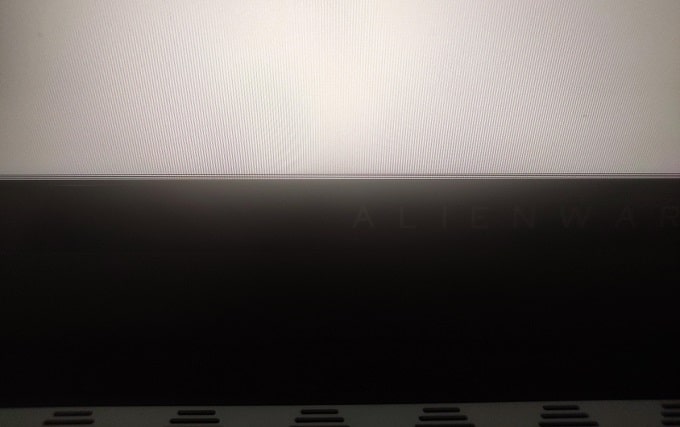
Are you experiencing flashing horizontal lines on your Alienware laptop screen? This guide will explain the leading causes of this frustrating issue and provide simple steps to restore your laptop to its previous working order. With a few troubleshooting tips, we’ll tackle this problem head-on and make your laptop look as good as new. Don’t let those pesky horizontal lines get in the way of enjoying all that Alienware offers.
What are the possible causes of horizontal lines on an Alienware laptop screen?
Experiencing horizontal lines on an Alienware laptop can cause concern and impact the laptop’s performance. However, a few common causes can be identified and addressed to resolve the issue.
Common Causes of Horizontal Lines on Alienware Laptops:
-
Defective LCD Panel
One of the most common causes of horizontal lines on Alienware laptops is a defective LCD panel. The LCD panel can become defective due to age or damage, leading to horizontal lines. To resolve this issue, the LCD panel should be repaired or replaced.
-
Faulty Graphics Card
Another potential cause of horizontal lines on an Alienware laptop is a faulty graphics card. If the graphics card isn’t functioning correctly, it can result in horizontal lines on the display. Replacing the graphics card with a compatible one can resolve this issue.
-
Loose Connections
Loose connections between the laptop and its components can also lead to horizontal lines on the display. If the connections are loose, they can cause the laptop to display lines on the screen. Checking and tightening the connections if necessary can resolve this issue.
-
Corrupted Drivers
If the laptop displays horizontal lines, it could be due to corrupted drivers. Corrupted drivers can cause the laptop to display lines on the screen. Updating the drivers to the latest version can resolve this issue.
-
Overheating
Overheating can also result in horizontal lines on an Alienware laptop. If the laptop is overheating, it can cause lines to appear on the display. Cleaning the laptop of dust and checking the cooling system for malfunctioning parts can resolve this issue.
-
Physical Damage
Lastly, physical damage to the laptop can lead to horizontal lines on the display. If the laptop has been dropped or damaged, it can cause lines to appear on the screen. Repairing or replacing the laptop may be necessary to fix this issue.
By addressing these common causes of horizontal lines on an Alienware laptop, you can effectively resolve and fix the issue by identifying its root cause.
How to check if your laptop screen is damaged or needs replacement?
Regularly checking your Alienware laptop is crucial to determine if the screen is damaged or requires replacement. While laptop screens can last for years, they aren’t indestructible. Damage can occur from drops, scratches, and everyday use. It’s also possible for the screen to develop faults over time due to general wear and tear.
Follow these steps to determine if your Alienware laptop screen is damaged or needs replacement:
- Check the Screen for Visible Damage: Inspect the laptop screen for cracks, scratches, or discoloration. Pay special attention to the corners and edges. If you identify any damage, the screen likely requires replacement.
- Test the Screen for Malfunctioning: If there’s no visible damage, test the screen for malfunctions. Turn on the laptop and examine the display for correct colors, flickering, or lines. If you notice any issues, it may be time to replace the screen.
- Check the Screen Brightness: Adjust the screen brightness using the laptop’s software. If the brightness adjustment doesn’t work or seems faulty, it might indicate the need for screen replacement.
- Check the Laptop’s Warranty: Verify the laptop’s warranty status if you suspect screen damage or replacement. Many laptop manufacturers provide warranties that cover screen repairs. If your laptop is still under warranty, you can have the screen repaired or replaced at no cost.
Regularly checking your Alienware laptop screen’s condition and assessing its need for replacement is essential. If you believe the screen needs replacement, consult the laptop’s warranty to determine coverage.
How To Fix Horizontal Lines on Alienware Problems?
Alienware laptops are renowned for their high-performance gaming capabilities and sleek design. Unfortunately, they may occasionally experience issues with horizontal lines appearing on their screens. While this can be frustrating, a few steps can help resolve the issue effectively.
Fix the LCD Panel
The first step in addressing horizontal lines on an Alienware laptop is to inspect the LCD panel. Ensure that the screen isn’t obstructed and hasn’t been damaged. Remove the laptop’s bezel and examine the LCD panel for any visible deformities.
Fix Connections
Check all connections linked to the laptop. Confirm that the video cable is securely connected and that the power cable is properly plugged into a functioning outlet. Loose or disconnected connections can lead to horizontal lines on the laptop’s screen.
Fix Graphics Drivers
Updating the graphics drivers is essential. Visit the manufacturer’s website to download the latest graphics driver version. After installation, restart the laptop and check whether the horizontal lines are still present.
Fix for Overheating
Overheating can contribute to horizontal lines on an Alienware laptop. To address overheating, inspect the cooling system after opening the laptop. Ensure the cooling fan is operational and that internal temperatures aren’t excessively high. Overheating issues may require professional servicing or replacement.
Fix for Physical Damage
Physical damage can result in horizontal lines on an Alienware laptop. Inspect the laptop’s exterior for visible signs of damage. If physical damage is present, professional servicing or replacement may be necessary.
Run Diagnostics and Fix All
Conducting diagnostics is the final step in resolving horizontal lines on an Alienware laptop. Access the laptop’s BIOS and initiate the built-in diagnostics. After completion, address any identified issues to potentially resolve the horizontal lines issue.
Following these steps should help resolve horizontal lines on an Alienware laptop. However, consulting a professional may be advisable for further assistance.
Conclusion
Please note that the guideline instructions provided may not always apply to the symptoms your computer is experiencing. Sometimes, symptoms or behavior can be the same, but the underlying reason or fault can be completely different.
The fastest way we can assist customers is by bringing computers to our workshop, where technicians have the tools to diagnose faults accurately. After checks, if parts are found to be faulty or damaged, we proceed to replace them with high-quality original parts.
No appointments are required; you can drop off your computer at our workshop during working hours.
If you have more queries about our laptop repair and upgrade services, please feel free to contact us at 020 7018 7490 or email us at contact@pcfixlondon.com
Recent Comments