acer-laptop-lcd-screen-replacement

The laptop’s LCD monitors feature a lot of moving parts. Therefore it’s not uncommon for them to break down. You can also break the laptop’s LCD screen by dropping it from your hand. Most problems, except for significant physical harm, can be resolved at home. You can even replace an Acer Aspire laptop LCD screen from home easily. This article will talk about how to replace the LCD screen on an Acer Aspire laptop. Before you do anything, make sure your laptop is in good working order and that the screen truly needs to be replaced.

How to Replace LCD Screen on Acer Aspire Laptop

Here are the steps you should follow to replace your laptop’s LCD screen. Let’s start

Find a Replacement Screen

To replace your laptop’s LCD screen, you need to find the perfect replacement screen first. Finding a new LCD is usually straightforward, and you won’t have to pay the manufacturer’s exorbitant fees. Instead, enter your laptop model number and the terms LCD screen into online shops. This is the most straightforward way to find a replacement screen for your laptop. If you’re still having trouble, look for other identification numbers on the laptop label or in the manuals.

Collect Tools

Before starting, you have to ensure the proper tools that you will need.

    • Table or Other Flat Working Area: You’ll need a level surface to work on your laptop and a place to sit (or stand, if that’s your thing).
    • Small-head Magnetic Screwdriver: If you don’t have a screwdriver with a magnetic head, find a magnet large enough to magnetize the driver’s head.
    • Plastic Putty Knife or Other Thin Object: This is optional to pry apart the case’s screen bezel.
    • Safety Pin: It is for removing the cover stickers that hide the screws on the bezel of your laptop’s surrounding cover.
    • Small Container: You’ll be able to keep the tiny screws safe from curious cats and youngsters.

Take Safety Precautions

Make sure the laptop is unplugged from the AC adapter before you start the replacement process. Besides, you have to remove the laptop’s battery as well for safety purposes.

Remove Cover Stickers

You have to find the spherical cover stickers on the screen bezel. And in this case, the stickers surround the screen, which hides the screws. To remove the cover stickers without damaging them, you can use a sharp, pointy tool like an opening safety pin or needle. But, first, pry the sticker away from between the edge of the cover and the bezel.

Pull Out Screws

Now you need to remove the now-exposed screws with your screwdriver. Some screws are simple to remove, while others are a little difficult. Moving the screen into the exact proper position, on the other hand, frequently exposes the screws sufficiently to remove them.

Take off Screen Bezel

Pry the screen bezel away from the backside of the screen case with care. In the crack around the outside of the screen, work a fingernail or other thin, prying tool. The LCD is fastened to a metal trim frame on the left and right sides after the bezel is removed. Next, you have to remove the two screws holding the trim frame to the back screen case. Now you can lift the LCD slightly away from the back screen case.

Separate LCD Screen

Now you have to lift the LCD screen and Disconnect the video cable from it. It would be best if you pulled the wires away from the screen gently. You usually must remove the tape that’s securing the video connector to the back of the screen. Once you’ve entirely removed the broken LCD, you will be able to replace it with a new one.

Place New Screen

You need to replace the old LCD screen with a new one and reattach the video cable to the connector. Now you have to place the cable lines and any tape just like they were for the old one. Next, ensure the bezel is fully snapped in place, and there are no cracks around the edges of the screen case. Finally, reattach the sticky screw covers with a safety pin or needle; after successfully replacing the LCD screen, power up your laptop.

Conclusion

These are the steps you should follow while replacing your Acer Aspire laptop LCD screen. Of course, you must be careful when you restore the LCD screen. After replacing the screen, if you face any kind of problem, ask an expert for a free quote for the Acer LED screen replacement.

Please note that the guideline instructions provided may not always apply to the symptoms your computer is experiencing. Sometimes, symptoms or behavior can be the same, but the underlying reason or fault can be completely different.

The fastest way we can assist customers is by bringing computers to our workshop, where technicians have the tools to diagnose faults accurately. After checks, if parts are found to be faulty or damaged, we proceed to replace them with high-quality original parts.

No appointments are required; you can drop off your computer at our workshop during working hours.

If you have more queries about our laptop repair and upgrade services, please feel free to contact us at 020 7018 7490 or email us at contact@pcfixlondon.com
Acer-laptop-water-damage-repair

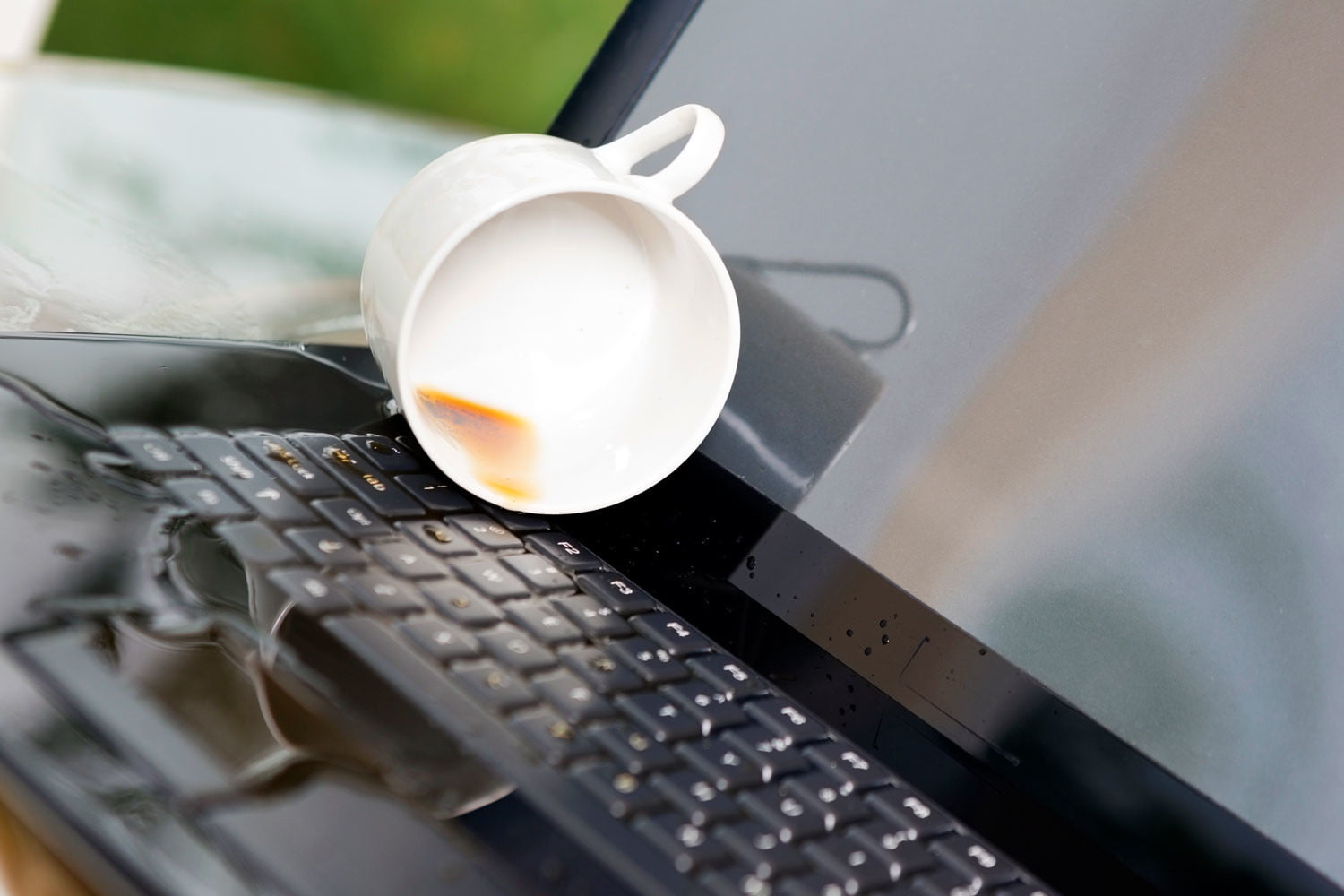
If you’ve accidentally spilt water on your Acer laptop, time is of the essence. You don’t need to worry about the matter because you can solve it quickly. Taking some proper steps, you can recover the laptop from the damage. You absolutely must turn off the laptop immediately and unplug it without wasting any time. Then you can take some necessary steps to recover your laptop. In this article, we will talk about how you can fix Acer laptop water damage.

If you follow some simple steps that will help to fix the water damage to your Acer laptop from home.

Steps to Follow For Wet Laptop Emergency

Suppose you are eating while using your laptop and slipped water on it. Then these are the steps you have to follow to fix the laptop.

Step 1: Detached Components

As we said before, first, you have to turn off the laptop while you are fixing any water damage issue. After that, you have to remove all easily detachable components from the laptop. For example, if you are using an external mouse, unplug the mouse, all cables, remove any flash drives and DVDs, and leave your laptop bare.

Step 2: Dry your laptop

Now you have to dry the outside of your machine (the laptop). Then open the laptop as far as it goes, hold it upside down to let any accumulated liquid drain out. Then you can use an absorbent towel or a lint-free absorbent fabric to wipe wet surfaces until they’re dry. You have to keep in mind not to dry the computer with forced hot air from a heat gun or hairdryer.

At this point, you can take advantage of the warranty if it’s still applicable for your laptop and take it to the repair shop if you want. If you are capable, then separate all the parts and fix the laptop entirely by ownself.

Step 3: Separate All Parts And Fix the Laptop

You can separate all the internal parts of your laptop and dry them all individually to fix your laptop from water damage.

Step 4: Remove Battery

As you have disconnected the power source of your laptop, please remove the battery from it. Now make your laptop upside-down and remove the battery by lifting it out of the laptop.

Step 5: Takeout All Screws

Keep your laptop upside-down and find all the screws on the backside of the laptop. Use a screwdriver to unscrew and open the back cover of your laptop. You have to separate the keyboard after opening the back cover of your laptop. Now you have access to the internal portion of your laptop through unscrewing.

Step 6: Extract Parts

Now you need to extract all the internal chips and parts from the motherboard of your laptop. You have to be careful while unscrewing and removing the cooling fans. Next, extract all the small components and chips from the inner side of your laptop.

Step 7: Check Wetness

You have to examine each component you’ve removed to check for any sign of wetness or corrosion. First, you need to dry all the parts from the inside of your laptop. Use a clean toothbrush dipped in 99% isopropyl alcohol (circuit cleaner) to wipe it. This will dissolve gunk without causing liquid damage and evaporate without leaving a sticky residue.

Step 8: Dry

Once you have cleaned everything examined and sure you’ve brushed away any signs of corrosion, leave everything alone to air-dry for two to three days in a warm, dry area. After that, you can use a fan that will hasten the drying process of inside components. But keep in mind not to use a hairdryer, because that could cause static problems.

Step 9: Reconstruct

Once you’ve picked your machine apart and given the components time to dry, now it’s time to reassemble the laptop. First, you need to drop the motherboard with the processor and cooling assembly into the appropriate notch. Reverse all the processes you have followed to separate all the connections and chips. If you’ve reassembled the laptop in the correct order, you should be able to power up your laptop for reuse.

Conclusion

These are the straightforward processes that you should follow to fix your Acer laptop’s water damage. If you follow the steps, I hope to help your laptop recover from water damage issues. By any chance, the damages are a lot more due to spilled water. You can come to our repair shop to fix the Acer laptop water damage issue.

Please note that the guideline instructions provided may not always apply to the symptoms your computer is experiencing. Sometimes, symptoms or behavior can be the same, but the underlying reason or fault can be completely different.

The fastest way we can assist customers is by bringing computers to our workshop, where technicians have the tools to diagnose faults accurately. After checks, if parts are found to be faulty or damaged, we proceed to replace them with high-quality original parts.

No appointments are required; you can drop off your computer at our workshop during working hours.

If you have more queries about our laptop repair and upgrade services, please feel free to contact us at 020 7018 7490 or email us at contact@pcfixlondon.com
Laptop-Motherboard-Repair-all

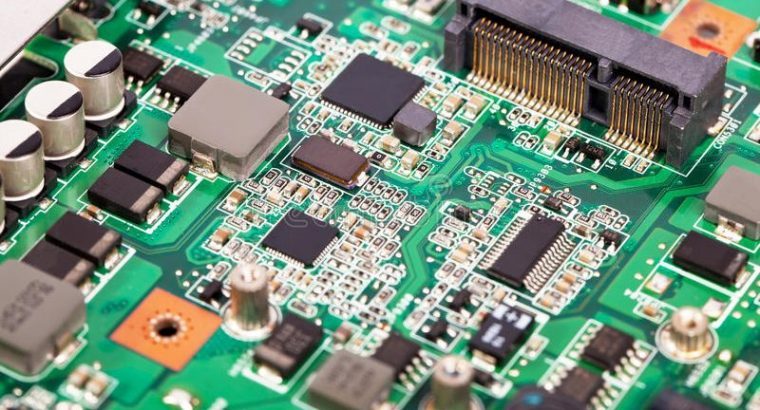
Almost all people confront motherboard failure problems while using desktops and laptops nowadays. You may find that your laptop is not powering up because of motherboard failure. When a laptop’s motherboard fails, you have to replace it with a new one. Without asking help from an expert, you can replace the motherboard from home. However, you need to follow some simple steps to do that perfectly. This article will teach you how to replace a motherboard on an Acer laptop that has failed.

Here are the steps you should follow while replacing the motherboard on your Acer laptops.

Step 1: Remove Battery

First, you need to disconnect your laptop’s power source to remove the battery from the laptop. Now make your laptop upside-down and remove the battery by lifting it out of the laptop. This will ensure your safety while starting the motherboard replacement process of your laptop. If you found that your laptop has a mounted battery, you can skip the step.

Step 2: Open Back Cover

Now, keeping the laptop upside down, you need to find the screw points of your laptop. You have to use a screwdriver to remove them all from your laptop. This will help to open the back cover of your laptop. You must need access to all the screw points of the laptop’s cover.
Be careful while you are unscrewing the service plate’s cover of the laptop. After the panel has been loosened by the plastic opening tool, you have to take a finger, place it in the gap, and then remove the panel from the laptop. You must need to keep all the laptop’s screws in a safe location because you will need all these screws at the time of restoring your device.

Step 3: Remove Keyboard Panel

After that, you need to take the laptop in an available position and locate the tabs keeping the keyboard in place. Then, you can use thin tweezers to push the tabs in the keyboard and pull them up on the edge of it. Of course, when you push it, the keyboard will bend, and it may seem like it’s breaking, but there is no need to worry.

Then use your hands when the keyboard begins popping out of place. To keep the part that has been detached from the laptop in the air. After that, you need to continue pushing in tabs and lifting the keyboard as described above. Now you have successfully separated the keyboard from your Acer laptop.

Step 4: Separate Parts

After you have removed all of the prerequisites, it’s time to unscrew a few more screws. Next, you have to release all the components’ connections attached to the motherboard, such as the power button and the trackpad. You must need to remove these connections the same way you undid the keyboard using the tweezers. Be very much careful while you are using your hands to separate the connections. It would be best if you needed to use a plastic opening tool or your hands to carefully lift the corner of the top panel of the laptop.

Step 5: Pull Out Cooling Fan

Once you have located the laptop’s cooling fan, use a screwdriver to separate it from the motherboard. One of the screws may be directly beneath a set of wires, so be careful not to cut those wires as you remove the screws. Instead, it would help if you used tweezers to disconnect the wires connecting the fan to the laptop and pull out the fan from the board.

Step 6: Replace the Motherboard

Locate the two strips and the wire bundle that is connected to the motherboard from other components. You have to be careful while removing the connections, as done previously for the keyboard. Next, lift the motherboard, and locate the last wire bundle that needs to be removed. The motherboard should now be completely free of connections, and you can remove the motherboard. Now you can replace the motherboard with a new one.

Step 7: Reassemble All Parts

Finally, you have to restore all the connections to the laptop. For that, you need to place the connections right on the motherboard. Next, you have to drop the motherboard with the processor and cooling assembly into the appropriate notch. Finally, reverse the process you have followed to separate all the connections and chips. If you’ve reassembled the laptop in the correct order, you should be able to power up and see the BIOS screen. Now you need to install your preferred operating system to use your laptop.

Conclusion

These are the elementary steps you should follow while replacing the motherboard of your laptop. I hope this will help you to deal with your motherboard failure issue. Be attentive and careful while you are opening the laptop to look inside.

Please note that the guideline instructions provided may not always apply to the symptoms your computer is experiencing. Sometimes, symptoms or behavior can be the same, but the underlying reason or fault can be completely different.

The fastest way we can assist customers is by bringing computers to our workshop, where technicians have the tools to diagnose faults accurately. After checks, if parts are found to be faulty or damaged, we proceed to replace them with high-quality original parts.

No appointments are required; you can drop off your computer at our workshop during working hours.

If you have more queries about our laptop repair and upgrade services, please feel free to contact us at 020 7018 7490 or email us at contact@pcfixlondon.com
Acer-Laptop-Motherboard-Repair

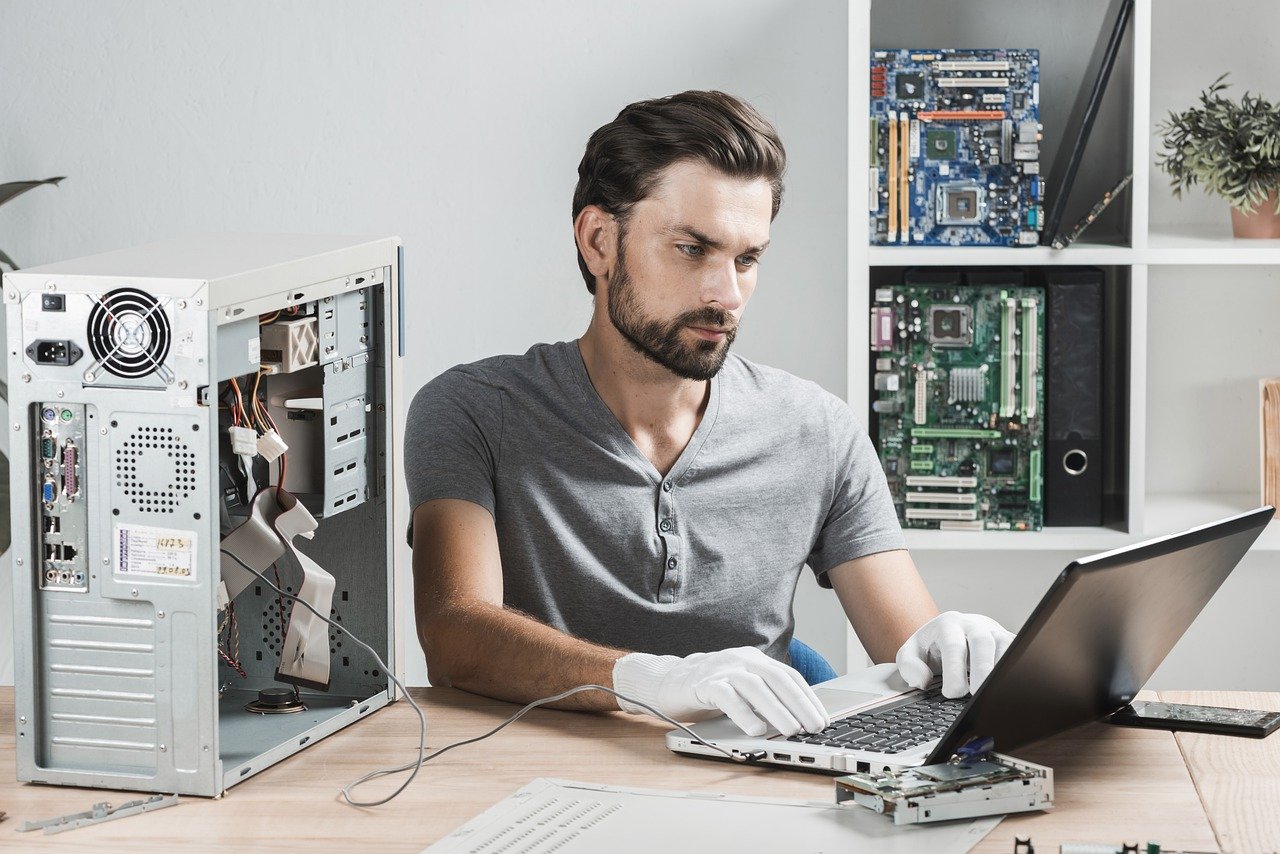
Motherboard failure is a common problem that people face while using laptops. After checking all other possibilities, you may find that the motherboard is the last suspect to verify why the laptop is not powering up. When any laptop has a motherboard that has failed, the only possible route for the end-user is to clean it and try to power up. This article will show you how to fix a motherboard failure on an Acer laptop.

Here are the steps you should follow to fix your motherboard failure in your Acer laptops from home.

Step 1: Take Safety Precautions

At first, you have to disconnect the power cable from the laptop. That will make sure your safety while starting the fixing process of your laptop. After that, flip the laptop upside down to remove the battery from it. If your laptop has an internally mounted battery, you can skip the step.

Step 2: Remove All Screws

Now, find the screw points of your laptop so that you can remove them. Keep the laptop upside-down until you have access to all the screw points of the laptop’s cover.

You have to unscrew the service plate’s cover of the laptop carefully. This will help you to gain access to the memory and drive as well as the wireless adapter. If your laptop requires removing all screws on the underside, then unscrew all possible screw locations. You must need to keep all the laptop’s screws in a safe location because you will need all these screws at the time of restoring your device.

Step 3: Separate Parts

After unscrewing, you can now open the laptop’s cover. Then, you have to remove the memory, storage, optical drive (if the laptop has one), and wireless adapter. There’s a chance you’ll have to deal with screws holding the drive and wireless adapters in place. You must also disconnect the wireless adapter’s black and white cables flowing away from the adapter. Be careful while you are into the laptop body because it is a little sensitive to handle a laptop’s internal chipset.

Step 4: Extract Cooling Fan

Therefore, you have to unplug all connections of your laptop from the motherboard. This includes the display, USB connectivity, cooling fan, and other chips. Remove the cooling fan by unplugging it from the motherboard. If there is any screw attached to the cooling fan, unscrew them and remove the fan.

Step 5: Use Circuit Cleaner

After that, you need to unscrew the heatsink assembly from the motherboard. And you have to use isopropyl alcohol to clean the thermal paste from the CPU, GPU, and chipset (if it’s a unified Heatpipe assembly). But suppose, for some reason, you may not have access to isopropyl alcohol or rubbing alcohol. IN that case, you can use nail polish remover instead of isopropyl alcohol.

Step 6: Clean The Motherboard

You may or may not be required to remove the processor from the board, depending on the model of your Acer laptop. Next, you have to lift the processor and release all the connections. To use a circuit cleaner to clean the motherboard and wait for a while. This is the last work you need to do to fix your laptop motherboard problem.

Step 7: Reassemble

Finally, you have to restore all the connections to the laptop. For that, you need to place the processor on the motherboard. Next, you have to reapply thermal paste onto the die surfaces for your CPU, GPU, and chipset. Then remount the cooling assembly onto the motherboard of your laptop. And after that, connect the cooling fans’ power cable. Finally, you have to drop the motherboard with the processor and cooling assembly into the appropriate notch. If you’ve reassembled the laptop in the correct order, you should be able to power up and see the BIOS screen.

Final Thought

I hope following these simple steps will help you to fix the motherboard issues of your Acer laptops. As this is a common problem, you can fix it at home before asking an expert. Laptops mainly face motherboard-related issues often these days. If these simple steps cannot solve your problem, you have to replace the motherboard with a new one.

Please note that the guideline instructions provided may not always apply to the symptoms your computer is experiencing. Sometimes, symptoms or behavior can be the same, but the underlying reason or fault can be completely different.

The fastest way we can assist customers is by bringing computers to our workshop, where technicians have the tools to diagnose faults accurately. After checks, if parts are found to be faulty or damaged, we proceed to replace them with high-quality original parts.

No appointments are required; you can drop off your computer at our workshop during working hours.

If you have more queries about our laptop repair and upgrade services, please feel free to contact us at 020 7018 7490 or email us at contact@pcfixlondon.com

acer laptop repair

Regardless of how gently you use your laptop, a user generally faces many problems working on it. Many types of errors may occur in your device, and they might be regarding your laptop’s hardware or software. The brand of your laptop doesn’t even matter that much. Some of the common problems like processing, assembly, or configuration may occur in any brand.

However, Acer Laptop users are most commonly confronted with five different types of errors. Suppose you face the problems like freezing frames in your laptop’s display, sluggish processing performance, incapability of the motherboard. You must follow the steps provided herein, which may provide satisfaction to your concern, or if not getting the proper results, you should contact your nearest Acer service center. The assistance of professionals can be the best solution for your problems. Here we provide you with five easy fixes to the problems that may help you resolve all the problems quickly and effectively.

Five common problems of Acer laptops and easy solution:

System’s heating problem

When the system’s processor is overloaded and not giving up to the mark performance, when there is an excessive amount of increment in heat, this may generally result in the heating problem of the whole system. The excess heating issue may damage the laptop’s internal parts, instead of having a fan inside the laptop to regulate the temperature and cool down the excess storage of heat in your electrical device.

The solution to fix the heating issue:

  1. Remove the dust: If you are facing a heating problem in the laptop, the first step you have to follow is cleaning the dust present inside your device. Vents are present inside your laptop for easy flow of the air and heat. The dust clogged inside may dysfunction some parts like it may prevent fan blades or vent from working effectively. The dust ultimately causes the fan to work harder, and the heat may not be released, which results in a heating issue.
  2. Keep the laptop in the cool room: It’s an optional step to follow depending upon the level of heating. You have to keep your heated laptop in a cool room which may maintain a proper temperature. After it is done, you may move it further.
  3. Proper ventilation: You should always keep your laptop at a proper height, giving your good laptop ventilation. As we discussed above, the stuck dust might increase heating, and good ventilation may solve this problem.
  4. Always keep your laptop updated: As Acer provides BIOS updates for the users.
  5. Low power mode: Always try to work on your laptop using low power consumption mode. By doing this, your laptop consumes less power and release low heat, and will remain cool.

Low-performance rate with long boot time

If you are also facing the problem of sluggish performance, lacking or your device is getting hang when you use several applications at a time. And if your laptop is taking more than regular boot time, then the bootloader is much needed.

The solution to fix the problem:

  1.  Firstly, you have to uninstall all the unused applications or programs. For the long run, to get over this problem, you have to download ‘suite 7 professional tool’, which is an effective optimizer and start-up manager.
  2. Upgrading to an advanced RAM level can be a good solution to get rid of its sluggish performance. Slow performance can result from low memory as your laptop might require more memory to function properly.

Sudden shut down the problem

This is considered a common problem for Acer users. This can be cured by applying some common fixes. You have to analyze the issue and troubleshoot the particular section of the software causing the problem.

The solution to fix the problem:

 Every Acer laptop has a pre-installed antivirus named ‘Windows defender. So, the user has to uninstall all the third-party installed applications and programs. These programs may lead you to the laptop shutdown.

  1. Mainly the program or applications running in the background may cause multiple malfunctions in your system resulting from your laptop shutdown. Close all the programs running in the background, and if you are not able to close them use task manager to close them anyhow.
  2. Always keep your laptop updated.  Always keep searching for updates to keep your laptop up to date.

Flickering or Black screen issue

If you are using Windows 10 on your laptop, you must have gone through a problem with the unexpected appearance of a black screen. To fix this issue of flickering or blacking of the screen, you have to follow some steps on your Acer laptop.

The solution to fix the problem:

  1.  The following reasons may cause this problem: Application incompatibility and issue in the display driver.
  2. Avoid connecting any external device as it may result in a blackout of your laptop screen.
  3. In this situation, you have to wake up your laptop’s display by clicking ‘Windows key + Ctrl + Shift + B.’
  4. If the issue is not resolved, then the last option is to troubleshoot your laptop to fix the problem. This can do by restarting your laptop and boot in the device in safe mode.

Excessive notice from laptop’s fan

As we already discussed, when you work in a high-power mode, the processor has to work with high frequency, and also, the fan starts spinning faster. Dust is also one of the reasons for fans causing more notice while spinning. But most of the peoples are less bothered about cleaning the fan. Many of them are afraid and still dependent on experts for such cleaning purposes.

The solution to fix the problem:

  1.  One must not overshadow this minor problem as this may result in obstruction in fan blades and make them noisier while working.
  2. You have to turn off your laptop and cut its electricity flow.
  3. Remove its battery and try to find an air vent placed at the outer edge.
  4. Unscrew the below panels, and now you can see the fan.
  5. Deep clean the fan and blow out all the dust present.

Conclusion

Not every Acer laptop has these problems. But one must get his mind prepared before purchasing a laptop to encounter suck issues. We perform Acer Laptop screen replacement if your screen is flickering, has brightness issues, lines, scratches, or marks.

Please note that the guideline instructions provided may not always apply to the symptoms your computer is experiencing. Sometimes, symptoms or behavior can be the same, but the underlying reason or fault can be completely different.

The fastest way we can assist customers is by bringing computers to our workshop, where technicians have the tools to diagnose faults accurately. After checks, if parts are found to be faulty or damaged, we proceed to replace them with high-quality original parts.

No appointments are required; you can drop off your computer at our workshop during working hours.

If you have more queries about our laptop repair and upgrade services, please feel free to contact us at 020 7018 7490 or email us at contact@pcfixlondon.com