Lenovo laptop wont turn on

A Lenovo laptop that won’t turn on can be frustrating, especially when you need it for work or personal tasks. Power issues can arise due to various reasons, including battery problems, faulty chargers, overheating, or internal hardware failures. Fortunately, many of these issues can be resolved with simple troubleshooting steps.

In this guide, we’ll walk you through step-by-step solutions to fix a Lenovo laptop that won’t turn on. Additionally, we’ll provide preventive measures to help you avoid such problems in the future. Whether your laptop is completely unresponsive or showing signs of power issues, this guide will help you diagnose and resolve the problem effectively.

Common Causes of Lenovo Laptop Not Turning On

  1. Battery Problems: A dead, damaged, or improperly connected battery can prevent your Lenovo laptop from turning on. If the battery is faulty or doesn’t hold a charge, it could be the reason for the issue.
  2. Power Supply Issues: A faulty power adapter, charger, or power cable might prevent the laptop from receiving enough power to boot up.
  3. Hardware Failures: Issues with critical internal components such as the motherboard, RAM, or hard drive can lead to your Lenovo laptop not powering on.
  4. Display Problems: Sometimes, your laptop may be functioning but the screen won’t display anything due to a faulty screen, a damaged connection, or issues with the graphics card.
  5. Software Corruption: Corrupted operating system files, failed updates, or software conflicts can also prevent your Lenovo laptop from turning on properly.

Steps to Fix a Lenovo Laptop That Won’t Turn On

If your Lenovo laptop refuses to power on, follow these troubleshooting steps to identify and resolve the issue.

1. Check the Power Supply

  • Ensure the power adapter is properly plugged into the laptop and wall outlet.
  • Try a different power outlet to rule out issues with the socket.
  • If the charging light does not turn on, test with another compatible charger.

2. Perform a Hard Reset

  • Disconnect the power adapter and remove the battery (if removable).
  • Press and hold the power button for 30-60 seconds to drain residual power.
  • Reconnect the battery and charger, then attempt to turn the laptop on.

3. Inspect the Battery and Charger

  • If the laptop works with the charger plugged in but not on battery, the battery may be faulty.
  • If the charging port feels loose or damaged, it may require professional repair.

4. Check for Display Issues

  • If the power light turns on but the screen remains black, connect an external monitor to check for display issues.
  • Adjust brightness settings or perform a forced restart.

5. Remove External Devices

  • Disconnect all USB devices, external hard drives, or peripherals that might cause boot issues.
  • Try booting the laptop without them connected.

6. Look for Signs of Overheating

  • If the laptop was overheating before shutting down, let it cool down for 15-30 minutes.
  • Check if the cooling fan is working properly.

7. Boot Into Safe Mode

  • If the laptop turns on but fails to load Windows, try booting into Safe Mode by pressing F8 or Shift + F8 during startup.

8. Reset the CMOS Battery

  • If comfortable, open the back panel, remove the CMOS battery, wait for a few minutes, then reinsert it.
  • This can reset BIOS settings and help resolve power issues.

9. Check for Hardware Damage

  • If none of the steps work, the issue might be related to the motherboard, RAM, or other internal components.
  • In such cases, seeking professional repair assistance is recommended.

If your Lenovo laptop still won’t turn on after trying these steps, you may need expert diagnosis and repair services.

Prevention Tips to Avoid Lenovo Laptop Power Issues

To ensure your Lenovo laptop remains functional and avoids power-related issues, follow these preventive measures:

1. Use an Original Charger and Battery

  • Always use Lenovo’s original charger and battery to prevent compatibility issues.
  • Avoid using low-quality or third-party power adapters.

2. Keep the Charging Port Clean

  • Regularly inspect and clean the charging port to remove dust or debris.
  • Avoid forcing the charger into the port to prevent damage.

3. Prevent Overheating

  • Use the laptop on a flat, hard surface to ensure proper airflow.
  • Clean the cooling vents and fan regularly to prevent dust buildup.
  • Avoid blocking the air vents by using the laptop on soft surfaces like beds or sofas.

4. Avoid Overcharging

  • Unplug the charger once the laptop is fully charged to prevent battery degradation.
  • If you use the laptop on AC power frequently, remove the battery (if removable) to prolong battery life.

5. Perform Regular Software Updates

  • Keep the BIOS, drivers, and operating system up to date to avoid software-related startup issues.
  • Enable automatic Windows updates for security and stability improvements.

6. Protect Against Power Surges

  • Use a surge protector or UPS (Uninterruptible Power Supply) to safeguard against voltage fluctuations.
  • Avoid using the laptop during thunderstorms without protection.

7. Handle the Laptop with Care

  • Avoid dropping or shaking the laptop, as internal components may get damaged.
  • Store the laptop in a padded case while traveling to protect it from physical impact.

8. Perform Regular Battery Calibration

  • Discharge the battery to around 5-10% and then fully recharge it once a month.
  • This helps maintain accurate battery health readings.

9. Avoid Force Shutdowns

  • Always shut down or restart properly to prevent sudden power failures.
  • If the laptop freezes, try using Ctrl + Alt + Delete instead of forcing a shutdown.

10. Schedule Regular Maintenance

  • Check the laptop’s internal components periodically, especially if you notice heating, battery drainage, or charging issues.
  • Seek professional servicing if you detect unusual noises or performance drops.

By following these preventive steps, you can extend the lifespan of your Lenovo laptop and minimize the risk of power-related failures.

Additional Services for Lenovo Laptops

Aside from fixing power-related issues, we offer various additional repair services for your Lenovo laptop:

  • Screen replacements: If the screen is damaged or not displaying anything, we can replace it with a genuine Lenovo display.
  • Data recovery: If your laptop won’t turn on due to a hardware failure, we offer data recovery services to retrieve your important files.
  • Laptop upgrades: Need more storage or memory? We can upgrade your Lenovo laptop to boost its performance and extend its lifespan.

Why Choose Us for Asus Laptop Repairs?

  • Skilled technicians: Our certified technicians are experts in diagnosing and repairing Lenovo laptops, ensuring that your device is fixed quickly and accurately.
  • Original parts: We use only genuine Lenovo parts for repairs, ensuring that your laptop operates as intended after the fix.
  • Walk-ins welcome: You don’t need an appointment – simply bring your Lenovo laptop to our store, and we’ll assist you on the spot, with same-day repairs subject to parts availability.
  • No fix, no fee policy: If we can’t fix the issue, you won’t be charged for our service.
  • Same-day repair: We understand how important your laptop is, and we prioritize a quick and efficient repair process to minimize downtime. Same-day repair available, depending on the complexity of the issue and parts availability.

Conclusion

If your Lenovo laptop won’t turn on, don’t worry. PC Fix London is here to help. Our experienced technicians can accurately diagnose and repair the issue, whether it’s a battery problem, motherboard malfunction, or software corruption. We use only original parts, ensuring the best results for your Lenovo laptop.

No appointment is needed. You can visit our service center during working hours from Monday to Friday.

Contact us today at 020 7018 7490 or email us at contact@pcfixlondon.com to schedule your repair. Whether it’s a minor issue or a more complex problem, we’re here to get your Lenovo laptop up and running again.

horizontal-lines-Lenovo

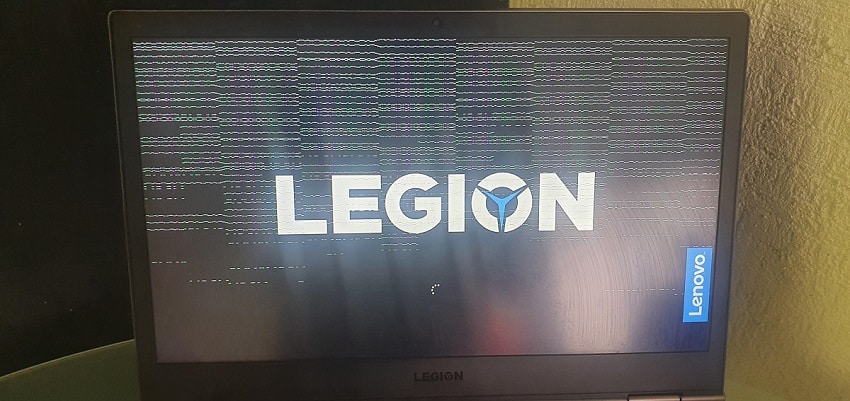
If your Lenovo screen is flickering or covered in horizontal lines, the first thing you need to determine is whether the fault is Software (Drivers) or Hardware (The Screen/Cable). At our Kings Cross lab, we see this issue daily on everything from ThinkPads to Legion gaming rigs. Before you spend money on a new screen, follow our bench-test guide to find the root cause.

Step 1: The “BIOS Test” (The Ultimate Diagnostic)

This is the fastest way to see if your hardware is failing.

  1. Turn off your Lenovo.
  2. Turn it on and immediately tap F1 (or F2 on some models) to enter the BIOS menu.
  3. The Result: * Lines are still there: It’s a physical hardware fault (Screen or Video Cable). Software updates won’t fix this.
    • Lines disappear in BIOS: Your hardware is fine. The issue is a corrupted Windows Display Driver.

Step 2: The “Hinge Flex” Test

Lenovo laptops, especially the Yoga and IdeaPad series, are prone to “cable pinching.”

  • While the laptop is on, slowly move the screen back and forth.
  • If the lines flicker, change color, or disappear at a certain angle, the EDP Video Cable inside the hinge is frayed or loose.
  • Technician’s Note: This is a much cheaper fix than a full screen replacement. We repair these at Sinclair House by reseating or replacing the internal cable.

Step 3: External Monitor Check

Plug your Lenovo into a TV or monitor via HDMI.

  • If the external screen is clear but the laptop has lines, your screen is the problem.
  • If the lines appear on both screens, your Graphics Chip (GPU) on the motherboard is failing.

Conclusion: Get a Professional Assessment at Sinclair House

Horizontal lines are one of the most common issues we handle at PC Fix London. While some software glitches can be fixed with a driver roll-back, most persistent lines are a physical “cry for help” from your hardware.

Don’t spend money on parts you might not need. If your Lenovo is acting up, bring it to our experts in Kings Cross. We’ll perform a real-world stress test, check your internal cables, and give you a straight-talk repair plan that saves you time and money.

Visit us at Sinclair House today—no appointment needed for a quick counter-check.

Lenovo Screen Issues: Frequently Asked Questions

1. Can horizontal lines on a Lenovo screen be fixed without replacing it?

It depends. If the lines disappear when you move the screen (the “Hinge Test”), we can often just replace or reseat the internal EDP cable. If the lines stay perfectly still and never change, the LCD panel itself is likely cracked internally and needs a full swap.

2. Are horizontal lines always a hardware problem?

Not always. If the lines only appear once Windows loads but are gone when you are in the BIOS menu, it’s a driver conflict. We see this often after a Windows 11 update on older Lenovo IdeaPads.

3. Why do the lines change color when I press the edge of the screen?

That is a “vertical/horizontal gate” failure. It means the delicate adhesive holding the ribbon cable to the glass has failed. On modern Lenovo Slim models, this isn’t repairable and requires a new screen assembly.

4. How much does a Lenovo screen replacement cost in London?

Prices vary depending on the model. A standard 15.6″ IdeaPad screen is relatively affordable, while a 4K touch-screen for a Lenovo Yoga or a high-refresh-rate Legion gaming panel will cost more. We provide a fixed quote at our Sinclair House lab before starting any work.

5. Is it safe to keep using my laptop with lines on the screen?

It won’t blow up, but it is a sign of stress. If the lines are caused by a failing GPU (graphics chip), the laptop might eventually stop turning on altogether. It’s best to get a quick diagnostic at our Kings Cross bench before a small problem becomes a dead motherboard.

dell hp lenovo laptops

Laptops have become an integral part of our daily lives, and we use them for work, entertainment, and communication. However, accidents happen, and spills are common, which can result in liquid damage to your laptop. If you own an HP, Dell, Lenovo laptop, you must take the necessary precautions to prevent liquid damage. In this article, we will discuss tips on saving your HP, Dell, Lenovo laptop from liquid damage.

  1. Keep liquids away from your Laptop: The most effective way to prevent liquid damage to your HP, Dell, Lenovo laptop is to keep liquids away from it. Keeping your laptop away from liquids, including water, coffee, and other drinks, is essential, as they can easily spill and seep into your laptop’s internal components. To minimize the risk of spills, avoid eating and drinking near your laptop, and place your laptop on a stable surface to reduce the chances of accidental spills.
  2. Use a laptop sleeve or case: A laptop sleeve or case can provide additional protection against liquid damage. It can prevent liquids from seeping into your laptop and protect it from accidental spills. When choosing a laptop sleeve or case, ensure it is waterproof or water-resistant and fits your HP, Dell, Lenovo laptop’s size and model.
  3. Clean your laptop regularly: Dust and debris can accumulate in your laptop’s ports, openings, and keyboard, which can trap moisture and increase the risk of liquid damage. To prevent this, regularly clean your laptop using a soft, dry cloth or compressed air. Do not use water or liquid cleaners to clean your laptop; they can cause more harm than good.
  4. Handle your laptop carefully: Laptops are fragile devices, and mishandling them can cause liquid damage. Avoid carrying your laptop while it is open or in use; do not place heavy objects on it. When transporting your laptop, use a padded bag or case and ensure it is secured properly.
  5. Act quickly if liquid damage occurs: If liquid damage occurs, act quickly to prevent further damage. Turn off your HP, Dell, Lenovo laptop immediately, unplug the power cord and remove the battery if possible. Wipe off any excess liquid using a soft, dry cloth and let your laptop dry completely before attempting to turn it on again. If the liquid spill is significant or you suspect the internal components have been damaged, take your laptop to a professional repair service for assessment and repair.
  6. Avoiding Humid Environments: Moisture is a liquid damage catalyst, so keeping your laptop away from damp environments is essential. It includes storage areas prone to moisture, such as garages or basements. If you live in a humid climate, consider using a dehumidifier in the room where you keep your laptop.
  7. Keep a Backup of Your Data: In severe liquid damage, you may lose all your data. It is essential to keep a backup of all important files and documents on an external hard drive or in the cloud.
  8. Use a Protective Case: If you plan to take your laptop to a public place with a risk of spills, consider using a protective case. A good quality case can protect your laptop from damage caused by spills and other accidents.
  9. Turn off the laptop Immediately: If liquid spills on your laptop, turn it off immediately to prevent further damage. Try to turn it back on when you have taken steps to dry it out.
  10. Use Rice to Absorb Moisture: Rice is a natural desiccant that can absorb moisture from electronic devices. If your laptop suffers liquid damage, place it in a container with uncooked rice for a few days. The rice will absorb the moisture and help dry out your laptop.

Following these tips can help protect your HP, Lenovo, Dell laptop from liquid damage and extend its lifespan. However, accidents can happen, and if your laptop does suffer liquid damage, it’s essential to act quickly and seek professional help to prevent further damage.

HP, DELL, LENOVO Laptop from Liquid Damage: Why PC FIX London?

If you have experienced liquid damage to your HP, Dell, Lenovo laptop, you may be wondering about the best way to get it repaired. While there are many options, choosing the right repair service can be crucial to getting your laptop back up and running. PC Fix London is a reliable and trustworthy option for repairing your laptop from liquid damage. Here are some reasons why:

  1. Experienced technicians: PC Fix London has a team of experienced technicians who are knowledgeable in repairing all types of laptop damage, including liquid damage. They have been trained to handle a range of HP, Dell, Lenovo laptop models and have the necessary skills and expertise to diagnose and fix any issues.
  2. Quick turnaround time: Time is of the essence when it comes to liquid damage. The longer you wait to get your laptop repaired, the more damage can occur. PC Fix London offers quick turnaround times to return your laptop immediately. They understand the importance of your device and will work efficiently to ensure it is repaired promptly.
  3. Competitive pricing: Repairing liquid damage can be expensive, but PC Fix London offers highly competitive pricing. They will provide a free quote before beginning any repairs so you know what to expect regarding costs.
  4. Quality parts and components: When repairing your Dell, Lenovo, HP laptop from liquid damage, it is important to use high-quality parts and components. PC Fix London uses only genuine parts, ensuring your laptop will be restored to its original condition.

In conclusion, choosing a reliable and trustworthy repair service is crucial if you have experienced liquid damage to your HP, Dell, Lenovo laptop. PC Fix London offers experienced technicians, quick turnaround times, affordable pricing, quality parts and components, and a warranty on all repairs, making them a great choice for repairing your laptop from liquid damage.

lenovo laptop

Lenovo is a China-based technology company. They are the biggest selling laptop manufacturer in the whole world. Lenovo released models like Thinkpad and Ideapad. These laptop models have gained more popularity over the years.

Lenovo dominates the work and professionals market by providing value for money laptops. But with the release of the Legion models, the company also entered the gaming sector. Lenovo laptops offer models with different specifications and designs. This makes them qualified to fit any budget slabs. You can pick a Lenovo laptop that can match your lifestyle.

There are some issues in a Lenovo laptop in which the webcam doesn’t work. The device driver in the Lenovo laptop may not be functioning properly, or there may be an issue with in-camera detection. This problem can also be found in other laptops.

In many Lenovo laptops, the settings are the cause of this issue. They turn the camera off to ensure the user’s privacy. Turning the settings off can solve your issue with ease. But sometimes some updates need installing for the camera to work. The following list shows the causes and the solutions that you need to do to solve your camera issues.

How to Fix Lenovo Laptop Camera Issues

Method 1: Choose Camera Privacy Settings

In the windows operating system, settings allow you to choose your privacy settings. This gives the user control over the camera access. You can enable or disable the use of the camera for the different apps installed on your Laptop.
• Click the Windows icon and type “Camera Privacy settings”. Choose the icon that appears on the screen.
• Click on the toggle switch to allow access to all the apps on the Laptop.
• The next menu shows the list of apps installed on the Laptop. Turn on the toggle switch for the apps that you need camera access to.
• Close the window and check if your Lenovo laptop camera is working

Method 2: Update the Camera Driver

There may be an issue if windows have installed the wrong camera driver or the driver needs an update. Check and see if updating the camera driver can solve your camera problems. Follow these steps to update your camera driver:
• Click on the Windows key.
• Search for Device Manager in the Windows search.
• Select imaging device or Camera in the list and double click.
• Find Lenovo Easy Camera from the drop-down list.
• Right-click to reveal the Update driver option and select it.
• Click on search and Windows will automatically scan the internet for pending updates of the driver.

Then click the Update button to install the new update and once installation over click the restart button. After restart check, if the camera is working. Sometimes windows cannot detect the updates for the new drivers. In that case, you can uninstall the camera driver and Install a new one by following the steps given in Fix 3.

Method 3: Reinstall the Camera Driver

The camera driver of your laptop may have corrupted due to the install of a new Windows OS. The conflict with the OS can cause camera issues. Follow these steps to uninstall and reinstall the driver to solve the issues:
• Open the Run command from the Start menu and type “devmgmt.msc” and select Enter.
• Click on Imaging devices or Camera to open your Camera device.
• Right-click and Uninstall the camera device.
• Confirm the Uninstall.
• Restart your computer.
• Select Run command from the Start menu and type “devmgmt.msc” and click enter.
• Now click Action and then search for new hardware devices.
• Windows will detect the camera reinstall the device driver.
• Restart the system and check if the camera is working.

Method 4: Select the Correct Program Settings

Perform this fix when your camera works for some applications but not for others. There needs to be some change in the Program Settings.
• Check for program settings in the windows setting app.
• Select Lenovo Easy Camera as the default camera in the settings.
The change in the Program settings on your laptop can lead you to a working camera.

Method 5: Remove Lenovo Setting Application

This solution acts as the last resort, you can perform this if non of the settings work. The Lenovo settings app can sometimes interfere with the working of the camera of your laptop.
These settings can are governable by windows settings so the app is not required.
Remove the app by following these steps.
• Open Control Panel from the Start Menu.
• Choose the Program & Features Menu.
• Uninstall the “Lenovo Settings Dependency Package” from the list.
• Restart the laptop and check if the camera is working as expected.

Disclaimer:

Please note that the guideline instructions provided may not always apply to the symptoms your computer is experiencing. Sometimes, symptoms or behavior can be the same, but the underlying reason or fault can be completely different.

The fastest way we can assist customers is by bringing computers to our workshop, where technicians have the tools to diagnose faults accurately. After checks, if parts are found to be faulty or damaged, we proceed to replace them with high-quality original parts.

No appointments are required; you can drop off your computer at our workshop during working hours.

If you have more queries about our laptop repair and upgrade services, please feel free to contact us at 020 7018 7490 or email us at contact@pcfixlondon.com

Lenovo Laptop Camera FAQs

Can you deny access to certain software and allow it to others?

If you want the software to not have access to your camera you can follow these steps. They will lead you to the privacy settings of your laptop camera. Search for Camera Privacy settings in the windows search. Then scroll down to the option “Choose which Microsoft Store apps can access your Camera”. You can toggle on or off and select from the list of given apps. These can protect your camera privacy from all the third-party apps downloaded from the windows store. You can also choose to allow access if your camera doesn’t work.

What can I do to fix my blurry camera?

If you have a blurry but working camera you first need to clean your camera lens. Scratches, dust can degrade your camera quality. Any missing updated drivers can also cause blurry camera issues. Performing a Windows or Driver update should solve the problem of a blurry camera. Your antivirus can also prevent your camera from working. Check to see if this is the case using task manager. Scan for changes in the camera and turn them back. Restart your windows to solve the blurry camera issues.

If the given solution doesn’t work we recommend you to call an authorized Lenovo laptop repair service center, they can provide you with solutions specific to your Lenovo laptop model.