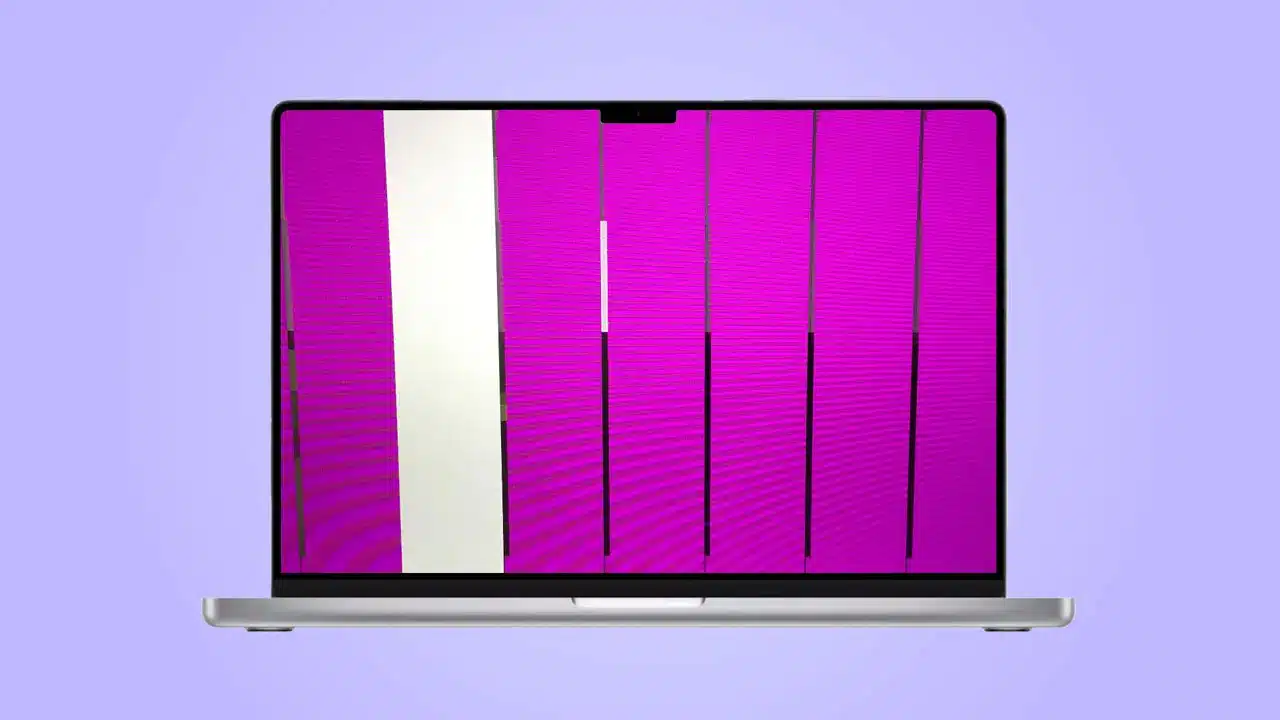
Lines on MacBook

If you own a MacBook and are troubled by the appearance of horizontal or vertical lines on your screen, you’ve come to the right place. This comprehensive guide will provide expert advice on troubleshooting and resolving this issue. Whether caused by software glitches or hardware problems, our recommended solutions will help you restore a clear and flawless display. Following the methods outlined below, you can ensure a top-notch viewing experience on your MacBook.

Table of Contents:

  1. Identify and Resolve Software Issues 
    • Restart Your MacBook
    • Update macOS and Applications 
    • Reset NVRAM/PRAM 
    • Boot in Safe Mode
  2. Optimize Graphics Settings 
    • Adjust Resolution and Refresh Rate 
    • Disable Automatic Graphics Switching
  3. Address Potential Hardware Problems 
    • Check the Display Connection 
    • Troubleshoot External Display Issues
    • Seek Expert Assistance

Step 1: Identify and Resolve Software Issues:

Software-related problems are often the culprit behind horizontal or vertical lines on MacBook screens. Follow these expert-recommended steps to eliminate any potential software glitches:

  1. Restart Your MacBook: A simple restart can work wonders. Close all applications, click on the Apple menu, and then select “Restart” to reboot your MacBook. Check if the lines persist after the restart.
  2. Update macOS and Applications: Outdated software can trigger display issues. Ensure that your macOS and applications are up to date. Open the App Store, click “Updates,” and install any available updates.
  3. Reset NVRAM/PRAM: Resetting the non-volatile random-access memory (NVRAM) or parameter random-access memory (PRAM) can help fix display issues. Restart your MacBook and immediately press and hold the Command + Option + P + R keys until you hear the startup sound twice.
  4. Boot in Safe Mode: Boot your MacBook to determine if any software conflicts or third-party apps are causing the issue. Restart your MacBook and hold the Shift key immediately after the startup chime until the Apple logo appears. If the lines don’t appear in Safe Mode, it indicates a software conflict.

Step 2: Optimize Graphics Settings:

Fine-tuning your MacBook’s graphics settings can often resolve display problems. Follow these expert tips:

  1. Adjust Resolution and Refresh Rate: Visit System Preferences > Displays and navigate to the “Display” tab. Experiment with different resolutions to see if the lines disappear. Additionally, try adjusting the refresh rate to optimize your display.
  2. Disable Automatic Graphics Switching: If your MacBook has dual graphics cards (integrated and dedicated), disabling automatic graphics switching might help. In System Preferences > Energy Saver, uncheck the “Automatic graphics switching” option.

Step 3: Address Potential Hardware Problems:

If the above software troubleshooting methods fail to resolve the issue, it’s essential to consider potential hardware-related causes:

  1. Check the Display Connection: Ensure the display cable is securely connected to your MacBook. If you’re using an external monitor, disconnect and reconnect the cables. If the lines persist, try using a different cable or adapter.
  2. Troubleshoot External Display Issues: If you’re using an external display, connect it to another device to determine if the issue lies with the display itself. If the lines appear only on the MacBook’s screen, it indicates an internal problem.
  3. Seek Expert Assistance: If none of the above solutions works, seeking expert assistance is recommended. Contact PC Fix London, a reputable professional service, for in-depth diagnostics and tailored solutions.

Conclusion:

Please note that the guideline instructions provided may not always apply to the symptoms your computer is experiencing. Sometimes, symptoms or behavior can be the same, but the underlying reason or fault can be completely different.

The fastest way we can assist customers is by bringing computers to our workshop, where technicians have the tools to diagnose faults accurately. After checks, if parts are found to be faulty or damaged, we proceed to replace them with high-quality original parts.

No appointments are required; you can drop off your computer at our workshop during working hours.

If you have more queries about our laptop repair and upgrade services, please feel free to contact us at 020 7018 7490 or email us at contact@pcfixlondon.com

MacBook Dispaly Issues

The display is one of the essential components of your MacBook, providing a visual interface for all your tasks. However, like any electronic device, MacBook displays can experience issues over time, such as flickering, distorted, or black screens. This article will discuss how to troubleshoot and repair MacBook display issues.

Several symptoms may indicate display issues with a MacBook. Some of the most common symptoms include:

  • Flickering or flashing screen
  • Dead pixels
  • Ghosting or image retention
  • Lines or bars on the screen
  • No display at all
  • Blurry or distorted display
  • Overheating or hot-to-the-touch display
  • The screen freezes or crashes
  • Dim or too-bright display
  • Black screen with cursor

Reasons for the MacBook Display Issues:

There are several reasons why a MacBook may experience display issues. Here are some of the most common reasons:

  1. Software bugs or conflicts: Bugs or conflicts in the operating system or other software can cause display issues.
  2. Hardware issues: Physical damage to the display or other hardware components can cause display issues. For example, if the MacBook is dropped or bumped, the display or other internal components may be damaged.
  3. Cable or connection issues: Loose, damaged, or improperly connected cables or connections between the display and the MacBook can cause display issues.
  4. Graphics card issues: Problems with the graphics card can cause display issues, such as flickering or flashing screens, lines or bars on the screen, or distorted images.
  5. Display settings issues: Incorrect or incompatible display settings can cause display issues, such as a dim or too bright display or distorted images.
  6. Overheating: Overheating can cause display issues, such as a hot-to-the-touch display or screen freezes or crashes.

It is important to properly diagnose the cause of display issues to determine the appropriate solution. If you are still determining the cause, it may be best to seek the advice of a professional technician.

Tips to take care of your MacBook Display Issues and avoid frequent repairs:

Here are some tips to take care of your MacBook display and help avoid frequent repairs:

  1. Use a screen protector
  2. Keep the MacBook clean
  3. Avoid touching the screen
  4. Adjust display settings
  5. Use a cooling pad
  6. Keep the MacBook away from heat sources
  7. Handle with care

By following these tips, you can help prolong the life of your MacBook’s display and reduce the likelihood of frequent repairs.

MacBook Display Issues: Why PC Fix London?

PC Fix London is a professional, experienced computer repair service specializing in fixing MacBook display issues. Here are some reasons why PC Fix London may be a good choice for MacBook display repairs:

  1. Expertise: PC Fix London has a team of highly skilled technicians with expertise in diagnosing and repairing MacBook display issues.
  2. Quality repairs: PC Fix London uses high-quality replacement parts and tools to ensure that repairs are of the highest quality.
  3. Quick turnaround time: PC Fix London offers quick repair times, with most repairs completed within 24-48 hours.
  4. Competitive prices: PC Fix London offers the best prices for MacBook display repairs.
  5. Convenient location: PC Fix London is in central London, making it easy to drop off and pick up your MacBook for repairs.

If you are experiencing MacBook display issues, PC Fix London may be a good choice for reliable and professional repairs. Our expert technicians have the knowledge and tools to diagnose and fix your MSI laptop screen quickly and efficiently. You can reach us at 020 7018 7490 or by email at contact@pcfixlondon.com or bring it to the workshop. Don’t let a damaged MSI laptop screen slow you down – contact PC Fix London today.

Warning: Please note that the purpose of the information provided here is to help you gain an understanding of how to troubleshoot and repair MacBook display issues. However, it is important to remember that this information is not intended to encourage or guide you to attempt any repairs independently. It is highly recommended that you seek professional assistance from a certified technician to prevent further damage to your device.

The fastest way we can assist customers is by bringing computers to our workshop, where technicians have the tools to diagnose faults accurately. After checks, if parts are found to be faulty or damaged, we proceed to replace them with high-quality original parts.

No appointments are required; you can drop off your computer at our workshop during working hours.

If you have more queries about our laptop repair and upgrade services, please feel free to contact us at 020 7018 7490 or email us at contact@pcfixlondon.com