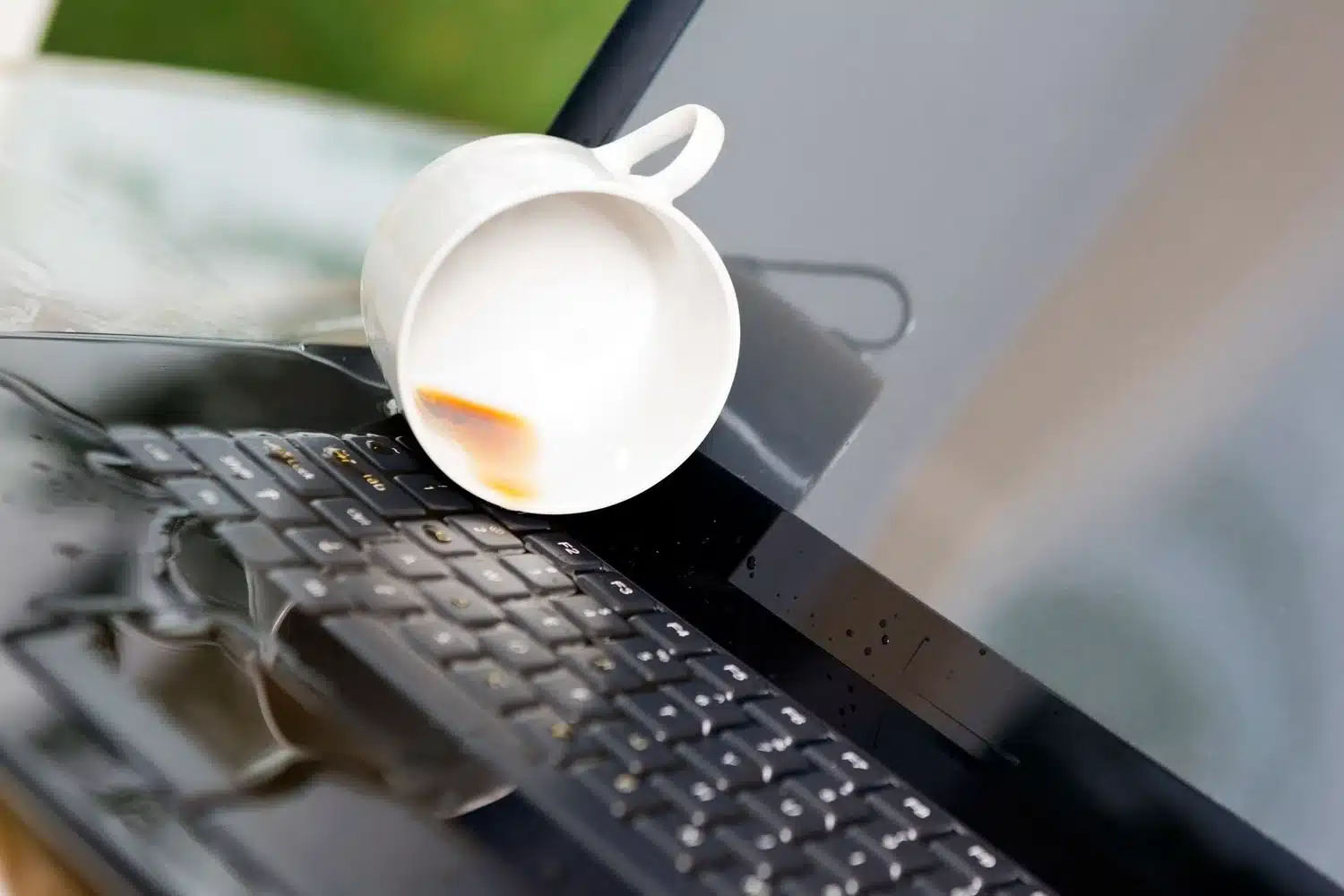
HP Pavilion X360 water damage

Water damage is a common issue that laptop users face, and the HP Pavilion X360 Convertible is no exception. Water damage can cause significant damage to the laptop’s internal components, leading to system failure and malfunctions. Identifying the signs and symptoms of water damage to your HP Pavilion X360 Convertible, its common causes, and ways to prevent it to avoid frequent repairs is crucial.

Signs and Symptoms of HP Pavilion X360 Convertible Water Damage Issue:

Read the some common signs and symptoms of water damage to your HP Pavilion X360 Convertible:

  1. The laptop won’t turn on or boot up properly.
  2. The keyboard or touchpad doesn’t work.
  3. The screen is flickering or displaying abnormal colors.
  4. There are strange noises or a burning smell.
  5. The laptop shuts down unexpectedly.

If you notice any of these following above signs or symptoms, acting quickly to avoid further damage is essential.

Causes of HP Pavilion X360 Convertible Water Damage Issues:

Several causes can lead to water damage issues in the HP Pavilion X360 Convertible. The most common causes include:

  1. Accidental spills: Spilling liquids such as water, coffee, or soda on your laptop can cause water damage. If the liquid seeps into the keyboard or other openings, it can damage the internal components. 
  2. Water exposure: Exposure to rain, humidity, or other sources of moisture can also cause water damage to your laptop. Moisture can seep into the laptop through small openings, causing corrosion or short-circuiting. 
  3. Improper storage: Leaving your laptop in a damp or humid environment can cause water damage over time. It’s important to store your laptop in a dry and cool place, especially when not in use. 

Preventing Water Damage to the HP Pavilion X360 Convertible:

Prevention is always better than cure. So, here are some tips to prevent water damage to your HP Pavilion X360 Convertible: 

Keep liquids away: Keep your laptop away from liquids and avoid drinking or eating while using your laptop. 

Use a waterproof laptop case: If you need to use it in a damp or humid environment, consider using a waterproof laptop case to protect it from moisture. 

Store in a dry place: Always please store your laptop in a dry and cool place when not in use, and avoid storing it in a damp or humid environment. 

Solutions for Water Damage to the HP Pavilion X360 Convertible:

If your HP Pavilion X360 Convertible has suffered water damage, here are some solutions to fix the issue: 

Let it dry: Disconnect your laptop from the power source and remove the battery immediately. Let it dry completely for at least 24-48 hours before turning it on again. 

Use a hairdryer: If you need to speed up the drying process, you can use a hairdryer on low heat to dry the laptop. Be sure to keep the hairdryer at a safe distance to prevent further damage.

Professional repair: If your laptop still doesn’t turn on or you suspect internal damage, you should take it to a professional repair service. At PC Fix London, we can diagnose the issue and perform necessary repairs, such as replacing the damaged components.

HP Pavilion X360 Convertible Water Damage Repair: Why PC Fix London?

If your HP Pavilion X360 Convertible laptop suffers water damage, seeking professional help for a quick and effective solution is essential. PC Fix London is a reliable choice for repairing water damage issues in the HP laptop all model. Here’s why:

  1. Specialization in computer repair services, including water damage repair.
  2. Experienced and trained technicians who can diagnose the issue and provide an effective solution.
  3. No-fix-no-fee guarantee, meaning you don’t have to pay if they can’t fix the problem.

In conclusion, water damage is a severe issue that can cause significant damage to your HP Pavilion X360 Convertible laptop. Identifying the signs and symptoms of water damage, understanding its causes, taking preventive measures, and seeking professional repair services are essential to avoid frequent repairs and keep your laptop running smoothly.

Warning: The information provided here aims to help you understand the HP Pavilion X360 Convertible Water Damage Issue and their potential causes.

Please note that the guideline instructions provided may not always apply to the symptoms your computer is experiencing. Sometimes, symptoms or behavior can be the same, but the underlying reason or fault can be completely different.

The fastest way we can assist customers is by bringing computers to our workshop, where technicians have the tools to diagnose faults accurately. After checks, if parts are found to be faulty or damaged, we proceed to replace them with high-quality original parts.

No appointments are required; you can drop off your computer at our workshop during working hours.

If you have more queries about our laptop repair and upgrade services, please feel free to contact us at 020 7018 7490 or email us at contact@pcfixlondon.com
Acer-laptop-water-damage-repair

If you’ve accidentally spilt water on your Acer laptop, time is of the essence. You don’t need to worry about the matter because you can solve it quickly. Taking some proper steps, you can recover the laptop from the damage. You absolutely must turn off the laptop immediately and unplug it without wasting any time. Then you can take some necessary steps to recover your laptop. In this article, we will talk about how you can fix Acer laptop water damage.

If you follow some simple steps that will help to fix the water damage to your Acer laptop from home.

Steps to Follow For Wet Laptop Emergency

Suppose you are eating while using your laptop and slipped water on it. Then these are the steps you have to follow to fix the laptop.

Step 1: Detached Components

As we said before, first, you have to turn off the laptop while you are fixing any water damage issue. After that, you have to remove all easily detachable components from the laptop. For example, if you are using an external mouse, unplug the mouse, all cables, remove any flash drives and DVDs, and leave your laptop bare.

Step 2: Dry your laptop

Now you have to dry the outside of your machine (the laptop). Then open the laptop as far as it goes, hold it upside down to let any accumulated liquid drain out. Then you can use an absorbent towel or a lint-free absorbent fabric to wipe wet surfaces until they’re dry. You have to keep in mind not to dry the computer with forced hot air from a heat gun or hairdryer.

At this point, you can take advantage of the warranty if it’s still applicable for your laptop and take it to the repair shop if you want. If you are capable, then separate all the parts and fix the laptop entirely by ownself.

Step 3: Separate All Parts And Fix the Laptop

You can separate all the internal parts of your laptop and dry them all individually to fix your laptop from water damage.

Step 4: Remove Battery

As you have disconnected the power source of your laptop, please remove the battery from it. Now make your laptop upside-down and remove the battery by lifting it out of the laptop.

Step 5: Takeout All Screws

Keep your laptop upside-down and find all the screws on the backside of the laptop. Use a screwdriver to unscrew and open the back cover of your laptop. You have to separate the keyboard after opening the back cover of your laptop. Now you have access to the internal portion of your laptop through unscrewing.

Step 6: Extract Parts

Now you need to extract all the internal chips and parts from the motherboard of your laptop. You have to be careful while unscrewing and removing the cooling fans. Next, extract all the small components and chips from the inner side of your laptop.

Step 7: Check Wetness

You have to examine each component you’ve removed to check for any sign of wetness or corrosion. First, you need to dry all the parts from the inside of your laptop. Use a clean toothbrush dipped in 99% isopropyl alcohol (circuit cleaner) to wipe it. This will dissolve gunk without causing liquid damage and evaporate without leaving a sticky residue.

Step 8: Dry

Once you have cleaned everything examined and sure you’ve brushed away any signs of corrosion, leave everything alone to air-dry for two to three days in a warm, dry area. After that, you can use a fan that will hasten the drying process of inside components. But keep in mind not to use a hairdryer, because that could cause static problems.

Step 9: Reconstruct

Once you’ve picked your machine apart and given the components time to dry, now it’s time to reassemble the laptop. First, you need to drop the motherboard with the processor and cooling assembly into the appropriate notch. Reverse all the processes you have followed to separate all the connections and chips. If you’ve reassembled the laptop in the correct order, you should be able to power up your laptop for reuse.

Conclusion

These are the straightforward processes that you should follow to fix your Acer laptop’s water damage. If you follow the steps, I hope to help your laptop recover from water damage issues. By any chance, the damages are a lot more due to spilled water. You can come to our repair shop to fix the Acer laptop water damage issue.

Please note that the guideline instructions provided may not always apply to the symptoms your computer is experiencing. Sometimes, symptoms or behavior can be the same, but the underlying reason or fault can be completely different.

The fastest way we can assist customers is by bringing computers to our workshop, where technicians have the tools to diagnose faults accurately. After checks, if parts are found to be faulty or damaged, we proceed to replace them with high-quality original parts.

No appointments are required; you can drop off your computer at our workshop during working hours.

If you have more queries about our laptop repair and upgrade services, please feel free to contact us at 020 7018 7490 or email us at contact@pcfixlondon.com