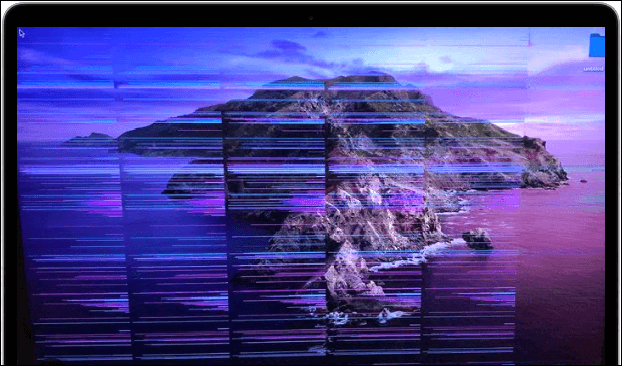
MacBook Screen Flickering
By Bilal / MacBook / 0 Comments

If you’ve got a MacBook with a screen that keeps flickering or shaking, you’re definitely not the only one. It can be super annoying, especially when you’re trying to work, watch videos, or just scroll through the internet. But don’t worry, PC Fix London has got your back! Our pros are ready to tackle any of your MacBook screen flickering problems and get your display looking perfect again.

So, let’s take a look at the usual reasons behind those flickering and shaking screens and what you can do to fix them.

Common Causes of MacBook Screen Flickering or Shaking

If your MacBook screen is flickering or shaking, there could be a few reasons behind it. Here are some of the usual suspects:

1. Software or Display Settings Issues

A lot of the time, if your MacBook screen is flickering, it might just be some software hiccup. Maybe your macOS needs an update, or the graphics drivers don’t play nice, or your display settings are off.

2. Graphics Card Problems

Sometimes, if your graphics card is being a bit quirky or the drivers need an update, you might notice some flickering on your MacBook. This usually happens when you’re running heavy apps, like video editing or gaming.

3. Display Cable Connection

If the cables in your MacBook that link the display to the main board are loose or damaged, that could totally make your screen flicker or shake.

4. External Display Problems

Are you using an extra monitor? If your screen is shaking or flickering, it could be because of connection problems, older cables, or maybe it’s just not playing nice with your MacBook.

5. Overheating or Hardware Issues

If your MacBook is getting too hot or there’s an issue with the hardware, like a bad display or other parts, you might see the screen flickering or shaking.

How to Fix MacBook Screen Flickering or Shaking

If your MacBook screen is flickering and you’d like to give fixing it a shot on your own, here are some simple steps to try before calling in a pro:

1. Restart Your MacBook

Sometimes, just rebooting your MacBook can clear up the flickering. It’s a simple fix for those annoying little software glitches. Just shut it down and turn it back on, and see if that does the trick.

2. Check Display Settings

Wrong display settings can mess things up too. Go to System Preferences > Displays and make sure everything, like the resolution and refresh rate, is set right.

3. Update macOS & Graphics Drivers

If your software is outdated, it could lead to screen issues. Look for any macOS updates and install them. Also, if you notice flickering while doing graphic-heavy tasks, make sure your graphics drivers are current.

4. Reset NVRAM/PRAM

Resetting NVRAM/PRAM can help fix display problems. Restart your MacBook and immediately hold down Option + Command + P + R for about 20 seconds. It’ll restart on its own, and it resets some display settings.

5. Disconnect External Displays

If you’re using an external monitor and it’s flickering, try unplugging it. Check if the problem goes away on your MacBook screen alone. If it does, the issue might be with the external display or the cable.

6. Check for Overheating

Overheating can lead to all sorts of display problems, flickering included. Make sure the vents on your MacBook aren’t clogged with dust, and that it’s sitting on a flat, hard surface. You can also take a look at Activity Monitor to check if any apps are using a lot of power. That might be what’s causing your MacBook to overheat.

Professional MacBook Screen Flickering & Shaking Repair

If your MacBook screen is flickering or shaking despite troubleshooting, don’t worry. PC Fix London is here to help you out with any MacBook screen problems you might have. Our technicians have extensive experience in fixing MacBook flickering screens and addressing hardware-related causes.

Services We Provide:

  • Display Cable Repair – If your screen keeps flickering, it might be due to a loose or damaged display cable. We can either fix or replace it so your screen works just like it should.
  • Graphics Card & Driver Fix – We’ll check out your graphics card and update the drivers to ensure your MacBook’s display is running smoothly.
  • Overheating & Cooling Solutions – If your MacBook’s screen is flickering or shaking due to excessive heat, we’re here to assist you! We’ll clean out the insides, refresh the thermal paste, and tackle any cooling issues.
  • MacBook Screen Replacement – If your screen is cracked or malfunctioning, we can replace it with a new, high-quality original Apple display.
  • External Display Diagnostics – If you’re having trouble with external monitors, we’ll diagnose and fix any compatibility or connection problems.

Why Choose PC Fix London for Your MacBook Display Repair?

If your MacBook screen is flickering or shaking, you really want someone you can count on to help out. That’s where PC Fix London steps up to help out! Here’s why you should pick us for your MacBook repair:

  • Expert Technicians: Our team knows their stuff when it comes to fixing all kinds of MacBook screen issues.
  • Genuine Apple Parts: We only use genuine Apple parts to ensure your repairs are top-notch.
  • Quick and Dependable Service: We try our best to fix your MacBook screen on the same day, so you can get back to what you do.
  • No Fix, No Fee: If we can’t fix it, you don’t owe us anything.
  • Easy Service: You can either swing by our repair center or arrange for us to pick up your MacBook right from your place.

How to Get Your MacBook Fixed

If you’re dealing with MacBook flickering or screen shaking, it’s time to get professional help:

  1. Visit us at Sinclair House, Thanet Street, King’s Cross, London WC1H 9P.
  2. Call us at 020 7018 7490 or email us at contact@pcfixlondon.com.
  3. Book our collection service, and we’ll pick up your MacBook for repair and return it once the job is done.

Don’t let a flickering or shaking screen get in your way! If you’re looking for fast and reliable MacBook repairs, you should definitely reach out to PC Fix London. We’ll have your display looking good as new in no time!

FAQs – MacBook Screen Flickering & Shaking

Q: Why is my MacBook screen flickering?

Ans: If your MacBook screen is flickering, it could be due to a few different things. It could be a software problem, maybe some old drivers that need to be updated, hardware issues, or it might just be getting too warm. Let’s get to the bottom of it together!

Q: How can I stop my MacBook screen from shaking?

Ans: You could start with some easy fixes: try restarting your MacBook, make sure you’ve got the latest version of macOS, or check if it’s getting too hot. If it’s still acting up, our friendly team can help sort it out!

Q: How long will it take to fix my MacBook screen flickering?

Ans: Most of the time, we can fix flickering screens on the same day, but sometimes it might take a bit longer to figure out what’s going on and get it fixed.
MacBook Frozen
By Bilal / MacBook / 0 Comments

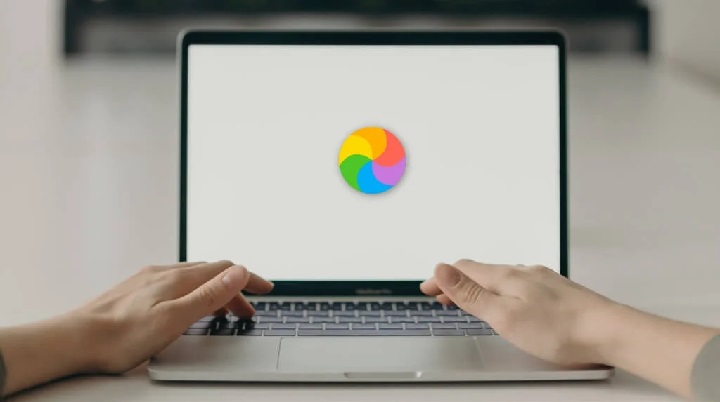
Is your MacBook freezing up and not responding? You’re definitely not the only one! It’s super annoying, especially when you’re trying to get some important work done or enjoying a movie. But don’t stress—PC Fix London has got your back!

Whether it’s just the screen that’s stuck or the whole thing has stopped responding, we’ll walk you through some easy steps to get your MacBook back in action in no time.

Common Reasons Why Your MacBook Freezes

There are a bunch of reasons why your MacBook might freeze up or just stop responding. Here are some of the most common ones:

1. Too Many Apps Open

If you’ve got a bunch of apps running at the same time, it might be too much for your MacBook to handle, and that’ll likely make it freeze up. This often happens when you’re juggling some heavy-duty programs.

2. Software Glitch or Bug

Sometimes, your MacBook might freeze because of a little glitch or bug in the software. This might be happening because some apps aren’t working well together, or maybe there was a recent update that didn’t go as planned, which is why everything is freezing up.

3. Outdated macOS or App Versions

If you’re using an old version of macOS or some apps, that might lead to your system acting up and freezing out of nowhere.

4. Hardware Issue

In tough situations, the problem might be stuff like faulty memory (RAM) or a hard drive/SSD that’s starting to fail. These kinds of problems usually need a professional to take a look.

5. Overheating

If your MacBook gets too hot, it can freeze because it slows everything down to save its internal parts. Overheating can happen if the vents are blocked, if you’re pushing it too hard, or if there’s a bunch of dust stuck inside.

How to Unfreeze Your MacBook

If your MacBook is acting up and has frozen, don’t worry! Here are some simple fixes you can try before calling in the pros:

1. Force Quit Apps

So, if your MacBook is acting up and an app is frozen, here’s what you can do:

  • Just hit Command + Option + Esc to bring up the Force Quit Applications window.
  • Pick the app that’s stuck and click on Force Quit.

This can help get your MacBook back on track if one app is being a pain.

2. Restart Your MacBook

If your MacBook still won’t budge after you’ve forced the app to quit, it’s time for a restart:

  • Press and hold the Power button until it shuts off.
  • Give it a few seconds, then turn it back on.

A simple restart can sort out lots of little glitches and get your MacBook moving again.

3. Reset the System Management Controller (SMC)

If your MacBook keeps freezing, sometimes resetting the SMC can clear things up, especially with power settings:

  • Shut down your MacBook.
  • Then hold down Shift + Control + Option on the left side of the keyboard along with the Power button for about 10 seconds.
  • Let go of everything and turn it back on.

This can refresh some hardware stuff and might just fix the freezing.

4. Reset NVRAM/PRAM

If you’re having trouble with sound, display, or any settings that might be causing your MacBook to freeze up, give resetting the NVRAM or PRAM a shot:

  • Go ahead and turn off your MacBook.
  • Turn it back on and immediately press and hold Option + Command + P + R for about 20 seconds.
  • Then, release the keys and let your MacBook reboot.

5. Boot in Safe Mode

Starting your MacBook in Safe Mode can help you figure out if a third-party app is the culprit for the freezing:

  • Shut it down, then turn it back on.
  • Right away, press and hold the Shift key until you see the login window.
  • Just log in, and if things work well in Safe Mode, try restarting your computer normally to see if the freezing issue is fixed.

MacBook Frozen and Not Responding? Call the Experts!

If your MacBook screen is stuck and the usual tricks aren’t working, don’t stress! Our friendly team at PC Fix London is ready to lend a hand. We’re all about helping you figure out and fix any MacBook freezing issues you might have, whether it’s something wrong with the hardware or just an annoying software hiccup.

Services We Offer:

  • Hardware Diagnostics and Repair – If your MacBook is freezing up a lot, it might be due to some bad RAM, a hard drive that’s acting up, or maybe some other hardware problems. Don’t worry, we’ll pin down the problem and replace any broken parts with genuine Apple stuff.
  • Software Troubleshooting – Got software glitches or old apps messing with your MacBook? We’ll sort those issues out so your device system optimization – If your MacBook is running slow and freezing up, we’ll help get it back on track and running smoothly again. It will run better and faster.
  • Overheating Fixes – If your MacBook is getting way too hot and freezing up, we can help! We’ll clean out the vents, swap in some fresh thermal paste, and make sure it stays nice and cool.
  • OS Reinstallation: If needed, we can reinstall macOS to restore your MacBook’s software.

Why Choose PC Fix London for MacBook Freezing Repairs?

If your MacBook screen is stuck or it’s just not responding, don’t stress! PC Fix London is here to help with quick and reliable repairs:

  • Experienced Technicians – Our team knows all about different MacBook models and their quirks.
  • Quick Turnaround – We work hard to get your MacBook back up and running, usually on the same day.
  • Genuine Apple Parts – We use real Apple parts to make sure your repairs last and work well.
  • No Fix, No Charge – If we can’t sort out your MacBook, you don’t pay anything.
  • Easy Service – Swing by our place in King’s Cross or just book our pickup service for a hassle-free experience.

How to Get Your MacBook Fixed

If your MacBook is frozen and you want to get it working again, don’t worry – it’s pretty straightforward! Here are some easy options for you:

  1. Swing by our repair centre at King’s Cross: Sinclair House, Thanet Street, WC1H 9P.
  2. Give us a ring at 020 7018 7490 or drop us a message at contact@pcfixlondon.com to set up a repair.
  3. You can also use our collection service. Just let us know, and we’ll come to you, pick up your MacBook, and bring it back once it’s all fixed up!

Don’t let a frozen screen stress you out! If your MacBook is frozen or acting up, just get in touch with PC Fix London. They’re really good at sorting out those issues and can help you out!

FAQs – MacBook Frozen

Q: What causes my MacBook to freeze? 

Ans: There are a bunch of reasons why your MacBook might freeze, like software hiccups, faulty hardware, old apps, or just getting too hot. We can help figure out what’s going on and get your MacBook back to normal!

Q: How can I unfreeze my MacBook? 

Ans: You can try force quitting apps, restarting your MacBook, or resetting the SMC/PRAM. If it keeps happening, our team at PC Fix London is ready to assist!

Q: How long does it take to fix a frozen MacBook? 

Ans: Most of the time, we can fix freezing issues on the same day. But if it turns out to be a bit more complicated, it might take us a bit longer to sort it out.

MacBook Fan Loud
By Bilal / MacBook / 0 Comments

Is your MacBook’s fan running like crazy? If you’ve been dealing with that annoying whirring noise, you’re definitely not the only one. A noisy fan can definitely annoy you, and it usually means your MacBook is trying to tell you something important. At PC Fix London, we really get MacBook issues, especially when it comes to those annoying noisy fans.

So, let’s explore why your MacBook fan might be so loud and what we can do to help bring the volume down.

Common Causes of a Loud MacBook Fan

MacBook’s are built to stay cool, but if they start to heat up inside, the fan jumps into action to help cool things down. But if you find that your fan is noisy all the time or suddenly gets loud when you weren’t expecting it, there could be a few things going on.

1. Overheating from Heavy Use

MacBook’s tend to get hot when you’re using resource-heavy apps or multitasking like a champ. Whether your video editing, gaming, or running intense software, your Mac might need some extra cooling. When that happens, the fan kicks in to blow off the heat—and boy, does it get loud!

2. Background Processes Taking Over

Sometimes, your MacBook’s fan goes into overdrive because background processes are hogging too much CPU power. If you’ve got a bunch of apps or tasks running that you didn’t even realize were on, the fan might rev up to cool everything down.

3. Dust Build-Up

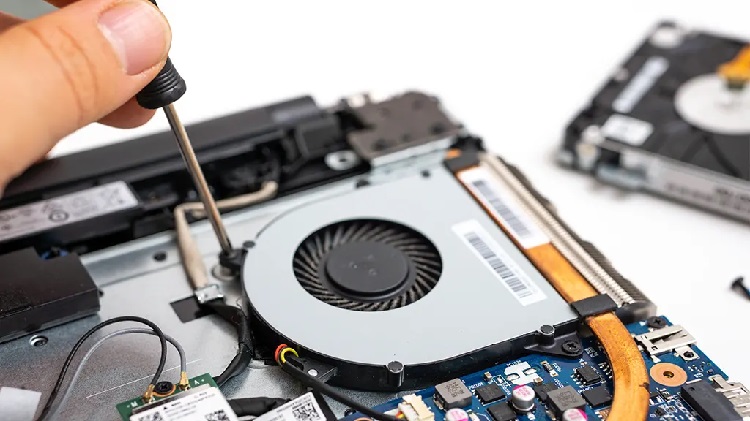
Over time, dust and stuff can jam up your MacBook’s fan and cooling system, making it work extra hard. This clogs up the airflow, so the fan has to speed up to keep your Mac cool, which can lead to more noise.

4. Outdated Software or Bugs in macOS

If your macOS is running on an old version or there are some issues with your apps, you might hear your MacBook’s fan getting a bit noisier than normal. Sometimes, certain updates can mess with how the fan operates, making it go faster than it really needs to.

5. Faulty Internal Sensors

MacBook’s have temperature sensors that help them figure out when they need to cool down. If these sensors are having issues, your MacBook might not know that it’s cool enough, which can make the fan go into overdrive and get pretty noisy for no reason.

How We Fix Loud MacBook Fans

If your MacBook’s fan is really loud and you’re looking for a solution, you’ve come to the right place! Here’s how we can help you out:

1. Clearing Out Dust and Debris

First things first, we’ll open up your MacBook and get rid of any dust or junk that might be blocking the fan or the vents. This quick cleanup can really help cut down on that loud fan noise.

2. Updating macOS and Software

Next, we’ll make sure your macOS and apps are all up to date. Sometimes, a simple update can fix bugs or other software issues that could be causing the fan to act up.

3. Thermal Paste Reapplication

If your MacBook gets too hot often, it might be because the thermal paste has dried out. We can put on some fresh thermal paste between the CPU and heatsink to help it cool down better and run quieter.

4. Optimizing System Performance

We’ll also take a look at any background apps that are using up your CPU unnecessarily. Our team will stop those processes and help tune up your MacBook for a smoother and quieter performance.

5. Replacing Faulty Sensors or Fans

If your fan still sounds loud after cleaning and updating, the problem could be a faulty sensor or fan. We can replace any broken parts with genuine Apple components to get everything back to normal.

MacBook Models We Service for Loud Fan Issues

Whatever MacBook you’ve got, we’re here to help with those noisy fan problems. We take care of all models, such as:

  • MacBook Pro (2012 – 2024)
  • MacBook Air (All years including M1/M2)
  • MacBook (Retina 12-inch)
  • MacBook Pro with Touch Bar
  • MacBook Pro with M1/M2/M3 chips

And don’t worry if you have an older model—we’ve got the skills to fix that, too!

Why Choose PC Fix London for Your MacBook Repair?

At PC Fix London, we’re focused on bringing your MacBook back to its smooth and quiet self. Here’s why people in London choose us for their repairs:

  • Skilled Technicians – Our team knows their stuff and can tackle even the trickiest MacBook issues.
  • Genuine Apple Parts – We don’t mess around with cheap knock-offs. We only use real Apple parts to keep your Mac running like new.
  • Quick Turnaround – Most fan problems can be sorted out in just one day.
  • No Fix, No Fee – If we can’t fix it, you won’t pay a dime. It’s as easy as that.
  • Easy to Find – Our shop is right in the heart of King’s Cross, so popping in for a repair is a breeze.
  • Collection Service – If you can’t make it to us, no worries! We’ll come to you.

How to Get Your MacBook Fixed

  1. Drop by our repair centre at King’s Cross! We’re located at Sinclair House, Thanet Street, WC1H 9P. Come see us! You can give us a ring at 020 7018 7490 or shoot us an email at contact@pcfixlondon.com if you want more info.
  2. Need a hand? Book our collection service, and we’ll swing by to pick up your MacBook for repairs.

We’re all about keeping your MacBook running smooth and chill!

FAQs – Loud MacBook Fan

Q:Why is my MacBook fan making so much noise all of a sudden? 

Ans: If your fan suddenly got loud, it might be because of a software update, too many apps running in the background, or it’s getting too hot. Just bring it in, and we’ll sort it out!


Q: Could a loud fan potentially harm my MacBook? 

Ans: If it keeps overheating for a long time, yeah, it could hurt some parts eventually. But if you deal with the fan problem early on, you can avoid any serious damage.


Q: How long will the repair take?  

Ans: Usually, we can clean your fan or do small repairs on the same day. If we need to replace any parts, it might take a little longer.


Q: How much will it cost to fix the fan? 

Ans: That really depends on what’s wrong with it. We’ve got a “no fix, no fee” policy—if we can’t fix it, you won’t have to pay.