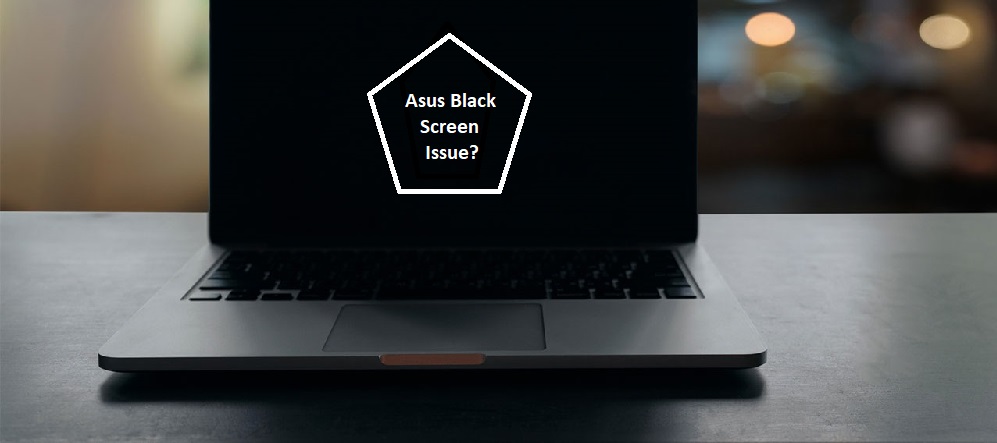
Asus laptop black screen issue

Should your Asus laptop screen go black, it can be challenging to ascertain whether the problem stems from another internal issue or the display itself. Although a black screen can be brought on by several causes, the good news is that many of these problems can be fixed with the correct diagnostic and repair. Our knowledgeable experts are ready to assist at PC Fix London; we specialize in Asus laptop repairs. We discuss the typical reasons behind a black screen below as well as ways to have your laptop back running.

Common Reasons for Asus Laptop Black Screen

  • Display Problems: The motherboard’s connection to the display could be loose or damaged, or the screen may be physically broken.
  • Graphics Card or GPU Failure: Particularly if the laptop is still working but no image is shown, a failing graphics card or GPU may cause a blank or black screen.
  • Power Problems: Should your laptop not be getting power as expected, the screen can seem to be black even if the system is running.
  • Software Problems: Sometimes a botched operating system update that keeps the laptop from launching correctly or software problems could cause the black screen.
  • Backlight Failure: Should the backlight of the screen fail, the laptop will seem black even if it is running.

Asus Black Screen Problems: Rapid Troubleshooting

Try a few troubleshooting techniques to help fix the black screen problem before calling for expert repair:

  • Check the brightness: Verify that the brightness is not adjusted to its lowest level.
  • External display checks: Connecting your laptop to an external monitor can help you to determine whether the problem is limited to the screen or connected to the graphics card or internal components.
  • Perform a hard reset: Turn off the power adapter and, if at all feasible, remove the battery; then, press and hold the power button for thirty seconds to reset the laptop.
  • Try safe mode: Press F8 (or the relevant key for your system) when the laptop starts to attempt booting it into safe mode if you can hear it running but the screen stays black.

Repair Services Designed for Asus Laptops

For Asus laptops with black screen problems, PC Fix London provides a whole spectrum of services:

  • Diagnosing the problem: Our experts will investigate thoroughly to ascertain whether the screen, graphics card, motherboard, or another component is the cause of the issue.
  • Screen replacements: Should the screen display be broken or malfunctioning, we will replace it with a real Asus screen, therefore returning your laptop to complete operation.
  • Graphics card or GPU repairs: Should the problem arise from a malfunctioning graphics card, we will either replace or fix it to guarantee correct image display on your laptop.
  • Backlight repair: Should the backlight of your laptop fail, we can replace it to revive the display.
  • System and software fixes: We will take care of any software-related problems, including failed updates or corrupted operating system files, therefore guaranteeing that your laptop starts up correctly.

Hardware Problems Possibly Leading to a Black Screen

Usually the cause of a black screen on your Asus laptop is hardware problems:

  • Display damage or loose connections: A black screen could arise from physical screen damage or a loose cable connection between the motherboard and the screen.
  • Graphics card failure: Should a graphics card be broken or faulty, the screen will stay dark.
  • Broken backlight: Should the backlight malfunction, the screen may seem black even while the laptop is still running.

Asus laptop black screen resulting from software problems

Sometimes the black screen could be brought on by software issues:

  • Operating system corruption: The screen may remain black should the operating system of your laptop corrupt or fail to load correctly.
  • Driver issues: Problems with the graphics output of your laptop can arise from a corrupted or obsolete display driver, therefore producing a blank screen.

Why Choose Us for Repair of Asus Laptop Screens?

  • Expert technicians: Our knowledgeable staff specializes in identifying and fixing any kind of screen problem for Asus computers.
  • Original components: To guarantee your laptop screen operates just as it did when it was new, we utilize original Asus replacement components.
  • There is no appointment: you can come in for same-day repairs, subject to part availability, therefore avoiding significant wait times to get your laptop returned.
  • No fix, no price policy: Should the black screen problem remain unresolved, you will not pay a cent for the service.
  • Fast turnaround: We value fast repairs to save downtime since we know how vital your laptop is. Its subject to parts availability.

More Services for Asus Laptops

We provide other services for Asus computers that might be having problems in addition to screen repairs:

  • Data recovery: Should a hardware failure be the source of the black screen problem, we can assist with data recovery to enable you to access your critical information.
  • Graphics card replacement: Should the graphics card be the source of the issue, we can substitute a compatible and functional part.
  • Battery and power supply repairs: We also handle repairs for power problems that can be causing the black screen, including battery replacements and charger solutions.

Black Screen Problems and Overheating of an Asus laptop

Sometimes overheating results in blacking of the screen:

  • Thermal problems: Overwhelming heat within your laptop could cause hardware breakdowns like display or graphics card problems. To help keep overheating under control, we can change thermal paste and clear dust.
  • Fan repairs: Should the cooling system malfunction, your laptop can overheat and lead to screen or power problems? To guarantee correct cooling, we can either fix or replace malfunctioning fans.

Conclusion:

Should your Asus laptop screen be black, not cause for alarm; PC Fix London is here to assist. Our knowledgeable staff will rapidly identify the source of the problem and offer the best repair recommendation. We will fix your laptop to run as normal regardless of the basic screen replacement, graphics card repair, or software problem.

Please note that the guideline instructions provided may not always apply to the symptoms your computer is experiencing. Sometimes, symptoms or behavior can be the same, but the underlying reason or fault can be completely different.

The fastest way we can assist customers is by bringing computers to our workshop, where technicians have the tools to diagnose faults accurately. After checks, if parts are found to be faulty or damaged, we proceed to replace them with high-quality original parts.

No appointments are required; you can drop off your computer at our workshop during working hours.

If you have more queries about our laptop repair and upgrade services, please feel free to contact us at 020 7018 7490 or email us at contact@pcfixlondon.com

Asus laptop wont turn on

If your Asus laptop refuses to turn on, it can be a frustrating experience. Whether it’s a simple issue or a more complex hardware failure, understanding the possible causes is the first step in finding the right solution. At PC Fix London, we specialize in diagnosing and repairing Asus laptops to get them back in working order quickly. Here’s what could be causing the issue and how we can help you restore your device.

Common Causes of Asus Laptop Not Turning On

  1. Battery Issues: If your laptop’s battery is dead, damaged, or not properly connected, the laptop may fail to power up. Charging issues or a faulty battery connection could also be the culprit.
  2. Power Supply Failure: A malfunctioning charger or faulty power cable might prevent your Asus laptop from receiving power.
  3. Internal Hardware Problems: The motherboard, hard drive, or other internal components might be damaged, preventing the laptop from starting.
  4. Display Issues: Your laptop may be working but not displaying anything on the screen due to faulty wiring, a damaged display, or malfunctioning graphics hardware.
  5. Software and Operating System Failures: Corrupted files or system errors can cause your Asus laptop to freeze at boot or not turn on at all.

Simple Troubleshooting Steps for Asus Laptop Not Turning On

Before bringing your Asus laptop to a repair center, try a few simple troubleshooting steps:

  • Check the power connection: Ensure the charger is securely plugged into both the laptop and the power outlet. Try using a different charger if available.
  • Remove external devices: Unplug all external devices such as USB drives, printers, or external monitors. These can sometimes interfere with the laptop’s startup.
  • Perform a hard reset: Disconnect the charger and battery (if possible), then hold the power button for 30 seconds. This may help reset the system and resolve minor startup issues.

Why Your Asus Laptop Won’t Turn On: Hardware Failures

Several hardware failures can cause an Asus laptop not to turn on, including:

  • Damaged motherboard: A malfunctioning motherboard can prevent your laptop from powering on, as it is the central hub that connects all components.
  • Faulty power jack or connection: If the power jack is loose or damaged, the laptop might not receive the necessary power to start up.

Asus Laptop Not Turning On Due to Software Issues

Sometimes, a problem with your Asus laptop’s operating system can prevent it from turning on:

  • Corrupted system files: Essential files may become corrupted due to sudden power loss, software errors, or malware, which can prevent the laptop from booting.
  • BIOS corruption or misconfiguration: If the BIOS (Basic Input Output System) is corrupted or misconfigured, your laptop may struggle to initiate the startup process.

Repair Services We Offer for Asus Laptops

At PC Fix London, we offer expert diagnostic and repair services for all Asus laptop models. Our certified technicians will:

  • Accurately diagnose the issue: We use advanced diagnostic tools to identify the root cause of the problem—whether it’s a battery, power supply, motherboard, or software issue.
  • Replace faulty parts: If a component like the battery, power supply, or motherboard is faulty, we’ll replace it with original Asus parts to restore your laptop’s functionality.
  • Address software problems: Our technicians can fix any software issues, including corrupt operating systems or system files, ensuring your laptop boots up smoothly.

Preventative Tips to Avoid Future Issues

  • Use the original Asus charger and avoid third-party replacements.
  • Keep your laptop clean by regularly cleaning the vents and fans.
  • Update your operating system and drivers to prevent software conflicts.
  • Avoid using your laptop on soft surfaces that can block airflow.

Additional Services for Asus Laptops

In addition to fixing your laptop’s power issue, we offer other repair services for your Asus laptop:

  • Screen replacements: If your screen is cracked or damaged, we can replace it with an original Asus display.
  • Data recovery: If your laptop isn’t turning on and you need to recover important files, we can help retrieve your data.
  • Laptop upgrades: Need more storage or RAM? We can upgrade your Asus laptop to enhance its performance.

Why Choose Us for Asus Laptop Repairs?

  • Certified technicians: Our skilled technicians have expertise in diagnosing and fixing Asus laptop issues quickly and efficiently.
  • Original parts: We use only genuine Asus parts for repairs to ensure your laptop operates as expected.
  • No appointment needed: You can walk into our service center directly.
  • No fix, no fee policy: If we can’t fix the issue, you won’t be charged for the service.
  • Same-day repair: We aim to complete repairs swiftly so that you can get back to using your laptop as soon as possible. Same-day repair available, depending on the complexity of the issue and parts availability.

Conclusion

If your Asus laptop won’t turn on, don’t panic. PC Fix London is here to help. Our experienced technicians can accurately diagnose and repair the issue, whether it’s a power failure, hardware malfunction, or software problem.

No appointment is needed. You can visit our service center during working hours from Monday to Friday.

Contact us today at 020 7018 7490 or email us at contact@pcfixlondon.com for expert Asus laptop repairs. Whether it’s a simple battery issue or a complex motherboard replacement, we have the tools and expertise to get your laptop back in action.

Asus Laptop Horizontal Lines on Screen

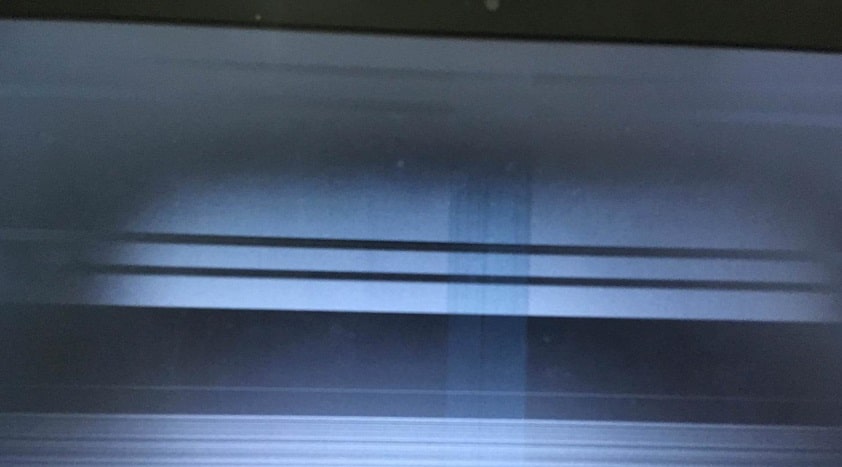
There are many causes for why Asus displays horizontal or vertical lines on the screen. You should identify the root cause of the problem to fix the horizontal or vertical lines on your laptop or desktop screen.

This article will examine the potential causes of horizontal lines on computer monitors before giving instructions on how to fix them on laptop screens.

To comprehend How to fix Asus laptop horizontal lines, you must finish reading this blog without skipping a single paragraph. After this blog, you will find the solution to your query about the reason, effect, and method for getting rid of these white lines. Consequently, let’s begin.

How to Fix Asus laptop Horizontal Lines on Screen?

Before knowing the solution to any problem, we should know the cause of the problem. Let us first identify the cause of your Asus laptop’s horizontal or vertical lines.

What Causes Asus laptop horizontal lines on the screen

There could be several problems causing the horizontal or vertical lines on the computer screen, from out-of-date graphics card drivers to improper video cable connections to faulty ribbon cables.

You could access the settings to identify if the issue is hardware- or software-related. If the horizontal or vertical lines on the computer screen remain, it is likely a software issue.

How to Fix Asus laptop Horizontal Lines on Screen?

Method 1: Replacing the Video Cable

If you see any horizontal or vertical lines on the screen, it can be because the optical cable is connected incorrectly. If the horizontal or vertical lines still appear, try reconnecting the video card to the screen.

Method 2: Modify the screen’s resolution

The cause of the vertical or horizontal lines on the laptop screen is incorrect screen resolution. As a result, you might alter the screen resolution to fix the problem. Here is the manual you need.

Step 1: Click System after opening Settings with the Windows key and the I key.

Step 2: Click Display in the following window. Then, make your way to the right and check that the scale, layout, and resolution are set to the suggested values.

Step 3: At this point, see if the horizontal line on the laptop screen has vanished. If not, look for other options.

Method 3: Install the latest graphics card driver

When it is established that the computer screen has horizontal or vertical lines caused by software, the outdated graphics card driver is the most likely suspect.

To fix the driver compatibility issue, upgrade it to the most recent version. This will take a lot of time; however, you may manually upgrade the Display driver from Device Manager and see if it helps.

Step 1: Click “Device Manager” by holding down the Windows key and X.

Step 2: Expand “Display Adaptor” in step 2.

Step 3: Update the Driver by right-clicking on the video driver. After completing this, restart the computer to see whether the problem still exists.

As an alternative, you can try the simplest method, which is to use a reputable driver download and update utility, like Driver Talent, which is renowned as the safest and quickest way to update drivers.

Driver Talent can assist in identifying the outmoded graphics card driver in seconds and afterward start downloading and installing the most recent version in 2 minutes.

Method 4: Utilize the Display Quality Troubleshooter

Horizontal lines on monitors can also be fixed with the help of the Display Quality Troubleshooter application that comes with Windows. The procedures listed below can be used to run it.

Step 1: Once the Run window has been opened, type control and hit Enter.

Step 2: Click Troubleshooting after changing the View by as Large icons setting in the Control Panel.

Step 3: In the left pane, select View all.

Step 4: From the list of elements, select Display Quality. Then enter the admin password or grant access if prompted. Then, to finish the surgery, according to the formal instructions.

Method 5: Switch out the ribbon cable

The computer screen will display horizontal or vertical lines if your ribbon cable is broken. If the horizontal or vertical lines still appear on your computer screen, you can check by replacing the ribbon cable with a fresh one with the same connection.

Method 6: Make a clean boot

After attempting the solutions mentioned above and the laptop still shows a horizontal line, conduct a clean boot. If the monitor functions normally on a clean boot, something is interfering with the displays. Then you should manually remove it.

Step 1: Open the Run window, type MSConfig, and press OK.

Step 2: Select the Services tab in the System Configuration window, then check the box next to Hide all Microsoft services. Next, select Disable all.

Step 3: Click Open Task Manager after switching to the Startup tab.

Step 4: Disable the startup apps by performing right-clicking on them. To remove all of the mentioned startup programs, repeat this action. Next, shut down Task Manager.

Method 7: To check and repair system file corruption, launch DISM Scan

Step 1: Press the Windows key + X keyboard shortcut and choose “Search” to look up “cmd prompt.”

Step 2. Paste the following commands into the command prompt. After each command, hit Enter.

DISM.exe /Online /Cleanup-image /Scanhealth

DISM.exe /Online /Cleanup-image /Restorehealth

Step 3: To see if it works, end the command prompt and restart the computer.

Applying the above techniques can quickly fix a laptop screen that displays a horizontal line.

Conclusion

Please note that the guideline instructions provided may not always apply to the symptoms your computer is experiencing. Sometimes, symptoms or behavior can be the same, but the underlying reason or fault can be completely different.

The fastest way we can assist customers is by bringing computers to our workshop, where technicians have the tools to diagnose faults accurately. After checks, if parts are found to be faulty or damaged, we proceed to replace them with high-quality original parts.

No appointments are required; you can drop off your computer at our workshop during working hours.

If you have more queries about our laptop repair and upgrade services, please feel free to contact us at 020 7018 7490 or email us at contact@pcfixlondon.com
Asus laptop

ASUS is a Taiwan-based technology company. They excel in manufacturing computers, phones, and electronics. ASUS laptops, known for their leading designs and innovation but also effective prices. Asus provides laptop models such as the Vivobook, Zenbook, TUF, and ROG. They offer a wide range of hardware and software configurations on their laptops. This combination makes them suitable for gamers, students, and business people.

When is it necessary to reset your ASUS laptop?

Factory reset in an ASUS laptop is the last resort. We do this only when the problem remains unknown or unsolvable without a reset. The factory reset settings solve many issues related to the software and hardware. They return the laptop to the factory settings, all the data, settings, and information. The factory reset settings can sometimes even solve the drivers and software conflicts.

This step is also performed when you hand over your laptop to someone else to protect your privacy. The new user will not be able to access your files as they are now deleted. This option enhances the privacy and security of your data.

You feel that you have downloaded too much software, remove them and freshen up your laptop. Too many downloaded files can make your system laggy.

How do we prepare for a factory reset?

Always backup vital settings and files before you perform a factory reset. Back up important data using any external storage device or cloud. The backup settings provided by windows are pointless as they create an image of your laptop. Once you restore the data, all the files get stored back, which defeats the purpose.

Factory reset on any device takes time. Plan your reset when you don’t use your ASUS laptop for some time. When the files are downloading, you can still cancel the factory reset process but not after that.

Steps to Factory reset an ASUS Laptop

The factory reset settings on an ASUS laptop remove the old operating system. After the reset, the system installs a new operating system. Troubleshooting a persistent problem will lead you to a factory reset. Factory reset becomes all the more essential when you plan to gift or sell your used laptop.

  • Search for Reset this PC option in the windows search bar
  • Upon selection, the recovery menu opens. Click on the Get started button in the Reset this PC recovery menu.
  • Upon the final selection, you can get offered three different options. Each leads in the same direction to Factory reset your PC.

Keep My Files: The keep my files option will remove all the settings software and third-party data. All the personal data files stored on your PC will remain untouched. This option is helpful if you intend to keep the laptop.

Remove Everything: The remove everything option does not leave anything back. You get the laptop as you received from the Factory. All the data files, settings, software clear, and a new operating system will install. This step is helpful if you intend to gift or sell your used ASUS laptop.

Restore Factory Settings: This setting is only offered with windows 10 laptops. These computers used to run on a previous version of windows. After you click on these settings, it deletes the old data files, software, and settings. The laptop is then taken back to a previous version of the Windows operating system. Perform this operation only if you prefer to use the previous version rather than a new one. You may have to reinstall the updates to get to the latest version.

After some time, two options appear on the screen choose the one suitable for you:

Cloud Download: This type of reset requires the use of internet access. Prefer this option only if you have an active internet connection during the reset. The system downloads the latest version of the windows OS and installs it. It comes bundled with the latest drivers and settings, which are also installed.

Local Reinstall: Click on this option only if you don’t have access to the internet. After Factory Reset settings, your laptop returns to the same version of Windows. Installing updates to the latest version of the OS also requires the internet.

The change settings option shows, you can change some if you want or press Next. The setting is select before, so it doesn’t need any update.

The final confirmation button with reset appears. You can select this to begin the factory reset process.

This process roughly takes around 15 minutes. You can leave your laptop unattended now. The reset speed also depends upon your internet speed and ASUS laptop configurations.

Disclaimer:

Please note that the guideline instructions provided may not always apply to the symptoms your computer is experiencing. Sometimes, symptoms or behavior can be the same, but the underlying reason or fault can be completely different.

The fastest way we can assist customers is by bringing computers to our workshop, where technicians have the tools to diagnose faults accurately. After checks, if parts are found to be faulty or damaged, we proceed to replace them with high-quality original parts.

No appointments are required; you can drop off your computer at our workshop during working hours.

If you have more queries about our laptop repair and upgrade services, please feel free to contact us at 020 7018 7490 or email us at contact@pcfixlondon.com

FAQs on ASUS Laptop Factory Settings

How does anyone factory reset an ASUS Laptop?

In windows 10, resetting an ASUS laptop is a simple task. You can search for Reset this PC option. Then select “Update & Security” under “Settings”. Finally, select “Recovery.” Then click on Get Started in Reset options. Follow the instructions given by your laptop to change your PC back to the factory settings.

What happens when I Factory reset my ASUS laptop?

Select the “Remove Everything” option from the menu while resetting. Any data stored on the hard drive of your laptop gets erased, including personal or system data. It is always recommended to backup your necessary data when you reset your system. Once the factory reset process begins, you cannot cancel or stop it.

Can you Factory reset a laptop from BIOS?

Asus laptops come with a recovery partition, which you can access through the BIOS. You can use that to Factory Reset your ASUS laptop. If you can’t access the BIOS setting, remove the CMOS battery from the motherboard for some time. Resetting the BIOS can then begin the factory reset process.

How can I restore my ASUS laptop to Windows 10 without recovery media?

Follow these steps to reach the factory reset option on your computer system

  • Type Control Panel in the Start menu
  • Select System & Security then select Backup and Restore
  • Select Recover System on your ASUS laptop
  • Choose Advanced recovery methods
  • Now select return computer to factory settings
  • Select Skip and start the factory reset process
  • The laptop will restart to the original factory settings

If the given solution doesn’t work we recommend you to call our Asus laptop repair service center, they can provide you with solutions specific to your Asus laptop model.