Dell In Preparing Automatic Repair Restart Loop

Your Dell laptop isn’t starting up and is stuck in an endless ‘Preparing Automatic Repair’ loop, commonly known as the BSOD (Blue Screen of Death) error loop. Various factors can contribute to this issue. Booting problems can be caused by lost boot files, a messed-up registry, or hardware issues related to the SSD, storage, mainboard, CPU, or graphics card. Below are some of the most common issues and methods to fix your Dell laptop when dealing with an incessant automatic repair reboot loop.

Steps To Fix Dell Preparing Automatic Repair Loop

Step 1: Power Cycle Your PC

  • Unplug your Dell laptop and remove the battery if possible.
  • Press and hold the power button for around 15 seconds to discharge residual power.
  • Reconnect the battery, plug in the power adapter, and power on the laptop.

Step 2: Boot into Safe Mode

  • Restart your Dell laptop and tap F8 repeatedly during boot-up to access Advanced Boot Options.
  • Select Safe Mode or Safe Mode with Networking.
  • Check if the system boots without freezing or restarting.

Step 3: Use Automatic Repair

  • Insert a Windows installation USB or DVD and boot from it.
  • Select Repair your computer > Troubleshoot > Advanced options > Startup Repair.
  • Let Windows diagnose and attempt to fix the issue automatically.

Step 4: Perform a System Restore

  • From the Windows Recovery Environment (WinRE), go to Troubleshoot > Advanced Options > System Restore.
  • Choose a restore point created before the issue began and follow the on-screen instructions.

Step 5: Repair the Operating System

  • Boot into WinRE and select Troubleshoot > Reset this PC.
  • Choose either a soft reset (keeping files) or a hard reset (removing everything).
  • Follow the prompts to reinstall Windows.

To restore the system:

  1. Enter the Windows Recovery Environment (WinRE).
  2. If your computer doesn’t automatically do this, select Troubleshoot from the Windows repair options.
  3. Open the Advanced Options section, click System Restore, and carefully follow the on-screen instructions.
  4. Select the latest System Restore point or whichever one you prefer.

Cleaning the drive completely means losing all your data. A factory reset could be unreachable or might fail. In such cases, rebooting your operating system from scratch might be a move to consider. This step-by-step fixing strategy should help you solve your computer issues.

Tips:

Sudden shutdowns can cause data loss and productivity issues. Worse, they can wipe out your unsaved data, leaving you in a worse position. If you encounter a boot error, you can still access your critical files and folders if you have a backup.

To set up a backup:

  1. Go to Settings, then click on “Update & Security.”
  2. Click on “Backup” and look for the section that says “Looking for an older backup” and click on “Go to Backup and Restore.”
  3. Find the “Set up backup” option and click that. Choose a location (like a removable drive) for your automatic backups to be stored.
  4. Look for “Computer” and select “Local Disk (C:).”
  5. You’ll see an option that says “Include a system of drives: System Reserved Windows 10 (C:).” Click this.
  6. Double-check everything, then click next. You’ll see your backup settings and options to set up a backup schedule. Choose how often, what date, and what time your backup will start.

Step 6: Diagnose Hardware Failure

  • Remove all external devices (USB drives, CDs, etc.) and restart your laptop.
  • During startup, press F12 and select Diagnostics.
  • Run a complete diagnostic test to identify any hardware issues.
  • Replace any faulty components if necessary.

Step 7: Run a Disk Check (Additional)

  • Boot into the recovery environment and open the Command Prompt.
  • Type the following command and press Enter:
    chkdsk /f /r C:
  • This scans the disk for errors and attempts repairs.

Step 8: Disable Automatic Repair (Additional)

  • Open Command Prompt in the recovery environment.
  • Enter the following commands to disable automatic repair:
    bcdedit /set {current} recoveryenabled No

    bcdedit /set {current} bootstatuspolicy ignoreallfailures
  • Restart the laptop and check if the issue persists.

Step 9: Update the BIOS (Additional)

  • Visit Dell’s support website and download the latest BIOS update for your model.
  • Follow Dell’s instructions to safely update the BIOS.
  • This can resolve boot issues caused by outdated firmware.

Step 10: Reinstall Windows (Additional)

  • If none of the above steps work, perform a clean installation of Windows using a bootable USB or DVD.
  • Backup your data if possible, as this will erase everything on the drive.

When to Seek Professional Help

You can fix your Dell laptop stuck in the ‘Preparing Automatic Repair’ loop by using these simple troubleshooting steps. Some cases might require professional help.

If none of the steps resolve the issue, it could be due to faulty hardware such as the hard drive, motherboard, or RAM. Consult with our certified technician for assistance.

If you need assistance upgrading your laptop or handling a tricky repair, reach out to us at contact@pcfixlondon.com. We’re here to help with all your laptop woes.

Disclaimer

Even though we provide these guidelines, they might not always match your computer’s issues. Different problems can cause similar behaviour. For the best assistance, bring your computer to our workshop. We have the tools to accurately diagnose the issue. If we discover faulty or broken parts, we’ll replace them with top-notch originals. Visit our workshop anytime during business hours without an appointment. For more questions about our laptop auto-fix cycle, call us at 020 7018 7490 or email contact@pcfixlondon.com.

Frequently Asked Questions (FAQs): Dell Preparing Automatic Repair Restart Loop:

Q: What is Dell preparing automatic repair restart loop?
A: The Dell preparing automatic repair restart loop is a recurring issue when a Dell computer cannot start properly and automatically enters the Windows automatic repair mode. It can happen for various reasons, including software errors, driver conflicts, or hardware malfunctions.

Q: How can I fix the Dell preparing automatic repair restart loop issue?
A: To fix the Dell preparing automatic repair restart loop, access the Advanced Startup Options menu and select Troubleshoot > Advanced options > Startup Repair. You may also want to try restoring your system to a previous restore point or resetting your PC. If these methods do not work, you may need professional assistance.

Q: What causes Dell to prepare an automatic repair restart loop?
A: The Dell preparing automatic repair restart loop can be caused by various factors, including corrupted system files, driver conflicts, hardware malfunctions, or malware infections. The exact cause of the issue may need to be determined through further troubleshooting.

Q: How long does the Dell preparing automatic repair restart loop take to resolve?
A: The time it takes to resolve the Dell preparing automatic repair restart loop can vary depending on the cause and severity of the issue. It may take a few minutes to several hours to fix the problem.

Q: If I fix the Dell preparing automatic repair restart loop, will I lose my data?
A: Fixing the Dell and preparing an automatic repair restart loop should not result in data loss however not guaranteed until root cause is identified. However, it is always recommended and we back up your data before attempting any repairs or modifications to your system.

Q: Can I prevent the Dell preparing automatic repair restart loop from happening again?
A: To prevent the Dell preparing automatic repair restart loop from happening again, you can try updating your software and drivers regularly, keeping your antivirus software up to date, and performing regular system maintenance and clean up.

Q: Is it safe to interrupt the Dell preparing automatic repair process?
A: It is generally not recommended to interrupt the Dell preparing automatic repair process, as this can cause further system instability or data loss. It is best to allow the process to complete fully before attempting any further repairs.

Q: How can I access Dell’s Advanced Start up Options menu to fix the preparing automatic repair restart loop?
A: To access Dell’s Advanced Startup Options menu, press the F11 key repeatedly while the computer starts. You can select Troubleshoot > Advanced options from there to access various repair and recovery options.

Q: Do I need professional assistance to fix the Dell preparing automatic repair restart loop?
A: While some users can fix the Dell preparing automatic repair restart loop issue independently, others may require professional assistance to diagnose and repair the underlying problem. If you are unsure of how to proceed, it may be best to seek the help of a professional.

Q: Can I disable automatic repair in Dell to prevent the preparation of an automatic repair restart loop?
A: Disabling automatic repair in Dell is not recommended, as this can leave your system vulnerable to future issues. It is best to troubleshoot and fix any underlying problems causing the preparing an automatic repair restart loop instead.
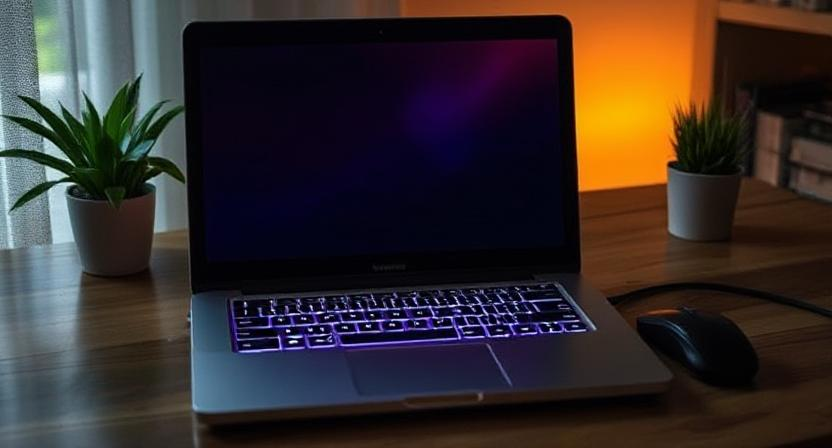
Dell laptop black screen issue

Especially if your Dell laptop seems to be working but nothing displays on the monitor, a black screen can be annoying. Hardware or software faults are just one of the several causes of this issue. Our specialty at PC Fix London is identifying and resolving problems with Dell laptop screens. We list the typical reasons a black screen results from below along with how fast our knowledgeable staff can fix it.

Typical Causes of Black Dell Laptop Screen

  • Power Issues: Sometimes the laptop might not be getting enough power, which would cause the device to be officially on yet have a dark screen.
  • Display Connection Problem: The screen may go dark from a loose or damaged cable, connector, or display panel itself.
  • Graphic Card Failure: A failing graphics card can cause the laptop to show nothing at all, hence producing a black screen.
  • Backlight Issue: Should the backlight of the screen fail, the screen can seem black even if the laptop is still running.
  • Corrupted OS or Software: Operating system or software corruption could cause the laptop to halt at the boot process, blacking the screen. This might result from a failed update or corruption of the operating system itself.

What should you consider when your Dell laptop screen blackens?

You can troubleshoot a few basic things before visiting a repair service to help you identify the problem:

  • Check the power supply: Make sure your laptop is either correctly connected to a power source or charged. At times the battery can be insufficient to run the screen.
  • External Display: Try connecting your laptop to an external monitor or TV via HDMI or VGA to find out whether the problem resides with the internal hardware or screen.
  • Keyboard Shortcuts: On some devices, pressing the “Fn” key with a function key—such as F8—can turn between several display modes. Try varying this to see whether it fixes the problem.
  • Restart the laptop: To hard reset the laptop, hold the power button for ten to fifteen seconds. Sometimes this fixes little software problems.

Repairing Dell Laptops: Services We Provide

PC Fix London offers complete services to fix and restore the screen of your Dell laptop. Our trained experts will:

  • Diagnose the issue: Ensuring a correct diagnosis, we will determine whether the battery, display hardware, graphics card, or software is the cause of the problem.
  • Repair or replace faulty parts: Should the screen or display components be broken, we will replace them with original Dell components to bring back the display of your laptop.
  • Resolve Software Conflicts: Fix program conflicts: Should a software problem create the black screen; we can recover system files or fix the operating system to have your laptop performing as it should once more.

Typical Hardware Issues Bringing About a Black Screen

Your Dell laptop may show a black screen for several hardware-related problems:

  • Loose or damaged display cables: Internal connections between the motherboard and the screen can wear out or get detached, therefore producing a black display from either loose or damaged display cables.
  • Graphics card failure: Should the graphics card of the laptop fail, the display may not perform as intended.
  • Broken screen or LCD panel: A black screen can follow from physical damage to the screen. This could call for cracked, pressured-marked, or faulty pixels.

Dell laptop black screen resulting from software problems

Should the problem not have anything to do with hardware, the blank screen can result from:

  • Corrupted operating system files: Should system data corrupt after a Windows update or power outage, the laptop may not be able to correctly boot, resulting in a blank screen.
  • BIOS issues: Boot problems arising from a faulty BIOS (Basic Input Output System) or a failed BIOS update will provide a black screen during starting.

Why would you want us to repair your Dell laptop screen?

  • Skilled technicians: Our knowledgeable experts can identify and resolve screen problems on every Dell laptop model.
  • Genuine Dell parts: For screen repairs, we exclusively utilize original Dell components to guarantee premium, long-lasting results.
  • No appointment needed: Walk-in repairs are accepted and, subject to part availability, we provide same-day repairs without an appointment.
  • No fix, no fee policy: Should we be unable to address the black screen problem, you will not be paid for the repair service. No fix, no price policy.
  • Quick turnaround: Our quick turnaround goal is to minimize downtime and get you back to work right away based on the parts availability.

Additional Services for Dell Laptops

Apart from screen repairs, we also provide a spectrum of other services to improve or recover the functionality of your Dell laptop:

  • Screen replacement: Should your laptop screen be broken, damaged, or malfunctioning, we may replace it with a new, original Dell display.
  • Graphics card replacement: Should the graphics card prove to be the source of the problem; we can replace it to guarantee correct visual display on your laptop.
  • Data recovery: Should the black screen prevent access to your files, we can help with data recovery to regain your critical data.
  • System restoration or OS reinstallation: We can restore your laptop to factory settings, reinstall Windows, or rectify corrupted running systems.

Avoiding Black Screen Problems

Think about these ideas to avoid black screen problems on your Dell laptop going forward:

  • Keep the laptop updated: Frequent operating system and driver updates help to avoid compatibility issues that can cause display problems.
  • Handle your laptop carefully: Take great care with your laptop; avoid dropping or mistreating it to damage the internal components or screen.
  • Monitor temperature: Track temperature: Make sure your laptop does not overheat since hardware failures—including screen problems—can result from this.

Conclusion:

Although there are several reasons why your Dell laptop may show black on a screen, PC Fix London is here to assist. Our knowledgeable staff can quickly identify and fix the screen, graphics card, or software depending on the issue.

Please note that the guideline instructions provided may not always apply to the symptoms your computer is experiencing. Sometimes, symptoms or behavior can be the same, but the underlying reason or fault can be completely different.

The fastest way we can assist customers is by bringing computers to our workshop, where technicians have the tools to diagnose faults accurately. After checks, if parts are found to be faulty or damaged, we proceed to replace them with high-quality original parts.

No appointments are required; you can drop off your computer at our workshop during working hours.

If you have more queries about our laptop repair and upgrade services, please feel free to contact us at 020 7018 7490 or email us at contact@pcfixlondon.com

Dell laptop wont turn on

If your Dell laptop isn’t turning on, it can be frustrating and concerning. Various issues can cause this problem, from hardware malfunctions to software glitches. Understanding the potential causes can help you narrow down the issue and seek appropriate solutions. Here’s an overview of what might be happening and how our expert repair services at PC Fix London can help you get your Dell laptop back in working condition.

Common Causes of Dell Laptop Not Turning On

  1. Battery Issues: The battery may be drained, damaged, or not properly connected. If the laptop doesn’t power up even after charging, this might be the issue.
  2. Power Supply Problems: A faulty charger or power supply could prevent your laptop from receiving power.
  3. Motherboard or Internal Hardware Failure: A malfunctioning motherboard or defective internal components could prevent the laptop from turning on.
  4. Screen Issues: Sometimes, the laptop may be working, but the screen isn’t displaying anything due to issues like a damaged display or faulty connections.
  5. Software Conflicts or Corruption: Software issues, including corrupted system files or conflicts during boot-up, could cause your Dell laptop to fail to start.

Dell Laptop Not Turning On? Here’s What to Check First

Before contacting a professional repair service, there are a few things you can check on your own:

  • Check the power supply: Ensure that the power cable is securely connected to both the laptop and the power outlet. If possible, test the charger with another laptop or use a different charger to rule out power supply issues.
  • Remove external devices: Unplug all external devices like USB drives, printers, or external monitors. Sometimes these devices can interfere with the startup process.
  • Perform a hard reset: Disconnect the charger, remove the battery (if possible), and hold the power button for 30 seconds. This can help reset the laptop and may resolve minor issues.

Why Your Dell Laptop Won’t Turn On: Possible Hardware Problems

If your Dell laptop has suffered physical damage, it may affect its ability to power up. Common hardware-related issues include:

  • Faulty motherboard: The motherboard is a critical component that connects all parts of the laptop. If it becomes damaged, the laptop may fail to turn on.
  • Broken display or loose connection: Sometimes the laptop may power on, but the screen may not show anything due to a faulty display or loose connection between the screen and motherboard.

Dell Laptop Not Turning On Due to Software Issues

In some cases, your laptop might not turn on due to issues with the operating system or software:

  • Corrupted system files: If essential system files become corrupted, the laptop may fail to boot properly.
  • BIOS settings: Incorrect BIOS settings or corrupted BIOS firmware can also cause startup problems.

Steps to Fix a Dell Laptop That Won’t Turn On

1. Check the Power Supply

  • Ensure the power adapter is securely connected to both the laptop and the wall outlet.
  • Try a different wall outlet to rule out issues with the power source.
  • Test with another charger if possible to confirm the adapter isn’t faulty.

2. Inspect the Battery

  • If your Dell laptop has a removable battery, remove it and try powering the laptop with just the AC adapter.
  • If the laptop turns on, the battery may need replacement.

3. Perform a Hard Reset

  • Unplug the laptop and remove the battery (if removable).
  • Hold the power button for 30 seconds to discharge any residual power.
  • Reconnect the power adapter (without the battery) and try turning on the laptop.

4. Check for Display Issues

  • Connect your Dell laptop to an external monitor using an HDMI or VGA cable.
  • If the external display works, the issue may be with your laptop’s screen or graphics card.

5. Listen for Beep Codes

  • When you try to turn on the laptop, listen for any beeping sounds.
  • Beep codes indicate specific hardware issues. Refer to your Dell laptop’s manual or contact a technician for interpretation.

6. Remove External Devices

  • Disconnect all external devices (USB drives, external monitors, printers, etc.).
  • Sometimes, peripherals can interfere with the boot process.

7. Check for Overheating

  • If your laptop feels hot, it may have overheated and shut down as a safety measure.
  • Let it cool down for 15-30 minutes and ensure the vents are clean and unobstructed.

8. Boot into Safe Mode

  • Press the power button and repeatedly tap the F8 key during startup.
  • Select Safe Mode from the boot menu.
  • If successful, you can troubleshoot software issues or roll back recent updates.

9. Inspect Internal Hardware

  • For advanced users: Open the laptop’s back panel and check if the RAM and hard drive are properly seated.
  • Reseat the components if they appear loose or disconnected.

10. Reset the BIOS

  • Disconnect the laptop from power and remove the CMOS battery (for advanced users).
  • Wait for 5 minutes, then reinstall the CMOS battery to reset the BIOS settings.

Preventative Tips to Avoid Future Issues

  • Use the original Dell charger and avoid third-party replacements.
  • Keep your laptop clean by regularly cleaning the vents and fans.
  • Update your operating system and drivers to prevent software conflicts.
  • Avoid using your laptop on soft surfaces that can block airflow.

Repair Services We Offer for Dell Laptops

At PC Fix London, we specialize in diagnosing and repairing all kinds of Dell laptop issues. If your laptop isn’t turning on, our certified technicians will:

  • Diagnose the root cause: Using professional tools, we’ll determine whether the issue lies with the battery, charger, motherboard, or any other component.
  • Replace faulty parts: If we find that a part like the battery, motherboard, or power supply is malfunctioning, we’ll replace it with original parts to restore your laptop’s functionality.
  • Fix software-related issues: We’ll resolve software problems, ensuring your system files are intact and your operating system is working properly.

Why Choose Us for Dell Laptop Repairs?

  • Technician expertise: Our team consists of skilled technicians who specialize in diagnosing and fixing Dell laptops.
  • Original parts: We use only original Dell parts to ensure your laptop performs optimally after the repair.
  • No appointment required: Walk-ins are welcome, and we offer same-day repairs subject to parts availability.
  • No fix, no fee policy: If we can’t fix your laptop, you won’t pay a penny.
  • Fast turnaround: We aim to complete repairs swiftly so you can get back to using your laptop as soon as possible. Same-day repair available, depending on the complexity of the issue and parts availability.

Additional Services for Dell Laptops

At PC Fix London, we offer a variety of additional services for your Dell laptop, including:

  • Screen replacements: If your screen is damaged or cracked, we offer fast screen replacements using genuine Dell parts.
  • Data recovery: If your laptop isn’t turning on due to a hardware failure, we can assist with data recovery to retrieve your important files.
  • Laptop upgrades: Need more storage or RAM? We can upgrade your Dell laptop to enhance its performance and longevity.

FAQs: Dell Laptop Not Turning On

Q: Why won’t my Dell laptop turn on even when plugged in?
A: This could indicate a problem with the power adapter, charging port, or internal components. Test with a different power adapter or seek professional diagnosis.

Q: What should I do if my Dell laptop screen stays black but the power light is on?
A: This could be a display or graphics card issue. Connect your laptop to an external monitor. If the external display works, the problem is likely with your laptop’s screen.

Q: Can a dead battery cause my Dell laptop not to turn on?
A: Yes, a dead or faulty battery can prevent your laptop from turning on. Remove the battery and try powering the laptop with just the AC adapter. If it turns on, the battery may need replacement.

Q: What does it mean if my Dell laptop beeps when I try to turn it on?
A: Beeping sounds usually indicate a hardware issue, such as faulty RAM or a motherboard problem. Refer to your laptop’s manual or contact a technician for help.

Q: How can I check if my Dell laptop is overheating?
A: If your laptop feels hot or shuts down unexpectedly, it may be overheating. Ensure the vents are clean and unobstructed. Let it cool down for 15-30 minutes before trying again.

Q: What should I do if my Dell laptop won’t turn on after a Windows update?
A: Try booting into Safe Mode by pressing the power button and repeatedly tapping the F8 key. If successful, roll back the update or restore your system to a previous state.

Q: Can I fix my Dell laptop myself, or should I seek professional help?
A: Basic issues like power supply problems can often be fixed at home. For internal hardware issues, it’s best to consult a professional technician.

Conclusion

If your Dell laptop isn’t turning on, don’t panic. PC Fix London is here to help. Our expert technicians can accurately diagnose and repair the issue, ensuring your device is up and running in no time.

No appointment is needed. You can visit our service center during working hours from Monday to Friday.

Contact us today at 020 7018 7490 or email us at contact@pcfixlondon.com to get your Dell laptop repaired with confidence. Whether it’s a simple power issue or a more complex hardware failure, we have the skills and expertise to fix it.

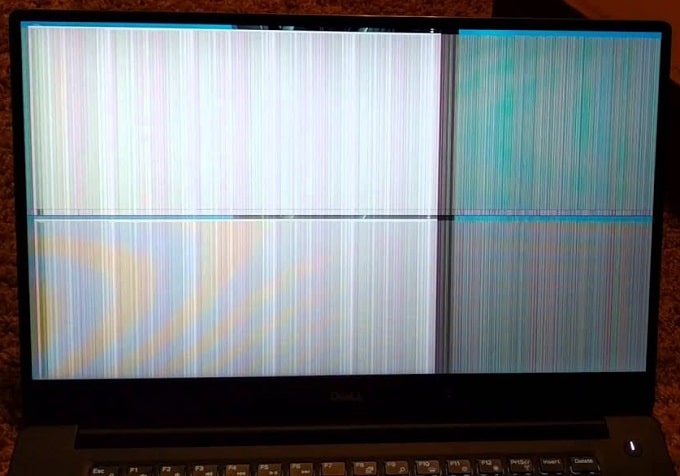
Dell Laptop Horizontal Lines on Screen

Many Dell laptops suffer from annoying horizontal lines. These lines not only look awful but can also make typing difficult and sometimes even render text unreadable. Fortunately, we’ll guide you through the process of fixing this issue with a few straightforward steps.

Dell is a major player in the laptop market, known for its quality products. However, several issues have recently plagued Dell laptops, from lines on the screen to random shutdowns, leaving users frustrated.

This problem typically arises due to a defect in your laptop’s screen, and the good news is that you can often fix it yourself. Nevertheless, resolving this issue might pose a challenge. In this guide, we’ll walk you through the process of rectifying Dell laptop horizontal lines on the screen.

What Causes Dell Laptop Horizontal Lines on the Screen?

One of the most common problems people face with their Dell laptops is the appearance of lines or other issues such as burn marks on the screen. While Dell laptops are renowned for their beautiful screens and sharp images, certain problems, like horizontal lines on the screen, can occur. Poor manufacturing quality is a key factor contributing to this problem.

Horizontal lines may appear on your laptop screen for various reasons, including:

  1. If the laptop is over a year old.
  2. When the computer’s temperature becomes excessively high.
  3. If the screen pixels become damaged.
  4. If the screen is covered by something heavy.
  5. When dust and debris damage the laptop’s pixels.
  6. Due to certain external devices connected to the laptop.

How to Fix Dell Laptop Horizontal Lines on the Screen?

If you notice horizontal lines on your Dell laptop screen, there are several steps you can take to alleviate the issue.

Adjust Power Management

The primary cause of horizontal lines on Dell laptop screens is often incorrect power management settings. When the computer is turned off or in sleep mode, the graphics processor can remain active and consume significant power. This can lead to premature display turn-off or flickering, resulting in the appearance of horizontal lines.

To address this problem, adjust the power management settings on your computer by following these steps:

  1. Start the menu and select Settings -> Power -> Change plan settings -> Change advanced power settings -> Battery saver -> Turn on battery saver (see image).
  2. From here, you can set the time for automatic computer turn-off and the duration before it turns back on.

LCD Panel Troubleshooting

LCD panels consist of various materials that require heat to function properly. To ensure the monitor screen operates correctly, follow these steps:

  1. Turn off your laptop.
  2. Wait approximately an hour after turning off the laptop before attempting to turn it on again.
  3. After turning on the laptop, wait a few seconds and then move the mouse to verify its functionality. If the mouse doesn’t work, try turning on the laptop using the keyboard or touch-pad.
  4. Turn off the laptop again.
  5. Wait another hour before turning it back on.

If you continue to experience screen issues, it’s advisable to take your laptop to a service center for further assessment.

Download the Latest Graphics Card Driver with Driver Talent

You might be surprised to find horizontal lines on your laptop screen if it has been a while since you last used it. This issue could result from a malfunctioning graphics card, a faulty memory stick, or a dirty lens. Knowing how to address these problems is crucial to prevent them from escalating. Follow these instructions to resolve the issue:

  1. Open the control panel on your laptop’s desktop.
  2. Go to Device Manager.
  3. In the main device window, you’ll find a list of installed drivers.
  4. Right-click on a driver and select Uninstall.
  5. Examine the list of installed drivers and uninstall any drivers related to the issue.
  6. Ensure you’re selecting the correct driver, as Device Manager might list them under different names.
  7. Repeat steps 2 through 4 until you find the correct graphics card driver.

Troubleshooting Display Issues

If your laptop screen exhibits incomplete images, improper text display, or horizontal lines, it’s likely facing display issues. To resolve this problem, follow these steps:

  1. Begin by turning off your laptop.
  2. Confirm that your laptop’s fan is operational.
  3. If the fan stops due to lack of airflow, the lines may disappear.

Should this method not yield results, consider seeking assistance from a repair center.

Battery Life Issues

If you suspect that your laptop’s screen is displaying horizontal lines, you can attempt to resolve the issue by:

  1. Turning off your laptop.
  2. Removing the battery.
  3. Waiting for two hours.
  4. Reinserting the battery.
  5. Turning on your laptop.

Conclusion

Please note that the guideline instructions provided may not always apply to the symptoms your computer is experiencing. Sometimes, symptoms or behavior can be the same, but the underlying reason or fault can be completely different.

The fastest way we can assist customers is by bringing computers to our workshop, where technicians have the tools to diagnose faults accurately. After checks, if parts are found to be faulty or damaged, we proceed to replace them with high-quality original parts.

No appointments are required; you can drop off your computer at our workshop during working hours.

If you have more queries about our laptop repair and upgrade services, please feel free to contact us at 020 7018 7490 or email us at contact@pcfixlondon.com

dell laptop that wont turn on

This article will explain how to fix a Dell laptop that won’t turn on, freeze or turn on then. Screen freezing, keyboard freezing, and mouse freezing can sometimes be highly frustrating. Facing issues like your computer not turning on or getting a proper power supply is common. Let’s check how you can solve the problem without going to the repair shop.

Dell Laptop Not Turning On: Quick Fixes

Step 1:

First, you must unplug your power cord and take out your battery. Then simply attach it and power on your laptop. In most cases, it will solve your issue. You can simply turn over your Dell laptop and use a push button to take out the battery. If your battery is inside the case, you should unscrew it to take it out. If you find that this doesn’t work, don’t give up. We have two more parts to this procedure. Try turning it on again now. If it doesn’t work, go to the next phase.

Step 2:

Make sure all USB storage devices are removed. Your computer may be trying to boot from the wrong drive. Change the boot order to place your hard drive at the top of the list if this fixes the problem.

Step 3:

Take out your battery and unplug your power cord. Hold down the power button for one minute. Release the power button. Put the battery back in the device and plug the power cord into the device. As soon as you find that it miraculously turns on your machine, then it means that there is an issue with the power cord.

Step 4:

If step 3 doesn’t work, remove the battery and unplug the power cord. Like before, hold the power button for one minute, then release it.

Once you’ve released that power button and plugged your power cord back, plug the battery in and try turning it on again; if it works, you know you have a battery problem preventing your computer from turning on.

Step 5:

You can clear the CMOS to reset your motherboard’s BIOS settings. Usually, when you turn on your computer, the first piece of software runs in your computer’s BIOS, so you might be able to fix reboot issues by restoring its default settings. In that case, you need to watch a dissembling video of your laptop to reset your CMOS. If you do it for the first time, you should go to a repair shop or Dell customer center.

Final Words

Dell offers high-quality laptops at an affordable prices. If your computer turns on but faces a black screen, the repair work is different. A built-in tool can identify the problem if your Dell PC fails to boot up when it powers on. If it doesn’t automatically solve the issue, it may give you an error code that can point you in the right direction. I hope the article will help you solve this simple issue quickly.

Disclaimer:

Please note that the guideline instructions provided may not always apply to the symptoms your computer is experiencing. Sometimes, symptoms or behavior can be the same, but the underlying reason or fault can be completely different.

The fastest way we can assist customers is by bringing computers to our workshop, where technicians have the tools to diagnose faults accurately. After checks, if parts are found to be faulty or damaged, we proceed to replace them with high-quality original parts.

No appointments are required; you can drop off your computer at our workshop during working hours.

If you have more queries about our laptop repair and upgrade services, please feel free to contact us at 020 7018 7490 or email us at contact@pcfixlondon.com

dell hp lenovo laptops

Laptops have become an integral part of our daily lives, and we use them for work, entertainment, and communication. However, accidents happen, and spills are common, which can result in liquid damage to your laptop. If you own an HP, Dell, Lenovo laptop, you must take the necessary precautions to prevent liquid damage. In this article, we will discuss tips on saving your HP, Dell, Lenovo laptop from liquid damage.

  1. Keep liquids away from your Laptop: The most effective way to prevent liquid damage to your HP, Dell, Lenovo laptop is to keep liquids away from it. Keeping your laptop away from liquids, including water, coffee, and other drinks, is essential, as they can easily spill and seep into your laptop’s internal components. To minimize the risk of spills, avoid eating and drinking near your laptop, and place your laptop on a stable surface to reduce the chances of accidental spills.
  2. Use a laptop sleeve or case: A laptop sleeve or case can provide additional protection against liquid damage. It can prevent liquids from seeping into your laptop and protect it from accidental spills. When choosing a laptop sleeve or case, ensure it is waterproof or water-resistant and fits your HP, Dell, Lenovo laptop’s size and model.
  3. Clean your laptop regularly: Dust and debris can accumulate in your laptop’s ports, openings, and keyboard, which can trap moisture and increase the risk of liquid damage. To prevent this, regularly clean your laptop using a soft, dry cloth or compressed air. Do not use water or liquid cleaners to clean your laptop; they can cause more harm than good.
  4. Handle your laptop carefully: Laptops are fragile devices, and mishandling them can cause liquid damage. Avoid carrying your laptop while it is open or in use; do not place heavy objects on it. When transporting your laptop, use a padded bag or case and ensure it is secured properly.
  5. Act quickly if liquid damage occurs: If liquid damage occurs, act quickly to prevent further damage. Turn off your HP, Dell, Lenovo laptop immediately, unplug the power cord and remove the battery if possible. Wipe off any excess liquid using a soft, dry cloth and let your laptop dry completely before attempting to turn it on again. If the liquid spill is significant or you suspect the internal components have been damaged, take your laptop to a professional repair service for assessment and repair.
  6. Avoiding Humid Environments: Moisture is a liquid damage catalyst, so keeping your laptop away from damp environments is essential. It includes storage areas prone to moisture, such as garages or basements. If you live in a humid climate, consider using a dehumidifier in the room where you keep your laptop.
  7. Keep a Backup of Your Data: In severe liquid damage, you may lose all your data. It is essential to keep a backup of all important files and documents on an external hard drive or in the cloud.
  8. Use a Protective Case: If you plan to take your laptop to a public place with a risk of spills, consider using a protective case. A good quality case can protect your laptop from damage caused by spills and other accidents.
  9. Turn off the laptop Immediately: If liquid spills on your laptop, turn it off immediately to prevent further damage. Try to turn it back on when you have taken steps to dry it out.
  10. Use Rice to Absorb Moisture: Rice is a natural desiccant that can absorb moisture from electronic devices. If your laptop suffers liquid damage, place it in a container with uncooked rice for a few days. The rice will absorb the moisture and help dry out your laptop.

Following these tips can help protect your HP, Lenovo, Dell laptop from liquid damage and extend its lifespan. However, accidents can happen, and if your laptop does suffer liquid damage, it’s essential to act quickly and seek professional help to prevent further damage.

HP, DELL, LENOVO Laptop from Liquid Damage: Why PC FIX London?

If you have experienced liquid damage to your HP, Dell, Lenovo laptop, you may be wondering about the best way to get it repaired. While there are many options, choosing the right repair service can be crucial to getting your laptop back up and running. PC Fix London is a reliable and trustworthy option for repairing your laptop from liquid damage. Here are some reasons why:

  1. Experienced technicians: PC Fix London has a team of experienced technicians who are knowledgeable in repairing all types of laptop damage, including liquid damage. They have been trained to handle a range of HP, Dell, Lenovo laptop models and have the necessary skills and expertise to diagnose and fix any issues.
  2. Quick turnaround time: Time is of the essence when it comes to liquid damage. The longer you wait to get your laptop repaired, the more damage can occur. PC Fix London offers quick turnaround times to return your laptop immediately. They understand the importance of your device and will work efficiently to ensure it is repaired promptly.
  3. Competitive pricing: Repairing liquid damage can be expensive, but PC Fix London offers highly competitive pricing. They will provide a free quote before beginning any repairs so you know what to expect regarding costs.
  4. Quality parts and components: When repairing your Dell, Lenovo, HP laptop from liquid damage, it is important to use high-quality parts and components. PC Fix London uses only genuine parts, ensuring your laptop will be restored to its original condition.

In conclusion, choosing a reliable and trustworthy repair service is crucial if you have experienced liquid damage to your HP, Dell, Lenovo laptop. PC Fix London offers experienced technicians, quick turnaround times, affordable pricing, quality parts and components, and a warranty on all repairs, making them a great choice for repairing your laptop from liquid damage.

Dell laptop black screen

Dell is a technology company based in the USA. It excels in selling premium laptops at affordable prices. They are one of the most popular laptop manufacturers in the world. They offer many laptop models like Alienware, XPS, Inspiron, and Latitude. The laptops offer different configurations and features for many demographics. Everyone, including businessmen, students, and even professional gamers, can get a Dell Laptop.

Causes of Black Screen on Dell Laptop

Display Problems

Suppose your Dell laptop screen turns on first and then shuts down after some time. You need to check for issues in your connecting cable, video driver, and video card.

Device Overheating

Your laptop screen may turn black when your device reaches higher temperatures. Ensure proper ventilation in your room before turning it on again.

System Virus

If your laptop screen is black and your laptop is still running. This is a computer virus or malware present in your Dell laptop.

Hardware Failure

If there is some faulty hardware in your laptop, then your laptop screen may not turn on.

Windows 10 Installation Issues

When you are installing any windows OS, make sure that it is completely installed. If the operating system is not wholly installed, the display may still not turn on.

Power supply problem

If the power supply of your laptop is faulty, your laptop screen may still not turn on.

Fixing Dell Laptop Black Screen Problems

Graphics Driver Restart on Laptop

If you turn on your Dell Laptop and your screen is black. The reason may be that there is a poor connection between your device and the operating system. Restarting your driver may fix your problems.

1. Use the keyboard and press the “Windows”+“Ctrl”+ “Shift” keys with the letter “B.”

2. Wait for the graphics driver to restart. This fixes the black screen issue.

Graphics Driver Update

If you turn on your laptop and the screen is black, you may have an old version of the display driver installed. Install the latest updates of your display driver. Doing so will fix your black screen problems.

Display panel replacement

A faulty display panel may be the issue that is causing a black screen problem in your Dell laptop. Before replacing your display panel, check if your panel is faulty by using a spare external one. If the new screen displays your laptop screen, then you can change your display panel for an easy fix.

Laptop Force Shut Down

Force shut down your laptop to fix the black screen issue. When your laptop screen is black, remove the AC supply and force shut down your system, and follow the steps.

1. Remove any connected external devices.

2. Shut down your device for some time.

3. Remove the power cord from your laptop.

4. Hold your power key for a minute and let the battery drain.

5. Connect the charger again.

6. The black screen issue will fix after these steps.

Restart Laptop in Safe mode

If you experience a black screen right when you start your laptop, then you need to click the “Shift”+”8” keys together. This launches the recovery menu. Choose the safe mode. Your laptop then boots up in Safe Mode. You can troubleshoot the display settings and then restart. This fixes the black screen issue in your Dell laptop.

Connect External Display for Laptop

If you know your display panel is at fault, you can connect an external screen to your laptop. Till that issue persists, you can work on your laptop using the external screen.

Restart Explorer.exe process

This process manages many functions on a laptop. If you see a black screen and a cursor, you need to end the Explorer.exe process. Launch the task manager and then restart your laptop; this will fix the black screen problem.

BIOS Reset

An unwanted change in the settings of the BIOS of your Dell Laptop can be the reason for the black screen. Change the BIOS settings to default by clicking on the “F12” key when you start up your laptop. Set the BIOS to the default settings, and this fixes the black screen issue in your laptop.

BIOS Update

Visit the Dell laptop support website and download the latest update for your BIOS. Follow the instructions given on the support website and install the update. We fixed the black screen issue on your Dell laptop.

Reinstall Windows

If your laptop is on and you face a black screen issue, this might be due to a problem with the operating system. You need to clean up and reinstall the operating system. Reboot your laptop and reinstall the operating system by connecting the recovery media. We do this by using the internal drive, flash drive, or DVD.

Disclaimer:

Please note that the guideline instructions provided may not always apply to the symptoms your computer is experiencing. Sometimes, symptoms or behavior can be the same, but the underlying reason or fault can be completely different.

The fastest way we can assist customers is by bringing computers to our workshop, where technicians have the tools to diagnose faults accurately. After checks, if parts are found to be faulty or damaged, we proceed to replace them with high-quality original parts.

No appointments are required; you can drop off your computer at our workshop during working hours.

If you have more queries about our laptop repair and upgrade services, please feel free to contact us at 020 7018 7490 or email us at contact@pcfixlondon.com

FAQs for Dell Laptop Screens

What does the black screen on your laptop mean?

When your laptop screen turns black, it means that there are some issues with your laptop. The issues may be major or minor. Sometimes if your laptop screen turns black without warning, you may lose your data. This can lead to hindrance in your work. A professional tool can retrieve your lost data when the screen issue gets resolved.

When does your laptop screen turn Black?

If you update to a new version of Windows.

When you update Dell BIOS.

If you log in to Windows.

Why does the Laptop screen turn black?

There can be various reasons, because of which a laptop screen can turn black. For example, there may be a problem with the connection of the graphics driver and operating system. This issue is one of the most common problems. Other issues like overheating, viruses, and hardware issues lead to a black screen.

How do we fix your Laptop Screen?

You can fix your laptop following these steps:

  • Force Shut Down your Laptop
  • Restart the laptop Graphics drivers
  • Display panel replacement
  • Startup your laptop using Safe Mode
  • BIOS Update
  • Restart Explorer.exe process
  • Re-install Windows.

If the given solution doesn’t work we recommend you to call an authorized Dell laptop repair service center, they can provide you with solutions specific to your Dell laptop model.