MSI Laptop Keyboard Repair

MSI laptops are known for their high performance and durability, but like any other electronic device, they can experience issues over time. One of the most common problems MSI laptop users face is a malfunctioning keyboard. A broken keyboard can be frustrating due to accidental spills or mechanical failure, tear and overtime time; keys can wear out and require treatment.

Common MSI Laptop Keyboard Issues:

Here are a few symptoms and signs that may indicate a problem with your keyboard:

  • Keys are unresponsive: When you press a key, it doesn’t register or type the intended character.
  • Sticky keys: Keys that feel sticky or slow to press and release, making it difficult to type.
  • Repeating keys: When you press a key once, it types multiple characters, causing errors and making it difficult to type.
  • Missing keys: Some keys may be physically missing from the keyboard, making it impossible to type certain characters.
  • Unusual characters: When you press a key, it types a different character than you intended.
  • Keyboard back-light not working: If your keyboard has a back-light, it may not turn on or flickering.
  • Keyboard cable issues: The cable connecting the keyboard to the computer may be loose or damaged, causing connection problems.
  • Keys are sticking: The keys may feel physically stuck or difficult to press, making it difficult to type.
  • Not Working: The keyboard is not typing when pressing any keys.
  • Own Typing: Typing by itself when not even pressed with any key.

If you are experiencing any of these symptoms, it may indicate a problem with your keyboard. If any of the above problems occur, or you are unsure your MSI laptop keyboard is acting up, it’s best to seek professional help at PC Fix London. Our qualified technicians will have the expertise and tools to diagnose and fix the issue quickly and efficiently.

Solutions to Fix MSI Laptop Keyboard Problems:

1. Perform a Hard Reset

  • Turn off the laptop and disconnect all external devices.
  • Unplug the power adapter and remove the battery (if removable).
  • Press and hold the power button for 15-20 seconds to discharge residual power.
  • Reconnect the battery and power adapter, then restart the laptop.

2. Update or Reinstall Keyboard Drivers

  • Open Device Manager by typing it in the Windows search bar.
  • Locate Keyboards, right-click on your keyboard driver, and select Update Driver.
  • If updating doesn’t work, choose Uninstall Device, then restart the laptop to reinstall the driver automatically.

3. Check Keyboard Settings

  • Navigate to Control Panel > Ease of Access > Ease of Access Center > Make the Keyboard Easier to Use.
  • Ensure Sticky Keys and Filter Keys are turned off.

4. Clean the Keyboard

  • Use compressed air to remove dust and debris from under the keys.
  • If a liquid spill occurred, turn off the laptop immediately, disconnect it from power, and let it dry completely. Seek professional cleaning if necessary.

5. Test the Keyboard in BIOS

  • Restart the laptop and press the Delete or F2 key repeatedly to enter BIOS.
  • If the keyboard works in BIOS, the issue is likely software-related. If it doesn’t, it may be a hardware problem.

6. Reseat the Keyboard Cable

  • If comfortable, open the laptop and check the internal keyboard connection to the motherboard.
  • Ensure the ribbon cable is securely attached. Seek professional assistance if you’re unfamiliar with laptop disassembly.

7. Use an External Keyboard

  • Connect an external USB or Bluetooth keyboard as a temporary workaround.
  • This can help identify if the issue is isolated to the laptop keyboard.

8. Replace the Keyboard

  • For broken or severely damaged keyboards, replacement may be the best option.
  • Ensure you purchase a compatible replacement keyboard for your MSI laptop model.

Causes of MSI laptop keyboard Not Working:

  1. Dirt and debris: Dirt, dust, and debris can accumulate beneath the keys over time, making them unresponsive or sticky.
  2. Accidental spills: Spilling liquids on the keyboard can cause the keys to malfunction or become completely stuck.
  3. Mechanical failure: Over time, the keyboard’s internal mechanisms may wear out, causing keys to become unresponsive or stuck.
  4. Driver issues: Outdated or faulty drivers can cause the keyboard to malfunction.
  5. Software updates: Some software updates can cause keyboard issues, such as unresponsive or stuck keys.
  6. Physical damage: Dropping the laptop or applying excessive force to the keyboard can cause damage to the keys or the internal mechanisms, leading to malfunctioning keys.

Prevention Tips:

To ensure that your MSI laptop keyboard remains in good condition and avoid frequent repairs, here are some tips for taking care of it:

  1. Keep liquids away: One of the most common causes of keyboard damage is liquid spills. Keep liquids, such as water and coffee, away from your laptop.
  2. Clean regularly: Regularly clean your MSI laptop keyboard to prevent the accumulation of dirt, dust, and debris that can lead to sticky or unresponsive keys. Use a can of compressed air to blow out any dirt and debris that’s trapped under the keys.
  3. Be gentle: Avoid pressing too hard on the keys, as this can cause damage to the keyboard. Also, be careful when removing keycaps to avoid damaging the key switch underneath.
  4. Use a protective cover: Consider using a keyboard protective cover to keep your keyboard clean and prevent spills from reaching the keys.
  5. Avoid extreme temperatures: Exposure to extreme temperatures can cause damage to your laptop keyboard. Avoid using your laptop in very hot or very cold environments.

Following these tips, you can keep your MSI laptop keyboard in good condition and avoid frequent repairs.

We have you all covered and will repair and replace MSI laptop keyboards. Based in central London, you are more welcome to walk in or send your laptop to our address to fix the MSI laptop keyboard. 

MSI laptop keyboard repair: Why PC Fix London?

PC Fix London is a reputable computer repair service specializing in fixing various computer problems, including MSI laptop keyboard repair. When repairing your MSI laptop keyboard, finding a reliable and trustworthy service is crucial to ensure your laptop is in good hands. By entrusting your laptop to PC Fix London, you can rest assured that your device will receive high-quality repairs from experienced technicians who use only genuine parts and the latest repair techniques.

  1. Certified and Skilled Technicians
  2. Quick and Efficient Service
  3. Original Parts
  4. At PC Fix London, we provide quick and efficient service, minimizing the time you have to be without your laptop.
  5. Genuine Parts: we only use genuine parts for repair, ensuring your laptop will function correctly after the repair.
  6. Competitive Pricing: PC Fix London provides affordable pricing for all their repair services.

In conclusion, if your MSI laptop keyboard is beyond repair, it’s essential to replace it with a compatible replacement keyboard. Following the steps outlined above, you can install a new keyboard and have your laptop functioning like new. If you’re still facing issue on your MSI laptop keyboard on your own, don’t hesitate to contact PC Fix London at call: 020 7018 7490 or contact@pcfixlondon.com for fast and efficient repairs or bring to workshop .

Disclaimer:

Please note that the guideline instructions provided may not always apply to the symptoms your computer is experiencing. Sometimes, symptoms or behavior can be the same, but the underlying reason or fault can be completely different.

The fastest way we can assist customers is by bringing computers to our workshop, where technicians have the tools to diagnose faults accurately. After checks, if parts are found to be faulty or damaged, we proceed to replace them with high-quality original parts.

No appointments are required; you can drop off your computer at our workshop during working hours.

If you have more queries about our laptop repair and upgrade services, please feel free to contact us at 020 7018 7490 or email us at contact@pcfixlondon.com
Replace MSI Laptop Hard Drive

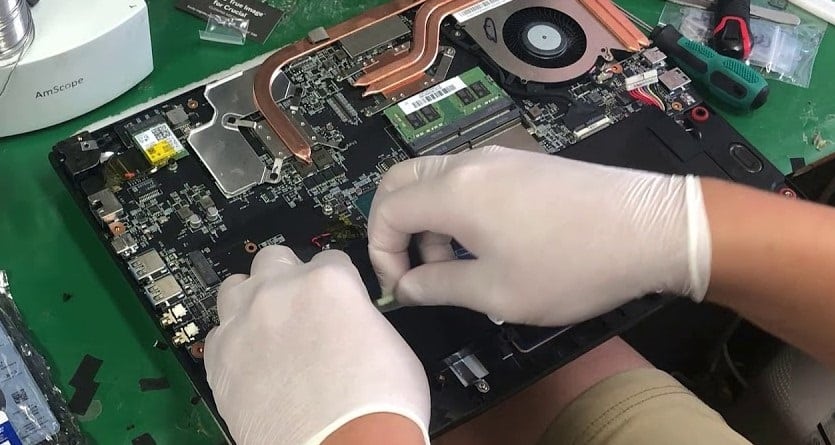
In most cases, MSI preinstalls a 1TB HDD or small SSD on its laptops, which is too small for gaming. It is common for people to upgrade their MSI hard drives after a while. MSI hard drives can be replaced with SSDs, which provide faster running speeds to enjoy fast gaming, browsing and more. In this article, we will show how to replace a laptop hard disk in an MSI laptop.

How to replace Laptop Hard Drive MSI GP62MVR. Fix, Install, and Repair HDD GE72 GE62 GT72 GS73

Step 1:

First, you have to place your MSI laptop upside down.

Step 2:

You must remove the sixteen 5.5 mm screws with a Phillips #0 screwdriver.

Step 3:

You should use the Jimmy tool to pry loose the bottom cover evenly. When performing the task, you need to be very careful. When removing the bottom cover, ensure all sides are detached from the plastic hinge before you begin.

Step 4:

Disconnect the hard drive and remove the hard drive from the device. Gently pry out the hard drive.

Step 5:

Install a new HDD or SSD in place of the old one.

Tips: It is possible to clone HDD to SSD without reinstalling everything if you want to keep your data. While replacing your HDD, you will need a new SSD and USB enclosure for the SATA port or a USB enclosure for the M.2 port to transfer data. Back up the hard drive to a USB/external drive, then restore it to the SSD drive. You will still need an external hard drive to temporarily store backup images and a bootable USB or CD/DVD for disk restoration.

Conclusion

Hopefully, this article can help you replace your MSI hard drive. And the same method applies to different MSI computers like GT70, GT72, GT75, and other hard drive replacements. If unsure what type of SSD suits your MSI computer, you should consult the manufacturer.

Disclaimer:

Please note that the guideline instructions provided may not always apply to the symptoms your computer is experiencing. Sometimes, symptoms or behavior can be the same, but the underlying reason or fault can be completely different.

The fastest way we can assist customers is by bringing computers to our workshop, where technicians have the tools to diagnose faults accurately. After checks, if parts are found to be faulty or damaged, we proceed to replace them with high-quality original parts.

No appointments are required; you can drop off your computer at our workshop during working hours.

If you have more queries about our laptop repair and upgrade services, please feel free to contact us at 020 7018 7490 or email us at contact@pcfixlondon.com

MSI Laptop Screen Repair

MSI is a well-known brand in the world of laptops, offering a range of models that cater to different needs and budgets. However, MSI laptops are not immune to hardware issues like any electronic device. One of the most common problems that MSI laptop users face is a broken or damaged screen. In this article, we’ll discuss some common issues related to MSI laptop screens and how to fix them.

Symptoms of a Damaged MSI Laptop Screen:


A damaged laptop screen can present itself in many ways. Here are some of the most common symptoms:

No display: If your laptop screen is completely black or not showing any display, it could be a sign of a problem with the screen or its connection to the motherboard.

Flickering: If your laptop screen flickers or flashes on and off, it could indicate a problem with the graphics card or display drivers.

Lines or distorted image: If your laptop screen displays lines, patterns, or a distorted image, it could indicate a problem with the screen’s hardware or graphics card.

Backlight not working: If the backlight on your laptop screen is not working, the screen may appear dim or completely black.

Dead pixels: Dead pixels are small dots on the screen that do not display any color. These can be a sign of a damaged screen or a manufacturing defect.

Ghosting or image retention: If you can see faint images or remnants of previous images on your laptop screen, it could be a sign of ghosting or image retention, which the prolonged display of static images can cause.

Cracks or physical damage: Cracks or physical damage to the laptop screen can cause it to malfunction or stop working altogether.

If you are experiencing any of these symptoms, seeking professional help at PC Fix London to diagnose and fix the issue is best. Our qualified technician can determine the underlying cause of the problem and recommend the appropriate solution, whether it’s a screen replacement or repair of the graphics card or drivers.

There are several common causes of MSI laptop display issues, including:

Physical damage: Dropping the laptop or applying excessive force to the screen can cause damage to the display and it is leading to issues such as cracks, dead pixels, or color distortion.

Loose or damaged cable connections: The cable connecting the laptop’s display to the motherboard can become loose or damaged, resulting in a blank or flickering screen.

Outdated or faulty graphics drivers: Drivers are essential software components that allow the computer to communicate with the hardware. Outdated or faulty graphics drivers can cause display issues such as blurry or distorted images.

Malware or virus infections: Malware or viruses can cause various issues, including display problems.

Overheating: The Overheating can cause damage to the display, as well as other components of the laptop. It can be caused by blocked air vents or a malfunctioning fan.

Power issues: Power issues, such as a faulty battery or power adapter, can cause the display to malfunction or not turn on.

Suppose you are experiencing any of these or other display problems with your MSI laptop. In that case, it is recommended to seek professional help from a reputable repair service centre PC Fix London. Our certified technicians can diagnose and repair the issue quickly and efficiently using genuine parts and the latest repair techniques.

To keep your MSI laptop display in good condition and prevent frequent repairs, here are some tips you can follow:

Clean your screen regularly: Use a soft, lint-free cloth to wipe your laptop screen gently. Avoid harsh cleaning solutions, as they can damage the screen’s coating.

Be careful when closing your laptop: Be gentle when closing your laptop lid to avoid damaging the screen or hinges.

Use a protective cover: Consider using a laptop screen protector to prevent scratches and other damage.

Avoid touching the screen: Fingerprints and smudges can make it difficult to see the screen. Avoid touching the screen as much as possible, and use a stylus if necessary.

Keep your laptop in a safe place: When you’re not using your laptop, keep it in a safe place, away from potential hazards like liquids, extreme temperatures, or direct sunlight.

Adjust your display settings: Adjust your display settings to a comfortable brightness level to avoid unnecessary strain on your eyes and reduce the risk of screen damage.

Following these tips, you can keep your MSI laptop display in good condition and avoid frequent repairs.

We have you all covered and will repair and replace the MSI laptop’s damaged screen. Based in central London, you can walk in or send your laptop to our address to fix the MSI laptop display issues.

MSI laptop screen damage and repair: Why PC Fix London?

PC Fix London is a reputable computer repair service specializing in fixing various computer problems, including MSI laptop screen damage and repair. When repairing your MSI laptop screen, finding a reliable and trustworthy service is crucial to ensure your laptop is in good hands. By entrusting your laptop to PC Fix London, you can rest assured that your device will receive high-quality repairs from experienced technicians who use only genuine parts and the latest repair techniques.

Here are some reasons why you should choose PC Fix London for your MSI laptop screen repair:

Certified and Skilled Technicians: Our technicians are highly trained and certified to handle various laptop screen repair issues, including MSI laptops. They have years of experience in the field and use only the latest repair techniques to provide quick and efficient services.

Quick and Efficient Service: At PC Fix London, we understand that your laptop is an essential tool for your daily activities, and we strive to provide quick and efficient repair services to minimize the time you have to be without your laptop. We offer same-day and next-day repair services, depending on the extent of the damage.

Original Parts: We only use genuine parts for repairs, ensuring that your MSI laptop screen will function correctly after the repair.

Competitive Pricing: PC Fix London provides high competitive, best prices for all their repair services, including MSI laptop screen repair and it is no fix no fee guaranteed. Our prices are transparent.

Convenient Location: Our repair shop is conveniently located in central London, making it easy to drop off your laptop for repair. If you cannot come to us, we also offer a pickup and delivery service for your convenience.

If you’re experiencing issues with your MSI laptop screen and need professional help, contact PC Fix London today. Our expert technicians have the knowledge and tools to diagnose and fix your MSI laptop screen quickly and efficiently. You can reach us at 020 7018 7490 or by email at contact@pcfixlondon.com or bring to workshop. Don’t let a damaged MSI laptop screen slow you down – contact PC Fix London today.

Warning:

Please note that the guideline instructions provided may not always apply to the symptoms your computer is experiencing. Sometimes, symptoms or behavior can be the same, but the underlying reason or fault can be completely different.

The fastest way we can assist customers is by bringing computers to our workshop, where technicians have the tools to diagnose faults accurately. After checks, if parts are found to be faulty or damaged, we proceed to replace them with high-quality original parts.

No appointments are required; you can drop off your computer at our workshop during working hours.

If you have more queries about our laptop repair and upgrade services, please feel free to contact us at 020 7018 7490 or email us at contact@pcfixlondon.com