Gigabyte laptop wont turn on

A Gigabyte laptop that won’t turn on can be a major inconvenience, especially if you rely on it for work, gaming, or personal use. Before you panic, know that many power-related issues can be resolved with a bit of troubleshooting. At PC Fix London, we specialize in diagnosing and repairing Gigabyte laptops, and we’re here to guide you through the process.

Common Causes of Gigabyte Laptop Power Issues

Understanding the root cause is the first step to fixing the problem. Here are the most common reasons your Gigabyte laptop might not turn on:

  1. Battery Problems: A dead, damaged, or improperly connected battery can prevent your laptop from turning on.
  2. Power Supply Issues: A faulty charger, damaged power port, or issues with the wall outlet can stop your laptop from receiving power.
  3. Hardware Failures: Problems with internal components like the motherboard, RAM, or hard drive can cause startup failures.
  4. Display Malfunctions: The laptop might be turning on, but the screen remains black due to a faulty display or graphics card.
  5. Overheating: Excessive heat can trigger safety mechanisms that prevent the laptop from powering on.
  6. Software Glitches: Corrupted system files or failed updates can also cause boot issues.

Step-by-Step Troubleshooting Guide

Follow these steps to diagnose and potentially fix the issue:

  1. Check the Power Supply
    • Ensure the power adapter is securely connected to both the laptop and the wall outlet.
    • Try a different outlet or power adapter to rule out issues with the power source.
    • Inspect the charging port for damage or debris.
  2. Perform a Hard Reset
    • Unplug the laptop and remove the battery (if removable).
    • Hold the power button for 30 seconds to discharge residual power.
    • Reconnect the power adapter and try turning it on again.
  3. Test with an External Monitor
    • Connect your laptop to an external monitor using an HDMI or VGA cable.
    • If the external display works, the issue may be with your laptop’s screen.
  4. Inspect the Battery
    • Remove the battery and try powering the laptop with just the AC adapter.
    • If it turns on, the battery may need replacement.
  5. Check for Overheating
    • Let the laptop cool down for 15-30 minutes if it feels hot.
    • Ensure the vents are clean and unobstructed.
  6. Boot into Safe Mode
    • Press the power button and repeatedly tap the F8 key to access Safe Mode.
    • If successful, you can troubleshoot software issues or roll back recent updates.
  7. Reset the BIOS
    • For advanced users: Remove the CMOS battery for a few minutes to reset the BIOS settings.
  8. Seek Professional Help
    • If none of the above steps work, it’s time to consult a professional. At PC Fix London, we offer free diagnostics and same-day repairs for Gigabyte laptops.

Preventative Tips to Avoid Future Issues

  • Use the original Gigabyte charger and avoid third-party replacements.
  • Keep your laptop clean by regularly cleaning the vents and fans.
  • Update your operating system and drivers to prevent software conflicts.
  • Avoid using your laptop on soft surfaces that can block airflow.

Why Choose PC Fix London for Gigabyte Laptop Repairs?

  • Expert Technicians: Our team specializes in Gigabyte laptop repairs.
  • Genuine Parts: We use only original Gigabyte components for replacements.
  • Fast Turnaround: Many repairs are completed the same day. Same-day repair available, depending on the complexity of the issue and parts availability.
  • No Fix, No Fee: You only pay if we resolve the issue.

FAQs: Gigabyte Laptop Not Turning On

Q: Why won’t my Gigabyte laptop turn on even when plugged in?
A: This could indicate a problem with the power adapter, charging port, or internal components. Test with a different power adapter or seek professional diagnosis.

Q: What should I do if my Gigabyte laptop screen stays black but the power light is on?
A: This could be a display or graphics card issue. Connect your laptop to an external monitor. If the external display works, the problem is likely with your laptop’s screen.

Q: Can a dead battery cause my Gigabyte laptop not to turn on?
A: Yes, a dead or faulty battery can prevent your laptop from turning on. Remove the battery and try powering the laptop with just the AC adapter. If it turns on, the battery may need replacement.

Q: What should I do if my Gigabyte laptop turns on but freezes during startup?
A: This could indicate a software or hardware issue. Try booting into Safe Mode by pressing the F8 key during startup. If successful, troubleshoot software conflicts or perform a system restore.

Q: Can a virus prevent my Gigabyte laptop from turning on?
A: While rare, a severe virus infection can corrupt system files and prevent your laptop from booting. If you suspect a virus, boot into Safe Mode and run a full system scan using antivirus software.

Q: Why does my Gigabyte laptop turn on but show a blank screen?
A: This could be due to a faulty display, loose connections, or a graphics card issue. Connect your laptop to an external monitor to check if the problem is with the screen.

Contact Us Today

At PC Fix London, we specialize in diagnosing and repairing Gigabyte laptops. Our certified technicians use only original parts and offer fast, reliable, and affordable repair services. With our no fix, no fee policy and same-day repairs, you can trust us to get your laptop back in working order as quickly as possible.

Don’t let a power issue keep you from using your Gigabyte laptop.

No appointment is needed. You can visit our service center during working hours from Monday to Friday.

Contact us today at 020 7018 7490 or email us at contact@pcfixlondon.com for expert assistance. Whether it’s a simple fix or a major repair, we’re here to help!
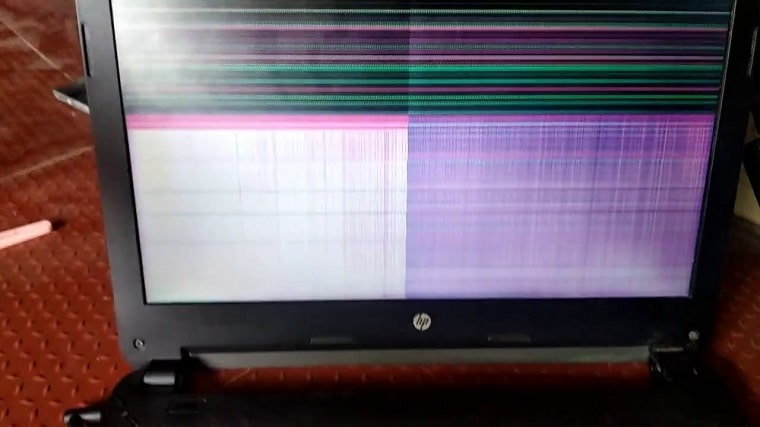
horizontal lines Gigabyte laptop

Are you annoyed by these annoying horizontal lines on your Gigabyte laptop screen? Are you unable to use your computer because of it? This is the issue you need to solve. If you are facing these problems, read on to find some solutions.

Laptop screens are very important for work and entertainment. They provide a clear image that helps us interact with our surroundings. Unfortunately, laptop screens can suffer from several issues over time, including horizontal lines. 

These lines can appear on the screen due to several factors, such as improper maintenance or malfunctions with the graphics card or CPU. If you experience these lines on your laptop screen, don’t panic; there are ways to fix them. This article will discuss the various methods to fix your laptop’s screen and restore its image.

What Are The Causes Of The Lines On My Gigabyte Laptop Screen?

There are several potential causes for the lines on your Gigabyte laptop screen.

One possibility is that the screen itself is damaged. It could be due to a manufacturing defect, physical damage, or age and wear and tear. If the screen is damaged, it will need to be replaced.

  1. Another possibility is that the video drivers or other software on your laptop are not compatible with the screen. This can often be resolved by updating the drivers or software to the latest version. You may need to contact your laptop manufacturer for further assistance if this does not work.
  2. It is also possible that the lines on your screen are due to a hardware issue. This could be with the graphics card, the display cable, or another piece of hardware. If you suspect a hardware issue, contact a qualified technician for diagnosis and repair.
  3.  Also, A bad graphics card, dirty contacts in the LCD panel, and a faulty power supply could all be to blame. Here are instructions on how to fix each one of them.

If you’re experiencing graphical problems, it’s usually because of a bad graphics card. You can test this by updating your drivers or replacing the card with another model from the same manufacturer. If that doesn’t work, you may need a new graphics card.

If the lines are only appearing intermittently and not always when you use your laptop, it’s likely that dirty contacts in the LCD panel cause them. 

How to Fix Gigabyte Laptop Horizontal Lines on Screen?

Gigabyte laptop horizontal lines on the screen can be a serious issue. If the lines persist and cause your laptop to malfunction, then it’s time to take action. Here are a few solutions that will help get your Gigabyte laptop back up and running:

Step 1: Check the Graphics Driver

One of the first things you should do is check the graphics driver. Ensure you have the most up-to-date version installed, as this can fix many laptop issues.

Step 2: Update Your Laptop BIOS

Next, update your laptop BIOS if it’s available. This will often fix certain problems with graphics drivers and other hardware components in your laptop.

Step 3: Try a New Graphics Card

If all of these solutions fail, you may need to try a new graphics card. A new card may solve some or all of the problems with your Gigabyte laptop’s Horizontal Lines on the screen.

Step 4: Detach and reattach the keyboard

If you see horizontal lines on your Gigabyte laptop’s screen, one possible fix is to detach and reattach the keyboard. First, shut down your laptop and unplug it from any power source. Then, remove the screws holding the keyboard and carefully lift them off. Once the keyboard is detached, you can use a can of compressed air to blow any dust or debris out of the keyboard area.

Step 5: Close and reopen your laptop

If your Gigabyte laptop displays horizontal lines on the screen, you should first try closing and reopening the lid. Sometimes this can clear up the problem. If that doesn’t work, you can restart your laptop. If the lines are still there, there may be a problem with the screen itself. In that case, you may need to take your laptop to a repair shop to replace the screen.

Step 6: Install the latest operating system updates

If you are seeing horizontal lines on your Gigabyte laptop’s screen, you are likely using an outdated operating system. To fix this problem, install Microsoft’s latest operating system updates. This will ensure that your system is up to date and will resolve any issues causing the horizontal lines on your screen.

Step 7: Calibrate your monitor

If you have horizontal lines on your Gigabyte laptop screen, the best thing to do is calibrate your monitor. This will ensure that your screen’s colours are accurate and the lines are straight. You must adjust the brightness, contrast, and colour settings to calibrate your monitor. Once done, you should save the new settings as a custom display mode.

If you still have problems with horizontal lines on your screen, you may need to adjust the resolution. You can do this by entering the Display Properties and selecting a higher or lower resolution.

Step 8: Change your monitor’s refresh rate

If you’re seeing horizontal lines on your Gigabyte laptop’s screen, you should first try changing the refresh rate. To do this, open the Settings app and go to the system -> Display tab. From here, scroll down to the “Advanced display settings” section and click the “Display adapter properties” link. 

Click the “Monitor” tab and then find the “Screen refresh rate” drop-down menu. This will open the Properties window for your display adapter. Try changing the refresh rate to a different value and see if that fixes the problem.

Step 9: Run a troubleshooter

If your Gigabyte laptop displays horizontal lines on the screen, there are a few potential causes. First, it could be a problem with the LCD panel itself. If the lines are persistent and cannot be cleared, the panel may need to be replaced. Second, it could be an issue with the video driver. 

Finally, it could be a hardware problem with the laptop itself. Try updating the driver to see if that fixes the problem. 

Step 10: Upgrade to a new computer or screen

If all that doesn’t work, try connecting to an external monitor to see if the lines remain. If the lines are only on the laptop screen, you may need to replace the screen.

If not, you may need to take the laptop to a qualified repair technician to diagnose and resolve the issue. If you are still under warranty, contact Gigabyte customer support for assistance.

Conclusion

Please note that the guideline instructions provided may not always apply to the symptoms your computer is experiencing. Sometimes, symptoms or behavior can be the same, but the underlying reason or fault can be completely different.

The fastest way we can assist customers is by bringing computers to our workshop, where technicians have the tools to diagnose faults accurately. After checks, if parts are found to be faulty or damaged, we proceed to replace them with high-quality original parts.

No appointments are required; you can drop off your computer at our workshop during working hours.

If you have more queries about our laptop repair and upgrade services, please feel free to contact us at 020 7018 7490 or email us at contact@pcfixlondon.com