Acer Laptop Touchpad not Working

Acer Laptop Touchpad Not Working?

Is your Acer laptop’s touchpad either not working or unresponsive? A non-working touchpad might be annoying, therefore influencing ease of use and output. PC Fix London is here to assist with hardware, driver conflict, or software bug. Our knowledgeable staff specializes in identifying and fixing Acer laptop touchpad problems to bring back seamless operation.

Common Problems with Acer Laptop Touchpads

There are various reasons a touchpad could be defective, including:

  • Unresponsive or frozen touchpad: The pointer does not move even with several efforts.
  • Touchpad not detecting taps or clicks:  Right and left clicks have no register.
  • Not working are multi-touch motions: Disabled are pinch-to–zoom, scrolling, or other movements.
  • Unpredictable cursor movement: The cursor jumps or moves unexpectedly.
  • Disabled touchpad: The touchpad may be turned off in settings or locked by a function key.
  • Driver or software conflicts: Outdated, missing, or corrupted drivers generating failures either by driver or program conflict.
  • Hardware damage: actual touchpad or internal component damage.

Fixing Acer Laptop Touchpad Problems

Try the following troubleshooting techniques before calling in expert repairs:

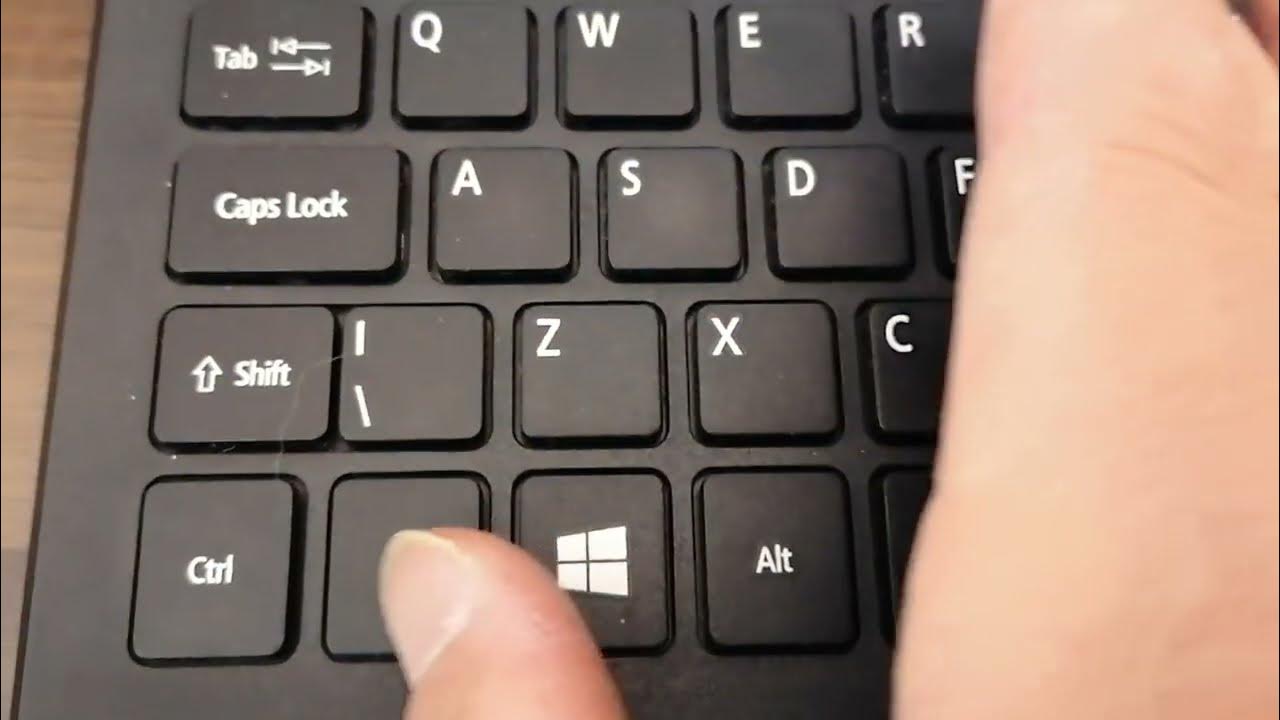
  • Enable the Touchpad – Turn on the Touchpad with Fn + F7 (or the assigned function key).
  • Restart Your Laptop –  Sometimes a basic reboot fixes temporary software problems.
  • Review the Touchpad Settings – Check it’s turned on by going to Settings > Devices > Touchpad.
  • Reinstall or update drivers – Touchpad drivers may be updated or reinstalled using Device Manager.
  • Perform a System Restore – rolling back changes can assist if the problem began following an upgrade.
  • Look for external mouse interference – occasionally the touchpad will be disabled by connecting an external mouse.
  • Search for malware – some of these infections can affect input devices.

Should these measures fail, it is advisable to consult a professional for repairs to avoid more problems.

How PC Fix London Might be Beneficial

Expert Acer laptop repair services are available at PC Fix London to guarantee fast and effective resolution of your touchpad problems. Our offerings cover:

  • Accurate Diagnosis: We investigate the touchpad issue holistically in order to find its source.
  • Driver and Software Fixes: Our staff reinstalls or updates required drivers to restore touchpad capability using driver and software fixes.
  • Hardware Repair & Replacement: Should the touchpad be physically damaged; we substitute authentic Acer components.
  • System optimization: its guarantees that a flawless user experience results from resolution of all software conflicts.
  • Same-day repair: Subject to component availability, we provide quick and dependable repair services same-day.
  • No Fix, No Fee Policy: Should we fail to resolve it, you pay nothing.

Why would you want PC Fix London?

  • Certified Technicians: Our knowledge of Acer laptop repairs is really broad.
  • Original Parts: We replace just original Acer parts.
  • Walk-in repairs: no appointment required; come see us any time for service.
  • Customer Satisfaction: Our first concerns are dependable repairs and high-quality work.

Get in touch with us.

Should your Acer laptop touchpad fail, avoid letting the problem slow you down? For skilled repairs, visit PC Fix London. For help, either email contact@pcfixlondon.com or call 020 7018 7490.

Fix Your Acer Laptop Today!

Whether it’s a little setting change or a significant hardware replacement, PC Fix London guarantees perfect functionality of your Acer laptop touchpad. Come see us now for dependable, expert repairs.

The fastest way we can assist customers is by bringing computers to our workshop, where technicians have the tools to diagnose faults accurately. After checks, if parts are found to be faulty or damaged, we proceed to replace them with high-quality original parts.

No appointments are required; you can drop off your computer at our workshop during working hours.

If you have more queries about our laptop repair and upgrade services, please feel free to contact us at 020 7018 7490 or email us at contact@pcfixlondon.com
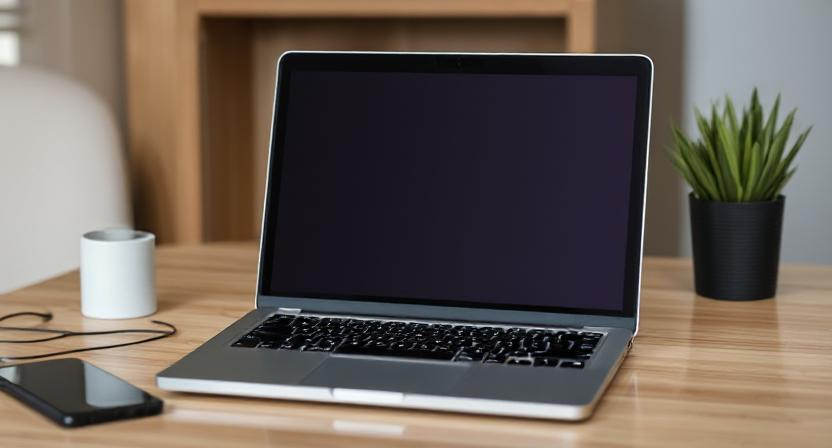
Acer Laptop Black Screen Issue

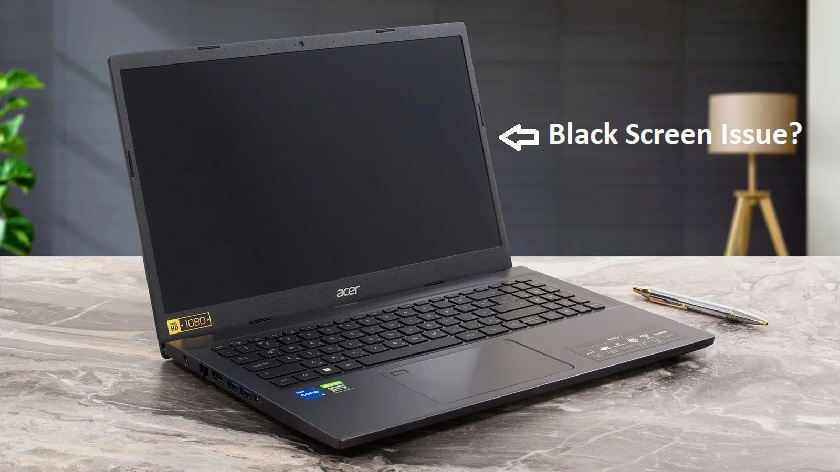
If your Acer laptop seems to be on but nothing shows, a black screen can be alarming. Whether the problem is hardware, software, or something else, knowing the possible reasons will enable you to act appropriately. Our area of expertise at PC Fix London is black screen problem diagnosis and repair of Acer laptops. This is a list of possible causes for your laptop’s display problems together with ideas on how we could help to fix them.

Typical Reasons behind Acer Laptop Screen Blackness

  • Display Issues: The most often occurring reason of a black screen is a defective display. The monitor not showing anything could be a damaged screen, loose connection, or malfunctioning graphics card.
  • Power or Battery Problems: Though the laptop itself is technically turned on, if it is not properly powered it may present a dark screen.
  • Internal Hardware Failures: The screen of your Acer laptop can stay black from a failing graphics card or motherboard. Furthermore, preventing the display from going on could be other internal hardware problems.
  • Software Issues or Corrupted Operating System: A black screen results from a laptop failing at start-up caused by corrupted system files, program conflicts, or failed upgrades.
  • External Monitor Interference: Should your laptop be inadvertently set to show on an external monitor or projector, the internal screen can stay black.

Troubleshooting Black Screen of Your Acer Laptop

Try the following troubleshooting techniques to find the source before consulting experts:

  • Check the power: Make sure the laptop is either totally charged or hooked to a power source. Remove the battery (if removable) then hold the power button for thirty seconds to try a hard reset.
  • Connect to an external monitor: If your laptop screen stays dark, connect it to an external display to ascertain whether the machine is really running.
  • Check for external monitor settings: Verify the laptop’s external monitor settings to be sure it isn’t running video to an external monitor. Flip the display mode with keyboard shortcuts (e.g., Fn + F5).
  • Remove external devices: Unplug any external devices—including USB drives, external keyboards, and mice. These gadgets occasionally may interfere with the boot-up mechanism.

Repairing Acer Laptops Black Screen: Services We Provide

Expert repair for Acer laptops with black screen problems is what PC Fix London offers. Our qualified experts will:

  • Diagnose the root cause: Using cutting-edge diagnostic technologies, we will ascertain whether the problem resides with the screen, graphics card, motherboard, or software.
  • Replace broken components: Should the display suffer damage; we will replace it with an original Acer screen. Should the issue be internal—that of a broken motherboard or graphics card—we will substitute original parts.
  • Address software issues: If corrupted system files or software is stopping your Acer laptop from starting correctly, we can fix the operating system and restore its functionality.

Acer Laptop Black Screen Result of Hardware Failure

Typical causes of black screen problems in Acer laptops are hardware failures:

  • Damaged display or cables: Should the screen be cracked, broken, or display cable or connection malfunction, the screen may remain dark even on a laptop that is turned on.
  • Graphics card failure: A failing graphics card would cause your laptop to show nothing on the screen, thereby producing a black screen.
  • Motherboard failure: Should the motherboard be destroyed or feature defective components, your laptop will not show anything on the screen.

Acer Laptop Black Screen Result of System or Software Problems

Sometimes issues connected to software generate a black screen:

  • Corrupted operating system: Should system files be corrupted or an update fail, the laptop could not be able to load correctly, resulting in a dark screen.
  • BIOS issues: A blank screen results from a malfunctioning BIOS either from corruption or improper configuration of the laptop.

Why Would You Want Us to Repair Your Acer Laptop Screen?

  • Expert technicians: Certified experts in Acer laptop repairs have a great deal of knowledge guaranteeing a quick and accurate diagnosis.
  • Genuine Acer parts: Only original Acer parts are used for any replacements, therefore guaranteeing that the internal components or display of your laptop runs as it should.
  • No appointment needed: There is no appointment; we welcome walk-ins and provide same-day repairs (subject to part availability).
  • No fix, no fee policy: There is no fee policy or fix; should we be unable to fix your laptop; you will not pay anything for our work.
  • Quick turnaround: We give swift service high priority, trying to finish repairs as soon as feasible so you can resume using your laptop and subject to parts availability.

Other Services for Acer Laptops

For your Acer laptop, we provide a great spectrum of extra services including:

  • Screen replacements: Should the screen of your Acer laptop be cracked or damaged, we are able to replace it with a legitimate Acer display.
  • Data recovery: Should a hardware issue cause the laptop’s screen to be black, we provide data recovery services to enable you to access critical files.
  • Laptop upgrades: Does RAM or storage call for it? We can make your Acer laptop more performing by upgrading it.

Acer laptop overheating and display issues

Sometimes black screen problems in Acer laptops result from overheating:

  • Overheating causing black screen: Black screens could result from system problems brought on by overheating the laptop. We can locate and fix problems with cooling systems.
  • Thermal paste replacement: If the thermal paste on the CPU of your laptop is old or dried up, overheating may result from which the screen can darken. We can increase cooling efficiency by using different thermal paste.

Conclusion:

Though it can undoubtedly be annoying, a black screen on your Acer laptop does not usually indicate a serious problem. PC Fix London is here to assist with anything from software problems to internal hardware faults to damaged displays. Our knowledgeable staff can rapidly identify and fix the issue, therefore restoring the working capability of your laptop.

Please note that the guideline instructions provided may not always apply to the symptoms your computer is experiencing. Sometimes, symptoms or behavior can be the same, but the underlying reason or fault can be completely different.

The fastest way we can assist customers is by bringing computers to our workshop, where technicians have the tools to diagnose faults accurately. After checks, if parts are found to be faulty or damaged, we proceed to replace them with high-quality original parts.

No appointments are required; you can drop off your computer at our workshop during working hours.

If you have more queries about our laptop repair and upgrade services, please feel free to contact us at 020 7018 7490 or email us at contact@pcfixlondon.com
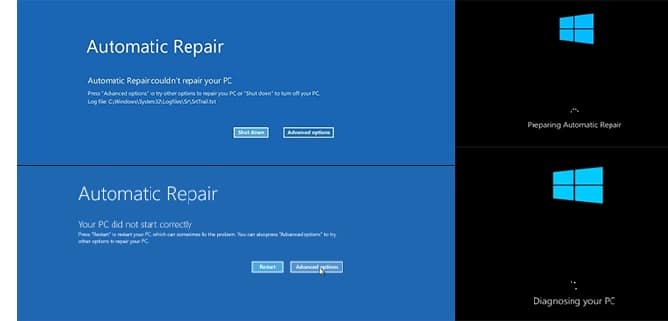
Acer laptop wont turn on

When your Acer laptop refuses to turn on, it can disrupt your work and daily routine. Whether the issue is minor or requires professional intervention, diagnosing the problem is the first step toward a solution. At PC Fix London, we specialize in identifying and resolving such issues efficiently, ensuring your laptop is back to optimal performance.

Understanding the Problem: Why Your Acer Laptop Won’t Turn On

Acer laptops may fail to power on due to a variety of reasons, ranging from hardware malfunctions to software glitches. Identifying the root cause can help determine the necessary steps to fix the issue.

Common Causes of Acer Laptop Not Turning On

Several factors can prevent an Acer laptop from turning on, including:

  • Battery or Power Adapter Issues: Faulty or dead batteries and malfunctioning chargers are common culprits.
  • Hardware Failures: Problems with components like RAM, hard drive, or motherboard.
  • Display Issues: The laptop may power on, but the screen remains blank due to display or graphics issues.
  • Overheating: Excessive heat may trigger a safety mechanism, shutting down the laptop to prevent damage.
  • Software Problems: Corrupted operating system or firmware updates causing boot errors.

Steps to Troubleshoot an Acer Laptop That Does Not Turn On

1. Check Power Supply and Connections

  • Ensure the power adapter is securely connected to the laptop and a functioning wall socket.
  • Look for any damage to the charger cable or connector.
  • If using a removable battery model, ensure the battery is properly installed.

2. Perform a Power Reset

  • Disconnect all peripherals (mouse, keyboard, external drives) from the laptop.
  • Remove the battery (if applicable) and unplug the power adapter.
  • Press and hold the power button for 15-20 seconds to drain residual power.
  • Reconnect the battery and power adapter, then try turning on the laptop.

3. Inspect the Laptop’s Power Indicator

  • Check if any lights (power or charging indicators) are on or blinking.
  • A blinking light might indicate a hardware issue or an error code.

4. Test with an External Display

  • Connect your laptop to an external monitor using an HDMI or VGA cable.
  • If the external monitor displays an image, the issue lies with the laptop’s screen.

5. Examine the RAM and Hard Drive

  • For advanced users: Open the laptop’s back panel and check if the RAM and hard drive are properly seated.
  • Reinsert these components if they appear loose.

6. Boot into Safe Mode or BIOS

  • Press the power button while repeatedly tapping the F2, F8, or Delete key to access the BIOS or boot menu.
  • If the BIOS loads, the issue may be related to the operating system.

7. Check for Overheating

  • Overheating can prevent the laptop from powering on. Let the laptop cool down for 15-30 minutes, especially if it was used intensively before shutting down.
  • Ensure the laptop’s vents are clean and unobstructed.

8. Reset the BIOS

  • Disconnect the laptop from power and remove the CMOS battery (for advanced users).
  • Wait for a few minutes and reinstall the CMOS battery to reset the BIOS.

9. Update or Reinstall the Operating System

  • Use a bootable USB drive to reinstall or repair the operating system if you suspect software corruption.

Preventative Measures to Avoid Power Issues

  • Use the original charger provided by Acer.
  • Keep the laptop in a cool, ventilated environment.
  • Update the system and BIOS regularly.
  • Perform routine maintenance, including dust removal.

When to Seek Professional Help

If the above steps do not resolve the issue, it’s time to consult an expert. At PC Fix London, we offer:

  • Comprehensive Diagnostics: Identify the root cause of the problem.
  • Battery and Charger Replacement: Replace faulty power components with genuine Acer parts.
  • Screen and Hardware Repairs: Fix internal components and display issues.
  • Data Recovery Services: Recover important files if the laptop fails to boot.

Why Choose PC Fix London?

  • Certified Technicians: Our team is experienced in handling Acer laptops of all models.
  • Original Parts: We use original Acer components for repairs and replacements.
  • Fast Turnaround: Same-day service available for many common issues and depending on the complexity of the issue and parts availability.
  • No Fix, No Fee Policy: You only pay if we resolve the problem.

FAQs: Acer Laptop Not Turning On

Q: Why won’t my Acer laptop turn on even when plugged in?
A: This could indicate a problem with the power adapter, charging port, or internal components. Test with a different power adapter or seek professional diagnosis.

Q: What should I do if my Acer laptop screen stays black but the power light is on?
A: This could be a display or graphics card issue. Connect your laptop to an external monitor. If the external display works, the problem is likely with your laptop’s screen.

Q: How do I perform a hard reset on my Acer laptop?
A: Unplug the laptop, remove the battery (if removable), and hold the power button for 30 seconds. Reconnect the power adapter and try turning it on again.

Q: Can a dead battery cause my Acer laptop not to turn on?
A: Yes, a dead or faulty battery can prevent your laptop from turning on. Remove the battery and try powering the laptop with just the AC adapter. If it turns on, the battery may need replacement.

Q: What does it mean if my Acer laptop beeps when I try to turn it on?
A: Beeping sounds usually indicate a hardware issue, such as faulty RAM or a motherboard problem. Refer to your laptop’s manual or contact a technician for help.

Q: How can I check if my Acer laptop is overheating?
A: If your laptop feels hot or shuts down unexpectedly, it may be overheating. Ensure the vents are clean and unobstructed. Let it cool down for 15-30 minutes before trying again.

Q: Can I fix my Acer laptop myself, or should I seek professional help?
A: Basic issues like power supply problems can often be fixed at home. For internal hardware issues, it’s best to consult a professional technician.

Contact PC Fix London for Acer Laptop Repairs

Don’t let power issues keep you from using your Acer laptop. At PC Fix London, we provide reliable solutions to ensure your laptop is up and running quickly. Contact us today!

No appointment is needed. You can visit our service center during working hours from Monday to Friday.

Call Us: 020 7018 7490
Email: contact@pcfixlondon.com

Let us restore your laptop’s functionality with our expert repair services!

Acer automatic repair loop

This is guide and possible few fixes and test for Acer computers which fails to boot to desktop either comes up with blue screen or keeps in restart loop usually famous with name blue screen of death BOSD.

When this happen computer usual symptoms are when it start everything seems normal trying to load but then instead of going to desktop it start coming up with ” repairing ” with circle on screen. Then after few seconds or minutes shows some error code with blue screen that what we are referring to blue screen.Blue screen is very common with all computers, it is important to know it can be due to hardware issues or software rare cases can be due to both hardware and software mix of both lets say example would be fault on hardware cause bluescreen but then multiple of blue screen restarts ended up causing file corruption or damage on system files resulting in hardware and software both.

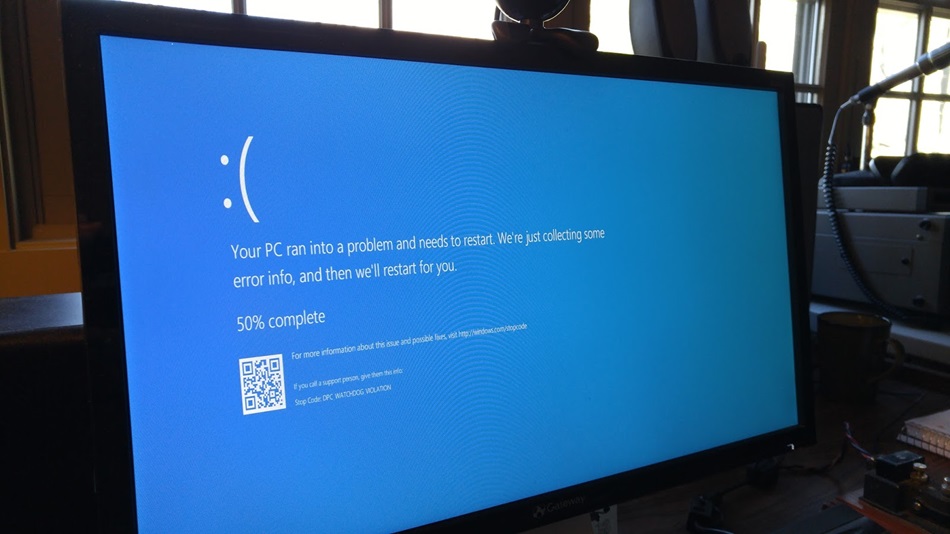
When blue screen happens most of times they are clear as blue screen stats on screen with error other times computer keep restarting quick with blue screen error hard to read.

Lets say most common 0x0000000A,0x000000D1,0x0000001E,0x000000EF error codes which indicates different fault and reasons. Some can be fixed with SFC system files scans, other may require hardware replacement in case of fault hardware like ram memory or solid state drive SSD, faulty video card and many more.

And this applied to all models like Nitro, Predator, swift series even not listed here applicable to all.

I have written some of reasons below which can be tried to remedy boot issues and this solutions will only work if problem is software related like forced incompatible driver from windows update, system files corruption. It will not work or solve hardware related issue.

1: The “reset / hard reset button” (Press Pinhole on back / side)

Many Acer laptops swift, predator, nitro get “stuck in boot loop” due to static or bios issues.

  • Turn laptop upside down or look around on sides some models have tiny hole
  • Use paper clip insert through hole and hold for 5-10 seconds that does hard reset and release any static, possible bios issues, stuck in update issues
  • After pin hole reset, press power button if laptop works again it has done the job if not then different treatment is needed
  • Technician’s Observation: This fixes many laptops lets say about 25% of Acer boot loops instantly.

2: Repair from system restore in Recovery Mode

  1. Many of times when laptop goes to repair options after it fails automatic repair .
  2. When it get to repair options, click on Advance Options > Then system restore
  3. Click on restore it should comes up with backup dates available choose the restore date and proceed
  4. If restore is success and provided no underlying hardware issues laptop should boot into desktop
  • Technician’s Observation: This restore method will only fix fault if underlying issue is not hardware, and also note sometimes restore point is not available because backup was disable or never successful .
  • Additional Bitlocker /Encryption key requirement. Laptops which have encryption activated / bit locker you will be asked for 48digit encryption key to unlock disk before you are unable to restore it or see options if this is case bit locker key backup can be found on your Microsoft account associated with laptop user email address it can be access through
    Find the recovery key in your Microsoft account
    If the BitLocker recovery key is backed up to your Microsoft account, follow these steps to retrieve it:

    1. From another device, open a web browser and go to https://aka.ms/myrecoverykey

3: Scan for SSD Failure

SSD or solid state drive can be partially faulty, or deteriorated over times unable to read and write efficiently, it can be very obvious sometimes in very beginning computer comes with SMART status check indicating hardware failure.

  • If it has not come up with hardware failure error it is worth running system scan to rule out SSD faliure .
  • Similar procedure after laptop gets to repair options click on CMD, command and type powershell “get-physicaldisk | format-table -autosize
  • Technician Advice: At this stage, don’t keep trying in case disk is failing in workshop environment we can still use tools like pc-3000 data recovery equipment to backup data

4: SFC system files Scan, Bootrec rebulid

SFC system file scan with CMD is also a powerful tool to rectify system files issues

  • In repair options choose CMD command
  • Run Command one by one :
  • sfc /scannow and press Enter.
  • sfc /scannow /offbootdir=C:\ /offwindir=C:\Windows
  • chkdsk C: /f /r
  • DISM /Image:C:\ /Cleanup-Image /RestoreHealth
  • bootrec /fixmbr
  • bootrec /rebuildbcd
  • This can run system file check scan and rectify any faults

When to Stop Troubleshooting and Visit our Lab

  • The BIOS says “HDD: None” or Disk not found or operating system not found: This means your motherboard unable to see or talk to storage which also means it can not load / start any windows operating system files at all in this case you will not see any blue screen at all.
  • You have tried all software related issue above : If you have already tried software issues above then likely fault is hardware this needs further testing for fault

When to stop troubleshooting and visit our workshop.

You have tried all software related issue above : If you have already tried software issues above then likely fault is hardware this needs further testing for fault. Even if you have not tried all we can handle all work software and hardware

We will figure out exactly what’s wrong.

Contact us for Acer Diagnostic Now!


Frequently Asked Questions (FAQ)

Why is my Acer computer stuck in a boot loop?

Many reasons hardware and software i have listed some of software easy fixes above, if those does not work computer needs to be checked in workshop.

What is the first thing I should try to fix an Acer boot loop?

First easiest of all switch laptop off completely hold power button for 10 seconds that will cut off power completely then start again failing to work after this try few f software solutions above.

My computer is not going into recovery options after failed automatic repair?

Yes it can happen on some model, during widows load up hold power button for few seconds it will interrupt normal start up of windows and after 2 attempts it should go to repair mode and recovery environment options .

Will fixing the boot loop erase my personal data?

Not always but depending on fault if software related issue data should be safe, in case of system restore it only restore computer to chosen date it removed application / program but personal data remains untouched but in case of hardware fault like failing SSD data situation needs to be checked carefully .

Acer Preparing Automatic Repair Restart Loop

If your Acer Aspire, Swift, or Nitro is stuck on a loop saying “Preparing Automatic Repair,” Windows is essentially hitting a wall. At our Kings Cross workshop, we find this is rarely a “random” glitch—it’s usually a corrupted boot sector or a failing SSD.

Before you try a factory reset and lose your files, follow our bench-tested steps to break the loop.

Step 1: The Acer “Pinhole” Reset

Many modern Acer laptops (especially the Swift and Spin series) have an internal battery that can hold a “static charge,” preventing a proper boot.

  • Look for a tiny battery icon on the bottom of the casing with a small pinhole.
  • Unplug the charger, then press a paperclip into that hole for 10 seconds.
  • Wait 5 minutes, plug the power back in, and try to boot.
  • Why this works: It forces the motherboard to fully discharge, which often clears the repair loop immediately.

Step 2: Checking the BIOS for a “Missing” Drive

If the repair loop continues, we need to see if the laptop can actually “see” your Windows installation.

  1. Turn the laptop off.
  2. Turn it on and immediately tap F2 repeatedly to enter the BIOS.
  3. Look for “HDD0” or “NVMe” information.
  4. Technician’s Tip: If it says “None,” your SSD has either failed or come loose. No amount of software fixing will help a drive the laptop can’t see.

Step 3: Breaking the Loop via Alt + F10

If the drive is detected, force the Acer recovery environment:

  1. Turn it on and immediately hold the Alt key while tapping F10.
  2. Navigate to Troubleshoot > Advanced Options > Command Prompt.
  3. Type chkdsk c: /f and press Enter.
  4. If it says “the drive is locked,” your file system is the problem. If it completes, try a restart.

Frequently Asked Questions (FAQs): Acer Preparing Automatic Repair Restart Loop:

1. What actually is the Acer “Preparing Automatic Repair” loop?

It’s Windows telling you it found a problem it can’t fix on its own. On an Acer, this usually means the boot files on your SSD are corrupted, or the laptop has lost “communication” with the drive entirely.

2. Why is my Acer specifically stuck on this screen?

In our experience at the shop, it’s rarely a random glitch. It’s usually caused by an interrupted Windows Update, a sudden power loss, or—most commonly with Acer Aspire and Swift models—a failing NVMe storage drive.

3. How do I get past this screen right now?

The first “pro” trick is the Acer Battery Reset. Unplug the charger and use a paperclip to press the tiny reset button in the pinhole on the bottom of the casing for 10 seconds. This clears the motherboard’s “memory” and often breaks the loop.

4. Can I fix this at home or is it a shop job?

If it’s a software glitch, you can fix it using the Alt + F10 recovery menu. However, if your BIOS says “HDD: None,” the drive is physically disconnected or dead. That requires opening the laptop and specialized tools, which we handle here in Kings Cross.

5. How do I get into the Acer recovery menu?

Ignore the old “F8” advice—it doesn’t work on modern Acers. Turn the laptop off, then hold the Alt key and tap F10 repeatedly as you power it back on. This should force the “Choose an option” blue screen.

6. What if the “Automatic Repair” tool fails?

If the built-in tool fails, your next move should be System Restore (via the Alt+F10 menu). This rolls Windows back to a time before the loop started. If you don’t have a restore point, the Master Boot Record likely needs a manual rebuild in Command Prompt.

7. Will I lose my photos and files?

Not necessarily. Most hardware repairs don’t touch your data. However, if you choose “Reset this PC” from the recovery menu, there is always a risk. At PC Fix London, we prioritize Data Backup before we attempt any OS repairs.

8. Could a bad SSD or RAM be the cause?

Absolutely. Acer laptops are known for “SSD creeping,” where the drive slightly vibrates out of its slot over time. We also see many Acer Nitro models where overheating has damaged the RAM, causing the system to crash during boot.

9. Is this problem worse on certain Acer models?

We see this most often on the Acer Aspire 3 and 5 series and the Nitro 5 gaming laptops. It’s usually a combination of heat and the lower-grade SSDs used in budget models.

10. How long should I wait for the “Repair” to finish?

If it takes more than 15 minutes, it’s stuck. A healthy repair should only take a few minutes. If yours has been spinning for an hour, it’s time to force it off and try the F2 BIOS check to see if your hardware is still alive.

Blue-Screen-of-Death-Asus

Understanding ASUS Blue Screen Errors:

ASUS blue screen errors, also known as BSODs, are caused by critical errors in the Windows operating system that cannot be resolved. These errors typically appear as a blue screen with confusing error codes and messages. Understanding the specific error code can help determine the underlying issue.

ASUS laptops and desktops are known for their reliability, but blue screen errors can be disruptive. PC Fix London offers solutions for addressing and preventing ASUS blue screen errors in this guide.


Common Causes of ASUS Blue Screen Errors:

  1. Driver Issues:

System conflicts may occur due to outdated or incompatible drivers, potentially causing blue screen errors.

  1. Faulty Hardware:

Hardware malfunctions, like failing Mainboard or a malfunctioning hard drive, may result in blue screen crashes.

  1. Software Conflicts:

Conflicts between software or corrupted system files can potentially result in disruptions, causing blue screen errors.

  1. Overheating:

High temperatures can cause system instability, resulting in blue screen errors.


Expert Fixes by PC Fix London:

  • Driver Updates:

We make sure that all drivers are regularly updated to resolve compatibility issues that may lead to blue screen errors.

  • Hardware Diagnostics:

We analyze hardware thoroughly to pinpoint and resolve issues, improving system performance.

  • Software Optimization:

Our team analyzes and optimizes installed software to resolve conflicts and eliminate corrupted files that can lead to blue screen errors.

  • Cooling System Maintenance:

We assess and enhance the cooling system to prevent blue screen errors caused by overheating.


Prevention Tips for ASUS Blue Screen Errors:

  • Regular Updates:

It is recommended to regularly update your system and drivers to address vulnerabilities and improve stability.

  • Quality Software Installation:

It is recommended to install reputable and compatible software to reduce the likelihood of conflicts that may result in blue screen errors.

  • Temperature Management:

It is important to maintain proper ventilation and cooling by regularly cleaning dust from fans and vents to prevent overheating.

  • Data Backup:

It is recommended to regularly backup important data to avoid loss in the event of unexpected crashes or hardware failures.

  • Avoid Over clocking:

Over clocking may put excessive strain on hardware components, potentially causing instability. It is advisable to adhere to the settings recommended by the manufacturer.


Why choose PC Fix London:

If you’re having trouble troubleshooting or need help with the ASUS blue screen error, don’t hesitate to contact our customer support team for expert assistance in diagnosis and solutions.

Expertise: Our team consists of skilled technicians who specialize in ASUS devices.

Fast turnaround: Our repair process is simple: the client brings their laptop to us and we complete the work.

Peace of mind: We operate on a No Fix, No Fee policy, so you won’t be charged if we are unable to fix your laptop.

Do not need appointments: Customers can drop off computers at our workshop without appointments during working hours for added convenience.

Original Parts: We exclusively use original parts and offer guaranteed work.

Don’t let ASUS blue screen errors hamper your computing experience. Contact pcfixlondon.com today for expert solutions and preventive measures, ensuring a stable and reliable computing environment with your ASUS device.

 Pick-up and Delivery / Walk-in / Ship in PC Repair Service:

Our repair process is simple and transparent. We only charge for repairs that are completed and always courteously communicate with customers about any necessary replacements or service charges.

Customers have three convenient options to schedule repairs for their Asus laptops.

Drop-in: No appointments are needed, customers can drop off their computers at our workshop during working hours Monday to Friday, from 10:00 AM to 6:00 PM.

Fastest Way: The quickest way is in our workshop. Here, we have all the equipment and parts for swap testing, which may not always be feasible onsite.

Courier Collection: Collection of the PC can be arranged anywhere in the UK, please note courier charges apply.

Home Service: Our technician can visit on-site.

For further information on our PC repair and upgrade services, please contact us at 020 7018 7490 or email us at contact@pcfixlondon.com.

Acer-Predator-Gaming-Laptop-horizontal-lines

Do not become worried if you notice horizontal or vertical lines on your Acer Predator Gaming laptop screen. If you’ve invested in your laptop, such as one of the best gaming laptops, vertical and horizontal lines on the Acer Predator Gaming laptop screen might damage the immersive impact of your display. This problem can be resolved quickly. We’ll review a few potential remedies in this article. You should first test the picture to determine what is causing the obtrusive vertical or horizontal lines on the laptop screen. It will help you determine whether the issue is with the PC, cable box, or another input source or whether the problem is with the screen, LCD panel, or internal hardware.

Remember that some of these fixes should work with any Acer laptop or display model. Therefore, check your model number and ensure the instructions match up before attempting any of these techniques. We’ll demonstrate how to get rid of those pesky lines and restore the original appearance of your screen.

Search for the Source of the Problem

Isolating the problem’s source is the first step in solving this desktop display issue before trying additional troubleshooting, such as erasing the black bars on the side of your monitor.

Perform a Picture Test

The first choice is to preview the image on your preferred screen without any attached devices. To accomplish this, turn off all cable connections, and if your external display has Bluetooth and WiFi capabilities, turn them off using the remote control or control panel. The issue is most likely with your PC, input device, or cable connections if there are no vertical or horizontal lines on the default picture or menu screen. If the lines still show up, the external monitor may be the source of the problem.

Display Device Issues

The first choice is to preview the image on your preferred computer screen without any attached devices. To accomplish this, turn off all cable connections, and if your external display has Bluetooth and WiFi capabilities, turn them off using the remote control or control panel. The issue is most likely with your PC, input device, or cable connections if there are no vertical or horizontal lines on the default picture or menu screen. If the lines still show up, the external monitor may be the source of the problem.

Input Method Issues

If the lines disappear while your external monitor is not connected, you should check your connection or your computer or laptop’s graphics drivers, driver configuration, or image settings. At this time, you should also check your monitor for any input lag issues.

Check all Cables

Ensure that all cords are firmly attached. Gray, pink, or green lines, among other visual difficulties, can be brought on by a loose connector. Consider unplugging your screen from the input source and inspecting the ports. In the connectors of these input terminals, you can observe if any pins are bent or damaged. Check the cords once again if you’re using two displays. Consider the best twin monitor mount if your space needs more order. Don’t try to clean up a VGA terminal with a paperclip or other metal object.

Warning: A loose connector may result in numerous image problems, such as gray, pink, or green lines.

Tip: Don’t try to clean up a VGA terminal with a paperclip or other metal object.
Connecting the external monitor using a spare cable you are confident will work and see whether the issue is resolved.

Repair or swap out harmed input terminals and cables.

You can hire a repair business or an expert repair technician if you discover a damaged part, or you may prefer to use an electronics repair kit to make the necessary repairs. When removing ports, proceed cautiously, and never work on repairs while a display is plugged in. The owner’s manuals may need to be consulted to determine the required repair tools. If the cable is defective, purchasing a replacement cable might be the only option. If you need to fix your monitor right away and don’t have time to learn about and fix the broken part yourself, such as if you utilize your monitor for work like video editing, that might be the best course of action.

Tip: Before working on a repair, be careful while removing ports, and always unplug a display.
Warning: To determine the required repair tools, you may need to examine the owner’s manuals. If in doubt, connect an alternative device and determine whether the display issues continue.
Warning: If in doubt, connect an alternative device and determine whether the display issues continue.

Check Graphics or Video Card

Look for graphics or video card drivers with a yellow question or exclamation mark. These frequent error messages could indicate outdated graphics drivers on your laptop or desktop computer. A driver updater tool is available on many graphics cards. Another option is to get a fresh, modern graphics card.

Run a System Scan

Alternatively, you can conduct a system scan to find flaws and problems with the graphics driver software. If there is one, a system scan can reveal a driver issue with your graphics card. Try starting in safe mode or BIOS; this will frequently reveal if the display issue is software- or hardware-related.

Warning: If possible, try starting in safe mode or BIOS; this will frequently reveal if the display issue is software- or hardware-related.

Try changing the screen resolution

Changing the screen resolution might also be beneficial. You can notice issues like lines on the screen if the device picture settings are incompatible with the monitor’s native resolution. Setting an unsupported display resolution or refresh rate on a Windows PC can harm a monitor. With older CRT monitors, this risk occurs more frequently.

Warning: You can notice issues like lines on the screen if the device picture settings are incompatible with the monitor’s native resolution. Setting an unsupported display resolution or refresh rate on a Windows PC can harm a monitor.

Conclusion

You can encounter several functional problems due to the Acer Predator Gaming Laptop screen repair. It could result in inconsistent performance from your laptop display and irregular horizontal lines.

Please note that the guideline instructions may not always apply to the symptoms your computer is experiencing. Symptoms or behavior can sometimes be the same, but the underlying reason or fault can be completely different.

The fastest way we can assist customers is by bringing computers to our workshop, where technicians have the tools to diagnose faults accurately. After checks, if parts are found to be faulty or damaged, we replace them with high-quality original parts.

No appointments are required; you can drop off your computer at our workshop during working hours.

If you have more queries about our laptop repair and upgrade services, please feel free to contact us at 020 7018 7490 or email us at contact@pcfixlondon.com

Acer laptop horizontal Lines

Please note troubleshooting list and instructions are non-exhaustive and written for most common symptoms and may not be precisely or always applicable to situation or fault your computer is facing.

Quickest way to resolve issue is to bring computer to our workshop. In workshop our experienced technicians have good knowledge expertise and additional tools in troubleshooting and fixing issues which may or may not be listed here.

 You can also reach us on 020 7018 7490 or email us at contact@pcfixlondon.com.

Are you experiencing issues with your Acer laptop horizontal lines on the screen? where you notice horizontal or vertical lines on the screen when start laptop or other common symptoms below.

  • Cracks or Physical Damage: Visible cracks, shattered glass, or other physical damage to the screen are clear signs of a broken screen.
  • Flickering or Fading: If the screen flickers, fades in and out, or displays abnormal colors, it could indicate a screen issue
  • Lines or Patterns: Horizontal or vertical lines, distortions, or unusual patterns on the screen can be signs of screen damage.
  • Dead Pixels: Dead pixels are individual pixels that do not display any color and appear as small black or white dots on the screen.
  • No Display: If the screen remains completely black, even when the laptop is powered on, it might be a sign of a broken screen or a more severe internal issue.
  • Bleeding or Spots: Uneven backlighting or light bleeding along the edges of the screen, as well as bright or dark spots, can be indicative of screen problems.
  • Touchscreen Malfunctions: For laptops with touchscreen displays, unresponsive or erratic touch input can be a sign of a broken touchscreen.
  • Visible Cracks or Damage to the Outer Frame: Damage to the laptop’s outer frame or bezel surrounding the screen can often be an indicator of underlying screen damage.
  • Blurry or Distorted Images: If the images on the screen appear blurry, distorted, or out of focus, it could be due to screen damage.
  • Ghosting or Double Images: Seeing double or ghost images on the screen, especially when moving objects, can be a sign of a screen problem.

Above list are most common signs but not always same reason behind fault it needs to be visually inspected and often swap testing with new parts for accurate fault diagnosis and fix.

In this blog post, we’ll share straightforward yet effective tips to avoid those annoying lines on your valuable laptop’s display after repair and keep it maintained! We’ll talk about the typical reasons behind this problem, walk you through few of troubleshooting steps to address most issues linked to this frustration, and also explore ways to prevent it from happening again. Let’s not waste any time and dive into understanding why these horizontal lines could be showing up on your Acer laptop’s LCD screen

What are the Possible Reasons and causes of damage for the Issue of Horizontal Lines on an Acer Laptop Screen or broken screen issues?

If you notice symptoms above like lines on your Acer laptop screen, they may be caused by various factors and reasons below which requires thorough inspection and testing.

  • Physical Impact or Dropping: Accidental drops or impacts are a common cause of laptop screen damage. The force can result in cracked or shattered screens.
  • Damaged LCD cable connecting from mainboard to the LCD panel cables inside or flux ribbon do deteriorate over time during opening and closing of laptops.
  • Incompatible display driver, graphics card driver incompatibility, an outdated BIOS version, and conflicts with software not caused by user but rarely windows forced updates automatically.
  • Pressure on the Screen: Applying excessive pressure, such as placing heavy objects on the closed laptop, often reported by clients carrying in bag with objects around and no protection on laptop or screen specifically can lead to screen damage.
  • Closing the Laptop with an Object on the Keyboard: Closing the laptop lid with a pen, pencil, or another object on the keyboard can cause pressure on the screen, leading to damage.
  • Age and Wear: Over time, the screen’s components, particularly the backlight or inverter, can wear out, leading to display issues.

How to identify if Your laptop have screen problem? and seek technician assistance at our workshop.

If you’ve observed a series of horizontal lines, broken colour patches, coloured lines running across the screen, dark areas, or intermittent screen flickering on your Acer laptop, it’s highly probable that your screen is damaged and needs the expertise of a technician for repair.

Our phone line is open during working hours but it is much more easier done and inspected in workshop compare phone support because more than often we need to visually inspect damage and possibly do parts swap testing to confirm fault.

Few things you can try Before Attempting Any Solution

Before attempting any solution to fix Acer laptop horizontal lines on the screen, it’s essential to research and gather all relevant information.

  • Read up on the issue and its technical specifications.
  • Let computer finish any updates if any pending in case of compatibility issues.
  • Make sure it is not software malfunction any pop up or part of application blocking windows operate correctly.
  • Restart computer to be sure this is not just a annoying glitch .
  • Unplug all peripherals USB devices or any external devices causing power surge or incompatibilities.
  • Try not make any hardware changes if you are not trained technician operating in unsafe condition for example static and other external factors can contribute more to damage and may cause multiple faults.
  • If fault is intermittent keep brief notes how laptop has been acting up which can help technician build up picture before fault diagnosis but strictly not necessary we can still figure out fault

Solution 1: Check if the Video Cable is Connected Correctly

Are you experiencing trouble with horizontal lines on your Acer laptop screen?

  • One of the most frequently recommended solutions is to verify whether the video cable is correctly connected.
  • Ensure that both ends of the connection are securely inserted into the computer and monitor; otherwise, you might not get a clear image.

Solution 2: Update or Reinstall the Graphics Driver

Rectifying Acer laptop horizontal lines on the screen can be sometimes be fixed with an updated or freshly installed graphics driver only if fault is due to software malfunction on first place not due to hardware fault or broken hardware .

  • An outdated or corrupted video driver may cause unusual visual glitches to appear on a computer’s display.
  • This issue is not very common, but as an outdated or corrupted video driver can result in unusual visual anomalies on the computer’s display. Thankfully, most modern laptops with windows 10 and 11 make it straightforward for users to update and, if needed, reinstall their graphics driver quickly.

This is one of many few step in resolving these frustrating issues without resorting to more labour-intensive solutions like replacing the laptop’s entire display assembly.

Solution 3: Adjust Display Settings

  • You can easily adjust the display settings with the proper knowledge and expertise to eliminate those unsightly lines.
  • Simply press the Windows Key and P on your keyboard to bring up display settings and adjust the resolution until the lines disappear.

It’s a straightforward trick that anyone can perform

Troubleshooting and fixing Acer Horizontal lines.

Addressing horizontal lines on your Acer laptop’s display might appear challenging and frustrating, but it can be more manageable and fixable resolve your Acer laptop problem.

Please note that the guideline instructions provided may not always apply to the symptoms your computer is experiencing. Sometimes, symptoms or behavior can be the same, but the underlying reason or fault can be completely different.

The fastest way we can assist customers is by bringing computers to our workshop, where technicians have the tools to diagnose faults accurately. After checks, if parts are found to be faulty or damaged, we proceed to replace them with high-quality original parts.

No appointments are required; you can drop off your computer at our workshop during working hours.

If you have more queries about our laptop repair and upgrade services, please feel free to contact us at 020 7018 7490 or email us at contact@pcfixlondon.com
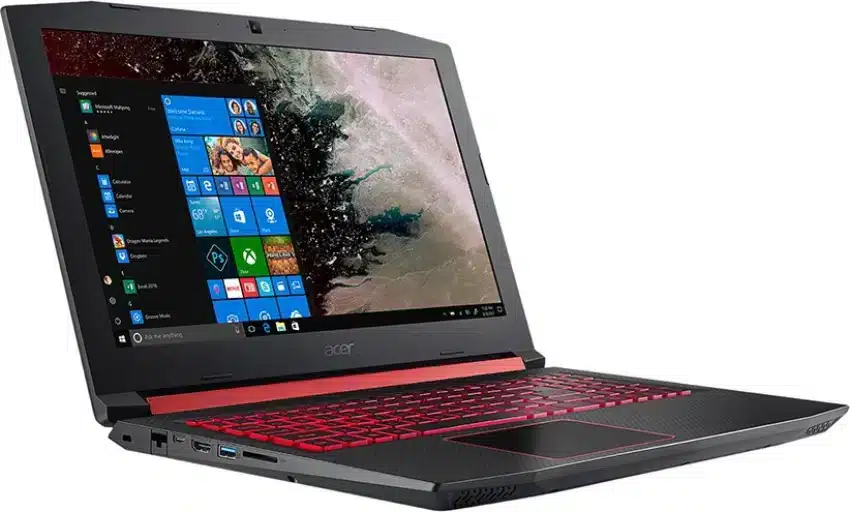
Acer Nitro Gaming Laptop

Flickering horizontal lines on a laptop screen are a surefire sign of a computer problem. It can ruin office productivity and make watching movies on the couch a major hassle. You’ll need an immediate answer as soon as the blinking starts because it simply annoys and frustrates you.

 You don’t always need to take your Acer Nitro Gaming laptop to a computer repair shop to fix flickering horizontal lines on the screen. Your blinking screen problem might be resolved by something as simple as continually lowering and raising the screen or updating your graphics card drivers. But why does the screen of an Acer Nitro Gaming laptop flicker, and what are the many fixes that can stop it? This guide will resolve all of your questions. Let’s get going.

Why is there a horizontal line on your Acer Nitro Gaming laptop screen?

 A few typical causes for the laptop screen horizontal line on the Acer Nitro Gaming Laptop can be identified. As the years go by, an old PC exhibits indications of normal wear and tear and loosens internal cables, which might result in several unpleasant malfunctions. Incompatible software or faulty hardware may be to blame for screen flickering issues on more recent PCs. Let’s explore the numerous causes of the horizontal line on your laptop screen. 

Reason 1: App Incompatibility

Downloading your preferred apps and applications can help you turn your PC into a personalized digital centre. Your PC could occasionally be unable to manage the requirements and specifications of particular apps, which might result in a horizontal line on the screen. 

These three simple procedures will help you determine whether an incompatible app is to blame for your laptop screen flickering.

  • By hitting CTRL + ALT + DEL and choosing “Task Manager,” you may access your task manager. The task manager is also available by selecting it with the right click in the Windows taskbar.
  • Watch your screen for flickering while the task manager is open. If the task manager is the only thing on the screen that doesn’t flicker, your computer is running an unsuitable program.
  • If the task manager flickers while watching, you’re probably dealing with a different problem.

 Reason 2: Outdated laptop display drivers 

Windows software updates are easy to overlook, especially when you know how long they will take. People who frequently snooze their computers instead of shutting them off are more vulnerable to the negative effects of outdated drivers.

Poor display resolutions, unreliable internet access, and a horizontal line on a laptop screen can all be caused by malfunctioning internal hardware. When patches, updates, and bug fixes are ignored, the repercussions for PC components’ aesthetic characteristics and functioning include outdated drivers.

Do you need help determining if your computer needs an update? In five simple steps, you can check the state of your Windows 10 operating system. 

  • To access your PC settings, click the Windows taskbar and gear icons.
  • Choosing the “Update & Security” tab
  • If your PC has recently run a scan for available updates, you might see a list of pending installs next to the names of programs, extensions, or drivers that require quick upgrading.
  • You can choose “Check for updates” if your computer has not yet finished an automated scan. It will check your operating system and hardware for any required upgrades.
  • Let your computer handle the rest by clicking “Install updates.”

When updating, ensure your computer is plugged in because losing power during the process could corrupt or harm your operating system.

Reason 3: Looser or damaged wires 

The Acer Nitro Gaming Laptops are the best portable PCs that enable you to carry out all your digital processing while on the go. They are distinguished by their clamshell design. Unfortunately, your computer’s physical health may suffer due to the rigours of your commute or careless opening and closing.

Over time, the wires that attach your laptop screen to the main keyboard chassis may become frayed or damaged, which could cause your laptop screen to flicker. Lower and raise your laptop screen many times to see whether the flicker is caused by movement to determine if faulty cables cause the issue. Faulty internal wiring will likely cause some angles to flicker while others don’t. Your specific laptop screen flickering issues could be caused by a loose or damaged screen cable, an inverter, or a backlight.

How do you remove a horizontal line on an Acer Nitro Gaming laptop?

Understanding the cause of the horizontal line on the Acer Nitro Gaming Laptop laptop screen may help you find a simple do-it-yourself fix. You’ll need a quick fix immediately because a blinking screen might spoil the PC user experience. Use these 5 fixes to put an end to that problematic screen.

Step 1: Update your display driver. 

You must start your system in the Safe Mode option, delete your present display adapter, and then check for driver updates to update the display driver correctly. This three-part, ten-step method will work.

How to launch Safe Mode? 

  • To access your PC settings, click the Windows taskbar and gear icons.
  • Go to “Updates & Security” and click.
  • Choose “Recovery” from the taskbar on the left.
  • Select “Restart now” under “Advanced startup.” Your system will restart, and you will be taken to a blue troubleshooting screen where you may control everything from startup fixes to system restores.
  • Choosing “Advanced choices.”
  • Press “Restart” after selecting “Startup Settings.”
  • When the computer restarts, choose option #4 to “Enable Safe Mode” by pressing the number or function keys 1 through 9.

How do you reinstall display drivers? 

  • Reopen the Power User menu to access settings (right-clicking the Windows taskbar icon).
  • A drop-down menu will appear.
  • Choose the “Check for updates” under the “Windows Update” tab to download it and install the latest recent display driver.

Step 2: Get the most recent drivers right from the manufacturer.

While Windows 10 does a great job of upgrading your computer with the essential patches and changes, some crucial drivers must be noticed. A manual driver update may be needed if your laptop screen has started to flicker.

These simple procedures can help you determine the manufacturer of your display card if you need clarification.

Right-click the Power User icon in the Windows taskbar to open it.

  • Choose “Run.”
  • In the Run dialogue box, type “dxdiag”.
  • You’ll see the DirectX Diagnostic Tool window open, giving you access to your computer’s hardware details. There are various tabs on the top toolbar.
  • Choosing “Display 1.”
  • All relevant display information, including the name, manufacturer, type of device, and other details, will be easily accessible.

You’ll know exactly where to seek direct driver updates and downloads if you know the manufacturer and the device’s name. The following manufacturers of display drivers offer support for the vast majority of HP laptops:

To effectively serve your particular driver, each brand will have a dedicated page for driver updates and downloads.

Step 3: Disable windows desktop manager

Windows 10 is praised for the cutting-edge aesthetic features that distinguish it from other OS. The beautiful translucent windows, live taskbar thumbnails, and high-resolution monitor support capabilities are made possible by Desktop Window Manager, an all-inclusive window manager. Unfortunately, there is a slight possibility that the window manager’s processes are to blame for the flickering on your laptop screen.

Follow these procedures to disable Desktop Window Manager:

  • Right-click the Power User icon in the Windows taskbar to open it.
  • Choose “Run.”
  • In the Run dialogue box, type or command “services.msc.”
  • “Desktop Window Manager Session Manager” should be located.
  • Select “Stop” with a right-click on it.
  • Then, once more, right-click “Desktop Window Manager Session Manager.”
  • Choosing “Properties.”
  • Make “Disabled” the startup type under the “General” tab.
  • Click “OK.”

Step 4: Please take it to an expert technician.

The best action may be to take your flickering screen to a qualified PC repair shop if you’ve exhausted all other options. Computers are intricate devices. Sometimes turning your PC issues over to a professional gets you the results you want faster and more effectively than following straightforward DIY instructions will. Make sure to seek a licensed technician familiar with your particular computer brand.

If an upgrade is necessary, a professional can carefully open your computer, inspect the wiring, and locate manufacturer drivers. In order for your expert to know what to check for and what to fix, be sure to discuss the special circumstances surrounding your computer.

Conclusion

Please note that the guideline instructions provided may not always apply to the symptoms your computer is experiencing. Sometimes, symptoms or behavior can be the same, but the underlying reason or fault can be completely different.

The fastest way we can assist customers is by bringing computers to our workshop, where technicians have the tools to diagnose faults accurately. After checks, if parts are found to be faulty or damaged, we proceed to replace them with high-quality original parts.

No appointments are required; you can drop off your computer at our workshop during working hours.

If you have more queries about our laptop repair and upgrade services, please feel free to contact us at 020 7018 7490 or email us at contact@pcfixlondon.com

Acer that Wont Turn On Freezes

Acer laptops can freeze when the processor overheats or can’t handle too much data. Viruses, adware, and malware infections can also cause the problem. The situation of screen freezing, keyboard freezing, and mouse freezing can be highly frustrating at times. Due to this, it becomes almost impossible for soft shutdowns. Besides, it is common to face issues like your computer not turning on. This article will discuss how to fix an Acer laptop that won’t turn on, freeze or turn on. 

Steps to Fix an Acer That Won’t Turn On, Freezes Or Is Turning On Then Off

Step 1

Unplug your power cord and take out your battery. The manufacturer or IT support line often instructs you to follow this procedure when you call for warranty repair. Once the battery is out and the power cord is unplugged, you must hold down your power button. You need to hold it down for one whole minute. After that, one whole minute is up, and you can proceed. 

If you find that this doesn’t work, don’t give up. We have two more parts to this procedure. Put the battery back in and plug the power cord back. Try turning it on again now. If it doesn’t work, go to the next phase.

Step 2

Unplug your power cord and go ahead and take your battery out. You have to hold the power button for one minute. Release the power button. Put the battery back and plug in the power cord. If you find it miraculously turns on your machine, you know there’s a problem with your power cord. 

Step 3

If step 2 doesn’t work, remove the battery and unplug the power cord. You must do the same thing in the last phase but slightly differently. Hold that power button for one whole minute like before, and then release the power button. 

Once you’ve released that power button and plug your power cord back, plug the battery in and try turning it on again; if it works, you know once again there’s a problem with your battery preventing the computer from turning on. Perhaps it’s putting too much power into the system that completes step one in our troubleshooting series.

Tips: Sometimes, your computer runs fine, but your browser gets stuck on a particular page. It feels like your whole computer is frozen when it might just be the page you’re on. Your browser might not respond in those scenarios, but if you want more details, you must dig deeper into Windows Task Manager.

You can view the Task Manager in Chrome and Edge by pressing Shift + Esc. To access the Task Manager in Firefox, click the menu button and select More Tools > Task Manager. This way, you can find what pages or extensions are taking up too much memory or CPU in your browser. 

Final Words

Please note that the guideline instructions provided may not always apply to the symptoms your computer is experiencing. Sometimes, symptoms or behavior can be the same, but the underlying reason or fault can be completely different.

The fastest way we can assist customers is by bringing computers to our workshop, where technicians have the tools to diagnose faults accurately. After checks, if parts are found to be faulty or damaged, we proceed to replace them with high-quality original parts.

No appointments are required; you can drop off your computer at our workshop during working hours.

If you have more queries about our laptop repair and upgrade services, please feel free to contact us at 020 7018 7490 or email us at contact@pcfixlondon.com
Frequently Asked Questions (FAQs): Troubleshooting Acer Laptop Issues

Q: What could be causing my Acer laptop to freeze or crash?
A: There are several potential causes for a laptop freezing or crashing, including overheating, software issues, hardware malfunctions, and malware infections. To troubleshoot the problem, try updating your software, running a virus scan, checking for hardware issues, and monitoring your laptop’s temperature.

Q: How can I troubleshoot my Acer laptop that won’t turn on?
A: If your Acer laptop doesn’t turn on, check that it is properly plugged in or has a charged battery. If that doesn’t solve the problem, try removing any external devices, performing a hard reset, and checking the RAM or hard drive for issues. If the issue persists, it may be a hardware problem that requires professional repair.

Q: Why does my Acer laptop shut down shortly after I turn it on?
A: Several possible reasons for a laptop to shut down soon after booting up, including overheating, software issues, and power supply problems. To troubleshoot the issue, check your laptop’s cooling system, update your software, and test your power supply.

Q: How do I fix my Acer laptop that turns on but won’t boot up?
A: If your Acer laptop turns on but won’t boot up, you may need to perform a system restore or reinstall your operating system. Hardware problems, such as a damaged hard drive or faulty RAM, may cause the issue.

Q: What are the possible reasons my Acer laptop won’t turn on or charge?
A: If your Acer laptop won’t turn on or charge, the problem may be due to a faulty power adapter, a drained battery, or a hardware issue with the laptop itself. Try replacing the power adapter or battery or troubleshooting the hardware issue with professional assistance.

Q: What can I do if my Acer laptop freezes during startup or while using it?
A: If your Acer laptop freezes during startup or use, try updating your software, running a virus scan, and checking for hardware issues. You may also want to try performing a system restore or reinstalling your operating system.

Q: Is it possible to recover data from a non-functional Acer laptop?
A: It is possible to recover data from a non-functional Acer laptop. You can remove the hard drive from the laptop and connect it to another device to access the data. Alternatively, you can take the laptop to a professional data recovery service.

Q: Why does my Acer laptop screen stay black when I turn it on?
A: If your Acer laptop screen stays black when you turn it on, it may be due to a faulty display or graphics card, a damaged cable, or a software issue. Try troubleshooting the hardware and software components to isolate the problem.

Q: How do I diagnose the cause of my Acer laptop’s startup problem?
A: To diagnose the cause of your Acer laptop’s startup problem, try checking the power supply, running a virus scan, checking the RAM and hard drive, and updating your software. You may also want to perform a system restore or reinstall your operating system.

Q: Can a damaged battery cause an Acer laptop to turn on and off repeatedly?
A: A damaged battery can cause an Acer laptop to turn on and off repeatedly. Try replacing the battery to see if that resolves the issue. If not, there may be a hardware problem with the laptop itself.

acer-laptop-lcd-screen-replacement

The laptop’s LCD monitors feature a lot of moving parts. Therefore it’s not uncommon for them to break down. You can also break the laptop’s LCD screen by dropping it from your hand. Most problems, except for significant physical harm, can be resolved at home. You can even replace an Acer Aspire laptop LCD screen from home easily. This article will talk about how to replace the LCD screen on an Acer Aspire laptop. Before you do anything, make sure your laptop is in good working order and that the screen truly needs to be replaced.

How to Replace LCD Screen on Acer Aspire Laptop

Here are the steps you should follow to replace your laptop’s LCD screen. Let’s start

Find a Replacement Screen

To replace your laptop’s LCD screen, you need to find the perfect replacement screen first. Finding a new LCD is usually straightforward, and you won’t have to pay the manufacturer’s exorbitant fees. Instead, enter your laptop model number and the terms LCD screen into online shops. This is the most straightforward way to find a replacement screen for your laptop. If you’re still having trouble, look for other identification numbers on the laptop label or in the manuals.

Collect Tools

Before starting, you have to ensure the proper tools that you will need.

    • Table or Other Flat Working Area: You’ll need a level surface to work on your laptop and a place to sit (or stand, if that’s your thing).
    • Small-head Magnetic Screwdriver: If you don’t have a screwdriver with a magnetic head, find a magnet large enough to magnetize the driver’s head.
    • Plastic Putty Knife or Other Thin Object: This is optional to pry apart the case’s screen bezel.
    • Safety Pin: It is for removing the cover stickers that hide the screws on the bezel of your laptop’s surrounding cover.
    • Small Container: You’ll be able to keep the tiny screws safe from curious cats and youngsters.

Take Safety Precautions

Make sure the laptop is unplugged from the AC adapter before you start the replacement process. Besides, you have to remove the laptop’s battery as well for safety purposes.

Remove Cover Stickers

You have to find the spherical cover stickers on the screen bezel. And in this case, the stickers surround the screen, which hides the screws. To remove the cover stickers without damaging them, you can use a sharp, pointy tool like an opening safety pin or needle. But, first, pry the sticker away from between the edge of the cover and the bezel.

Pull Out Screws

Now you need to remove the now-exposed screws with your screwdriver. Some screws are simple to remove, while others are a little difficult. Moving the screen into the exact proper position, on the other hand, frequently exposes the screws sufficiently to remove them.

Take off Screen Bezel

Pry the screen bezel away from the backside of the screen case with care. In the crack around the outside of the screen, work a fingernail or other thin, prying tool. The LCD is fastened to a metal trim frame on the left and right sides after the bezel is removed. Next, you have to remove the two screws holding the trim frame to the back screen case. Now you can lift the LCD slightly away from the back screen case.

Separate LCD Screen

Now you have to lift the LCD screen and Disconnect the video cable from it. It would be best if you pulled the wires away from the screen gently. You usually must remove the tape that’s securing the video connector to the back of the screen. Once you’ve entirely removed the broken LCD, you will be able to replace it with a new one.

Place New Screen

You need to replace the old LCD screen with a new one and reattach the video cable to the connector. Now you have to place the cable lines and any tape just like they were for the old one. Next, ensure the bezel is fully snapped in place, and there are no cracks around the edges of the screen case. Finally, reattach the sticky screw covers with a safety pin or needle; after successfully replacing the LCD screen, power up your laptop.

Conclusion

These are the steps you should follow while replacing your Acer Aspire laptop LCD screen. Of course, you must be careful when you restore the LCD screen. After replacing the screen, if you face any kind of problem, ask an expert for a free quote for the Acer LED screen replacement.

Please note that the guideline instructions provided may not always apply to the symptoms your computer is experiencing. Sometimes, symptoms or behavior can be the same, but the underlying reason or fault can be completely different.

The fastest way we can assist customers is by bringing computers to our workshop, where technicians have the tools to diagnose faults accurately. After checks, if parts are found to be faulty or damaged, we proceed to replace them with high-quality original parts.

No appointments are required; you can drop off your computer at our workshop during working hours.

If you have more queries about our laptop repair and upgrade services, please feel free to contact us at 020 7018 7490 or email us at contact@pcfixlondon.com
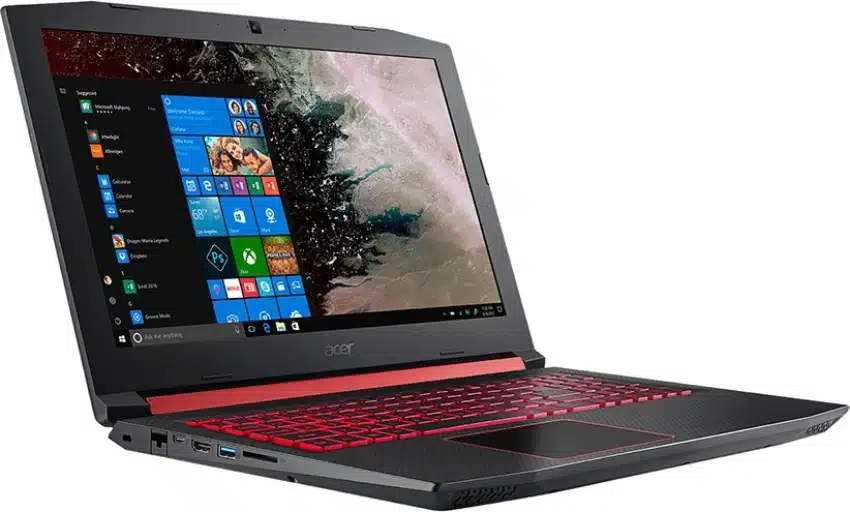
Acer-laptop-water-damage-repair

If you’ve accidentally spilt water on your Acer laptop, time is of the essence. You don’t need to worry about the matter because you can solve it quickly. Taking some proper steps, you can recover the laptop from the damage. You absolutely must turn off the laptop immediately and unplug it without wasting any time. Then you can take some necessary steps to recover your laptop. In this article, we will talk about how you can fix Acer laptop water damage.

If you follow some simple steps that will help to fix the water damage to your Acer laptop from home.

Steps to Follow For Wet Laptop Emergency

Suppose you are eating while using your laptop and slipped water on it. Then these are the steps you have to follow to fix the laptop.

Step 1: Detached Components

As we said before, first, you have to turn off the laptop while you are fixing any water damage issue. After that, you have to remove all easily detachable components from the laptop. For example, if you are using an external mouse, unplug the mouse, all cables, remove any flash drives and DVDs, and leave your laptop bare.

Step 2: Dry your laptop

Now you have to dry the outside of your machine (the laptop). Then open the laptop as far as it goes, hold it upside down to let any accumulated liquid drain out. Then you can use an absorbent towel or a lint-free absorbent fabric to wipe wet surfaces until they’re dry. You have to keep in mind not to dry the computer with forced hot air from a heat gun or hairdryer.

At this point, you can take advantage of the warranty if it’s still applicable for your laptop and take it to the repair shop if you want. If you are capable, then separate all the parts and fix the laptop entirely by ownself.

Step 3: Separate All Parts And Fix the Laptop

You can separate all the internal parts of your laptop and dry them all individually to fix your laptop from water damage.

Step 4: Remove Battery

As you have disconnected the power source of your laptop, please remove the battery from it. Now make your laptop upside-down and remove the battery by lifting it out of the laptop.

Step 5: Takeout All Screws

Keep your laptop upside-down and find all the screws on the backside of the laptop. Use a screwdriver to unscrew and open the back cover of your laptop. You have to separate the keyboard after opening the back cover of your laptop. Now you have access to the internal portion of your laptop through unscrewing.

Step 6: Extract Parts

Now you need to extract all the internal chips and parts from the motherboard of your laptop. You have to be careful while unscrewing and removing the cooling fans. Next, extract all the small components and chips from the inner side of your laptop.

Step 7: Check Wetness

You have to examine each component you’ve removed to check for any sign of wetness or corrosion. First, you need to dry all the parts from the inside of your laptop. Use a clean toothbrush dipped in 99% isopropyl alcohol (circuit cleaner) to wipe it. This will dissolve gunk without causing liquid damage and evaporate without leaving a sticky residue.

Step 8: Dry

Once you have cleaned everything examined and sure you’ve brushed away any signs of corrosion, leave everything alone to air-dry for two to three days in a warm, dry area. After that, you can use a fan that will hasten the drying process of inside components. But keep in mind not to use a hairdryer, because that could cause static problems.

Step 9: Reconstruct

Once you’ve picked your machine apart and given the components time to dry, now it’s time to reassemble the laptop. First, you need to drop the motherboard with the processor and cooling assembly into the appropriate notch. Reverse all the processes you have followed to separate all the connections and chips. If you’ve reassembled the laptop in the correct order, you should be able to power up your laptop for reuse.

Conclusion

These are the straightforward processes that you should follow to fix your Acer laptop’s water damage. If you follow the steps, I hope to help your laptop recover from water damage issues. By any chance, the damages are a lot more due to spilled water. You can come to our repair shop to fix the Acer laptop water damage issue.

Please note that the guideline instructions provided may not always apply to the symptoms your computer is experiencing. Sometimes, symptoms or behavior can be the same, but the underlying reason or fault can be completely different.

The fastest way we can assist customers is by bringing computers to our workshop, where technicians have the tools to diagnose faults accurately. After checks, if parts are found to be faulty or damaged, we proceed to replace them with high-quality original parts.

No appointments are required; you can drop off your computer at our workshop during working hours.

If you have more queries about our laptop repair and upgrade services, please feel free to contact us at 020 7018 7490 or email us at contact@pcfixlondon.com
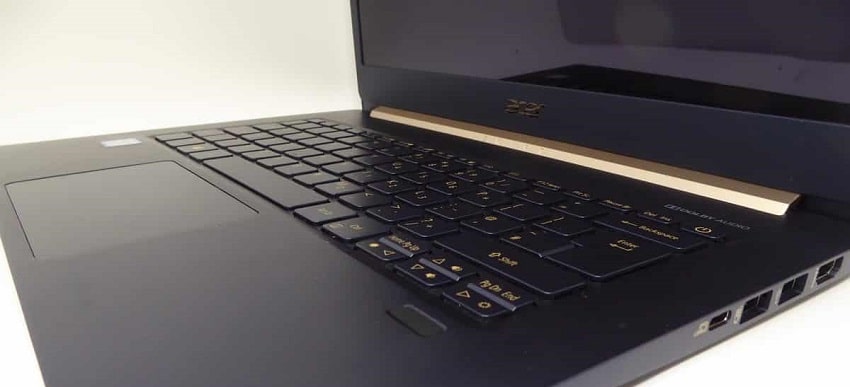
Laptop-Motherboard-Repair-all

Almost all people confront motherboard failure problems while using desktops and laptops nowadays. You may find that your laptop is not powering up because of motherboard failure. When a laptop’s motherboard fails, you have to replace it with a new one. Without asking help from an expert, you can replace the motherboard from home. However, you need to follow some simple steps to do that perfectly. This article will teach you how to replace a motherboard on an Acer laptop that has failed.

Here are the steps you should follow while replacing the motherboard on your Acer laptops.

Step 1: Remove Battery

First, you need to disconnect your laptop’s power source to remove the battery from the laptop. Now make your laptop upside-down and remove the battery by lifting it out of the laptop. This will ensure your safety while starting the motherboard replacement process of your laptop. If you found that your laptop has a mounted battery, you can skip the step.

Step 2: Open Back Cover

Now, keeping the laptop upside down, you need to find the screw points of your laptop. You have to use a screwdriver to remove them all from your laptop. This will help to open the back cover of your laptop. You must need access to all the screw points of the laptop’s cover.
Be careful while you are unscrewing the service plate’s cover of the laptop. After the panel has been loosened by the plastic opening tool, you have to take a finger, place it in the gap, and then remove the panel from the laptop. You must need to keep all the laptop’s screws in a safe location because you will need all these screws at the time of restoring your device.

Step 3: Remove Keyboard Panel

After that, you need to take the laptop in an available position and locate the tabs keeping the keyboard in place. Then, you can use thin tweezers to push the tabs in the keyboard and pull them up on the edge of it. Of course, when you push it, the keyboard will bend, and it may seem like it’s breaking, but there is no need to worry.

Then use your hands when the keyboard begins popping out of place. To keep the part that has been detached from the laptop in the air. After that, you need to continue pushing in tabs and lifting the keyboard as described above. Now you have successfully separated the keyboard from your Acer laptop.

Step 4: Separate Parts

After you have removed all of the prerequisites, it’s time to unscrew a few more screws. Next, you have to release all the components’ connections attached to the motherboard, such as the power button and the trackpad. You must need to remove these connections the same way you undid the keyboard using the tweezers. Be very much careful while you are using your hands to separate the connections. It would be best if you needed to use a plastic opening tool or your hands to carefully lift the corner of the top panel of the laptop.

Step 5: Pull Out Cooling Fan

Once you have located the laptop’s cooling fan, use a screwdriver to separate it from the motherboard. One of the screws may be directly beneath a set of wires, so be careful not to cut those wires as you remove the screws. Instead, it would help if you used tweezers to disconnect the wires connecting the fan to the laptop and pull out the fan from the board.

Step 6: Replace the Motherboard

Locate the two strips and the wire bundle that is connected to the motherboard from other components. You have to be careful while removing the connections, as done previously for the keyboard. Next, lift the motherboard, and locate the last wire bundle that needs to be removed. The motherboard should now be completely free of connections, and you can remove the motherboard. Now you can replace the motherboard with a new one.

Step 7: Reassemble All Parts

Finally, you have to restore all the connections to the laptop. For that, you need to place the connections right on the motherboard. Next, you have to drop the motherboard with the processor and cooling assembly into the appropriate notch. Finally, reverse the process you have followed to separate all the connections and chips. If you’ve reassembled the laptop in the correct order, you should be able to power up and see the BIOS screen. Now you need to install your preferred operating system to use your laptop.

Conclusion

These are the elementary steps you should follow while replacing the motherboard of your laptop. I hope this will help you to deal with your motherboard failure issue. Be attentive and careful while you are opening the laptop to look inside.

Please note that the guideline instructions provided may not always apply to the symptoms your computer is experiencing. Sometimes, symptoms or behavior can be the same, but the underlying reason or fault can be completely different.

The fastest way we can assist customers is by bringing computers to our workshop, where technicians have the tools to diagnose faults accurately. After checks, if parts are found to be faulty or damaged, we proceed to replace them with high-quality original parts.

No appointments are required; you can drop off your computer at our workshop during working hours.

If you have more queries about our laptop repair and upgrade services, please feel free to contact us at 020 7018 7490 or email us at contact@pcfixlondon.com

Acer-Laptop-Motherboard-Repair

Motherboard failure is a common problem that people face while using laptops. After checking all other possibilities, you may find that the motherboard is the last suspect to verify why the laptop is not powering up. When any laptop has a motherboard that has failed, the only possible route for the end-user is to clean it and try to power up. This article will show you how to fix a motherboard failure on an Acer laptop.

Here are the steps you should follow to fix your motherboard failure in your Acer laptops from home.

Step 1: Take Safety Precautions

At first, you have to disconnect the power cable from the laptop. That will make sure your safety while starting the fixing process of your laptop. After that, flip the laptop upside down to remove the battery from it. If your laptop has an internally mounted battery, you can skip the step.

Step 2: Remove All Screws

Now, find the screw points of your laptop so that you can remove them. Keep the laptop upside-down until you have access to all the screw points of the laptop’s cover.

You have to unscrew the service plate’s cover of the laptop carefully. This will help you to gain access to the memory and drive as well as the wireless adapter. If your laptop requires removing all screws on the underside, then unscrew all possible screw locations. You must need to keep all the laptop’s screws in a safe location because you will need all these screws at the time of restoring your device.

Step 3: Separate Parts

After unscrewing, you can now open the laptop’s cover. Then, you have to remove the memory, storage, optical drive (if the laptop has one), and wireless adapter. There’s a chance you’ll have to deal with screws holding the drive and wireless adapters in place. You must also disconnect the wireless adapter’s black and white cables flowing away from the adapter. Be careful while you are into the laptop body because it is a little sensitive to handle a laptop’s internal chipset.

Step 4: Extract Cooling Fan

Therefore, you have to unplug all connections of your laptop from the motherboard. This includes the display, USB connectivity, cooling fan, and other chips. Remove the cooling fan by unplugging it from the motherboard. If there is any screw attached to the cooling fan, unscrew them and remove the fan.

Step 5: Use Circuit Cleaner

After that, you need to unscrew the heatsink assembly from the motherboard. And you have to use isopropyl alcohol to clean the thermal paste from the CPU, GPU, and chipset (if it’s a unified Heatpipe assembly). But suppose, for some reason, you may not have access to isopropyl alcohol or rubbing alcohol. IN that case, you can use nail polish remover instead of isopropyl alcohol.

Step 6: Clean The Motherboard

You may or may not be required to remove the processor from the board, depending on the model of your Acer laptop. Next, you have to lift the processor and release all the connections. To use a circuit cleaner to clean the motherboard and wait for a while. This is the last work you need to do to fix your laptop motherboard problem.

Step 7: Reassemble

Finally, you have to restore all the connections to the laptop. For that, you need to place the processor on the motherboard. Next, you have to reapply thermal paste onto the die surfaces for your CPU, GPU, and chipset. Then remount the cooling assembly onto the motherboard of your laptop. And after that, connect the cooling fans’ power cable. Finally, you have to drop the motherboard with the processor and cooling assembly into the appropriate notch. If you’ve reassembled the laptop in the correct order, you should be able to power up and see the BIOS screen.

Final Thought

I hope following these simple steps will help you to fix the motherboard issues of your Acer laptops. As this is a common problem, you can fix it at home before asking an expert. Laptops mainly face motherboard-related issues often these days. If these simple steps cannot solve your problem, you have to replace the motherboard with a new one.

Please note that the guideline instructions provided may not always apply to the symptoms your computer is experiencing. Sometimes, symptoms or behavior can be the same, but the underlying reason or fault can be completely different.

The fastest way we can assist customers is by bringing computers to our workshop, where technicians have the tools to diagnose faults accurately. After checks, if parts are found to be faulty or damaged, we proceed to replace them with high-quality original parts.

No appointments are required; you can drop off your computer at our workshop during working hours.

If you have more queries about our laptop repair and upgrade services, please feel free to contact us at 020 7018 7490 or email us at contact@pcfixlondon.com

acer laptop repair

Regardless of how gently you use your laptop, a user generally faces many problems working on it. Many types of errors may occur in your device, and they might be regarding your laptop’s hardware or software. The brand of your laptop doesn’t even matter that much. Some of the common problems like processing, assembly, or configuration may occur in any brand.

However, Acer Laptop users are most commonly confronted with five different types of errors. Suppose you face the problems like freezing frames in your laptop’s display, sluggish processing performance, incapability of the motherboard. You must follow the steps provided herein, which may provide satisfaction to your concern, or if not getting the proper results, you should contact your nearest Acer service center. The assistance of professionals can be the best solution for your problems. Here we provide you with five easy fixes to the problems that may help you resolve all the problems quickly and effectively.

Five common problems of Acer laptops and easy solution:

System’s heating problem

When the system’s processor is overloaded and not giving up to the mark performance, when there is an excessive amount of increment in heat, this may generally result in the heating problem of the whole system. The excess heating issue may damage the laptop’s internal parts, instead of having a fan inside the laptop to regulate the temperature and cool down the excess storage of heat in your electrical device.

The solution to fix the heating issue:

  1. Remove the dust: If you are facing a heating problem in the laptop, the first step you have to follow is cleaning the dust present inside your device. Vents are present inside your laptop for easy flow of the air and heat. The dust clogged inside may dysfunction some parts like it may prevent fan blades or vent from working effectively. The dust ultimately causes the fan to work harder, and the heat may not be released, which results in a heating issue.
  2. Keep the laptop in the cool room: It’s an optional step to follow depending upon the level of heating. You have to keep your heated laptop in a cool room which may maintain a proper temperature. After it is done, you may move it further.
  3. Proper ventilation: You should always keep your laptop at a proper height, giving your good laptop ventilation. As we discussed above, the stuck dust might increase heating, and good ventilation may solve this problem.
  4. Always keep your laptop updated: As Acer provides BIOS updates for the users.
  5. Low power mode: Always try to work on your laptop using low power consumption mode. By doing this, your laptop consumes less power and release low heat, and will remain cool.

Low-performance rate with long boot time

If you are also facing the problem of sluggish performance, lacking or your device is getting hang when you use several applications at a time. And if your laptop is taking more than regular boot time, then the bootloader is much needed.

The solution to fix the problem:

  1.  Firstly, you have to uninstall all the unused applications or programs. For the long run, to get over this problem, you have to download ‘suite 7 professional tool’, which is an effective optimizer and start-up manager.
  2. Upgrading to an advanced RAM level can be a good solution to get rid of its sluggish performance. Slow performance can result from low memory as your laptop might require more memory to function properly.

Sudden shut down the problem

This is considered a common problem for Acer users. This can be cured by applying some common fixes. You have to analyze the issue and troubleshoot the particular section of the software causing the problem.

The solution to fix the problem:

 Every Acer laptop has a pre-installed antivirus named ‘Windows defender. So, the user has to uninstall all the third-party installed applications and programs. These programs may lead you to the laptop shutdown.

  1. Mainly the program or applications running in the background may cause multiple malfunctions in your system resulting from your laptop shutdown. Close all the programs running in the background, and if you are not able to close them use task manager to close them anyhow.
  2. Always keep your laptop updated.  Always keep searching for updates to keep your laptop up to date.

Flickering or Black screen issue

If you are using Windows 10 on your laptop, you must have gone through a problem with the unexpected appearance of a black screen. To fix this issue of flickering or blacking of the screen, you have to follow some steps on your Acer laptop.

The solution to fix the problem:

  1.  The following reasons may cause this problem: Application incompatibility and issue in the display driver.
  2. Avoid connecting any external device as it may result in a blackout of your laptop screen.
  3. In this situation, you have to wake up your laptop’s display by clicking ‘Windows key + Ctrl + Shift + B.’
  4. If the issue is not resolved, then the last option is to troubleshoot your laptop to fix the problem. This can do by restarting your laptop and boot in the device in safe mode.

Excessive notice from laptop’s fan

As we already discussed, when you work in a high-power mode, the processor has to work with high frequency, and also, the fan starts spinning faster. Dust is also one of the reasons for fans causing more notice while spinning. But most of the peoples are less bothered about cleaning the fan. Many of them are afraid and still dependent on experts for such cleaning purposes.

The solution to fix the problem:

  1.  One must not overshadow this minor problem as this may result in obstruction in fan blades and make them noisier while working.
  2. You have to turn off your laptop and cut its electricity flow.
  3. Remove its battery and try to find an air vent placed at the outer edge.
  4. Unscrew the below panels, and now you can see the fan.
  5. Deep clean the fan and blow out all the dust present.

Conclusion

Not every Acer laptop has these problems. But one must get his mind prepared before purchasing a laptop to encounter suck issues. We perform Acer Laptop screen replacement if your screen is flickering, has brightness issues, lines, scratches, or marks.

Please note that the guideline instructions provided may not always apply to the symptoms your computer is experiencing. Sometimes, symptoms or behavior can be the same, but the underlying reason or fault can be completely different.

The fastest way we can assist customers is by bringing computers to our workshop, where technicians have the tools to diagnose faults accurately. After checks, if parts are found to be faulty or damaged, we proceed to replace them with high-quality original parts.

No appointments are required; you can drop off your computer at our workshop during working hours.

If you have more queries about our laptop repair and upgrade services, please feel free to contact us at 020 7018 7490 or email us at contact@pcfixlondon.com