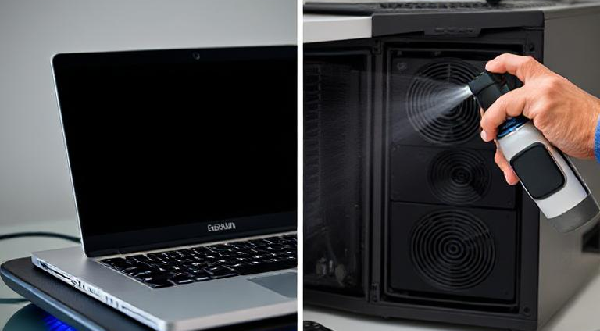
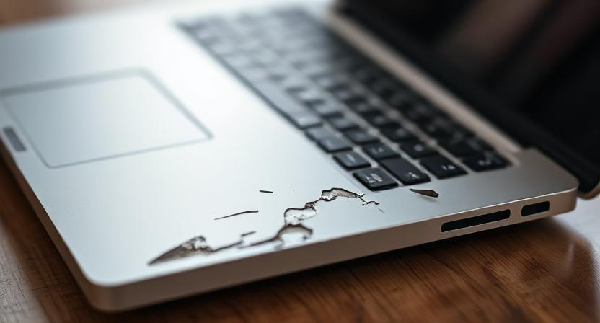
Gigabyte laptop wont turn on

A Gigabyte laptop that won’t turn on can be a major inconvenience, especially if you rely on it for work, gaming, or personal use. Before you panic, know that many power-related issues can be resolved with a bit of troubleshooting. At PC Fix London, we specialize in diagnosing and repairing Gigabyte laptops, and we’re here to guide you through the process.

Common Causes of Gigabyte Laptop Power Issues

Understanding the root cause is the first step to fixing the problem. Here are the most common reasons your Gigabyte laptop might not turn on:

  1. Battery Problems: A dead, damaged, or improperly connected battery can prevent your laptop from turning on.
  2. Power Supply Issues: A faulty charger, damaged power port, or issues with the wall outlet can stop your laptop from receiving power.
  3. Hardware Failures: Problems with internal components like the motherboard, RAM, or hard drive can cause startup failures.
  4. Display Malfunctions: The laptop might be turning on, but the screen remains black due to a faulty display or graphics card.
  5. Overheating: Excessive heat can trigger safety mechanisms that prevent the laptop from powering on.
  6. Software Glitches: Corrupted system files or failed updates can also cause boot issues.

Step-by-Step Troubleshooting Guide

Follow these steps to diagnose and potentially fix the issue:

  1. Check the Power Supply
    • Ensure the power adapter is securely connected to both the laptop and the wall outlet.
    • Try a different outlet or power adapter to rule out issues with the power source.
    • Inspect the charging port for damage or debris.
  2. Perform a Hard Reset
    • Unplug the laptop and remove the battery (if removable).
    • Hold the power button for 30 seconds to discharge residual power.
    • Reconnect the power adapter and try turning it on again.
  3. Test with an External Monitor
    • Connect your laptop to an external monitor using an HDMI or VGA cable.
    • If the external display works, the issue may be with your laptop’s screen.
  4. Inspect the Battery
    • Remove the battery and try powering the laptop with just the AC adapter.
    • If it turns on, the battery may need replacement.
  5. Check for Overheating
    • Let the laptop cool down for 15-30 minutes if it feels hot.
    • Ensure the vents are clean and unobstructed.
  6. Boot into Safe Mode
    • Press the power button and repeatedly tap the F8 key to access Safe Mode.
    • If successful, you can troubleshoot software issues or roll back recent updates.
  7. Reset the BIOS
    • For advanced users: Remove the CMOS battery for a few minutes to reset the BIOS settings.
  8. Seek Professional Help
    • If none of the above steps work, it’s time to consult a professional. At PC Fix London, we offer free diagnostics and same-day repairs for Gigabyte laptops.

Preventative Tips to Avoid Future Issues

  • Use the original Gigabyte charger and avoid third-party replacements.
  • Keep your laptop clean by regularly cleaning the vents and fans.
  • Update your operating system and drivers to prevent software conflicts.
  • Avoid using your laptop on soft surfaces that can block airflow.

Why Choose PC Fix London for Gigabyte Laptop Repairs?

  • Expert Technicians: Our team specializes in Gigabyte laptop repairs.
  • Genuine Parts: We use only original Gigabyte components for replacements.
  • Fast Turnaround: Many repairs are completed the same day. Same-day repair available, depending on the complexity of the issue and parts availability.
  • No Fix, No Fee: You only pay if we resolve the issue.

FAQs: Gigabyte Laptop Not Turning On

Q: Why won’t my Gigabyte laptop turn on even when plugged in?
A: This could indicate a problem with the power adapter, charging port, or internal components. Test with a different power adapter or seek professional diagnosis.

Q: What should I do if my Gigabyte laptop screen stays black but the power light is on?
A: This could be a display or graphics card issue. Connect your laptop to an external monitor. If the external display works, the problem is likely with your laptop’s screen.

Q: Can a dead battery cause my Gigabyte laptop not to turn on?
A: Yes, a dead or faulty battery can prevent your laptop from turning on. Remove the battery and try powering the laptop with just the AC adapter. If it turns on, the battery may need replacement.

Q: What should I do if my Gigabyte laptop turns on but freezes during startup?
A: This could indicate a software or hardware issue. Try booting into Safe Mode by pressing the F8 key during startup. If successful, troubleshoot software conflicts or perform a system restore.

Q: Can a virus prevent my Gigabyte laptop from turning on?
A: While rare, a severe virus infection can corrupt system files and prevent your laptop from booting. If you suspect a virus, boot into Safe Mode and run a full system scan using antivirus software.

Q: Why does my Gigabyte laptop turn on but show a blank screen?
A: This could be due to a faulty display, loose connections, or a graphics card issue. Connect your laptop to an external monitor to check if the problem is with the screen.

Contact Us Today

At PC Fix London, we specialize in diagnosing and repairing Gigabyte laptops. Our certified technicians use only original parts and offer fast, reliable, and affordable repair services. With our no fix, no fee policy and same-day repairs, you can trust us to get your laptop back in working order as quickly as possible.

Don’t let a power issue keep you from using your Gigabyte laptop.

No appointment is needed. You can visit our service center during working hours from Monday to Friday.

Contact us today at 020 7018 7490 or email us at contact@pcfixlondon.com for expert assistance. Whether it’s a simple fix or a major repair, we’re here to help!

Lenovo laptop wont turn on

A Lenovo laptop that won’t turn on can be frustrating, especially when you need it for work or personal tasks. Power issues can arise due to various reasons, including battery problems, faulty chargers, overheating, or internal hardware failures. Fortunately, many of these issues can be resolved with simple troubleshooting steps.

In this guide, we’ll walk you through step-by-step solutions to fix a Lenovo laptop that won’t turn on. Additionally, we’ll provide preventive measures to help you avoid such problems in the future. Whether your laptop is completely unresponsive or showing signs of power issues, this guide will help you diagnose and resolve the problem effectively.

Common Causes of Lenovo Laptop Not Turning On

  1. Battery Problems: A dead, damaged, or improperly connected battery can prevent your Lenovo laptop from turning on. If the battery is faulty or doesn’t hold a charge, it could be the reason for the issue.
  2. Power Supply Issues: A faulty power adapter, charger, or power cable might prevent the laptop from receiving enough power to boot up.
  3. Hardware Failures: Issues with critical internal components such as the motherboard, RAM, or hard drive can lead to your Lenovo laptop not powering on.
  4. Display Problems: Sometimes, your laptop may be functioning but the screen won’t display anything due to a faulty screen, a damaged connection, or issues with the graphics card.
  5. Software Corruption: Corrupted operating system files, failed updates, or software conflicts can also prevent your Lenovo laptop from turning on properly.

Steps to Fix a Lenovo Laptop That Won’t Turn On

If your Lenovo laptop refuses to power on, follow these troubleshooting steps to identify and resolve the issue.

1. Check the Power Supply

  • Ensure the power adapter is properly plugged into the laptop and wall outlet.
  • Try a different power outlet to rule out issues with the socket.
  • If the charging light does not turn on, test with another compatible charger.

2. Perform a Hard Reset

  • Disconnect the power adapter and remove the battery (if removable).
  • Press and hold the power button for 30-60 seconds to drain residual power.
  • Reconnect the battery and charger, then attempt to turn the laptop on.

3. Inspect the Battery and Charger

  • If the laptop works with the charger plugged in but not on battery, the battery may be faulty.
  • If the charging port feels loose or damaged, it may require professional repair.

4. Check for Display Issues

  • If the power light turns on but the screen remains black, connect an external monitor to check for display issues.
  • Adjust brightness settings or perform a forced restart.

5. Remove External Devices

  • Disconnect all USB devices, external hard drives, or peripherals that might cause boot issues.
  • Try booting the laptop without them connected.

6. Look for Signs of Overheating

  • If the laptop was overheating before shutting down, let it cool down for 15-30 minutes.
  • Check if the cooling fan is working properly.

7. Boot Into Safe Mode

  • If the laptop turns on but fails to load Windows, try booting into Safe Mode by pressing F8 or Shift + F8 during startup.

8. Reset the CMOS Battery

  • If comfortable, open the back panel, remove the CMOS battery, wait for a few minutes, then reinsert it.
  • This can reset BIOS settings and help resolve power issues.

9. Check for Hardware Damage

  • If none of the steps work, the issue might be related to the motherboard, RAM, or other internal components.
  • In such cases, seeking professional repair assistance is recommended.

If your Lenovo laptop still won’t turn on after trying these steps, you may need expert diagnosis and repair services.

Prevention Tips to Avoid Lenovo Laptop Power Issues

To ensure your Lenovo laptop remains functional and avoids power-related issues, follow these preventive measures:

1. Use an Original Charger and Battery

  • Always use Lenovo’s original charger and battery to prevent compatibility issues.
  • Avoid using low-quality or third-party power adapters.

2. Keep the Charging Port Clean

  • Regularly inspect and clean the charging port to remove dust or debris.
  • Avoid forcing the charger into the port to prevent damage.

3. Prevent Overheating

  • Use the laptop on a flat, hard surface to ensure proper airflow.
  • Clean the cooling vents and fan regularly to prevent dust buildup.
  • Avoid blocking the air vents by using the laptop on soft surfaces like beds or sofas.

4. Avoid Overcharging

  • Unplug the charger once the laptop is fully charged to prevent battery degradation.
  • If you use the laptop on AC power frequently, remove the battery (if removable) to prolong battery life.

5. Perform Regular Software Updates

  • Keep the BIOS, drivers, and operating system up to date to avoid software-related startup issues.
  • Enable automatic Windows updates for security and stability improvements.

6. Protect Against Power Surges

  • Use a surge protector or UPS (Uninterruptible Power Supply) to safeguard against voltage fluctuations.
  • Avoid using the laptop during thunderstorms without protection.

7. Handle the Laptop with Care

  • Avoid dropping or shaking the laptop, as internal components may get damaged.
  • Store the laptop in a padded case while traveling to protect it from physical impact.

8. Perform Regular Battery Calibration

  • Discharge the battery to around 5-10% and then fully recharge it once a month.
  • This helps maintain accurate battery health readings.

9. Avoid Force Shutdowns

  • Always shut down or restart properly to prevent sudden power failures.
  • If the laptop freezes, try using Ctrl + Alt + Delete instead of forcing a shutdown.

10. Schedule Regular Maintenance

  • Check the laptop’s internal components periodically, especially if you notice heating, battery drainage, or charging issues.
  • Seek professional servicing if you detect unusual noises or performance drops.

By following these preventive steps, you can extend the lifespan of your Lenovo laptop and minimize the risk of power-related failures.

Additional Services for Lenovo Laptops

Aside from fixing power-related issues, we offer various additional repair services for your Lenovo laptop:

  • Screen replacements: If the screen is damaged or not displaying anything, we can replace it with a genuine Lenovo display.
  • Data recovery: If your laptop won’t turn on due to a hardware failure, we offer data recovery services to retrieve your important files.
  • Laptop upgrades: Need more storage or memory? We can upgrade your Lenovo laptop to boost its performance and extend its lifespan.

Why Choose Us for Asus Laptop Repairs?

  • Skilled technicians: Our certified technicians are experts in diagnosing and repairing Lenovo laptops, ensuring that your device is fixed quickly and accurately.
  • Original parts: We use only genuine Lenovo parts for repairs, ensuring that your laptop operates as intended after the fix.
  • Walk-ins welcome: You don’t need an appointment – simply bring your Lenovo laptop to our store, and we’ll assist you on the spot, with same-day repairs subject to parts availability.
  • No fix, no fee policy: If we can’t fix the issue, you won’t be charged for our service.
  • Same-day repair: We understand how important your laptop is, and we prioritize a quick and efficient repair process to minimize downtime. Same-day repair available, depending on the complexity of the issue and parts availability.

Conclusion

If your Lenovo laptop won’t turn on, don’t worry. PC Fix London is here to help. Our experienced technicians can accurately diagnose and repair the issue, whether it’s a battery problem, motherboard malfunction, or software corruption. We use only original parts, ensuring the best results for your Lenovo laptop.

No appointment is needed. You can visit our service center during working hours from Monday to Friday.

Contact us today at 020 7018 7490 or email us at contact@pcfixlondon.com to schedule your repair. Whether it’s a minor issue or a more complex problem, we’re here to get your Lenovo laptop up and running again.

Asus laptop wont turn on

If your Asus laptop refuses to turn on, it can be a frustrating experience. Whether it’s a simple issue or a more complex hardware failure, understanding the possible causes is the first step in finding the right solution. At PC Fix London, we specialize in diagnosing and repairing Asus laptops to get them back in working order quickly. Here’s what could be causing the issue and how we can help you restore your device.

Common Causes of Asus Laptop Not Turning On

  1. Battery Issues: If your laptop’s battery is dead, damaged, or not properly connected, the laptop may fail to power up. Charging issues or a faulty battery connection could also be the culprit.
  2. Power Supply Failure: A malfunctioning charger or faulty power cable might prevent your Asus laptop from receiving power.
  3. Internal Hardware Problems: The motherboard, hard drive, or other internal components might be damaged, preventing the laptop from starting.
  4. Display Issues: Your laptop may be working but not displaying anything on the screen due to faulty wiring, a damaged display, or malfunctioning graphics hardware.
  5. Software and Operating System Failures: Corrupted files or system errors can cause your Asus laptop to freeze at boot or not turn on at all.

Simple Troubleshooting Steps for Asus Laptop Not Turning On

Before bringing your Asus laptop to a repair center, try a few simple troubleshooting steps:

  • Check the power connection: Ensure the charger is securely plugged into both the laptop and the power outlet. Try using a different charger if available.
  • Remove external devices: Unplug all external devices such as USB drives, printers, or external monitors. These can sometimes interfere with the laptop’s startup.
  • Perform a hard reset: Disconnect the charger and battery (if possible), then hold the power button for 30 seconds. This may help reset the system and resolve minor startup issues.

Why Your Asus Laptop Won’t Turn On: Hardware Failures

Several hardware failures can cause an Asus laptop not to turn on, including:

  • Damaged motherboard: A malfunctioning motherboard can prevent your laptop from powering on, as it is the central hub that connects all components.
  • Faulty power jack or connection: If the power jack is loose or damaged, the laptop might not receive the necessary power to start up.

Asus Laptop Not Turning On Due to Software Issues

Sometimes, a problem with your Asus laptop’s operating system can prevent it from turning on:

  • Corrupted system files: Essential files may become corrupted due to sudden power loss, software errors, or malware, which can prevent the laptop from booting.
  • BIOS corruption or misconfiguration: If the BIOS (Basic Input Output System) is corrupted or misconfigured, your laptop may struggle to initiate the startup process.

Repair Services We Offer for Asus Laptops

At PC Fix London, we offer expert diagnostic and repair services for all Asus laptop models. Our certified technicians will:

  • Accurately diagnose the issue: We use advanced diagnostic tools to identify the root cause of the problem—whether it’s a battery, power supply, motherboard, or software issue.
  • Replace faulty parts: If a component like the battery, power supply, or motherboard is faulty, we’ll replace it with original Asus parts to restore your laptop’s functionality.
  • Address software problems: Our technicians can fix any software issues, including corrupt operating systems or system files, ensuring your laptop boots up smoothly.

Preventative Tips to Avoid Future Issues

  • Use the original Asus charger and avoid third-party replacements.
  • Keep your laptop clean by regularly cleaning the vents and fans.
  • Update your operating system and drivers to prevent software conflicts.
  • Avoid using your laptop on soft surfaces that can block airflow.

Additional Services for Asus Laptops

In addition to fixing your laptop’s power issue, we offer other repair services for your Asus laptop:

  • Screen replacements: If your screen is cracked or damaged, we can replace it with an original Asus display.
  • Data recovery: If your laptop isn’t turning on and you need to recover important files, we can help retrieve your data.
  • Laptop upgrades: Need more storage or RAM? We can upgrade your Asus laptop to enhance its performance.

Why Choose Us for Asus Laptop Repairs?

  • Certified technicians: Our skilled technicians have expertise in diagnosing and fixing Asus laptop issues quickly and efficiently.
  • Original parts: We use only genuine Asus parts for repairs to ensure your laptop operates as expected.
  • No appointment needed: You can walk into our service center directly.
  • No fix, no fee policy: If we can’t fix the issue, you won’t be charged for the service.
  • Same-day repair: We aim to complete repairs swiftly so that you can get back to using your laptop as soon as possible. Same-day repair available, depending on the complexity of the issue and parts availability.

Conclusion

If your Asus laptop won’t turn on, don’t panic. PC Fix London is here to help. Our experienced technicians can accurately diagnose and repair the issue, whether it’s a power failure, hardware malfunction, or software problem.

No appointment is needed. You can visit our service center during working hours from Monday to Friday.

Contact us today at 020 7018 7490 or email us at contact@pcfixlondon.com for expert Asus laptop repairs. Whether it’s a simple battery issue or a complex motherboard replacement, we have the tools and expertise to get your laptop back in action.

technician working on a laptop

Few things are more frustrating than pressing the power button on your laptop and… nothing happens. A laptop that won’t turn on can feel like a major setback, but it doesn’t necessarily mean it’s time to buy a new one. In many cases, the issue can be resolved with some careful troubleshooting. At PC Fix London, we specialize in diagnosing and repairing laptop issues, and this comprehensive guide will walk you through the steps to identify and potentially fix the problem yourself. If all else fails, our expert technicians are here to help.

Common Causes of Laptop Power Issues

Before diving into solutions, it’s important to understand what might be causing the problem. Here are the most common reasons why a laptop won’t turn on:

  1. Power Supply Issues: A faulty power adapter, damaged charging port, or issues with the wall outlet can prevent your laptop from receiving power.
  2. Battery Problems: A dead or malfunctioning battery can stop your laptop from powering on, even when plugged in.
  3. Hardware Failure: Internal components like the motherboard, RAM, or hard drive may have failed.
  4. Screen Malfunctions: The laptop may be turning on, but the display isn’t working, making it seem like it’s not powering up.
  5. Software or Operating System Errors: Corrupted system files or failed updates can prevent the laptop from booting properly.
  6. Overheating: Excessive heat can cause the laptop to shut down and refuse to turn on until it cools down.
  7. Physical Damage: Liquid spills, drops, or other physical damage can interfere with the laptop’s functionality.
  8. External Device Interference: Connected peripherals like USB drives or external monitors can sometimes cause boot issues.

10 Steps to Fix a Laptop That Won’t Turn On

1. Check the Power Supply and Battery

technician checking the power connection

The most common reason for a laptop not turning on is a power-related issue. Start with these steps:

  • Ensure the power cord is securely connected to both the laptop and the wall outlet.
  • Try a different wall outlet to rule out issues with the power source.
  • Test with a different power adapter to determine if the original is faulty.
  • If your laptop has a removable battery, remove it and try powering on using just the AC adapter.
  • Check the charging port for damage or debris that might be preventing a proper connection.

2. Perform a Hard Reset

perform a hard reset

A hard reset can clear residual power and resolve minor hardware glitches:

  • Unplug the power cord and remove the battery (if possible).
  • Hold down the power button for 30 seconds to discharge any remaining power.
  • Reconnect the power cord (without the battery) and try turning on the laptop.

3. Check for Display Issues

Checking Display Issues

Sometimes, the laptop may be on, but the display isn’t working:

  • Look closely at the screen in a dark room to see if there’s a faint image.
  • Connect an external monitor to check if the laptop is outputting video.
  • Listen for fan noise, hard drive activity, or indicator lights to confirm if the laptop is powering on.

4. Remove External Devices

laptop with all external devices disconnected

External devices can interfere with the boot process:

  • Disconnect all peripherals, including USB drives, external hard drives, mice, and keyboards.
  • Try powering on the laptop with only the essential components connected.

5. Check for Overheating

technician cleaning the vents

Overheating can cause a laptop to shut down and refuse to turn on:

  • Ensure all vents are clear of dust and debris.
  • Avoid using the laptop on soft surfaces like beds or couches that can block airflow.
  • If the laptop feels hot, let it cool down for 30 minutes before attempting to power it on again.

6. Listen for Beep Codes

Beep Code

Beep codes are audible signals that indicate specific hardware issues:

  • When you try to turn on your laptop, listen for any beeping sounds.
  • Consult your laptop’s manual or the manufacturer’s website to interpret these codes.

7. Try Booting in Safe Mode

Perform Safe Mode

If your laptop turns on but won’t boot into the operating system, Safe Mode can help:

  • Turn on the laptop and repeatedly press the F8 key (or the key specific to your laptop model) during startup.
  • Select “Safe Mode” from the boot options menu.
  • If successful, you can attempt to repair the operating system or roll back recent updates.

8. Check for Hardware Issues

checking hardware issues

Recent hardware changes or upgrades could be causing the problem:

  • If you’ve installed new RAM, a hard drive, or other components, try removing them and see if the laptop powers on.
  • Reseat existing components like RAM and the hard drive to ensure they’re properly connected.

9. Inspect for Signs of Physical Damage

laptop with visible damage

Physical damage can prevent your laptop from turning on:

  • Look for signs of liquid spills, cracks, or dents.
  • If you suspect liquid damage, avoid turning on the laptop and seek professional help immediately.

10. Consider Professional Repair

professional technician working on a laptop

If none of the above steps work, it’s time to consult a professional:

  • At PC Fix London, our certified technicians can diagnose and repair complex hardware and software issues.
  • We offer same-day repairs, data recovery services, and free diagnostics to get your laptop back up and running.

Preventative Maintenance Tips

To avoid future issues, follow these maintenance tips:

  • Keep Your Laptop Clean: Regularly clean the vents and fans with compressed air to prevent overheating.
  • Update Software: Keep your operating system and drivers up to date to avoid software-related issues.
  • Back Up Data: Regularly back up important files to an external drive or cloud storage.
  • Handle with Care: Avoid physical damage by using a protective case and handling your laptop gently.

When to Seek Professional Help

If you’ve tried all the steps above and your laptop still won’t turn on, it’s time to consult the experts. At PC Fix London, we offer:

  • Free Diagnostics: We’ll identify the issue without any upfront cost.
  • Same-Day Repairs: Get your laptop fixed quickly and efficiently. Same-day repair available, depending on the complexity of the issue and parts availability.
  • Data Recovery Services: Retrieve important files from a non-functional laptop.
  • Hardware Upgrades: Improve performance with new RAM, SSDs, or batteries.

FAQ: 

Q: What if my laptop won’t turn on after an update?
A: Try booting into Safe Mode (Step 7). If successful, you can roll back the update or restore your system to a previous state.

Q: Why won’t my laptop turn on even when plugged in?
A: This could indicate a problem with the power adapter, charging port, or internal components. Test with a different power adapter or seek professional diagnosis.

Q: What if my laptop won’t turn on or charge?
A: This could be due to a faulty battery, power adapter, or charging circuit. Try removing the battery and powering on with just the AC adapter.

Q: What if my laptop won’t turn on and the fan runs loud?
A: A loud fan with no display could indicate overheating or a display issue. Check for overheating (Step 5) or connect an external monitor (Step 3).

Q: What if my laptop screen doesn’t turn on?
A: If the laptop powers on but the screen remains black, it could be a display issue. Connect an external monitor to confirm.

Q: What if my laptop won’t power on unless plugged in?
A: This usually indicates a battery problem. Replace the battery or continue using the laptop with the power adapter.

Conclusion

A laptop that won’t turn on can be stressful, but with the right troubleshooting steps, you can often resolve the issue yourself. By following this comprehensive guide, you’ll be equipped to diagnose and fix common power-related problems. However, if the issue persists, don’t hesitate to reach out to PC Fix London for professional assistance. Our team is dedicated to providing fast, reliable, and affordable laptop repair services to get you back on track.

For more tips, tricks, and expert advice, visit our website. No appointment is needed. You can visit our service center during working hours from Monday to Friday or contact us today at 020 7018 7490 or email us at contact@pcfixlondon.com. Let PC Fix London be your trusted partner in laptop repair and maintenance!

MSI Laptop Keyboard Repair

MSI laptops are known for their high performance and durability, but like any other electronic device, they can experience issues over time. One of the most common problems MSI laptop users face is a malfunctioning keyboard. A broken keyboard can be frustrating due to accidental spills or mechanical failure, tear and overtime time; keys can wear out and require treatment.

Common MSI Laptop Keyboard Issues:

Here are a few symptoms and signs that may indicate a problem with your keyboard:

  • Keys are unresponsive: When you press a key, it doesn’t register or type the intended character.
  • Sticky keys: Keys that feel sticky or slow to press and release, making it difficult to type.
  • Repeating keys: When you press a key once, it types multiple characters, causing errors and making it difficult to type.
  • Missing keys: Some keys may be physically missing from the keyboard, making it impossible to type certain characters.
  • Unusual characters: When you press a key, it types a different character than you intended.
  • Keyboard back-light not working: If your keyboard has a back-light, it may not turn on or flickering.
  • Keyboard cable issues: The cable connecting the keyboard to the computer may be loose or damaged, causing connection problems.
  • Keys are sticking: The keys may feel physically stuck or difficult to press, making it difficult to type.
  • Not Working: The keyboard is not typing when pressing any keys.
  • Own Typing: Typing by itself when not even pressed with any key.

If you are experiencing any of these symptoms, it may indicate a problem with your keyboard. If any of the above problems occur, or you are unsure your MSI laptop keyboard is acting up, it’s best to seek professional help at PC Fix London. Our qualified technicians will have the expertise and tools to diagnose and fix the issue quickly and efficiently.

Solutions to Fix MSI Laptop Keyboard Problems:

1. Perform a Hard Reset

  • Turn off the laptop and disconnect all external devices.
  • Unplug the power adapter and remove the battery (if removable).
  • Press and hold the power button for 15-20 seconds to discharge residual power.
  • Reconnect the battery and power adapter, then restart the laptop.

2. Update or Reinstall Keyboard Drivers

  • Open Device Manager by typing it in the Windows search bar.
  • Locate Keyboards, right-click on your keyboard driver, and select Update Driver.
  • If updating doesn’t work, choose Uninstall Device, then restart the laptop to reinstall the driver automatically.

3. Check Keyboard Settings

  • Navigate to Control Panel > Ease of Access > Ease of Access Center > Make the Keyboard Easier to Use.
  • Ensure Sticky Keys and Filter Keys are turned off.

4. Clean the Keyboard

  • Use compressed air to remove dust and debris from under the keys.
  • If a liquid spill occurred, turn off the laptop immediately, disconnect it from power, and let it dry completely. Seek professional cleaning if necessary.

5. Test the Keyboard in BIOS

  • Restart the laptop and press the Delete or F2 key repeatedly to enter BIOS.
  • If the keyboard works in BIOS, the issue is likely software-related. If it doesn’t, it may be a hardware problem.

6. Reseat the Keyboard Cable

  • If comfortable, open the laptop and check the internal keyboard connection to the motherboard.
  • Ensure the ribbon cable is securely attached. Seek professional assistance if you’re unfamiliar with laptop disassembly.

7. Use an External Keyboard

  • Connect an external USB or Bluetooth keyboard as a temporary workaround.
  • This can help identify if the issue is isolated to the laptop keyboard.

8. Replace the Keyboard

  • For broken or severely damaged keyboards, replacement may be the best option.
  • Ensure you purchase a compatible replacement keyboard for your MSI laptop model.

Causes of MSI laptop keyboard Not Working:

  1. Dirt and debris: Dirt, dust, and debris can accumulate beneath the keys over time, making them unresponsive or sticky.
  2. Accidental spills: Spilling liquids on the keyboard can cause the keys to malfunction or become completely stuck.
  3. Mechanical failure: Over time, the keyboard’s internal mechanisms may wear out, causing keys to become unresponsive or stuck.
  4. Driver issues: Outdated or faulty drivers can cause the keyboard to malfunction.
  5. Software updates: Some software updates can cause keyboard issues, such as unresponsive or stuck keys.
  6. Physical damage: Dropping the laptop or applying excessive force to the keyboard can cause damage to the keys or the internal mechanisms, leading to malfunctioning keys.

Prevention Tips:

To ensure that your MSI laptop keyboard remains in good condition and avoid frequent repairs, here are some tips for taking care of it:

  1. Keep liquids away: One of the most common causes of keyboard damage is liquid spills. Keep liquids, such as water and coffee, away from your laptop.
  2. Clean regularly: Regularly clean your MSI laptop keyboard to prevent the accumulation of dirt, dust, and debris that can lead to sticky or unresponsive keys. Use a can of compressed air to blow out any dirt and debris that’s trapped under the keys.
  3. Be gentle: Avoid pressing too hard on the keys, as this can cause damage to the keyboard. Also, be careful when removing keycaps to avoid damaging the key switch underneath.
  4. Use a protective cover: Consider using a keyboard protective cover to keep your keyboard clean and prevent spills from reaching the keys.
  5. Avoid extreme temperatures: Exposure to extreme temperatures can cause damage to your laptop keyboard. Avoid using your laptop in very hot or very cold environments.

Following these tips, you can keep your MSI laptop keyboard in good condition and avoid frequent repairs.

We have you all covered and will repair and replace MSI laptop keyboards. Based in central London, you are more welcome to walk in or send your laptop to our address to fix the MSI laptop keyboard. 

MSI laptop keyboard repair: Why PC Fix London?

PC Fix London is a reputable computer repair service specializing in fixing various computer problems, including MSI laptop keyboard repair. When repairing your MSI laptop keyboard, finding a reliable and trustworthy service is crucial to ensure your laptop is in good hands. By entrusting your laptop to PC Fix London, you can rest assured that your device will receive high-quality repairs from experienced technicians who use only genuine parts and the latest repair techniques.

  1. Certified and Skilled Technicians
  2. Quick and Efficient Service
  3. Original Parts
  4. At PC Fix London, we provide quick and efficient service, minimizing the time you have to be without your laptop.
  5. Genuine Parts: we only use genuine parts for repair, ensuring your laptop will function correctly after the repair.
  6. Competitive Pricing: PC Fix London provides affordable pricing for all their repair services.

In conclusion, if your MSI laptop keyboard is beyond repair, it’s essential to replace it with a compatible replacement keyboard. Following the steps outlined above, you can install a new keyboard and have your laptop functioning like new. If you’re still facing issue on your MSI laptop keyboard on your own, don’t hesitate to contact PC Fix London at call: 020 7018 7490 or contact@pcfixlondon.com for fast and efficient repairs or bring to workshop .

Disclaimer:

Please note that the guideline instructions provided may not always apply to the symptoms your computer is experiencing. Sometimes, symptoms or behavior can be the same, but the underlying reason or fault can be completely different.

The fastest way we can assist customers is by bringing computers to our workshop, where technicians have the tools to diagnose faults accurately. After checks, if parts are found to be faulty or damaged, we proceed to replace them with high-quality original parts.

No appointments are required; you can drop off your computer at our workshop during working hours.

If you have more queries about our laptop repair and upgrade services, please feel free to contact us at 020 7018 7490 or email us at contact@pcfixlondon.com

hp laptop not turning on

Is Your HP Laptop Not Turning On? We Have the Solution for You! It can be frustrating when your HP laptop having issue and won’t turn on. This is especially true if you rely on it for work, school, or personal tasks. Don’t worry – PC Fix London is here to help. Whether the issue is a simple power supply problem or a complex hardware failure, our skilled technicians can help. They are ready to diagnose and fix the problem quickly.

Common Reasons Your HP Laptop Won’t Turn On

There can be numerous reasons why a laptop won’t boot up. These can range from small glitches to serious hardware damage. Here’s a closer look at the most frequent causes:

  1. Power Supply Issues:
    • A faulty charger or damaged power adapter may not be providing the necessary power to your laptop.
    • A completely drained or dead battery can also prevent the device from turning on.
  2. Unresponsive Power Button:
    • A malfunctioning power button can block the startup process entirely.
  3. Hardware Failures:
    • Critical components like the motherboard, RAM, or hard drive may be damaged. These parts are essential for the laptop to boot properly.
    • Overheating can lead to internal damage, resulting in a complete power failure.
  4. Firmware or Software Problems:
    • Corrupted BIOS firmware can interrupt the boot process.
    • Operating system errors or malware infections may stop your laptop from starting.
  5. Display or Screen Problems:
    • Occasionally, the laptop is on, yet the screen stays dark, creating the illusion that the device isn’t turning on.

Signs to Watch For When Your HP Laptop Won’t Turn On

If your HP laptop shows any of the following signs, it might help you pinpoint the problem:

  • No Response: No lights or sounds when you press the power button.
  • Blinking Lights: LED lights blinking in a sequence can indicate a hardware issue.
  • Beeping Sounds: Beep codes often signal specific hardware problems.
  • Black Screen: The laptop powers on, but the display remains unresponsive.
  • Overheating: Excessive heat may indicate cooling system failure, preventing startup.

How We Fix HP Laptops That Not Turning On

At PC Fix London, we use a clear and organized method to find and fix the problems stopping your HP laptop from turning on. Here’s how we fix it:

  1. Checking the Power Supply

Power-related problems are among the most common reasons laptops fail to turn on. Our technicians thoroughly inspect:

  • AC Adapter: We check for damage or irregular voltage output and replace faulty adapters with original HP chargers.
  • Battery: Whether removable or non-removable, we test your battery’s health and replace it if necessary.
  • Charging Port: We examine the charging port for wear or damage, repairing or replacing it as needed.
  1. Performing a Hard Reset

A hard reset is often effective for resolving minor system glitches or power issues.

  • Disconnecting external devices, removing the battery, and holding the power button for 15–30 seconds clears residual electrical charges and resets internal components.
  1. Diagnosing LED and Beep Codes

HP laptops provide diagnostic codes via LED indicators and beep sequences.

  • LED Blinks: Each blinking pattern corresponds to a specific issue, such as RAM failure or motherboard problems.
  • Beep Codes: These audible alerts help pinpoint hardware failures, which we diagnose and repair accordingly.
  1. Troubleshooting Hardware Components

We use advanced tools to identify and repair hardware failures, including:

  • Motherboard Issues: Burnt components or circuit failures are repaired, and in severe cases, we replace the motherboard.
  • RAM Problem: Technicians reseat, clean, or replace faulty or improperly seated memory modules.
  • Storage Drive Failures: We repair or replace hard drives or SSDs and secure your data.
  • Overheating Prevention: Cleaning fans, replacing thermal paste, and repairing cooling systems prevent heat-related issues.
  1. Reseating and Checking Connections

Loose internal connections can prevent the laptop from starting. Our technicians:

  • Reseat memory modules, ensuring proper alignment.
  • Check display connectors, GPU connections, and internal cables for damage or looseness.
  1. Addressing Software and BIOS Issues

Software glitches and corrupted BIOS firmware are common causes of startup issues. We resolve these by:

  • Operating System Repair: Fixing corrupted system files or reinstalling the OS while safeguarding your data.
  • BIOS Recovery: Restoring BIOS settings or flashing the latest firmware version.
  • Malware Removal: Identifying and eliminating harmful software disrupting the boot process.

Preventative Measures and Care Tips

Preventing issues that stop your HP laptop from turning on begins with proper care and regular maintenance. By following these tips, you can keep your laptop running smoothly and avoid unexpected breakdowns:

1. Protect the Power Supply

  • Always use an HP-certified charger.
  • Unplug the charger when the battery reaches a full charge to prevent overheating.
  • Inspect cables for damage and replace them when necessary.

2. Maintain a Clean Environment

  • Keep vents and fans dust-free using compressed air.
  • Avoid eating or drinking near your laptop to prevent spills.

3. Handle with Care

  • Insert and remove cables gently to avoid damaging ports.
  • Use a padded bag to protect your laptop during transport.

4. Perform Regular Software Maintenance

  • Update the operating system, drivers, and BIOS.
  • Use antivirus software to prevent malware infections.

5. Monitor Hardware Health

  • Regularly check battery performance and replace it if needed.
  • Avoid exposing your laptop to extreme temperatures.

6. Back Up Your Data

  • Create regular backups to ensure your files are safe.
  • Use surge protectors to guard against power fluctuations.

By using these tips in your routine, you can make your HP laptop last longer and reduce problems.

Why Choose PC Fix London for Your HP Laptop Repairs?

  • Certified Technicians: Skilled and experienced in HP laptop repair.
  • Original HP Components: We use genuine parts to ensure quality and reliability.
  • No Appointment Needed: Visit us anytime during working hours.
  • Same-Day Service: Fast and efficient repairs (subject to parts availability).
  • No Fix, No Fee Policy: You only pay if we solve your problem.

How to Get Started

Should your HP laptop fail to power up, don’t delay. Take it to PC Fix London for professional troubleshooting and repair services.

  • Visit Us: Walk into our repair center – no appointment needed!
  • Contact Us: Call 020 7018 7490 or email contact@pcfixlondon.com for assistance.

Don’t let a non-working laptop slow you down. PC Fix London is here to deliver fast, professional, and reliable HP laptop repair services.

asus rog overheating problem
By Bilal / Uncategorized / 0 Comments

Asus ROG laptops are popular among gamers due to their high performance and exceptional gaming capabilities. However, they are prone to overheating, which can cause significant damage to the laptop’s components if left unaddressed. In this comprehensive guide, we will explore the common causes of overheating issues in your Asus ROG laptop and provide tips and troubleshooting advice on how to fix them.

Symptoms of Asus ROG Series Overheating Issues:

  1. Excessive Heat: If your Asus ROG laptop feels unusually hot to the touch, it may be a sign of overheating even when performing simple tasks.
  2. Sudden Shutdowns: When a laptop overheats, it can cause the system to shut down suddenly without warning. If this happens frequently, it may be due to overheating.
  3. Slow Performance: Overheating can cause your laptop to slow down, freeze, or become unresponsive. The CPU throttling can cause this symptom to prevent damage from overheating.
  4. Fan Noise: If your laptop’s fans are running at high speeds and making excessive noise, it may indicate that your computer is struggling to dissipate heat.
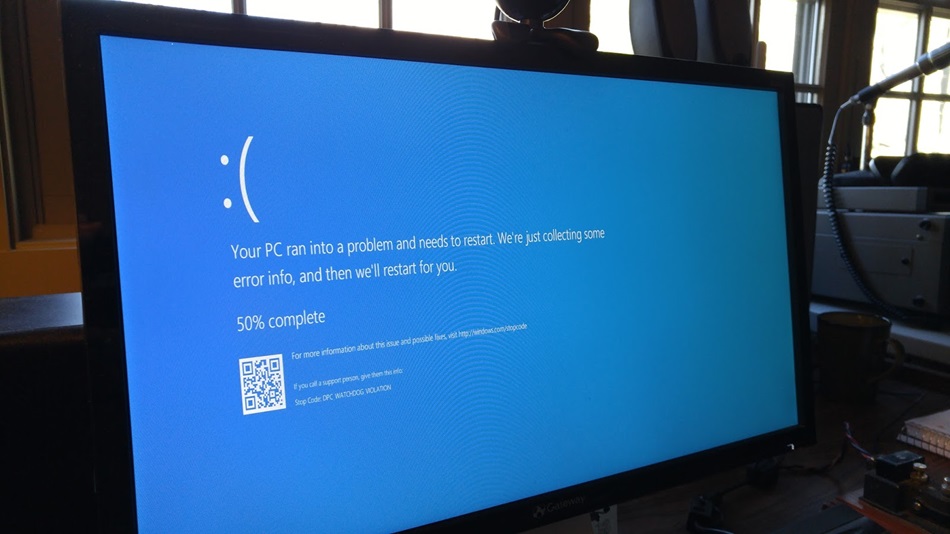
  5. Blue Screen of Death: An overheating laptop can cause the infamous Blue Screen of Death (BSOD), which indicates a critical system error. If this happens frequently, it may be a sign of overheating.
  6. Hot touchpad or keyboard: If the touchpad or keyboard on your laptop feels unusually hot, it could be a sign of overheating.
  7. Graphics issues: Overheating can cause graphic problems such as distorted images or screen flickering.

Common Causes of Asus ROG Overheating Issues

1. Dust and Debris Buildup:

The accumulation of dust and debris inside your laptop can restrict airflow, preventing the fans from cooling down the system. It can cause the CPU and GPU to overheat, leading to system crashes and reduced performance.

2. Inadequate Cooling System:

Asus ROG laptops have advanced cooling systems, including powerful fans and heat sinks. However, if these components are faulty or not functioning correctly, they can cause overheating issues.

3. High Ambient Temperatures:

High ambient temperatures can cause your laptop to overheat, especially if you use it in a warm room or in direct sunlight. It can cause the internal components to reach dangerous temperatures and reduce the lifespan of your laptop.

4. Overloaded GPU or CPU

Gaming laptops like the Asus ROG are designed to handle high-performance tasks, but intensive gaming, video rendering, or running multiple heavy applications simultaneously can push the GPU and CPU beyond their limits. Prolonged use at high performance generates significant heat, and without efficient cooling, this can cause the laptop to overheat. Overclocking the GPU or CPU to achieve higher performance also exacerbates heat production, making the issue worse.

5. Faulty Thermal Paste

Thermal paste is applied between the CPU or GPU and the heat sink to ensure efficient heat transfer. Over time, the thermal paste can dry out, lose its effectiveness, or become improperly applied, leading to inefficient cooling. Without proper heat transfer, the components remain hotter for longer, and the cooling system struggles to maintain optimal temperatures, increasing the risk of overheating.

6. Outdated BIOS or Drivers

The BIOS and drivers are responsible for managing the system’s hardware, including the cooling system. Outdated or improperly configured BIOS and drivers can lead to incorrect fan speed control, causing the fans to spin too slowly or not activate at the right time. This results in inadequate cooling, even when the laptop is under heavy load. Regular updates to the BIOS and drivers ensure the system is optimized for efficient thermal management.

7. Malware or Background Processes

Malware infections or unnecessary background processes running on the laptop can strain the CPU and GPU, increasing their workload and, consequently, their heat output. Malware often runs covertly, consuming significant system resources without the user’s knowledge. Additionally, some applications or processes may run in the background even when not in use, creating unnecessary stress on the system and contributing to overheating.

Steps to Fix Asus ROG Overheating Shutdown Issues:

Step 1: Check for Dust and Debris

Dust and debris can accumulate in the laptop’s vents and cause the laptop to overheat. Start by checking the vents for any visible signs of dust or debris. Use a can of compressed air to blow out any dirt or debris. You can also use a soft-bristled brush to clean out the vents gently. Ensure to do this in a well-ventilated area to prevent dust from getting inside the laptop.

Step 2: Check for Proper Airflow

The laptop’s cooling system relies on proper airflow to prevent overheating. Ensure that obstacles like books, papers, or other objects do not block the laptop’s vents. Place the laptop on a hard, flat surface to allow proper airflow. You can also invest in a laptop cooling pad that provides additional airflow to the laptop’s cooling system.

Step 3: Monitor the Laptop’s Temperature

To diagnose overheating issues, you need to monitor the laptop’s temperature. Many third-party software programs are available that can monitor the temperature of your laptop’s components. Two popular options are HWMonitor and Core Temp. Run these programs while using your laptop to determine if the temperature is within safe limits. If the temperature is above the recommended range, it’s time to take action.

Step 4: Adjust Power Settings

Another way to reduce the laptop’s temperature is to adjust the power settings. Go to the Control Panel and select Power Options. Select the High-Performance option and click on Change Plan Settings. Set the laptop to turn off the display after a few minutes of inactivity and put the laptop to sleep when not in use. It will reduce the load on the laptop’s components, reducing the temperature.

Step 5: Use a Laptop Cooling Pad

A laptop cooling pad can provide additional airflow to the laptop’s cooling system. These pads have fans that blow cool air onto the laptop, reducing the temperature. They are relatively inexpensive and can make a significant difference in reducing the laptop’s temperature.

Step 6: Use Your Laptop on a Hard Surface: 

Using your laptop on a soft surface, like a bed or couch, can block the air vents and cause your computer to overheat. Use your laptop on a hard, flat surface like a desk or table.

Step 7: Manage Your Laptop’s Performance: 

Some tasks can be more demanding on your laptop’s CPU and graphics card, causing it to overheat. Use your laptop’s performance management tools to reduce the load on your hardware when necessary.

How to Prevent Ausu ROG from Overheating & Shutdown:

  1. Clean the laptop regularly to avoid dust accumulation.
  2. Use cooling pads during extended gaming sessions.
  3. Monitor the system’s temperature periodically.
  4. Avoid blocking the vents by placing the laptop on flat surfaces.
  5. Schedule routine maintenance to ensure optimal performance.

Asus ROG Overheating Issues: why PC FIX London?

If you are experiencing overheating issues with your Asus ROG laptop, it is essential to get it repaired by a professional service provider like PC Fix London. PC Fix London is a computer repair service provider based in London, UK. They offer various computer repair services, including addressing overheating issues in Asus ROG laptops.
  • Experienced technicians: PC Fix London has a team of experienced and qualified technicians with extensive knowledge and expertise in handling Asus ROG laptops and resolving overheating issues.
  • Efficient diagnosis: The technicians at PC Fix London use the latest diagnostic tools and techniques to quickly and accurately identify the root cause of the overheating issue.
  • Quality repairs: PC Fix London uses only high-quality components and parts to repair your Asus ROG laptop, ensuring it performs optimally and remains reliable.
  • Timely service: PC Fix London understands that you depend on your Asus ROG laptop for personal and professional use and hence offers convenient and efficient repair services to minimize downtime.
  • Competitive pricing: PC Fix London offers highly competitive and best pricing for all its repair services, with no hidden charges. No Fix, No Fee Guarntee.

If you are experiencing overheating issues with your Asus ROG laptop, it is essential to address the problem promptly to prevent damage to your laptop’s internal components. Following these tips can prevent overheating and keep your computer running smoothly.

If you’re experiencing computer issues and need fast and reliable support, don’t hesitate to contact PC Fix London. Our team of experts is ready to help you get your computer running smoothly again. Call us now at 020 7018 7490 or e-mail us at contact@pcfixlondon.com to schedule an appointment or get a quote or bring it to our workshop.

Caution: The information provided is intended to offer guidance on how to troubleshoot and fix overheating issues commonly experienced by Asus ROG Series users. It is not intended to be a comprehensive guide for self-repair or an invitation to attempt any fixes independently. To prevent causing further damage to your device, it is strongly recommended that you seek assistance from a certified technician if you are not familiar with the repair process.

Acer automatic repair loop

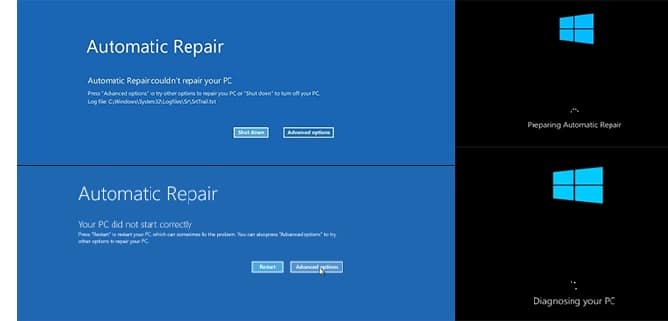
This is guide and possible few fixes and test for Acer computers which fails to boot to desktop either comes up with blue screen or keeps in restart loop usually famous with name blue screen of death BOSD.

When this happen computer usual symptoms are when it start everything seems normal trying to load but then instead of going to desktop it start coming up with ” repairing ” with circle on screen. Then after few seconds or minutes shows some error code with blue screen that what we are referring to blue screen.Blue screen is very common with all computers, it is important to know it can be due to hardware issues or software rare cases can be due to both hardware and software mix of both lets say example would be fault on hardware cause bluescreen but then multiple of blue screen restarts ended up causing file corruption or damage on system files resulting in hardware and software both.

When blue screen happens most of times they are clear as blue screen stats on screen with error other times computer keep restarting quick with blue screen error hard to read.

Lets say most common 0x0000000A,0x000000D1,0x0000001E,0x000000EF error codes which indicates different fault and reasons. Some can be fixed with SFC system files scans, other may require hardware replacement in case of fault hardware like ram memory or solid state drive SSD, faulty video card and many more.

And this applied to all models like Nitro, Predator, swift series even not listed here applicable to all.

I have written some of reasons below which can be tried to remedy boot issues and this solutions will only work if problem is software related like forced incompatible driver from windows update, system files corruption. It will not work or solve hardware related issue.

1: The “reset / hard reset button” (Press Pinhole on back / side)

Many Acer laptops swift, predator, nitro get “stuck in boot loop” due to static or bios issues.

  • Turn laptop upside down or look around on sides some models have tiny hole
  • Use paper clip insert through hole and hold for 5-10 seconds that does hard reset and release any static, possible bios issues, stuck in update issues
  • After pin hole reset, press power button if laptop works again it has done the job if not then different treatment is needed
  • Technician’s Observation: This fixes many laptops lets say about 25% of Acer boot loops instantly.

2: Repair from system restore in Recovery Mode

  1. Many of times when laptop goes to repair options after it fails automatic repair .
  2. When it get to repair options, click on Advance Options > Then system restore
  3. Click on restore it should comes up with backup dates available choose the restore date and proceed
  4. If restore is success and provided no underlying hardware issues laptop should boot into desktop
  • Technician’s Observation: This restore method will only fix fault if underlying issue is not hardware, and also note sometimes restore point is not available because backup was disable or never successful .
  • Additional Bitlocker /Encryption key requirement. Laptops which have encryption activated / bit locker you will be asked for 48digit encryption key to unlock disk before you are unable to restore it or see options if this is case bit locker key backup can be found on your Microsoft account associated with laptop user email address it can be access through
    Find the recovery key in your Microsoft account
    If the BitLocker recovery key is backed up to your Microsoft account, follow these steps to retrieve it:

    1. From another device, open a web browser and go to https://aka.ms/myrecoverykey

3: Scan for SSD Failure

SSD or solid state drive can be partially faulty, or deteriorated over times unable to read and write efficiently, it can be very obvious sometimes in very beginning computer comes with SMART status check indicating hardware failure.

  • If it has not come up with hardware failure error it is worth running system scan to rule out SSD faliure .
  • Similar procedure after laptop gets to repair options click on CMD, command and type powershell “get-physicaldisk | format-table -autosize
  • Technician Advice: At this stage, don’t keep trying in case disk is failing in workshop environment we can still use tools like pc-3000 data recovery equipment to backup data

4: SFC system files Scan, Bootrec rebulid

SFC system file scan with CMD is also a powerful tool to rectify system files issues

  • In repair options choose CMD command
  • Run Command one by one :
  • sfc /scannow and press Enter.
  • sfc /scannow /offbootdir=C:\ /offwindir=C:\Windows
  • chkdsk C: /f /r
  • DISM /Image:C:\ /Cleanup-Image /RestoreHealth
  • bootrec /fixmbr
  • bootrec /rebuildbcd
  • This can run system file check scan and rectify any faults

When to Stop Troubleshooting and Visit our Lab

  • The BIOS says “HDD: None” or Disk not found or operating system not found: This means your motherboard unable to see or talk to storage which also means it can not load / start any windows operating system files at all in this case you will not see any blue screen at all.
  • You have tried all software related issue above : If you have already tried software issues above then likely fault is hardware this needs further testing for fault

When to stop troubleshooting and visit our workshop.

You have tried all software related issue above : If you have already tried software issues above then likely fault is hardware this needs further testing for fault. Even if you have not tried all we can handle all work software and hardware

We will figure out exactly what’s wrong.

Contact us for Acer Diagnostic Now!


Frequently Asked Questions (FAQ)

Why is my Acer computer stuck in a boot loop?

Many reasons hardware and software i have listed some of software easy fixes above, if those does not work computer needs to be checked in workshop.

What is the first thing I should try to fix an Acer boot loop?

First easiest of all switch laptop off completely hold power button for 10 seconds that will cut off power completely then start again failing to work after this try few f software solutions above.

My computer is not going into recovery options after failed automatic repair?

Yes it can happen on some model, during widows load up hold power button for few seconds it will interrupt normal start up of windows and after 2 attempts it should go to repair mode and recovery environment options .

Will fixing the boot loop erase my personal data?

Not always but depending on fault if software related issue data should be safe, in case of system restore it only restore computer to chosen date it removed application / program but personal data remains untouched but in case of hardware fault like failing SSD data situation needs to be checked carefully .

Acer Preparing Automatic Repair Restart Loop

If your Acer Aspire, Swift, or Nitro is stuck on a loop saying “Preparing Automatic Repair,” Windows is essentially hitting a wall. At our Kings Cross workshop, we find this is rarely a “random” glitch—it’s usually a corrupted boot sector or a failing SSD.

Before you try a factory reset and lose your files, follow our bench-tested steps to break the loop.

Step 1: The Acer “Pinhole” Reset

Many modern Acer laptops (especially the Swift and Spin series) have an internal battery that can hold a “static charge,” preventing a proper boot.

  • Look for a tiny battery icon on the bottom of the casing with a small pinhole.
  • Unplug the charger, then press a paperclip into that hole for 10 seconds.
  • Wait 5 minutes, plug the power back in, and try to boot.
  • Why this works: It forces the motherboard to fully discharge, which often clears the repair loop immediately.

Step 2: Checking the BIOS for a “Missing” Drive

If the repair loop continues, we need to see if the laptop can actually “see” your Windows installation.

  1. Turn the laptop off.
  2. Turn it on and immediately tap F2 repeatedly to enter the BIOS.
  3. Look for “HDD0” or “NVMe” information.
  4. Technician’s Tip: If it says “None,” your SSD has either failed or come loose. No amount of software fixing will help a drive the laptop can’t see.

Step 3: Breaking the Loop via Alt + F10

If the drive is detected, force the Acer recovery environment:

  1. Turn it on and immediately hold the Alt key while tapping F10.
  2. Navigate to Troubleshoot > Advanced Options > Command Prompt.
  3. Type chkdsk c: /f and press Enter.
  4. If it says “the drive is locked,” your file system is the problem. If it completes, try a restart.

Frequently Asked Questions (FAQs): Acer Preparing Automatic Repair Restart Loop:

1. What actually is the Acer “Preparing Automatic Repair” loop?

It’s Windows telling you it found a problem it can’t fix on its own. On an Acer, this usually means the boot files on your SSD are corrupted, or the laptop has lost “communication” with the drive entirely.

2. Why is my Acer specifically stuck on this screen?

In our experience at the shop, it’s rarely a random glitch. It’s usually caused by an interrupted Windows Update, a sudden power loss, or—most commonly with Acer Aspire and Swift models—a failing NVMe storage drive.

3. How do I get past this screen right now?

The first “pro” trick is the Acer Battery Reset. Unplug the charger and use a paperclip to press the tiny reset button in the pinhole on the bottom of the casing for 10 seconds. This clears the motherboard’s “memory” and often breaks the loop.

4. Can I fix this at home or is it a shop job?

If it’s a software glitch, you can fix it using the Alt + F10 recovery menu. However, if your BIOS says “HDD: None,” the drive is physically disconnected or dead. That requires opening the laptop and specialized tools, which we handle here in Kings Cross.

5. How do I get into the Acer recovery menu?

Ignore the old “F8” advice—it doesn’t work on modern Acers. Turn the laptop off, then hold the Alt key and tap F10 repeatedly as you power it back on. This should force the “Choose an option” blue screen.

6. What if the “Automatic Repair” tool fails?

If the built-in tool fails, your next move should be System Restore (via the Alt+F10 menu). This rolls Windows back to a time before the loop started. If you don’t have a restore point, the Master Boot Record likely needs a manual rebuild in Command Prompt.

7. Will I lose my photos and files?

Not necessarily. Most hardware repairs don’t touch your data. However, if you choose “Reset this PC” from the recovery menu, there is always a risk. At PC Fix London, we prioritize Data Backup before we attempt any OS repairs.

8. Could a bad SSD or RAM be the cause?

Absolutely. Acer laptops are known for “SSD creeping,” where the drive slightly vibrates out of its slot over time. We also see many Acer Nitro models where overheating has damaged the RAM, causing the system to crash during boot.

9. Is this problem worse on certain Acer models?

We see this most often on the Acer Aspire 3 and 5 series and the Nitro 5 gaming laptops. It’s usually a combination of heat and the lower-grade SSDs used in budget models.

10. How long should I wait for the “Repair” to finish?

If it takes more than 15 minutes, it’s stuck. A healthy repair should only take a few minutes. If yours has been spinning for an hour, it’s time to force it off and try the F2 BIOS check to see if your hardware is still alive.

MacBook pro screen repair

In the MacBook Pro series of computers, Apple has used two different types of screens that are light-emitting display and a liquid crystal display. Both the screens have their pros and cons, they both use different technologies and both may face any type of error problems regarding hardware or software.

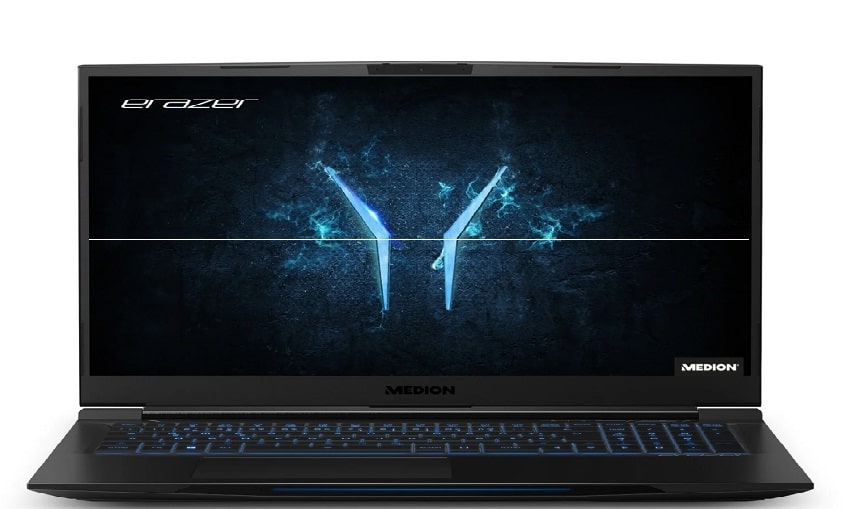
The most common problem arising out with all the MacBook pro users nowadays is, a horizontal line is appearing on the screen which causes disturbance and also hinders its flawless working. Without having sufficient knowledge to fix it if you do so, this may cause multiple problems in your device including horizontal lines.

Fix Macbook pro horizontal lines on screen:

Are you tired of those annoying horizontal lines ruining your MacBook Pro’s display? Well, you’ve come to the right place. In this video, we’ll show you how to fix those pesky lines and get your screen back to its pristine condition.

YouTube video

Understanding the MacBook Pro Display

The MacBook Pro has an LCD or LED screen connected to the video card located inside the laptop’s chassis. The display works through a process where binary data is processed by the CPU and then translated by the video card into an image that appears on the screen. Faulty settings, damaged components, or improper connections between hardware and the display can cause errors, including horizontal lines on the MacBook Pro.

Temporary Fix: Adjust Screen Position

Sometimes, horizontal lines appear due to loose connections between the display and internal hardware. A quick way to test this is by adjusting the screen’s position:

  • Close and open the MacBook Pro’s screen.
  • Try changing the angle of the display until the horizontal lines disappear.

If this adjustment doesn’t resolve the issue, it’s likely a software or hardware problem that requires further troubleshooting.

Tips to Fix Horizontal Lines Appearing on Your MacBook Pro

Most of the MacBook Pro owners are reporting their complaints about the appearance of horizontal lines in their devices. This problem is likely to be a hardware issue. So, here are some tips to fix the issue: –

Step 1: Reset the System Management Controller (SMC)

Resetting the SMC can resolve issues related to power management and display errors.

  • For models with a T2 chip:
    1. Turn off your MacBook Pro.
    2. Press and hold the Control (left), Option (left), Shift (right), and Power buttons simultaneously for 7-10 seconds.
    3. Release all keys and wait for 30 seconds, then turn on your MacBook.
  • For models without a T2 chip:
    1. Turn off your MacBook Pro.
    2. Press and hold the Shift (left), Control (left), Option (left), and Power buttons for 10-12 seconds.
    3. Release the keys, wait for 30 seconds, and turn on your MacBook.

Step 2: Reset NVRAM

Resetting the NVRAM can help fix display settings-related issues.

  1. Restart your MacBook.
  2. Immediately press and hold Command + Option + P + R.
  3. Release the keys after the startup sound plays twice or when the Apple logo appears and disappears twice (for T2 models).

Step 3: Run Apple Diagnostics

Apple Diagnostics can identify hardware issues causing horizontal lines.

  1. Turn off your MacBook.
  2. Turn it on and press and hold the D key until a diagnostic screen appears.
  3. Follow the on-screen instructions to identify any errors.

Step 4: Boot in Safe Mode

Safe Mode can isolate software-related issues.

  1. Restart your MacBook while holding the Shift key.
  2. Log in to your MacBook and check if the horizontal lines persist.

Step 5: Update macOS and Graphics Drivers

Outdated macOS or graphics drivers can lead to display issues.

  1. Go to the Apple Menu > System Preferences > Software Update.
  2. Install any available updates and restart your MacBook.

Step 6: Attach an External Display

This step helps determine whether the issue is with the screen or the GPU.

  1. Connect your MacBook Pro to an external monitor using an HDMI, Thunderbolt, or USB-C cable.
  2. Observe if horizontal lines appear on the external screen.
  • If lines appear on both screens: The GPU is likely faulty.
  • If lines appear only on the MacBook Pro: The display panel may be damaged.

Step 7: Reset the Display Resolution

Improper resolution settings can cause display errors.

  1. Go to System Preferences > Displays.
  2. Select Scaled and choose a different resolution.

Step 8: Run Disk Utility to Repair Disk Errors

Corrupt files or disk errors can cause display glitches.

  1. Restart your MacBook in Recovery Mode by holding Command + R during startup.
  2. Select Disk Utility, choose your startup disk, and click First Aid.

Step 9: Inspect for Dust or Loose Connections

Dust accumulation or loose cables inside the MacBook can affect the display.

  • Clean the vents and inspect internal connections.
  • Ensure that the display cable is securely attached.
  • Note: This step requires technical expertise. Consult a professional if needed.

Step 10: Replace Thermal Paste

Overheating can lead to GPU-related display issues. Replacing the thermal paste between the CPU/GPU and heatsink can improve cooling.

  • Note: Only a certified technician should perform this step.

Step 11: Perform a Clean macOS Reinstall

If none of the above steps work, reinstalling macOS may help.

  1. Backup your data using Time Machine.
  2. Restart your MacBook in Recovery Mode (Command + R).
  3. Select Reinstall macOS and follow the on-screen instructions.

When to Seek Professional Help

The Macbook Pro screen repair may cause you to experience a number of operational issues. This may cause your MacBook display to work inefficiently and occasionally cause glitches. To figure out what’s wrong, you’ll need to troubleshoot your MacBook. If you’ve tried all these steps and the problem persists, the issue is likely hardware-related. Contact our  service center for a professional diagnosis. Horizontal lines can result from a failing GPU or a damaged display panel, both of which require expert repair.

Please note that the guideline instructions provided may not always apply to the symptoms your computer is experiencing. Sometimes, symptoms or behavior can be the same, but the underlying reason or fault can be completely different.

The fastest way we can assist customers is by bringing computers to our workshop, where technicians have the tools to diagnose faults accurately. After checks, if parts are found to be faulty or damaged, we proceed to replace them with high-quality original parts.

No appointments are required; you can drop off your computer at our workshop during working hours.

If you have more queries about our laptop repair and upgrade services, please feel free to contact us at 020 7018 7490 or email us at contact@pcfixlondon.com

MacBook Pro Battery Replacement

Is your MacBook Pro’s battery draining quickly or shutting down unexpectedly? PC Fix London is here to help. As experts in battery replacement for all Apple MacBook Pro models, our certified technicians ensure a seamless process to restore your MacBook Pro’s performance. Trust PC Fix London to get your MacBook Pro running at its best again.


Common Causes for Reduced Battery Life:

Apple MacBook Pro laptops can unexpectedly lose battery life due to many reasons. Here are several common causes:

  • Battery Age: Batteries naturally wear out and lose their charging capacity over time. If your MacBook Pro has been around for a while, its battery might be close to its life’s end.
  • High Cycle Count: Apple measures battery life in charge cycles, typically around 1000. Each cycle means one complete drain and re­fill of battery power. The battery’s power gets weaker as you get close to this limit.
  • Software Updates: New software updates some­times demand more power because of incompatible features or extra unseen tasks.
  • Background Processes: When apps are running without being in use, mainly if they’re constantly updating information or running strenuous tasks, they can suck power fast.
  • Hardware Issues: If parts like the logic board or battery sensor aren’t working correctly, this can cause unusual battery drain.
  • Power-Hungry Applications: Some apps need a lot of proce­ssing grunt and can thus eat up battery life.
  • Battery Settings: If power settings are wrong, this can misuse battery power. Things like screen brightness and energy-saving options need to be set right.
  • Environmental Factors: Extreme heat or cold can harm battery performance. Using the MacBook in harsh conditions can drain power quickly and bring lasting battery harm.
  • Charging Habits: Constantly having the MacBook on a charge also harms battery life. Regular battery use helps keep the battery in good shape.
  • Faulty Battery: Some times, the battery is flawed from the start due to factory errors or damage.


Why Choose PC Fix London for MacBook Pro Battery Replacement?

  • Certified Technicians: We’ve got skilled and accredited technicians and experts in Apple products. They’ll take superb care of your MacBook Pro.
  • Genuine Parts: Only genuine Apple batteries enter our workshop. We believe in maintaining your MacBook Pro’s optimum performance.
  • Speedy Service: We know how crucial your device is. Striving for lightning-fast service, we often finish battery replacements on the same day.


Our Battery Replacement Process:

 Diagnosis: We begin by deep-diving into your MacBook Pro to make sure it needs a new battery

  • Changing the Battery: Our staff starts with replacing the old battery when you confirm. They follow Apple’s safety rules and ensure its working.
  • Testing: We do strict checks after the swap to make sure­ your MacBook Pro and the new battery are working well.
  • Post Service Care: We guide you on how to make the battery last longer and give tips on keeping your MacBook Pro in top shape for years.


Models We Service:

  • MacBook Pro 13-inch (all generations)
  • MacBook Pro 15-inch (all generations)
  • MacBook Pro 16-inch


Why Replace Your MacBook Pro Battery?

  •  Boosted Performance: New batteries can genuinely extend your MacBook Pro’s power length, reducing how often you charge.
  • Reliability: Worn-out batteries can lead to unexpected shutdowns or irregular actions. Replace­ments bring back reliability to your gadget.
  • Eco-Friendliness: It’s vital to dispose of old batteries correctly for our planet. We follow green measures in battery disposal.


Contact PC Fix London Today!

Don’t let an unpredictable battery hinder your work. Contact PC Fix London now to schedule your MacBook Pro battery change. Our supportive team is prepared to help with any enquiries and to arrange your appointment swiftly.


Location and Hours:

  • Opening Hours: Monday to Friday 10:00-18:00 – walk-in workshop.
  • Address: Sinclair House, Thanet St, Kings Cross, London WC1H 9PZ
  • Phone: 020 7018 7490
  • Email: contact@pcfixlondon.com


About PC Fix London:

PC Fix London is a well-known help in the London community. We fix laptops, desktops, custom-built PCs, and gaming PCs with a reliable, professional touch. We are known for troubleshooting big brands like Apple, Dell, and HP.

Needing a MacBook Pro battery boost? Trust PC Fix London. We’ll reignite your MacBook Pro’s power with a fresh battery. Get in touch with us today to kick-start the process.


huawei matebook charging port repair
By Maddy / Huawei Laptop / 0 Comments

PC Fix London is committed to expert, swift repairs of Matebook charging ports. Is your MacBook’s port not working right, causing trouble, or even broken? No worries! Our expert team is ready to discover and fix any issues swiftly. We know that a working laptop matters a lot in this busy world. That’s why we strive to offer trusted repair services that get your Matebook working at its best.


Common Issues with Matebook Charging Ports

MateBook’s, like all electronics, can face charging port problems for many reasons:

  • Physical Damage: Ports might get loose, bent, or damaged due to careless handling or accidents.
  • Dust and Debris: Dirt or debris buildup could jam the charging port and disrupt the proper connection.
  • Water Damage: Any contact with moisture could rust the internal components, including the charging port.
  • Component Wear: With age, ports could deteriorate or face internal connection troubles.
  • Bad Charger or Cable: If you use a broken or wrong charger, it could harm the charging port. A damaged cable, if used over and over, can strain the port.
  • Manufacturing Defects: Sometimes, the charging port might come with built-in factory mistakes that result in early failure.
  • Power surges: Electrical jumps or sudden increases can wreck the inside parts of the charging port.


To avoid such problems, treat your Matebook and its charging gear with caution, keep the port tidy, use the right chargers, and keep your device dry. If your laptop isn’t charging properly, check the port for obvious damage. Trying a different charger or cable can help find the problem.


Our Repair Process

Taking your Matebook to PC Fix London for a charging port fix, you’ll be met with a detailed and organized method for a reliable fix.

  • Diagnosis: Our team starts with a complete check-up to pinpoint the problem with the charging port. We test connections, look for physical harm, and search for hidden issues.
  • Repair Plan: With the problem found, we will develop a repair strategy to fix your MateBook’s damaged charging port. We’ll discuss the plan, showing you the needed steps and costs.
  • Expert Repair: Using top-notch spare parts and professional tools, our experienced team carries out the fix. Whether mending a weak connection, swapping a broken port, or dusting off debris, each job is done with skill and focus.
  • Testing and Quality Assurance: Once the fix is done, we do intense checks to confirm your MateBook’s charging port works flawlessly. We check the charging power, data connection (if involved), and port’s steadiness.


Why Choose PC Fix London?

  • Skilled Team: We’ve got expert technicians who are great at fixing laptops, including MateBook’s.
  • Quality Parts: We pick genuine or high-quality parts for lasting, dependable fixes.
  • Quick Service: Speed’s our thing, but we don’t cut corners on repair excellence.
  • No fix No fee: We work on no fix no charge basis customer only gets charged when device get fixed.


Contact Us Today

Have you got a Matebook with a faulty charging port? No problem! Just connect with us at PC Fix London. Our excellent team is eager to help answer your questions or set up a repair time. Contact us to get your Matebook running at its best!

  • Location: Sinclair House, Thanet St, Kings Cross, London WC1H 9PZ
  • Phone: 020 7018 7490
  • Mail: contact@pcfixlondon.com

Link up with us today! PC Fix London is ready to tackle your Matebook charging port repair with skill and integrity!

huawei laptop battery replacement
By Maddy / Huawei Laptop / 0 Comments

At PC Fix London, we get how vital your MateBook’s smooth operation is. Did you get a Matebook battery problem? Drains fast? Doesn’t charge at all? We’ve got a fix for that. Skilled expert technicians are on standby. We’re good with all Matebook models. Trust us for a solid, professional battery swap.

Several triggers could limit your Huawei MateBook’s battery life. Knowing these helps you find solutions or find out if you need a new battery. Here’s a look at what affects battery life:


Common Causes for Poor Battery Performance

  • Aging and Wearing Off: Like anything, batteries wear out. If your MateBook is old, it might struggle to hold a charge.
  • High Power Consumption Applications: Heavy-duty apps like video editing tools or games can drain energy fast.
  • Background Processes: Running numerous backstage tasks or too many startup programs can use up power.
  • Screen Brightness: Full brightness significantly shortens battery life.
  • Connected Peripherals: Anything linked to your laptop like external drives or USBs can drain power.
  • Battery Settings: Incorrect power setups like high-performance mode can quickly drain energy.
  • Network and Connectivity: Regular use of Wi-Fi or Bluetooth impacts battery life.
  • Software Updates and System Glitches: Sometimes, updates or system bugs can affect battery use.


Signs You May Need a New Battery

  • Rapid Discharge: Rapid percentage drop even with light usage
  • Charge Problems: If charging takes too long or doesn’t work at all.
  • Physical Swelling: A bloated battery shows you need a replacement urgently.
  • System Alerts: Your MateBook might tell you about battery health.
  • Poor Battery Life: If the battery life has become significantly worse over a short period.


Our Battery Replacement Process

Step 1: Initial Assessment

  • As soon as you drop off your Matebook or mail it to us, our experts evaluate the laptop’s battery life and total health.
  • Any battery problems you’re facing are discussed, determining if a new battery is needed.

Step 2: Battery Replacement

  • When a battery replacement is advised, we remove the old one and slot in a new one.
  • Our team follows standard industry practices for accurately installing and setting fresh batteries.

Step 3: Testing and Quality Check

  • After swapping out the battery, we run full-scale tests to ascertain the new battery’s perfect operation.
  • We scrutinize its charging ability, battery life, and general performance to ensure you’re happy.

Step 4: Final Inspection

  • Before we return your Matebook, a final check is done to ensure all is well.
  • We show you that the new battery works fine to ensure you are content with the new battery.


Why Choose PC Fix London?

  • Expertise: Our team is made up of professionals who are trained enough to fix Matebook laptops effectively. You can trust them with your device.
  • Quality Parts: We use excellent, appropriate batteries tailored for your Matebook model. This guarantees the best possible performance and life span.
  • Fast Turnaround: Getting your laptop back to work should be quick. Our speedy service strives to reduce idle time.
  • Post-Service Support: Do you have questions after your replacement? Our helpful service team is ready to help you.


How to Get Started

  • Visit our Service Center:No appointments are needed you can bring  yourMatebook to our easy-to-locate London service hub.
  • Mail-In Service: Can’t come to us? No problem! Just mail us your Matebook securely for quick help.


Contact Us Today

Do you need a Matebook battery replaced in London? PC Fix London is the place to go. We are committed to providing quality service, and we value our customers. Contact us today if you need help or want to ask about our services. We can help your Matebook run as well as new!


How to reach us:

  • Phone: 020 7018 7490
  • Email: contact@pcfixlondon.com
  • Address: Sinclair House, Thanet St, Kings Cross, London WC1H 9PZ

We at PC Fix London strive to keep your gadgets in top shape. Choose us for your Matebook battery needs and be impressed by our efficient service.

Huawei No Display No Turning On
By Maddy / Huawei Laptop / 0 Comments

Matebook No Display and Not Turning On Repair Services by PC Fix London

People love the Huawei Matebook series for its stylish look and robust power. Yet, like all tech gadgets, it can have glitches. There will be times whenMatebook screen won’t show anything and won’t turn on and require technician intervention. Many reasons can cause this. It might be from software bugs or hardware breakdowns.

Common Causes of the Issue

  • Power Supply Issues: The Matebook may not get power due to battery issues, a faulty charging port, or an unsound power adapter.
  • Hardware Malfunction: Problems in core components such as the motherboard, RAM, or CPU can hinder the Matebook from booting correctly.
  • Software or Firmware Errors: The Matebook may not start properly if the operating system files or firmware are damaged.
  • Display Problems: A defective display panel or graphics card can cause the Matebook to show a blank screen.

Repair Process by PC Fix London

PC Fix London is good at finding and fixing display and power problems with Huawei MateBook’s. We find out what is wrong quickly and fix it. That way, your Matebook can work well again.

Step-by-Step Repair Procedure

Step 1: Initial Check-up:

First, our tech team runs a detailed check-up of your Matebook. They test the power source, examine inner parts, and search for clear harm signs.

Step 2: Component Testing:

If required, we perform deep testing of crucial parts like the motherboard, RAM, CPU, and graphics card to identify any hardware issues.

Step 3: Battery and Power Supply Check:

We look at the battery status and examine the power adapter and charging port to guarantee the correct power supply to the Matebook.

Step 4: Software/Firmware Inspection:

If a software issue is suspected, we delve into the operating system and firmware for errors that might be causing the problem.

Step 5: Repair or Replacement:

Based on the diagnosis, our tech team then does the necessary repairs. This could mean changing broken hardware parts, fixing the charging port, reinstalling the operating system, or firmware updates.

Step 6: Quality Testing:

Once fixes are done, we perform intense tests to confirm the Matebook now starts correctly and shows the content without glitches.

Why Choose PC Fix London?

  • Skilled Team: Our crew is skilled. They’ve been fixing Huawei MateBook’s and different gadgets for years.
  • Quality Service: Your Matebook matters to us. We aim for the best repair job every single time.
  • Transparent Communication: We talk you through each step, making problems and fixes easy to understand.
  • Affordable Pricing: Our repair services keep the bank intact. They’re a great deal.

Conclusion

Your Huawei Matebook won’t turn on? No display? Don’t worry. Please bring it to PC Fix London. Our dedicated helpers will find out what’s wrong and fix it. We can get your Matebook back to working like new. Just call us, and we will set up a check-up time.

Dial 020 7018 7490 or send an email contact@pcfixlondon.com for repair. PC Fix London is Reliable in fixing and maintaining your MateBook.

Huawei matebook overheating
By Maddy / Huawei Laptop / 0 Comments

If your Huawei MateBook feels hotter than usual, it could lead to various problems, from slowing down to permanent breaks due to excessive heat. At PC Fix London, we offer general servicing for overheating issues how to find and fix overheating problems to make sure your device works well and smartly. Here are multiple ways we can assist:


Symptoms of Overheating:

  • Sudden Shutdowns: If your MateBook turns off without warning, it could be sign system auto triggered shutdown to avoiding heat damage.
  • Slow Performance: Overheating can slow down your laptop as it tries to cool off.
  • Loud Fan Noise: Continuous, loud fan noise shows your laptop is straining to keep cool.
  • Hot Surface: If touching your Mate Book feels excessively warm, it is overheating.


Common Causes:

  • Dust Issues: Too much dust in the vents could block air, making your MateBook hot.
  • Aging Thermal Paste: The thermal paste that helps cool things down may not work well over time dries off.
  • Fan Problems: Sometimes, internal fans might not work right, and your laptop may not get enough cool air.
  • Over Workload: If you use intense applications or too many programs, your MateBook might get too hot.


Our Repair Process:

  • Initial Consultation: In this stage, we talk in detail about the problems you’re facing with your MateBook.
  • Comprehensive Diagnostic: Our experts perform an in-depth analysis to find the precise reason for the overheating.
  • Deep Clean: We clean the inside parts, like fans and heat sinks, to maintain good airflow.
  • Thermal Paste Replacement: We replace old or depleted thermal paste with high-quality thermal compounds for better heat loss.
  • Fan Repair or Replacement: If your fans aren’t working right, we fix or replace them to bring back the correct cooling operation.
  • System Optimization: We optimize your system options to minimize unnecessary heat production and boost performance.
  • Final Testing: After we’ve done repairs, we­ carry out rigorous tests to make sure your MateBook works well and doesn’t overheat.


Why Choose PC Fix London?

  • Skilled Technicians: We’re proud of our team’s broad knowledge in fixing Huawei MateBook, grasping every subtlety of these devices.
  • Speedy Fixes: We’re aware your laptop is crucial. We aim for speedy fixes without slashing our high standards.
  • No Fix No fee: We work on no fix no fee basis customer only gets charged once devices are fixed.


Get in touch with us now!

No need to endure a hot-running Huawei MateBook. Head over to PC Fix London. Our skilled team will handle it. Dial 020 7018 7490 or send an email contact@pcfixlondon.com for repair. PC Fix London is Reliable in fixing and maintaining your MateBook.

Blue-Screen-of-Death-Asus

Understanding ASUS Blue Screen Errors:

ASUS blue screen errors, also known as BSODs, are caused by critical errors in the Windows operating system that cannot be resolved. These errors typically appear as a blue screen with confusing error codes and messages. Understanding the specific error code can help determine the underlying issue.

ASUS laptops and desktops are known for their reliability, but blue screen errors can be disruptive. PC Fix London offers solutions for addressing and preventing ASUS blue screen errors in this guide.


Common Causes of ASUS Blue Screen Errors:

  1. Driver Issues:

System conflicts may occur due to outdated or incompatible drivers, potentially causing blue screen errors.

  1. Faulty Hardware:

Hardware malfunctions, like failing Mainboard or a malfunctioning hard drive, may result in blue screen crashes.

  1. Software Conflicts:

Conflicts between software or corrupted system files can potentially result in disruptions, causing blue screen errors.

  1. Overheating:

High temperatures can cause system instability, resulting in blue screen errors.


Expert Fixes by PC Fix London:

  • Driver Updates:

We make sure that all drivers are regularly updated to resolve compatibility issues that may lead to blue screen errors.

  • Hardware Diagnostics:

We analyze hardware thoroughly to pinpoint and resolve issues, improving system performance.

  • Software Optimization:

Our team analyzes and optimizes installed software to resolve conflicts and eliminate corrupted files that can lead to blue screen errors.

  • Cooling System Maintenance:

We assess and enhance the cooling system to prevent blue screen errors caused by overheating.


Prevention Tips for ASUS Blue Screen Errors:

  • Regular Updates:

It is recommended to regularly update your system and drivers to address vulnerabilities and improve stability.

  • Quality Software Installation:

It is recommended to install reputable and compatible software to reduce the likelihood of conflicts that may result in blue screen errors.

  • Temperature Management:

It is important to maintain proper ventilation and cooling by regularly cleaning dust from fans and vents to prevent overheating.

  • Data Backup:

It is recommended to regularly backup important data to avoid loss in the event of unexpected crashes or hardware failures.

  • Avoid Over clocking:

Over clocking may put excessive strain on hardware components, potentially causing instability. It is advisable to adhere to the settings recommended by the manufacturer.


Why choose PC Fix London:

If you’re having trouble troubleshooting or need help with the ASUS blue screen error, don’t hesitate to contact our customer support team for expert assistance in diagnosis and solutions.

Expertise: Our team consists of skilled technicians who specialize in ASUS devices.

Fast turnaround: Our repair process is simple: the client brings their laptop to us and we complete the work.

Peace of mind: We operate on a No Fix, No Fee policy, so you won’t be charged if we are unable to fix your laptop.

Do not need appointments: Customers can drop off computers at our workshop without appointments during working hours for added convenience.

Original Parts: We exclusively use original parts and offer guaranteed work.

Don’t let ASUS blue screen errors hamper your computing experience. Contact pcfixlondon.com today for expert solutions and preventive measures, ensuring a stable and reliable computing environment with your ASUS device.

 Pick-up and Delivery / Walk-in / Ship in PC Repair Service:

Our repair process is simple and transparent. We only charge for repairs that are completed and always courteously communicate with customers about any necessary replacements or service charges.

Customers have three convenient options to schedule repairs for their Asus laptops.

Drop-in: No appointments are needed, customers can drop off their computers at our workshop during working hours Monday to Friday, from 10:00 AM to 6:00 PM.

Fastest Way: The quickest way is in our workshop. Here, we have all the equipment and parts for swap testing, which may not always be feasible onsite.

Courier Collection: Collection of the PC can be arranged anywhere in the UK, please note courier charges apply.

Home Service: Our technician can visit on-site.

For further information on our PC repair and upgrade services, please contact us at 020 7018 7490 or email us at contact@pcfixlondon.com.

Acer-Predator-Gaming-Laptop-horizontal-lines

Do not become worried if you notice horizontal or vertical lines on your Acer Predator Gaming laptop screen. If you’ve invested in your laptop, such as one of the best gaming laptops, vertical and horizontal lines on the Acer Predator Gaming laptop screen might damage the immersive impact of your display. This problem can be resolved quickly. We’ll review a few potential remedies in this article. You should first test the picture to determine what is causing the obtrusive vertical or horizontal lines on the laptop screen. It will help you determine whether the issue is with the PC, cable box, or another input source or whether the problem is with the screen, LCD panel, or internal hardware.

Remember that some of these fixes should work with any Acer laptop or display model. Therefore, check your model number and ensure the instructions match up before attempting any of these techniques. We’ll demonstrate how to get rid of those pesky lines and restore the original appearance of your screen.

Search for the Source of the Problem

Isolating the problem’s source is the first step in solving this desktop display issue before trying additional troubleshooting, such as erasing the black bars on the side of your monitor.

Perform a Picture Test

The first choice is to preview the image on your preferred screen without any attached devices. To accomplish this, turn off all cable connections, and if your external display has Bluetooth and WiFi capabilities, turn them off using the remote control or control panel. The issue is most likely with your PC, input device, or cable connections if there are no vertical or horizontal lines on the default picture or menu screen. If the lines still show up, the external monitor may be the source of the problem.

Display Device Issues

The first choice is to preview the image on your preferred computer screen without any attached devices. To accomplish this, turn off all cable connections, and if your external display has Bluetooth and WiFi capabilities, turn them off using the remote control or control panel. The issue is most likely with your PC, input device, or cable connections if there are no vertical or horizontal lines on the default picture or menu screen. If the lines still show up, the external monitor may be the source of the problem.

Input Method Issues

If the lines disappear while your external monitor is not connected, you should check your connection or your computer or laptop’s graphics drivers, driver configuration, or image settings. At this time, you should also check your monitor for any input lag issues.

Check all Cables

Ensure that all cords are firmly attached. Gray, pink, or green lines, among other visual difficulties, can be brought on by a loose connector. Consider unplugging your screen from the input source and inspecting the ports. In the connectors of these input terminals, you can observe if any pins are bent or damaged. Check the cords once again if you’re using two displays. Consider the best twin monitor mount if your space needs more order. Don’t try to clean up a VGA terminal with a paperclip or other metal object.

Warning: A loose connector may result in numerous image problems, such as gray, pink, or green lines.

Tip: Don’t try to clean up a VGA terminal with a paperclip or other metal object.
Connecting the external monitor using a spare cable you are confident will work and see whether the issue is resolved.

Repair or swap out harmed input terminals and cables.

You can hire a repair business or an expert repair technician if you discover a damaged part, or you may prefer to use an electronics repair kit to make the necessary repairs. When removing ports, proceed cautiously, and never work on repairs while a display is plugged in. The owner’s manuals may need to be consulted to determine the required repair tools. If the cable is defective, purchasing a replacement cable might be the only option. If you need to fix your monitor right away and don’t have time to learn about and fix the broken part yourself, such as if you utilize your monitor for work like video editing, that might be the best course of action.

Tip: Before working on a repair, be careful while removing ports, and always unplug a display.
Warning: To determine the required repair tools, you may need to examine the owner’s manuals. If in doubt, connect an alternative device and determine whether the display issues continue.
Warning: If in doubt, connect an alternative device and determine whether the display issues continue.

Check Graphics or Video Card

Look for graphics or video card drivers with a yellow question or exclamation mark. These frequent error messages could indicate outdated graphics drivers on your laptop or desktop computer. A driver updater tool is available on many graphics cards. Another option is to get a fresh, modern graphics card.

Run a System Scan

Alternatively, you can conduct a system scan to find flaws and problems with the graphics driver software. If there is one, a system scan can reveal a driver issue with your graphics card. Try starting in safe mode or BIOS; this will frequently reveal if the display issue is software- or hardware-related.

Warning: If possible, try starting in safe mode or BIOS; this will frequently reveal if the display issue is software- or hardware-related.

Try changing the screen resolution

Changing the screen resolution might also be beneficial. You can notice issues like lines on the screen if the device picture settings are incompatible with the monitor’s native resolution. Setting an unsupported display resolution or refresh rate on a Windows PC can harm a monitor. With older CRT monitors, this risk occurs more frequently.

Warning: You can notice issues like lines on the screen if the device picture settings are incompatible with the monitor’s native resolution. Setting an unsupported display resolution or refresh rate on a Windows PC can harm a monitor.

Conclusion

You can encounter several functional problems due to the Acer Predator Gaming Laptop screen repair. It could result in inconsistent performance from your laptop display and irregular horizontal lines.

Please note that the guideline instructions may not always apply to the symptoms your computer is experiencing. Symptoms or behavior can sometimes be the same, but the underlying reason or fault can be completely different.

The fastest way we can assist customers is by bringing computers to our workshop, where technicians have the tools to diagnose faults accurately. After checks, if parts are found to be faulty or damaged, we replace them with high-quality original parts.

No appointments are required; you can drop off your computer at our workshop during working hours.

If you have more queries about our laptop repair and upgrade services, please feel free to contact us at 020 7018 7490 or email us at contact@pcfixlondon.com

Medion-Erazer-horozontal-lines
By Bilal / MEDION ERAZER / 0 Comments

It cannot be very comforting to see flickering lines on the Medion Erazer gaming laptop screen, whether horizontal or vertical. Most frequently, our initial reaction is to think that the laptop will crash or the screen will experience irreparable problems.

Usually, these lines are red, black, or green. They could have a similar appearance, yet they could have distinct causes. Below are the troubleshooting steps you can try if your screen has horizontal lines. The first step will be to identify the reason, which could be a software or hardware problem. In this article, we’ll discuss the causes of horizontal lines on your display and the best ways to fix them. The additional details will be crucial in resolving your monitor’s green lining issues. It’s time to get started.
Is the problem a software or hardware issue?

Horizontal lines on your laptop screen can be caused by hardware and software issues. It would help if you ascertained whether the problem is software- or hardware-related to ensure that the proper remedies are applied.

Our first advice is to unplug your monitor cable and then correctly re-plug it to see if it makes a difference. If it doesn’t work, try removing the driver for your display using Device Manager. By hitting Win + X and choosing Device Manager, you can start Device Manager. Expand the Monitors section once it has been opened. You’ll notice a few entries here if you have multiple monitors. Verify the monitor’s model number with a problem, then use the right-click menu to select Uninstall. Once the monitor driver has been removed, please restart your computer after shutting it down. The display driver will automatically reinstall itself after a reboot. It should resolve the problem if the monitor driver were the cause.

You can also boot into your BIOS to see if the issue is software-related. If the problem is not found in the BIOS, the software must be at the root of the problem. Shut down your PC before attempting to boot into BIOS. Press the power button to start it now, and while it is booting, hold down the F2/Del/F10/F12 keys. Depending on your PC model, a different key will need to be pressed, so check any documentation to discover which one applies to yours. If the problem does not appear in BIOS, try a regular Windows boot and then try one of the software remedies listed below.

If the issue is hardware-related, then

Try different cords to check if they are the problem or if it seems to be a hardware problem. You can also connect the laptop to another computer to see if the problem persists. A specialist should examine your screen to know whether it needs to be repaired or replaced if horizontal lines are visible on the Medion Erazer gaming laptop.

Step 1: The graphics card driver may be updated or rolled back:

If the problem is software-related, you should first carry out system-wide graphics card driver debugging procedures. Due to an outdated or damaged graphics card driver, several customers discovered green horizontal lines appeared on their monitors. Updating the graphics card is the simplest way to fix problems with it. However, if you are experiencing additional troubles in addition to the Blue Screen of Death, your graphics card may need to be upgraded, and in that case, updating the driver might not be enough.

Here is how you can do that:

1. To access Device Manager, press Win + X.
2. Expand the Display adapters area in the next window, then right-click on your graphics driver.
3. Update driver can be selected from the context menu.
4. To finish the process, click on Search automatically for drivers and adhere to the on-screen instructions.
5. Close Device Manager when the driver has been updated, then verify that the problem has been fixed. If this fixes the problem, you might wish to make a driver backup to restore to this condition if the problem reappears.

You can revert the driver to an earlier version if the problem first appeared after you installed a fresh driver update. You can achieve this by navigating to the driver’s properties in the Device Manager window. Visit the manufacturer’s official website and download an earlier version of the rollback button that is grayed out.

Step 2: Adjust the screen resolution:

Green bars may appear if you’re using the incorrect resolution for your monitor. Different-sized monitors have different ideal resolutions, so search for your monitor model online or get its user manual to find out what resolution it likes best.
Once you know the idea’s resolution, perform the following:
1. Press Win + I to open the Settings app.
2. Head to System> Display and scroll down in the following window.
3. Expand the drop-down for Changing the size of text, apps, and other items and choose 100%.
4. Now, expand the drop-down for the display resolution and choose your monitor’s preferred resolution.

Step 3: Update the BIO:

By updating their BIOS, consumers could resolve the issue again. Such updates eliminate problems like this by enabling the computer to recognize the hardware parts correctly.
Follow these steps to proceed:
1. To launch Run, press Win + R simultaneously.
2. Enter cmd in the Run window to launch the Command Prompt with administrative rights.
3. Type the commands below into the Command Prompt once you’ve entered them to start running.
wmic bios get smbiosbiosversion
4. Take note of the BIOS version in the following window.
5. Now open your device’s download section on the OEM website.
6. Enter the information about your device and see if any updates are available.
7. Download any available updates.
8. Extract the downloaded file and follow the instructions for the readme.txt file.

Applying a BIOS update will permanently resolve this problem and any other minor issues with the System.

Conclusion:

Please note that the guideline instructions may not always apply to the symptoms your computer is experiencing. Symptoms or behavior can sometimes be the same, but the underlying reason or fault can be completely different.

The fastest way we can assist customers is by bringing computers to our workshop, where technicians have the tools to diagnose faults accurately. After checks, if parts are found to be faulty or damaged, we replace them with high-quality original parts.

No appointments are required; you can drop off your computer at our workshop during working hours.

If you have more queries about our laptop repair and upgrade services, please feel free to contact us at 020 7018 7490 or email us at contact@pcfixlondon.com

horizontal-lines-on-screen

One of the most fundamental issues experienced by Clevo laptop and computer customers is the emergence of horizontal white lines. Several factors could cause this issue. For instance, faulty video cable connections, broken ribbon cables, out-of-date video card drivers, or a software issue with your system. As is well known, there are numerous explanations for why the Clevo Laptop screen display contains horizontal or vertical lines. You should first be aware of the root of the problem if you want to fix the horizontal or vertical lines on your laptop’s screen. So let’s get going.

The Reason behind the Clevo Laptop Horizontal Lines on Screen

Several problems could be causing the horizontal or vertical lines on the laptop screen, including out-of-date graphics card drivers, improper video cable connections, and defective ribbon cables. To identify if the issue is hardware- or software-related, you could access the BIOS settings. It suggests a software issue if you continue to see horizontal or vertical lines on the computer screen despite BIOS not being a Windows operating system component. If no horizontal or vertical lines are visible on your laptop’s Windows display, the hardware is to blame.

How to Fix Horizontal or Vertical Lines on Clevo Laptop Screen Display

The Clevo laptop screen has six suggested solutions for horizontal and vertical lines.

Step 1: Update the video card driver:

The problem with horizontal white lines on your Clevo laptop screen might be solved if you update the video card driver to the most recent version. You can visit the manufacturer’s driver page on your operating system to find the appropriate card driver and fix the laptop screen. Although it would take a while, you could try choosing a professional driver and downloading and updating a utility program like Driver Talent. This utility will automatically download and install the most recent version of the video card driver on your computer.

Step 2: Set the screen resolution as desired:

If the resolution is off, your Clevo laptop screen may have horizontal or vertical lines. It would help if you made the following adjustments to the settings to alter them:

  • First, you must click the space on the desktop with the right mouse button.
  • Choose “Display Settings” from the options on your screen when they do.
  • When you finish the step above, a settings window will appear. Select “Advanced Display Settings” from the menu.
  • You’ll be able to see a portion of the screen resolution. The resolution drop-down option must be configured with the word “Recommended” next to it, then you must click “OK.”

Step 3: Install the latest graphics card driver:

The outdated graphics card driver is the most likely offender if it is established that the horizontal or vertical lines on the laptop screen are software-related. It must be updated to the most recent version to resolve the driver compatibility issue. It can take a while; however, you can manually upgrade the display driver from Device Manager and see if that helps.

  • Using the Windows key and the X key, select “Device Manager.”
  • Open up “Display Adapter.”
  • “Update Driver” can be chosen by right-clicking on the video driver. After completing this, restart the computer to see whether the problem still exists.

On second thought, you should try the most straightforward method: use a reputable driver download and update utility, like Driver Talent, renowned as the safest and quickest way to update drivers. Driver Talent can assist in identifying the outdated graphics card driver in seconds and automatically download and install the latest version in 2 minutes.

Step 4: Reattach the video cord:

A Clevo laptop screen with horizontal or vertical lines could also have a bad video cable connection. In this situation, you must shut down your computer, unplug the video connections, and then rejoin them where they go. After you’ve put it back in, try turning on your device to see whether the issue has been fixed.

Step 5: Replace the ribbon cable:

A broken flat wire is another important factor in forming white horizontal lines. All you have to do in this situation is power off your laptop, swap out the ribbon cable, and then switch it back on to see if the issue has been rectified.

Step 6: To check and repair system file corruption, launch DISM Scan:

  • By clicking the Windows key + X and choosing “Search,” look for “command prompt.”
  • Copy and paste the following commands into the command prompt. After each command, press Enter.
    • DISM.exe /Online /Cleanup-image /Scanhealth
    • DISM.exe /Online /Cleanup-image /Restorehealth
  • To see if it works, close the command prompt and restart the computer.

You can quickly fix a laptop screen with a horizontal white line by employing the techniques above.

Conclusion

Please note that the guideline instructions may not always apply to the symptoms your computer is experiencing. Symptoms or behavior can sometimes be the same, but the underlying reason or fault can be completely different.

The fastest way we can assist customers is by bringing computers to our workshop, where technicians have the tools to diagnose faults accurately. After checks, if parts are found to be faulty or damaged, we replace them with high-quality original parts.

No appointments are required; you can drop off your computer at our workshop during working hours.

If you have more queries about our laptop repair and upgrade services, please feel free to contact us at 020 7018 7490 or email us at contact@pcfixlondon.com

Overheating processor

Computer Over heating

All computers laptops PCs and MacBook do generate heat generally a lot more heat in CPU and GPU areas this why those fans and ventilation maintenance is important.

Though all computer do generate heat but It is important to look for the signs of overheating which can leave permanent damage computers if left untreated.

Some PCs laptops or custom build computers may generate more heat due ventilation design or to be more specific high performance machine with larger graphics card or CPUs. Over time fan performance and usage over years require servicing or cleaning in areas of fan ventilation compartments and internals in general for healthy and optimized thermal performance.

Importance of treating over heating issues on laptop.

All computers must be serviced after some time of usage to maintain their best-optimized performance over time. Depending on the environment in which the computer is being used, dust can accumulate, resulting in complete or partial blockage around the ventilation area. This can cause high temperatures, extra stress on fans, increased energy consumption, and, more importantly, adverse effects on GPU and CPU performance.

  • Drop in frame rates while gamming graphics intensive work
  • Slowness due to poor thermals during high CPU computations
  • System crashes or instability: Overheating can cause your computer to freeze, crash, or restart unexpectedly.
  • Unusual fan noise, vibrations or rattling noise 
  • Burning feeling or hot-to-the-touch sides or under laptop
  • Sudden shutdowns triggered often by system management to prevent damage to electronic component from excessive heat
  • Higher power consumption due to fan going in over drive due to dust or debris blockage in ventilation areas preventing good airflow

Our workshop provides comprehensive general servicing, including performance testing, temperature monitoring, and thermal paste replacement. All performed by certified technician with manufacture guidelines and original tools. Some of the many advantages and improvements after service are listed below.

To prevent these potential damages, it’s essential to manage your laptop’s temperature effectively. This can be achieved by maintaining good airflow, using cooling pads, cleaning dust from the internal components, and avoiding overtaxing the laptop with resource-intensive tasks in hot environments. Regular maintenance and careful use can help ensure the longevity and reliability of your laptop.

  • Optimal airflow: Ensure your computer case has good airflow
  • Adequate cooling: Invest in high-quality cooling solutions, such as heatsinks
  • Use original thermal paste: Apply a good quality thermal paste when mounting or remounting your CPU or GPU heatsink
  • Helps overclocking with better thermal performance
  • Less  power consumption stopping fan over drive
  • Clean internals of dust and debris over time

FAQ

How long does it take? 

Depending on computer build and laptop model usually 2-4 hours however some model can take longer due to time it takes to operate on them or have multiple GPUs or CPUs on workstations.

Quickest way to resolve computer and heating issues are bring computer to our workshop where we have all equipment and tools for operation and best practices adapted for workshop environment and testing tools after job is completed.  If you have any questions like to know more about or other repair services from PC Fix London, do e-mail us at contact@pcfixlondon.com or ring us on 020 7018 7490. We are committed to providing you with fast repair services that are original original quality parts, fast response, customer oriented, and with quick turnaround.

Can customer send laptop to us by courier ?
Yes if you are unable to drop it to our workshop your self  you can courier to us as well.  When you do please do let us know tracking details and include your phone number and contact details in package.