Horizontal or Vertical Lines on HP Laptop Screen
By Bilal / Uncategorized / 0 Comments

This is guide for quick guide for computer users who have noticed horizontal, vertical black patches, liquid leakage  on laptop screen .

There are many reasons or cause for laptop screen showing complete dark black screen, vertical, horizontal lines some black patches not all but many of common reasons are listed below and some solitons and testing for it. In this guide we will go through symptoms how they looks like when damaged, and then few test which can be done at home and also discuss of possible reasons of damage.

This not only helps identify issue but also gives you some method to do some testing at home to confirm identify fault but also help to maintain and avoid future damage reason being when you know what could have caused damage it can be avoided next time.

Common Signs of a Damaged Laptop Screen

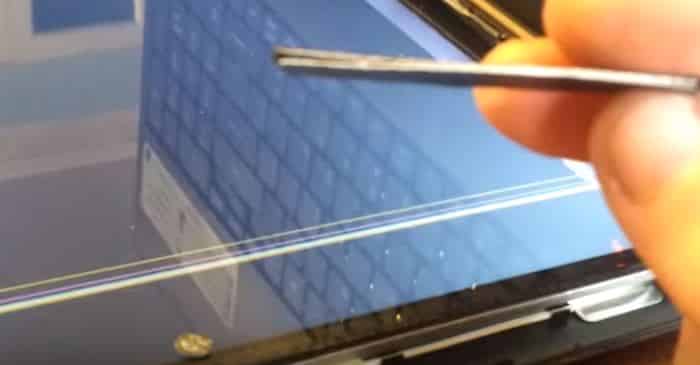
Horizontal Vertical lines on screen.

Visual sign of horizontal and coloured lines across screen interfering with normal function.

Black Patches

This one very common also, black patches specially very local to area of damage or place of impact / pressure

intermittently on and off flashing

Screen flashing or intermittently going on and off

Dead Pixels or Liquid crystal leakage .

Area of damage showing some patch discoloured dots, black patches, in some cases looks like coloured liquid leakage on screen

Complete Dark or White Out Screen

A complete dark screen can also be sign of broken screen but that can be tricky reason being this can also be a sign of computer not booting up posting at all or fault on graphics / VGA cards, ram memory fault or other hardware issues

Common Reasons of Broken HP Laptop Screen

Although there are many reasons computer may have broken or damaged laptop screen i will try to provide most common we see on daily basis. This will help you understand reasons how screen gets damaged and when you know reason of damage it becomes easier to take care of it and avoid damage in future.

1. Pressure or Physical Impact Damage

This is very common almost on daily basis client would walk in with screen not working when asked about it they would confirm they have had accidental drop, a impact damage like drop from a height or bumped against wall or hard surface.

2. Defective backlight

Over time screen panel do deteriorate specially LCDs they have backlight which does have some thousands of hours. At some point they may partially go dim or dark in some areas and at some time they may go complete dark resulting in complete dark screen with no visuals at all

3. Pressure Damage when opening lid

Sometimes during opening of the lid user may have thump or finger put inside laptop screen causing pressure on lcd panel resulting in black patch / crystal liquid leakage signs

4. Corrupt or Outdated Drivers

Rarely it can be Incorrect or outdated or a automatic forced update from windows drivers resulting in screen malfunction for example flashing display or orientation change .

5. Damage due to broken hinge

Broken hinge, body frame during opening and closing of lid can cause unintended pressure on screen panel or screen cable which runs from back of laptop screen connecting to mainboard through hinge cavities resulting in either crack, pressure damage black patches or complete dark screen in case of broken or damaged screen cable.

Some cases screen cable also comes loose because of frame not aligned with body correctly casing stress to screen cable.

6. Electronic circuit failure

Addition to glass, pixels, backlight damage. Laptop screens also suffers from electronic panels / circuit which manages data signals from GPU / Mainboard also handle power section like back lights which illuminate leds/ backlights this section have set of capacitors for filtering and power support function. Usually these panels are build just under the laptop screen or behind on thin strip of circuit.

Step-by-Step Methods to Identify Screen Lines on HP Laptops

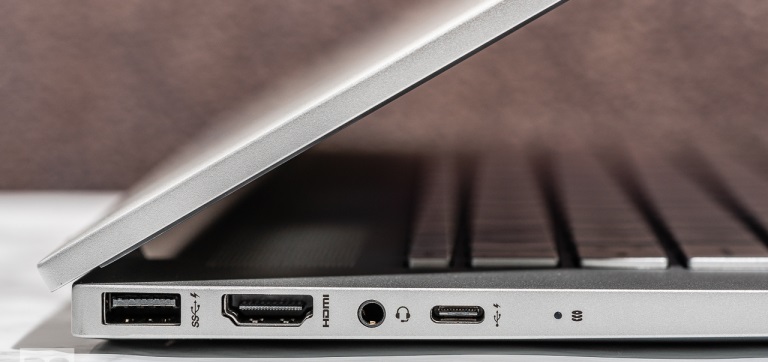
Method 1: Connect with External screen via HDMI, VGA, Thunderbolt Port

  • Connect your laptop to an external display if laptop functions fine on external display it is highly likely internal laptop screen is broken. It is important to note it is now always the case sometimes dedicated graphics can be fault and when connected though thunderbolt it displays on external screen via Basic intel graphics which means internal screen is fine but fault with GPU it can be confusing so its best to get technical help.
  • If lines / no display appear on both screens internal and external, the issue is likely graphics- or mainboard related.

Method 2: Check the LCD Cable connection mainboard and screen side

This fix requires opening the laptop: only recommended for advance users or technicians

  • Importantly disconnect internal battery and power cut off before operating on laptop. Double check if cable is seated properly in socket making good contact on both side mainboard and screen side.
  • Look for visible damage. If the cable is worn out, squeezed or pinched, it may need replacement.
    Note: If unsure, let professionals handle internal component repairs.

Method 3: Update or Reinstall Drivers

Outdated or corrupt drivers can affect display output.

This method will only work if laptop is works on external screen via HDMI, Thunderbolt, VGA port

Start with external monitor open : https://support.hp.com/gb-en/drivers click on update drivers.

Method 4: Use Windows Display Trouble-shooter

This method will only work if laptop is works on external screen via HDMI, Thunderbolt, VGA port

Open windows troubleshoot from start Menu, and choose options display issues.

Method 5: Perform a Clean Boot – Reset PC restores original drivers

This method will only work if laptop is works on external screen via HDMI, Thunderbolt, VGA port. Also make backup before complete reboot.

Type in start menu RESET: This should bring reset option :

Warning : If you reset option with remove user data it is important make backup before reset.

You can also choose RESET Option with keeping user data but still in this case you will loose all application / programmes but computer will be reset to factory default original drivers.

Tips to prevent screen damage also extend screen life.

While opening lid do not put finger or pressure on screen it self. Always use frame or lid to handle screen opening.

Keep power saving sleep mode on while not in use screen can switch off makes life longer on backlight avoiding backlight exhaustion.

Try open always from middle of LID and not put too much pressure on one side of lid which can cause damage to hinge which in end can cause damage to screen cable or screen it self always try open and close from middle of lid so pressure is distributed equally on both side of hinge.

Laptop case with cushion can help in case of impact damage or fall.

Avoid any contact with liquid.

When Should You Seek Professional Repair?

If you have tried all the above or not feel confident to operate on it. Then it is time to seek expert help

We accepts walk-ins no appointment service in Central London click on link for dedicate service page for screen repair

https://www.pcfixlondon.com/hp-laptop-screen-repair/

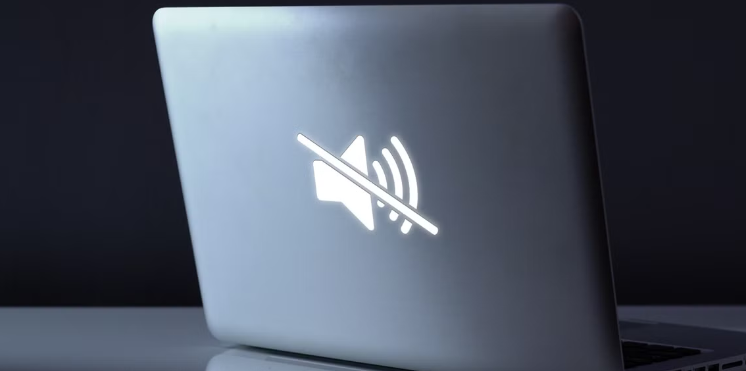
MacBook Audio Not Working
By Bilal / Uncategorized / 0 Comments

Are you having issues with the sound on your MacBook? If the sound on your speakers isn’t working or it’s just acting a bit wonky, don’t stress! PC Fix London is ready to jump in and sort it out for you. We’ve all been there, right? It’s super annoying when you’re just trying to chill with a video, rock out to your favorite songs, or jump on a Zoom call and there’s no sound at all.

If you’re facing any of these audio issues, we’ve got the know-how to get your MacBook sounding great again. Let’s take a look at what could be causing the problem with your speakers and how we can fix it together.

Common Causes of MacBook Audio Issues

If your MacBook isn’t making any sound or if you’re hearing some funky audio glitches, there could be several reasons behind that. Here are some of the usual suspects when it comes to MacBook sound issues:

1. Software or System Glitch

Sometimes, your MacBook might just be acting up because of a software glitch. It could be from a messed up macOS update, a problem with an app, or a hiccup in the audio settings. Usually, a quick update or a simple reset can fix it right up.

2. Muted Sound or Incorrect Audio Settings

It might seem basic, but if the sound isn’t working on your MacBook, it could just be muted or the wrong audio source is picked. Taking a moment to check the sound settings can save you a lot of hassle and get you back to jamming out in no time.

3. Damaged Speakers or Hardware Malfunctions

If there’s absolutely no sound coming from your MacBook, it might be a hardware issue. If you’ve got a messed-up internal speaker, a dodgy headphone jack, or some rusty connectors, it’s probably best to have a professional check it out.

4. Loose or Damaged Audio Cable/Connection

If you’re using external speakers or headphones and no sound is coming out, check your connections. If the cable or port is loose or damaged, that could be the culprit messing with your audio.

5. Outdated or Incompatible Audio Drivers

If your audio isn’t playing nice, it might be because your drivers are outdated. Updating the system or reinstalling the right drivers can help get your sound back on track.

Our MacBook Audio Repair Services

When you take your MacBook to PC Fix London, our tech whizzes will quickly figure out what’s wrong and get it sorted. Here’s a quick rundown of the audio repair services we offer for MacBook’s:

1. Speaker Repair and Replacement

If your MacBook’s speakers aren’t doing their job, we’ll check for any damage inside. If they need replacing, we’ll put in genuine Apple parts to make sure you get that clear sound back for all your videos and music.

2. Audio Jack and Headphone Port Fixes

Is your headphone jack acting up? Whether it’s broken or just not making a good connection, we can sort it out or replace the whole port. You’ll be able to enjoy your tunes through headphones again in no time!

3. Software Troubleshooting

If your sound isn’t working because of some software hiccup, we’ve got you covered. We’ll take a close look at your MacBook’s sound settings and software. If needed, we’ll do some updates and reinstall any drivers to get everything working properly again.

4. Motherboard & Internal Audio Chip Repair

In some cases, the audio chip or motherboard could be the culprit. Our techs are pros at figuring this stuff out and can either repair or replace those parts so your MacBook can make noise again.

5. System Optimization for Better Audio Performance

Sometimes, if the sound quality is lacking, it’s just a matter of tweaking your system. We’ll look at updates, fix any driver problems, and adjust settings to enhance your MacBook’s audio output.

MacBook Models We Repair

At PC Fix London, we handle audio issues across all MacBook models, including:

  • MacBook Pro (All years)
  • MacBook Air (M1/M2 and older models)
  • MacBook (Retina 12-inch and earlier)
  • MacBook Pro with Touch Bar
  • MacBook Pro with M1/M2/M3 chips

Why Choose PC Fix London for Your MacBook Audio Repair?

We totally get how annoying it is when the sound on your MacBook isn’t working. That’s why the folks at PC Fix London are here to help with speedy and effective fixes.

Here’s why you can count on us for your MacBook speaker troubles:

  • Skilled Technicians – Our team really knows their stuff and can tackle even the trickiest MacBook repairs.
  • Original Apple Parts – We use genuine Apple parts for our repairs, so you can expect great sound quality that lasts.
  • Fast Service – We know you don’t want to wait around. We work hard to sort out your audio issues as quickly as possible, often on the same day!
  • No Fix, No Fee – If we can’t get your MacBook working, you won’t owe us anything. It’s as straightforward as that!
  • Easy to Get to & Pick-Up Service – You can drop by our repair shop in King’s Cross, or if you prefer, we can come and grab your MacBook for a hassle-free fix.

How to Get Your MacBook Repaired

Getting your MacBook’s sound issues sorted out is super easy now! Here’s what you can do:

  • Swing by our repair centre at King’s Cross: Sinclair House, Thanet Street, WC1H 9P.
  • Give us a ring at 020 7018 7490 or shoot us an email at contact@pcfixlondon.com to set up a repair.
  • Or, if you prefer, book our collection service! We’ll come to you, grab your MacBook, fix it up, and bring it back when it’s all good.

FAQs – MacBook Audio Not Working

Q: Why isn’t the audio on my MacBook working? 

Ans: There could be a few reasons for that, like some software glitches, hardware problems, or maybe the settings are a bit off. Let’s figure it out together!

Q: Can you fix the speakers on my MacBook? 

Ans: Absolutely! We can swap out any broken or faulty speakers with real Apple parts to make sure the sound is top-notch again.

Q: How much will it cost to fix my MacBook’s audio? 

Ans: The price really depends on what’s wrong. But don’t worry—we have a no fix, no pay promise. If we can’t fix it, you won’t owe us anything!

Q: How long will it take to get my MacBook’s audio fixed? 

Ans: Usually, most audio repairs can be done in a day. But if it turns out to be something more complicated, it might take a bit longer.

hp laptop not turning on

Is Your HP Laptop Not Turning On? We Have the Solution for You! It can be frustrating when your HP laptop having issue and won’t turn on. This is especially true if you rely on it for work, school, or personal tasks. Don’t worry – PC Fix London is here to help. Whether the issue is a simple power supply problem or a complex hardware failure, our skilled technicians can help. They are ready to diagnose and fix the problem quickly.

Common Reasons Your HP Laptop Won’t Turn On

There can be numerous reasons why a laptop won’t boot up. These can range from small glitches to serious hardware damage. Here’s a closer look at the most frequent causes:

  1. Power Supply Issues:
    • A faulty charger or damaged power adapter may not be providing the necessary power to your laptop.
    • A completely drained or dead battery can also prevent the device from turning on.
  2. Unresponsive Power Button:
    • A malfunctioning power button can block the startup process entirely.
  3. Hardware Failures:
    • Critical components like the motherboard, RAM, or hard drive may be damaged. These parts are essential for the laptop to boot properly.
    • Overheating can lead to internal damage, resulting in a complete power failure.
  4. Firmware or Software Problems:
    • Corrupted BIOS firmware can interrupt the boot process.
    • Operating system errors or malware infections may stop your laptop from starting.
  5. Display or Screen Problems:
    • Occasionally, the laptop is on, yet the screen stays dark, creating the illusion that the device isn’t turning on.

Signs to Watch For When Your HP Laptop Won’t Turn On

If your HP laptop shows any of the following signs, it might help you pinpoint the problem:

  • No Response: No lights or sounds when you press the power button.
  • Blinking Lights: LED lights blinking in a sequence can indicate a hardware issue.
  • Beeping Sounds: Beep codes often signal specific hardware problems.
  • Black Screen: The laptop powers on, but the display remains unresponsive.
  • Overheating: Excessive heat may indicate cooling system failure, preventing startup.

How We Fix HP Laptops That Not Turning On

At PC Fix London, we use a clear and organized method to find and fix the problems stopping your HP laptop from turning on. Here’s how we fix it:

  1. Checking the Power Supply

Power-related problems are among the most common reasons laptops fail to turn on. Our technicians thoroughly inspect:

  • AC Adapter: We check for damage or irregular voltage output and replace faulty adapters with original HP chargers.
  • Battery: Whether removable or non-removable, we test your battery’s health and replace it if necessary.
  • Charging Port: We examine the charging port for wear or damage, repairing or replacing it as needed.
  1. Performing a Hard Reset

A hard reset is often effective for resolving minor system glitches or power issues.

  • Disconnecting external devices, removing the battery, and holding the power button for 15–30 seconds clears residual electrical charges and resets internal components.
  1. Diagnosing LED and Beep Codes

HP laptops provide diagnostic codes via LED indicators and beep sequences.

  • LED Blinks: Each blinking pattern corresponds to a specific issue, such as RAM failure or motherboard problems.
  • Beep Codes: These audible alerts help pinpoint hardware failures, which we diagnose and repair accordingly.
  1. Troubleshooting Hardware Components

We use advanced tools to identify and repair hardware failures, including:

  • Motherboard Issues: Burnt components or circuit failures are repaired, and in severe cases, we replace the motherboard.
  • RAM Problem: Technicians reseat, clean, or replace faulty or improperly seated memory modules.
  • Storage Drive Failures: We repair or replace hard drives or SSDs and secure your data.
  • Overheating Prevention: Cleaning fans, replacing thermal paste, and repairing cooling systems prevent heat-related issues.
  1. Reseating and Checking Connections

Loose internal connections can prevent the laptop from starting. Our technicians:

  • Reseat memory modules, ensuring proper alignment.
  • Check display connectors, GPU connections, and internal cables for damage or looseness.
  1. Addressing Software and BIOS Issues

Software glitches and corrupted BIOS firmware are common causes of startup issues. We resolve these by:

  • Operating System Repair: Fixing corrupted system files or reinstalling the OS while safeguarding your data.
  • BIOS Recovery: Restoring BIOS settings or flashing the latest firmware version.
  • Malware Removal: Identifying and eliminating harmful software disrupting the boot process.

Preventative Measures and Care Tips

Preventing issues that stop your HP laptop from turning on begins with proper care and regular maintenance. By following these tips, you can keep your laptop running smoothly and avoid unexpected breakdowns:

1. Protect the Power Supply

  • Always use an HP-certified charger.
  • Unplug the charger when the battery reaches a full charge to prevent overheating.
  • Inspect cables for damage and replace them when necessary.

2. Maintain a Clean Environment

  • Keep vents and fans dust-free using compressed air.
  • Avoid eating or drinking near your laptop to prevent spills.

3. Handle with Care

  • Insert and remove cables gently to avoid damaging ports.
  • Use a padded bag to protect your laptop during transport.

4. Perform Regular Software Maintenance

  • Update the operating system, drivers, and BIOS.
  • Use antivirus software to prevent malware infections.

5. Monitor Hardware Health

  • Regularly check battery performance and replace it if needed.
  • Avoid exposing your laptop to extreme temperatures.

6. Back Up Your Data

  • Create regular backups to ensure your files are safe.
  • Use surge protectors to guard against power fluctuations.

By using these tips in your routine, you can make your HP laptop last longer and reduce problems.

Why Choose PC Fix London for Your HP Laptop Repairs?

  • Certified Technicians: Skilled and experienced in HP laptop repair.
  • Original HP Components: We use genuine parts to ensure quality and reliability.
  • No Appointment Needed: Visit us anytime during working hours.
  • Same-Day Service: Fast and efficient repairs (subject to parts availability).
  • No Fix, No Fee Policy: You only pay if we solve your problem.

How to Get Started

Should your HP laptop fail to power up, don’t delay. Take it to PC Fix London for professional troubleshooting and repair services.

  • Visit Us: Walk into our repair center – no appointment needed!
  • Contact Us: Call 020 7018 7490 or email contact@pcfixlondon.com for assistance.

Don’t let a non-working laptop slow you down. PC Fix London is here to deliver fast, professional, and reliable HP laptop repair services.

asus rog overheating problem
By Bilal / Uncategorized / 0 Comments

Asus ROG laptops are popular among gamers due to their high performance and exceptional gaming capabilities. However, they are prone to overheating, which can cause significant damage to the laptop’s components if left unaddressed. In this comprehensive guide, we will explore the common causes of overheating issues in your Asus ROG laptop and provide tips and troubleshooting advice on how to fix them.

Symptoms of Asus ROG Series Overheating Issues:

  1. Excessive Heat: If your Asus ROG laptop feels unusually hot to the touch, it may be a sign of overheating even when performing simple tasks.
  2. Sudden Shutdowns: When a laptop overheats, it can cause the system to shut down suddenly without warning. If this happens frequently, it may be due to overheating.
  3. Slow Performance: Overheating can cause your laptop to slow down, freeze, or become unresponsive. The CPU throttling can cause this symptom to prevent damage from overheating.
  4. Fan Noise: If your laptop’s fans are running at high speeds and making excessive noise, it may indicate that your computer is struggling to dissipate heat.
  5. Blue Screen of Death: An overheating laptop can cause the infamous Blue Screen of Death (BSOD), which indicates a critical system error. If this happens frequently, it may be a sign of overheating.
  6. Hot touchpad or keyboard: If the touchpad or keyboard on your laptop feels unusually hot, it could be a sign of overheating.
  7. Graphics issues: Overheating can cause graphic problems such as distorted images or screen flickering.

Common Causes of Asus ROG Overheating Issues

1. Dust and Debris Buildup:

The accumulation of dust and debris inside your laptop can restrict airflow, preventing the fans from cooling down the system. It can cause the CPU and GPU to overheat, leading to system crashes and reduced performance.

2. Inadequate Cooling System:

Asus ROG laptops have advanced cooling systems, including powerful fans and heat sinks. However, if these components are faulty or not functioning correctly, they can cause overheating issues.

3. High Ambient Temperatures:

High ambient temperatures can cause your laptop to overheat, especially if you use it in a warm room or in direct sunlight. It can cause the internal components to reach dangerous temperatures and reduce the lifespan of your laptop.

4. Overloaded GPU or CPU

Gaming laptops like the Asus ROG are designed to handle high-performance tasks, but intensive gaming, video rendering, or running multiple heavy applications simultaneously can push the GPU and CPU beyond their limits. Prolonged use at high performance generates significant heat, and without efficient cooling, this can cause the laptop to overheat. Overclocking the GPU or CPU to achieve higher performance also exacerbates heat production, making the issue worse.

5. Faulty Thermal Paste

Thermal paste is applied between the CPU or GPU and the heat sink to ensure efficient heat transfer. Over time, the thermal paste can dry out, lose its effectiveness, or become improperly applied, leading to inefficient cooling. Without proper heat transfer, the components remain hotter for longer, and the cooling system struggles to maintain optimal temperatures, increasing the risk of overheating.

6. Outdated BIOS or Drivers

The BIOS and drivers are responsible for managing the system’s hardware, including the cooling system. Outdated or improperly configured BIOS and drivers can lead to incorrect fan speed control, causing the fans to spin too slowly or not activate at the right time. This results in inadequate cooling, even when the laptop is under heavy load. Regular updates to the BIOS and drivers ensure the system is optimized for efficient thermal management.

7. Malware or Background Processes

Malware infections or unnecessary background processes running on the laptop can strain the CPU and GPU, increasing their workload and, consequently, their heat output. Malware often runs covertly, consuming significant system resources without the user’s knowledge. Additionally, some applications or processes may run in the background even when not in use, creating unnecessary stress on the system and contributing to overheating.

Steps to Fix Asus ROG Overheating Shutdown Issues:

Step 1: Check for Dust and Debris

Dust and debris can accumulate in the laptop’s vents and cause the laptop to overheat. Start by checking the vents for any visible signs of dust or debris. Use a can of compressed air to blow out any dirt or debris. You can also use a soft-bristled brush to clean out the vents gently. Ensure to do this in a well-ventilated area to prevent dust from getting inside the laptop.

Step 2: Check for Proper Airflow

The laptop’s cooling system relies on proper airflow to prevent overheating. Ensure that obstacles like books, papers, or other objects do not block the laptop’s vents. Place the laptop on a hard, flat surface to allow proper airflow. You can also invest in a laptop cooling pad that provides additional airflow to the laptop’s cooling system.

Step 3: Monitor the Laptop’s Temperature

To diagnose overheating issues, you need to monitor the laptop’s temperature. Many third-party software programs are available that can monitor the temperature of your laptop’s components. Two popular options are HWMonitor and Core Temp. Run these programs while using your laptop to determine if the temperature is within safe limits. If the temperature is above the recommended range, it’s time to take action.

Step 4: Adjust Power Settings

Another way to reduce the laptop’s temperature is to adjust the power settings. Go to the Control Panel and select Power Options. Select the High-Performance option and click on Change Plan Settings. Set the laptop to turn off the display after a few minutes of inactivity and put the laptop to sleep when not in use. It will reduce the load on the laptop’s components, reducing the temperature.

Step 5: Use a Laptop Cooling Pad

A laptop cooling pad can provide additional airflow to the laptop’s cooling system. These pads have fans that blow cool air onto the laptop, reducing the temperature. They are relatively inexpensive and can make a significant difference in reducing the laptop’s temperature.

Step 6: Use Your Laptop on a Hard Surface: 

Using your laptop on a soft surface, like a bed or couch, can block the air vents and cause your computer to overheat. Use your laptop on a hard, flat surface like a desk or table.

Step 7: Manage Your Laptop’s Performance: 

Some tasks can be more demanding on your laptop’s CPU and graphics card, causing it to overheat. Use your laptop’s performance management tools to reduce the load on your hardware when necessary.

How to Prevent Ausu ROG from Overheating & Shutdown:

  1. Clean the laptop regularly to avoid dust accumulation.
  2. Use cooling pads during extended gaming sessions.
  3. Monitor the system’s temperature periodically.
  4. Avoid blocking the vents by placing the laptop on flat surfaces.
  5. Schedule routine maintenance to ensure optimal performance.

Asus ROG Overheating Issues: why PC FIX London?

If you are experiencing overheating issues with your Asus ROG laptop, it is essential to get it repaired by a professional service provider like PC Fix London. PC Fix London is a computer repair service provider based in London, UK. They offer various computer repair services, including addressing overheating issues in Asus ROG laptops.
  • Experienced technicians: PC Fix London has a team of experienced and qualified technicians with extensive knowledge and expertise in handling Asus ROG laptops and resolving overheating issues.
  • Efficient diagnosis: The technicians at PC Fix London use the latest diagnostic tools and techniques to quickly and accurately identify the root cause of the overheating issue.
  • Quality repairs: PC Fix London uses only high-quality components and parts to repair your Asus ROG laptop, ensuring it performs optimally and remains reliable.
  • Timely service: PC Fix London understands that you depend on your Asus ROG laptop for personal and professional use and hence offers convenient and efficient repair services to minimize downtime.
  • Competitive pricing: PC Fix London offers highly competitive and best pricing for all its repair services, with no hidden charges. No Fix, No Fee Guarntee.

If you are experiencing overheating issues with your Asus ROG laptop, it is essential to address the problem promptly to prevent damage to your laptop’s internal components. Following these tips can prevent overheating and keep your computer running smoothly.

If you’re experiencing computer issues and need fast and reliable support, don’t hesitate to contact PC Fix London. Our team of experts is ready to help you get your computer running smoothly again. Call us now at 020 7018 7490 or e-mail us at contact@pcfixlondon.com to schedule an appointment or get a quote or bring it to our workshop.

Caution: The information provided is intended to offer guidance on how to troubleshoot and fix overheating issues commonly experienced by Asus ROG Series users. It is not intended to be a comprehensive guide for self-repair or an invitation to attempt any fixes independently. To prevent causing further damage to your device, it is strongly recommended that you seek assistance from a certified technician if you are not familiar with the repair process.

ASUS ROG Laptop Screen Repair
By Bilal / Uncategorized / 0 Comments

ASUS ROG Series laptops are high-performance machines with powerful specifications and excellent gaming capabilities. However, like all electronic devices, they are prone to occasional issues, and a damaged screen is one of the most common problems laptop owners face. The screen is an essential component of any laptop, and a damaged display can significantly affect its usability and performance. This article will discuss the causes of ASUS ROG Series laptop screen damage and why PC Fix London is the best choice for repairing your laptop screen.

Symptoms of a Damaged ASUS ROG Series Laptop Screen:

As a laptop user, there are several issues that you may encounter with your device. One of the most common issues is a damaged laptop screen. It can occur due to various reasons, such as physical damage, water damage, or age-related wear and tear. This article will discuss the symptoms of a damaged ASUS ROG series laptop screen.

Flickering Screen:

One of the most common symptoms of a damaged laptop screen is screen flickering. If your ASUS ROG laptop screen is flashing, it could be due to a loose connection, a faulty inverter, or a damaged screen. This issue can be particularly frustrating as it can cause eye strain and headaches.

Dead Pixels:

Dead pixels are a common issue when there is a malfunction in the screen’s liquid crystal display (LCD). Dead pixels are tiny black or white spots on the display screen that do not change when the laptop is turned on or off. If you notice dead pixels on your ASUS ROG laptop screen, it could indicate a damaged screen or a problem with the LCD.

Distorted Images:

If you notice that the images on your laptop screen are distorted, it could indicate a problem with the screen’s resolution. It could be caused by a damaged screen or a problem with the graphics card.

Cracked Screen:

A cracked screen is one of the most apparent symptoms of a damaged laptop screen. If you have accidentally dropped your laptop or hit it against a hard surface, you may have caused damage to the laptop screen. In such cases, the screen will need to be replaced.

No Display:

If you turn on your ASUS ROG laptop and there is no display on the screen, it could indicate a problem with the screen’s backlight or a damaged screen. In such cases, you may hear the laptop’s fan running, but there will be no display on the screen.

There are several common causes of ASUS ROG Series laptop display issues, including:

Physical damage: One of the most common causes of display issues in ASUS ROG laptops is physical damage to the screen. It can occur due to accidental drops, impact, or pressure on the screen.

Graphics card problems: The graphics card in the laptop may experience issues, causing problems with the display. It could be due to outdated drivers, overheating, or a hardware malfunction.

Loose or damaged display cables: The cables connecting the display to the laptop’s motherboard may become loose or damaged, leading to issues with the display. It can happen due to regular wear and tear or accidental damage.

Software problems: Sometimes, software issues can cause problems with the display, such as incorrect resolution settings or compatibility issues with specific applications.

Malfunctioning backlight: The backlight that illuminates the display may malfunction, causing dim or uneven lighting on the screen. It can be due to a faulty backlight component or a damaged power source.t

Loose or damaged cable connections: The cables that connect the laptop screen to the motherboard can become loose or damaged over time, resulting in display issues.

Driver problems: Outdated or corrupted display drivers can cause issues with the screen display, including flickering, pixelation, and colour distortion.

Physical damage: Accidental drops or impacts can cause physical damage to the screen, resulting in cracked or broken displays.

Overheating: Overheating the laptop can cause damage to the screen and other internal components, resulting in display issues.

Malware or viruses: Malware or viruses can cause various issues with the laptop’s performance, including display issues.

It is essential to identify the cause of the display issue before attempting to fix it to avoid causing further damage to the laptop.

To keep your ASUS ROG laptop display in good condition and prevent frequent repairs, you can take the following steps:

Handle your laptop carefully: Be careful while handling your computer, especially while opening and closing the lid. Don’t put unnecessary pressure on the screen.

Use a laptop sleeve or case: Invest in a good-quality one to protect your laptop from external damage during transportation.

Keep the laptop clean: Dust and dirt particles can accumulate on the screen, affecting its clarity. Use a microfiber cloth to wipe the screen regularly.

Adjust the screen brightness: High brightness levels can strain the display, causing it to malfunction. Adjust the screen brightness to a comfortable level.

Avoid exposure to extreme temperatures: High temperatures can cause the laptop display to become discoloured or damaged. Avoid exposing your laptop to direct sunlight or powerful heat sources.

Update your graphics card driver: Outdated drivers can cause display issues. Keep your graphics card drivers up to date.

Avoid liquid spills: Liquid spills on the laptop can cause severe damage to the display. Be careful while using liquids near your computer.

Following these steps, you can keep your ASUS ROG laptop display in good condition and avoid frequent repairs.

ASUS ROG laptop screen damage and repair: Why PC Fix London?

If you’re experiencing ASUS ROG laptop screen damage, you’ll want to find a reliable repair service to fix the issue and get your laptop back in working order. While many repair services are available, PC Fix London offers several benefits, making them an excellent choice for ASUS ROG laptop screen repairs.

Experienced technicians: PC Fix London employs professional technicians who repair many laptop issues, including ASUS ROG screen damage. They have the necessary tools and expertise to diagnose and fix problems quickly and effectively.

Quality parts: PC Fix London uses only high-quality replacement parts for their repairs. It ensures that your ASUS ROG laptop screen is restored to its original condition and that the repair will last a long time.

Competitive pricing: PC Fix London offers the best pricing for their ASUS ROG laptop screen repair services and no fix, no fee guarantee. They understand that laptop repairs can be expensive and strive to offer fair pricing that won’t break the bank.

Quick turnaround time: PC Fix London offers fast turnaround times for laptop repair services. It means you won’t have to be without your ASUS ROG laptop for an extended time and can get back to using it as soon as possible.

Convenient location: PC Fix London is located in the heart of London, making it suitable for those who live or work there. You can quickly drop off your ASUS ROG laptop for repairs and pick it up once the repairs are complete.

Overall, PC Fix London offers reliable and convenient ASUS ROG laptop screen repair options. With experienced technicians, quality parts, high competitive and best pricing, quick turnaround times, and a convenient location, you can trust PC Fix London to get your laptop back in working order. You can reach us at 020 7018 7490 or by email at contact@pcfixlondon.com or bring it to the workshop. Don’t let a damaged ASUS ROG laptop screen slow you down – contact PC Fix London today.

Warning:

ASUS ROG Series laptops are high-performance machines with powerful specifications and excellent gaming capabilities. However, like all electronic devices, they are prone to occasional issues, and a damaged screen is one of the most common problems laptop owners face. The screen is an essential component of any laptop, and a damaged display can significantly affect its usability and performance. This article will discuss the causes of ASUS ROG Series laptop screen damage and why PC Fix London is the best choice for repairing your laptop screen.

Symptoms of a Damaged ASUS ROG Series Laptop Screen:

As a laptop user, there are several issues that you may encounter with your device. One of the most common issues is a damaged laptop screen. It can occur due to various reasons, such as physical damage, water damage, or age-related wear and tear. This article will discuss the symptoms of a damaged ASUS ROG series laptop screen.

Flickering Screen:

One of the most common symptoms of a damaged laptop screen is screen flickering. If your ASUS ROG laptop screen is flashing, it could be due to a loose connection, a faulty inverter, or a damaged screen. This issue can be particularly frustrating as it can cause eye strain and headaches.

Dead Pixels:

Dead pixels are a common issue when there is a malfunction in the screen’s liquid crystal display (LCD). Dead pixels are tiny black or white spots on the display screen that do not change when the laptop is turned on or off. If you notice dead pixels on your ASUS ROG laptop screen, it could indicate a damaged screen or a problem with the LCD.

Distorted Images:

If you notice that the images on your laptop screen are distorted, it could indicate a problem with the screen’s resolution. It could be caused by a damaged screen or a problem with the graphics card.

Cracked Screen:

A cracked screen is one of the most apparent symptoms of a damaged laptop screen. If you have accidentally dropped your laptop or hit it against a hard surface, you may have caused damage to the laptop screen. In such cases, the screen will need to be replaced.

No Display:

If you turn on your ASUS ROG laptop and there is no display on the screen, it could indicate a problem with the screen’s backlight or a damaged screen. In such cases, you may hear the laptop’s fan running, but there will be no display on the screen.

There are several common causes of ASUS ROG Series laptop display issues, including:

Physical damage: One of the most common causes of display issues in ASUS ROG laptops is physical damage to the screen. It can occur due to accidental drops, impact, or pressure on the screen.

Graphics card problems: The graphics card in the laptop may experience issues, causing problems with the display. It could be due to outdated drivers, overheating, or a hardware malfunction.

Loose or damaged display cables: The cables connecting the display to the laptop’s motherboard may become loose or damaged, leading to issues with the display. It can happen due to regular wear and tear or accidental damage.

Software problems: Sometimes, software issues can cause problems with the display, such as incorrect resolution settings or compatibility issues with specific applications.

Malfunctioning backlight: The backlight that illuminates the display may malfunction, causing dim or uneven lighting on the screen. It can be due to a faulty backlight component or a damaged power source.t

Loose or damaged cable connections: The cables that connect the laptop screen to the motherboard can become loose or damaged over time, resulting in display issues.

Driver problems: Outdated or corrupted display drivers can cause issues with the screen display, including flickering, pixelation, and colour distortion.

Physical damage: Accidental drops or impacts can cause physical damage to the screen, resulting in cracked or broken displays.

Overheating: Overheating the laptop can cause damage to the screen and other internal components, resulting in display issues.

Malware or viruses: Malware or viruses can cause various issues with the laptop’s performance, including display issues.

It is essential to identify the cause of the display issue before attempting to fix it to avoid causing further damage to the laptop.

To keep your ASUS ROG laptop display in good condition and prevent frequent repairs, you can take the following steps:

Handle your laptop carefully: Be careful while handling your computer, especially while opening and closing the lid. Don’t put unnecessary pressure on the screen.

Use a laptop sleeve or case: Invest in a good-quality one to protect your laptop from external damage during transportation.

Keep the laptop clean: Dust and dirt particles can accumulate on the screen, affecting its clarity. Use a microfiber cloth to wipe the screen regularly.

Adjust the screen brightness: High brightness levels can strain the display, causing it to malfunction. Adjust the screen brightness to a comfortable level.

Avoid exposure to extreme temperatures: High temperatures can cause the laptop display to become discoloured or damaged. Avoid exposing your laptop to direct sunlight or powerful heat sources.

Update your graphics card driver: Outdated drivers can cause display issues. Keep your graphics card drivers up to date.

Avoid liquid spills: Liquid spills on the laptop can cause severe damage to the display. Be careful while using liquids near your computer.

Following these steps, you can keep your ASUS ROG laptop display in good condition and avoid frequent repairs.

ASUS ROG laptop screen damage and repair: Why PC Fix London?

If you’re experiencing ASUS ROG laptop screen damage, you’ll want to find a reliable repair service to fix the issue and get your laptop back in working order. While many repair services are available, PC Fix London offers several benefits, making them an excellent choice for ASUS ROG laptop screen repairs.

Experienced technicians: PC Fix London employs professional technicians who repair many laptop issues, including ASUS ROG screen damage. They have the necessary tools and expertise to diagnose and fix problems quickly and effectively.

Quality parts: PC Fix London uses only high-quality replacement parts for their repairs. It ensures that your ASUS ROG laptop screen is restored to its original condition and that the repair will last a long time.

Competitive pricing: PC Fix London offers the best pricing for their ASUS ROG laptop screen repair services and no fix, no fee guarantee. They understand that laptop repairs can be expensive and strive to offer fair pricing that won’t break the bank.

Quick turnaround time: PC Fix London offers fast turnaround times for laptop repair services. It means you won’t have to be without your ASUS ROG laptop for an extended time and can get back to using it as soon as possible.

Convenient location: PC Fix London is located in the heart of London, making it suitable for those who live or work there. You can quickly drop off your ASUS ROG laptop for repairs and pick it up once the repairs are complete.

Overall, PC Fix London offers reliable and convenient ASUS ROG laptop screen repair options. With experienced technicians, quality parts, high competitive and best pricing, quick turnaround times, and a convenient location, you can trust PC Fix London to get your laptop back in working order. You can reach us at 020 7018 7490 or by email at contact@pcfixlondon.com or bring it to the workshop. Don’t let a damaged ASUS ROG laptop screen slow you down – contact PC Fix London today.

Warning:

Please note that the guideline instructions provided may not always apply to the symptoms your computer is experiencing. Sometimes, symptoms or behavior can be the same, but the underlying reason or fault can be completely different.

The fastest way we can assist customers is by bringing computers to our workshop, where technicians have the tools to diagnose faults accurately. After checks, if parts are found to be faulty or damaged, we proceed to replace them with high-quality original parts.

No appointments are required; you can drop off your computer at our workshop during working hours.

If you have more queries about our laptop repair and upgrade services, please feel free to contact us at 020 7018 7490 or email us at contact@pcfixlondon.com

take screenshots on your MacBook Pro

Screenshots are useful for capturing and sharing what’s on your computer screen. If you own a MacBook Pro, taking screenshots is a simple and easy process. This guide will walk you through the steps to take a screenshot on your MacBook Pro.

Method 1: Capture a screenshot of the entire screen on the MacBook Pro

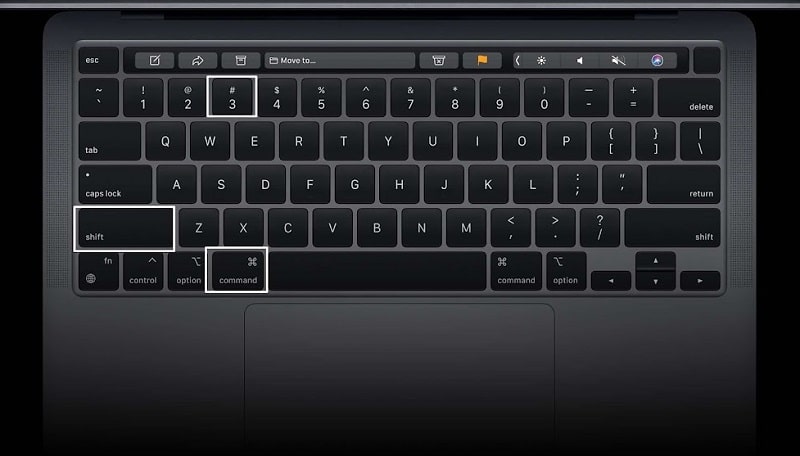
  1. Press the “Command,” “Shift,” and “3” keys simultaneously. You will hear a camera shutter sound, which indicates that the screenshot has been taken.
  2. The screen capture of the entire screen will be saved to your desktop with a filename that starts with “Screenshot” followed by the date and time.
  3. Double-click the screenshot file to open it.

Method 2: Take a screenshot of a selected portion of the screen

  1. Press the “Command,” “Shift,” and “4” keys simultaneously. The cursor will change to a crosshair symbol.
    Click and drag the crosshair symbol to select the portion of the screen you want to capture. As you drag, you will see the dimensions of the selected area.
  2. Release the mouse button to take the screen capture. You will hear a camera shutter sound, indicating that the screenshot has been taken.
  3. The screenshot will be saved to your desktop with a filename that starts with “Screenshot” followed by the date and time.
  4. Double-click the screenshot file to open it.

Method 3: Take a screenshot of a specific window

  1. Click the window you want to capture to make it active.
  2. Press the “Command,” “Shift,” and “4” keys simultaneously. The cursor will change to a crosshair.
  3. Press the “Space” key. The cursor will change to a camera icon.
  4. Move the camera icon over the window you want to capture. The window will be highlighted in blue.
  5. Click the mouse button to take the screenshot. You will hear a camera shutter sound, indicating that the screenshot has been taken.
  6. The screenshot will be saved to your desktop with a filename that starts with “Screenshot” followed by the date and time.
  7. Double-click the screenshot file to open it.

Method 4: Take a screenshot and copy it to the clipboard

  1. Press the “Command,” “Shift,” and “Control” keys simultaneously.
  2. The screen will flash white, indicating the screenshot has been taken and copied to the clipboard.
  3. Open the application where you want to paste the screenshot.
  4. Press the “Command” and “V” keys simultaneously to paste the screenshot.

In conclusion, taking screenshots on a MacBook Pro is a straightforward process that can be accomplished using various methods depending on the desired outcome. By following the above steps, you can take high-quality screenshots that can be used for various purposes, such as sharing information or troubleshooting issues.

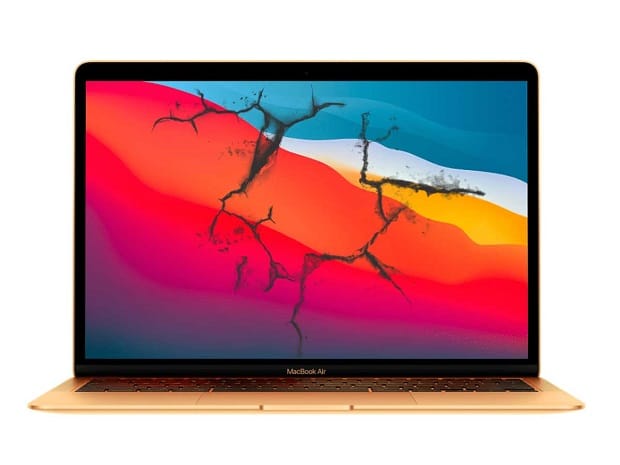
MacBook Air Screen Replacement
By Bilal / Uncategorized / 0 Comments

The MacBook Air is an elegant and powerful laptop favorite among many Apple users. However, like any electronic device, it is not immune to damage, particularly the screen. A broken or cracked screen can be frustrating, but it’s not the end of the world. In this guide, we’ll discuss the MacBook Air screen issues: signs, causes, and tips for prevention

Here are some signs and symptoms that could indicate a problem with your MacBook Air Screen Issue:

Your MacBook Air’s screen is one of its most important features, allowing you to work, browse, stream, and communicate efficiently. However, your MacBook Air’s screen can develop problems over time like any other electronic device. Here are some signs and symptoms that could indicate a problem with your MacBook Air screen:

Flickering screen: If your MacBook Air’s screen keeps flashing, it could be due to a hardware or software issue. It can make it difficult to read or view content on the screen.

Dead pixels: These are tiny black or white spots on the screen. They are caused by a malfunctioning pixel, which can affect the overall image quality and reduce the display’s resolution.

Vertical or horizontal lines: If you notice vertical or horizontal lines on your MacBook Air’s screen, it could indicate a damaged screen or a graphics card issue.

Brightness issues: If your MacBook Air’s screen is too dim or too bright, it could be due to a software issue or a malfunctioning screen component.

Distorted or blurry images: If you notice distorted or blurry photos on your MacBook Air’s screen, it could indicate a problem with the screen’s resolution, graphics card, or other hardware components.

There are several common causes of MacBook Air Screen Issues, including:

Physical damage: Accidental drops, bumps, or impacts can cause physical damage to your MacBook Air’s screen, resulting in cracks, scratches, or other types of damage.

Liquid damage: Spills or exposure to liquids can damage the screen’s internal components and cause issues with the display.

Malfunctioning hardware components: Over time, the MacBook Air’s hardware components, such as the graphics card or display cable, can wear out or malfunction, resulting in screen issues.

Software issues: Software bugs, outdated drivers, or corrupted files can cause MacBook Air display problems.

To take care of your MacBook Air Screen damage and avoid frequent repairs, here are some tips:

Use a protective case: To prevent physical damage to your MacBook Air’s screen, consider using a protective case or cover.

Keep liquids away: Protect your MacBook Air from liquids to prevent liquid damage to the screen and other components.

Adjust screen brightness: Adjust the brightness to a comfortable level to avoid strain on your eyes and reduce the risk of screen issues.

Keep software up to date: Regularly update your MacBook Air’s software to ensure it is running smoothly and fix any bugs or issues that could cause problems with the screen.

Seek professional help: If you notice any issues with your MacBook Air screen, seek professional help from a certified technician to diagnose and repair the problem.

MacBook Air Screen Issue: Why PC Fix London?

PC Fix London is a reliable and professional repair service specializing in MacBook Air screen repairs. Here are some reasons why you should choose PC Fix London for your MacBook Air screen repair needs:

  1. Experienced and certified technicians who can diagnose and fix MacBook Air screen issues.
  2. Competitive pricing and no hidden fees.
  3. Fast turnaround time and same-day maintenance are available.
  4. High-quality replacement parts are used for repairs.

In conclusion, MacBook Air screen issues can be frustrating and disruptive to your work or personal life. However, by recognizing the signs and symptoms of screen issues and taking proper care of your device, you can avoid frequent repairs. PC Fix London is the best choice for professional and reliable maintenance if you encounter screen issues with your MacBook Air. You can reach us at 020 7018 7490 or by email at contact@pcfixlondon.com or bring it to the workshop.

Warning:

Please note that the guideline instructions provided may not always apply to the symptoms your computer is experiencing. Sometimes, symptoms or behavior can be the same, but the underlying reason or fault can be completely different.

The fastest way we can assist customers is by bringing computers to our workshop, where technicians have the tools to diagnose faults accurately. After checks, if parts are found to be faulty or damaged, we proceed to replace them with high-quality original parts.

No appointments are required; you can drop off your computer at our workshop during working hours.

If you have more queries about our laptop repair and upgrade services, please feel free to contact us at 020 7018 7490 or email us at contact@pcfixlondon.com