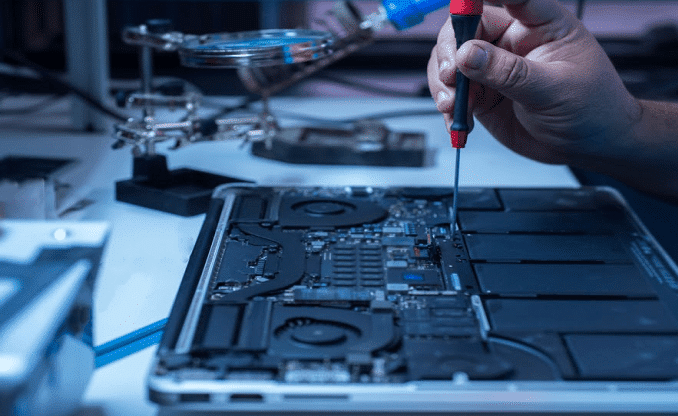
MacBook Running Slow
By Bilal / MacBook Repair / 0 Comments

Is your MacBook feeling a bit sluggish? Don’t worry, we’ve got your back at PC Fix London! We know how annoying it is when your MacBook just won’t keep up, especially when you’ve got things to do. If your apps are taking forever to open, freezing up, or just not running as well as they used to, our team is here to help you out and get everything back on track.

We’re really great at figuring out what’s causing your MacBook to slow down and getting it back to its speedy self in no time. So, let’s dive into what might be making your MacBook drag its feet and how we can help fix it!


Common Causes of a Slow MacBook

If your MacBook is feeling slow, there could be a few reasons for that. Here are some of the usual suspects:

1. Too Many Background Processes

Running a bunch of apps and background processes at the same time can really bog down your MacBook. This often happens if you’ve got a ton of browser tabs open or if you’re using lots of apps all at once.

2. Outdated macOS or Software

If your MacBook feels sluggish, it might be because your operating system is outdated. Updates usually come with bug fixes, security upgrades, and performance boosts, all of which help your Mac run better.

3. Full Storage Space

When your MacBook’s storage gets close to full, it can slow things down quite a bit. Your system needs some free space to work properly, especially for temporary files and virtual memory.

4. Insufficient RAM or Memory

If you’re using apps that eat up a lot of memory, or if you like to have a bunch of things open at once, your MacBook might start to lag if it doesn’t have enough RAM. When there’s not enough memory available, you might notice delays in processing tasks.

5. Hard Drive or SSD Issues

Having an old hard drive (HDD) or a failing SSD can really affect your Mac’s speed. If it’s struggling to read or write data, you’ll definitely see some lag in performance.

6. Outdated or Corrupt System Files

Sometimes, your system files can get corrupted or outdated, and that can make your MacBook run slow. Damaged system files can lead to processing delays and just overall sluggish performance.

7. Overheating

If your MacBook is getting too hot, it might slow down to avoid damage. Overheating can happen due to dust buildup, malfunctioning fans, or just not enough cooling in general.


How to Fix a Slow MacBook: Quick Tips to Boost Performance

If your MacBook is feeling a bit sluggish, here are some simple tips to help speed things up:

1. Close Unneeded Apps

Take a look at the Activity Monitor and shut down any apps or background processes you’re not using. This can free up some resources and make your MacBook run quicker.

2. Update macOS and Software

Make sure your macOS and apps are up to date. Head to System Preferences > Software Update to see if there are any new updates available. Keeping things updated often helps with speed and performance.

3. Clear Out Storage Space

Get rid of files you don’t need anymore and remember to empty the Trash. You might want to check out the built-in storage optimization tool on your Mac. Just head to the Apple Menu, click on “About This Mac,” and then go to “Storage.” It’ll help you manage your files and free up some space.

4. Consider Upgrading Your RAM

If you notice your MacBook slowing down when you’re juggling a lot of tasks, it might be time for a RAM upgrade. More memory can really help if you’re running several applications at once or handling big files.

5. Switch to an SSD (Solid State Drive)

If your MacBook is still running on a regular hard drive (HDD), moving to a solid-state drive (SSD) can really boost its performance. SSDs are way faster, so you’ll experience quicker start-up times, faster file transfers, and smoother app launches.

6. Rebuild the Spotlight Indexing

If it’s been a while, try rebuilding your MacBook’s Spotlight index. You can do this by heading over to System Preferences, then clicking on Spotlight, and from there, go to Privacy. Just add your hard drive to the list and then take it off again. It’s pretty simple! This can speed up searches and make everything feel a bit snappier.

7. Manage Your Login Items

Having too many apps start up when you turn on your MacBook can really slow things down. Go to System Preferences > Users & Groups > Login Items, and remove any apps you don’t need launching automatically.

8. Clean Up Your Desktop

A messy desktop can drag down performance, so try to organize your files into folders. This can ease the load on your system.

9. Reset PRAM/NVRAM

Resetting the PRAM/NVRAM might help fix some slow issues. To do this, turn off your MacBook, then turn it back on while holding down Option + Command + P + R for about 20 seconds.

Give these tips a try, and hopefully, your MacBook will be running better in no time!


Expert MacBook Performance Repair Services

If you’ve given those tips a shot and your MacBook is still dragging its feet, it might be a good idea to get a pro to take a look. At PC Fix London, we focus on figuring out what’s wrong and fixing slow MacBooks.

Our MacBook Performance Services Include:

  • RAM Upgrades – Looking to make your MacBook fly? We can upgrade its memory to help you multitask better and speed things up overall.
  • SSD Replacements – If your MacBook’s hard drive seems like it’s from the Stone Age, we can replace it with a lightning-fast Solid State Drive to really amp up its performance.
  • Software Optimization – We’ll help you give your macOS a good clean-up by removing unnecessary apps and organizing system files, so it runs more smoothly.
  • Overheating Solutions – If your MacBook is running hot and getting sluggish, we’ll clean out the dust, fix any fan issues, and make sure it stays cool so you get the best performance possible.
  • MacBook Diagnostics – Is your MacBook feeling slow and unresponsive? Our techs will figure out any hardware issues that might be dragging it down and get it back up to speed.


Why Choose PC Fix London?

If your MacBook is dragging its feet, PC Fix London is the place to go. Here’s why you should check us out for your MacBook repairs:

  • Experienced Technicians – Our team knows their stuff when it comes to speeding up slow MacBooks. We’ve been doing this for years!
  • Genuine Apple Parts – We only use real Apple parts to make sure your repairs are top-notch.
  • Quick Service – We get things done fast—often on the same day—so you can get back to your work without that sluggish MacBook holding you back.
  • No Fix, No Fee – If we can’t fix your MacBook, you won’t owe anything. Simple as that!
  • Easy Service – Swing by our repair shop, or you can arrange for us to pick it up and fix it while you chill at home.


How to Get Your MacBook Fixed

If your MacBook is running slow, just reach out to PC Fix London. They do quick and reliable repairs!

  1. You can find us at Sinclair House, Thanet Street, King’s Cross, London WC1H 9P.
  2. Just give us a ring at 020 7018 7490 or shoot us an email at contact@pcfixlondon.com.
  3. Need a hand? Take advantage of our collection service today! We’ll pick up your MacBook for repairs and bring it back to you when everything’s sorted.

Don’t let a slow MacBook slow you down! Get in touch with PC Fix London today for some top-notch MacBook repairs and to boost its performance.


FAQs – MacBook Running Slow & Performance Issues

Q: Why is my MacBook running slow? 

Ans: If your MacBook is running slow, it might be due to a few reasons. Maybe the software needs an update, there are too many apps open in the background, your storage is full, or you just don’t have enough RAM. Our tech whizzes can figure out what’s wrong and help get it sorted fast.


Q: How can I speed up my MacBook? 

Ans: You might want to think about closing any apps you’re not using, freeing up some storage space, updating your macOS, or maybe even upgrading your RAM. If it’s still slow after that, don’t worry—our team is ready to dive deeper and help you out.


Q: Is it possible to repair a sluggish MacBook? 

Ans: Absolutely! There are plenty of reasons your MacBook might be slowing down. We can look into things like upgrading some parts, tweaking the software, or fixing any overheating problems.
MacBook Factory Reset
By Bilal / MacBook Repair / 0 Comments

Resetting your MacBook to factory settings is pretty important if you’re looking to sell it, facing some major problems, or just want to start fresh. This process totally clears everything off your Mac, installs a brand new copy of macOS, and sets it back to how it was when you first got it. If you’re not quite sure how to do this, don’t worry! Just check out this simple step-by-step guide to reset your MacBook the right way.


Why Reset Your MacBook to Factory Settings?

There are several reasons why you might need to reset your MacBook, including:

  • Getting it ready to sell or give away.
  • Dealing with ongoing software bugs or performance problems. Removing malware or unwanted software
  • Cleaning up your system for a fresh start

So, no matter what your reason is, doing a full factory reset will erase everything from your MacBook and pretty much set it back to how it was when you first unboxed it.

Step 1: Back Up Your Data

Before proceeding with a factory reset, make sure to back up your important files. A reset will erase everything, including documents, photos, apps, and settings. You have a few options:

  • Time Machine Backup: Just plug in an external drive and let Time Machine back up everything for you.
  • iCloud: You can easily upload your important files and documents to iCloud Drive.
  • External Storage: If you want, you can manually drag and drop files onto an external hard drive or USB stick.
  • Third-Party Cloud Services: Consider using services like Google Drive, Dropbox, or OneDrive to keep your important files safe.

Step 2: Sign Out of iCloud, iMessage & Other Accounts

Before you get your Mac all set up again, it’s smart to sign out of your Apple ID and any other services you’re using. This will help you avoid any problems later on.

  • Signing Out of iCloud:
    • First, click on the Apple menu, then go to System Settings (or System Preferences if you’re using an older version of macOS). After that, just click on Apple ID.
    • After that, just hit Sign Out and enter your Apple ID password if it asks for it.
  • Signing Out of iMessage:
    • Just open up the Messages app, then click on Messages in the menu bar. After that, head over to Preferences, and you’ll see the iMessage tab there.
    • From there, you can click Sign Out.
  • Logging out of Other Services: If you’re using iTunes (on macOS Mojave or earlier), FaceTime, or any other Apple services, don’t forget to log out from those as well.

Step 3: Reset NVRAM & PRAM (Optional but Recommended)

If you’re dealing with some weird glitches or your Mac isn’t acting right, try resetting the NVRAM and PRAM before you go for a full reset. It might do the trick!

  • First, turn off your MacBook.
  • Then, turn it back on, and as soon as it starts, press and hold the Option + Command + P + R keys together for around 20 seconds.
  • When you see the Apple logo pop up, you can let go of the keys, and your MacBook will restart.

Step 4: Erase Your Mac’s Hard Drive

Alright, now that you’ve got your data saved and you’ve logged out of your accounts, it’s time to clean up your Mac’s storage.

  • Restart Your Mac in Recovery Mode:
    1. If you’ve got an Intel Mac, just restart it and immediately press and hold Command (⌘) + R until you see the Apple logo or a spinning globe show up.
    2. For Macs with Apple silicon, like M1, M2, or M3, turn off your Mac. Then, press and hold the power button until you see “Loading startup options.” After that, just click on Options and hit Continue.
  • Erase the Disk:
    1. Alright, so when you’re in macOS Utilities, go ahead and pick Disk Utility and hit Continue.
    2. Then, find Macintosh HD over on the left side and select it. Next, click on Erase, choose either APFS or Mac OS Extended (Journaled) format, and hit Erase one more time.
    3. Once that’s all finished, just close Disk Utility. Easy peasy!

Step 5: Reinstall macOS

Now that you’ve erased your Mac’s storage, the next thing to do is reinstall macOS:

  • In the macOS Utilities window, just pick Reinstall macOS and hit Continue.
  • Then, just follow the instructions that pop up on your screen to get a fresh copy of macOS installed.
  • When it’s done, your Mac will restart and show you the setup screen.

Right now, you can either start fresh with your Mac or just turn it off if you’re planning to sell it.

Step 6: Reset to Factory Default Settings (M1 & M2 Macs – Alternative Method)

If you have an Apple Silicon Mac, Apple offers an easier reset method:

  • Just go to System Settings, then find General and click on Transfer or Reset.
  • Next, select the option to Erase All Content and Settings.
  • Just follow the on-screen instructions, and you’ll have your Mac back to its original setup in no time!


Final Thoughts

Resetting your MacBook to its factory settings is pretty simple if you stick to the steps. If you’re looking to solve some issues, tidy things up before putting it on the market, or just want a fresh start, this guide is here to make sure you get it done in a safe and effective way.

If you’ve tried resetting and your Mac is still acting up, you might need some professional help. Check out PC Fix London—they’ve got the know-how to get your MacBook running like new again.


Frequently Asked Questions (FAQs)

  1. Will resetting my Mac wipe out my macOS updates?
    • Nah, a factory reset just puts back the latest version of macOS that you had before.
  2. Can I go back after a factory reset? Not really.
    • Once you wipe your Mac’s data, you can’t get it back unless you’ve made a backup.
  3. How long does it usually take to reset a MacBook?
    • It can take anywhere from about 30 minutes to a few hours. It mostly depends on your internet speed and which Mac model you have.
  4. Do I need the internet to reset my Mac?
    • Yep, you do! You’ll need an internet connection to grab macOS from Apple’s servers.
  5. Can I reset my Mac without going into Recovery Mode?
    • If you have an Apple Silicon Mac, you can simply use the “Erase All Content and Settings” option instead of having to boot into Recovery Mode.

This guide will help you easily restore your MacBook to its factory settings. It’s a great way to get a fresh start or make sure everything’s clean if you’re passing it on to someone else.

MacBook Dispaly Issues

The display is one of the essential components of your MacBook, providing a visual interface for all your tasks. However, like any electronic device, MacBook displays can experience issues over time, such as flickering, distorted, or black screens. This article will discuss how to troubleshoot and repair MacBook display issues.

Several symptoms may indicate display issues with a MacBook. Some of the most common symptoms include:

  • Flickering or flashing screen
  • Dead pixels
  • Ghosting or image retention
  • Lines or bars on the screen
  • No display at all
  • Blurry or distorted display
  • Overheating or hot-to-the-touch display
  • The screen freezes or crashes
  • Dim or too-bright display
  • Black screen with cursor

Reasons for the MacBook Display Issues:

There are several reasons why a MacBook may experience display issues. Here are some of the most common reasons:

  1. Software bugs or conflicts: Bugs or conflicts in the operating system or other software can cause display issues.
  2. Hardware issues: Physical damage to the display or other hardware components can cause display issues. For example, if the MacBook is dropped or bumped, the display or other internal components may be damaged.
  3. Cable or connection issues: Loose, damaged, or improperly connected cables or connections between the display and the MacBook can cause display issues.
  4. Graphics card issues: Problems with the graphics card can cause display issues, such as flickering or flashing screens, lines or bars on the screen, or distorted images.
  5. Display settings issues: Incorrect or incompatible display settings can cause display issues, such as a dim or too bright display or distorted images.
  6. Overheating: Overheating can cause display issues, such as a hot-to-the-touch display or screen freezes or crashes.

It is important to properly diagnose the cause of display issues to determine the appropriate solution. If you are still determining the cause, it may be best to seek the advice of a professional technician.

Tips to take care of your MacBook Display Issues and avoid frequent repairs:

Here are some tips to take care of your MacBook display and help avoid frequent repairs:

  1. Use a screen protector
  2. Keep the MacBook clean
  3. Avoid touching the screen
  4. Adjust display settings
  5. Use a cooling pad
  6. Keep the MacBook away from heat sources
  7. Handle with care

By following these tips, you can help prolong the life of your MacBook’s display and reduce the likelihood of frequent repairs.

MacBook Display Issues: Why PC Fix London?

PC Fix London is a professional, experienced computer repair service specializing in fixing MacBook display issues. Here are some reasons why PC Fix London may be a good choice for MacBook display repairs:

  1. Expertise: PC Fix London has a team of highly skilled technicians with expertise in diagnosing and repairing MacBook display issues.
  2. Quality repairs: PC Fix London uses high-quality replacement parts and tools to ensure that repairs are of the highest quality.
  3. Quick turnaround time: PC Fix London offers quick repair times, with most repairs completed within 24-48 hours.
  4. Competitive prices: PC Fix London offers the best prices for MacBook display repairs.
  5. Convenient location: PC Fix London is in central London, making it easy to drop off and pick up your MacBook for repairs.

If you are experiencing MacBook display issues, PC Fix London may be a good choice for reliable and professional repairs. Our expert technicians have the knowledge and tools to diagnose and fix your MSI laptop screen quickly and efficiently. You can reach us at 020 7018 7490 or by email at contact@pcfixlondon.com or bring it to the workshop. Don’t let a damaged MSI laptop screen slow you down – contact PC Fix London today.

Warning: Please note that the purpose of the information provided here is to help you gain an understanding of how to troubleshoot and repair MacBook display issues. However, it is important to remember that this information is not intended to encourage or guide you to attempt any repairs independently. It is highly recommended that you seek professional assistance from a certified technician to prevent further damage to your device.

The fastest way we can assist customers is by bringing computers to our workshop, where technicians have the tools to diagnose faults accurately. After checks, if parts are found to be faulty or damaged, we proceed to replace them with high-quality original parts.

No appointments are required; you can drop off your computer at our workshop during working hours.

If you have more queries about our laptop repair and upgrade services, please feel free to contact us at 020 7018 7490 or email us at contact@pcfixlondon.com

Common MacBook Repair Issues

MacBooks are undoubtedly some of the most popular laptops on the market today. They are known for their sleek designs, exceptional performance, and user-friendly interface. However, like all electronic devices, MacBooks are not immune to malfunctions and breakdowns. In this article, we will discuss some of the most common MacBook repair issues and how to fix them.

Symptoms of Common MacBook Repair Issues:

MacBook is one of the most popular laptops used by people worldwide. However, like any other electronic device, MacBooks can experience issues over time, frustrating users. Here are some common symptoms of MacBook repair issues:

Slow Performance: Your MacBook may slow down over time due to insufficient memory or hard disk space.

Battery Life: MacBooks are known for their excellent battery life, but over time, batteries can degrade, leading to a shorter lifespan.

Overheating: MacBooks can overheat for several reasons, including malfunctioning fans or clogged vents.

Startup Issues: Sometimes, MacBooks may fail to start up or take longer than usual to boot.

Display Issues: MacBooks may experience issues with their display, such as flickering or distorted screens, dead pixels, or ghosting.

Keyboard Issues: MacBooks may experience keyboard issues, such as unresponsive keys, sticky keys, or damaged keys.

Reasons for the Common MacBook Repair Issues:

Several reasons can cause MacBook repair issues. Here are some of the most common reasons:

Hardware Issues: MacBooks may experience hardware issues due to physical damage or wear and tear, such as a faulty hard drive, battery, or charging port.

Software Issues: MacBooks may experience software issues due to conflicts, bugs, or viruses, leading to slow performance or startup issues.

User Error: Sometimes, users may unintentionally cause damage to their MacBook, such as dropping it or spilling liquid on it, resulting in hardware damage.

Outdated Software/Hardware: MacBooks may experience issues due to outdated software or hardware, such as an old operating system or insufficient memory.

To take care of your MacBook and avoid frequent repairs, here are some tips to follow:

  1. Keep your MacBook clean and dust-free using a soft cloth to wipe it down regularly.
  2. Avoid eating or drinking near your MacBook to prevent spills.
  3. Use a cooling pad to prevent overheating.
  4. Keep your software and hardware up-to-date to avoid conflicts and bugs.
  5. Back up your data regularly to prevent data loss.
  6. Be gentle with your MacBook and avoid dropping or bumping it.

Common MacBook Repair Issues: Why PC Fix London?

PC Fix London is a professional and reliable computer repair service specializing in repairing MacBook issues. Here are some reasons why PC Fix London may be a good choice for your MacBook repairs:

Expertise: PC Fix London has a team of highly skilled technicians with expertise in diagnosing and repairing MacBook issues.

Quality Repairs: PC Fix London uses high-quality replacement parts and tools to ensure that repairs are of the highest quality.

Quick Turnaround Time: PC Fix London offers quick repair turnaround times, with most repairs completed within 24-48 hours.

Competitive Prices: PC Fix London offers highly competitive prices for MacBook repairs.

Convenient Location: PC Fix London is located in central London, making it easy to drop off and pick up your MacBook for repairs.

If you are experiencing issues with your MacBook, PC Fix London may be a good choice for reliable and professional repairs. Contact us today to schedule a repair appointment. Our expert technicians have the knowledge and tools to diagnose and fix your MSI laptop screen quickly and efficiently. You can reach us at 020 7018 7490 or by email at contact@pcfixlondon.com or bring it to the workshop.

Caution: The information presented here is meant to educate you on typical common MacBook repair issues and how to fix them. However, it is crucial to note that this information is not intended to motivate or direct you to perform any repairs on your own. To avoid further harm to your device, it is highly advised that you seek help from a highly skilled technician.

The fastest way we can assist customers is by bringing computers to our workshop, where technicians have the tools to diagnose faults accurately. After checks, if parts are found to be faulty or damaged, we proceed to replace them with high-quality original parts.

No appointments are required; you can drop off your computer at our workshop during working hours.

If you have more queries about our laptop repair and upgrade services, please feel free to contact us at 020 7018 7490 or email us at contact@pcfixlondon.com

MacBook Water Damage

Repairing a MacBook that has gone through water damage is not an easy task. Even slight spills might create some serious issues in its function. Hence, professional tools and help are required to repair it. Ensure you are not in haste after your MacBook has suffered a water splash. The damage could be controlled. However, avoid using alcohol for drying or cleaning it as it might damage the system even further. Let’s move further and get familiar with the primary steps to make sure your MacBook will not destroy after water damage.

Primary steps right after MacBook water damage

As soon as you know your MacBook is in water, take it out from the wet area. Here is what you have to do after that:

  • Do not check if it’s working – People often make this mistake. As soon as their system gets in the water, they try to switch the system on. Bad choice, do not do it.
  • Handle with care – Use absorbent towels or gravity to take out the water carefully. People often make way for water inside the system while brushing it off. Be extra cautious around the keyboard, vents, joints, and ports.
  • Dissemble – Right after rinsing off the water, remove whatever part you can from Mac, pull out the hard drive and remove the battery as well.
  • Tilt-up – Let the process of gravity work for you, tilt your Mac like a teepee, and leave it on support for a long period. Please don’t touch it for hours.
  • Rice might help – Take the moisture out with the help of uncooked rice, as it will soak all the water and even the tiny droplets. Give it some time.

When you mess up with a system like MacBook, it becomes quite understood that you want to know whether the water damage is cured or not quickly. However, experts suggest you must give it some time, do not plugin before a couple of days have passed. After around 48 hours, test if your system is working fine or not. There are chances that it might have healed, but if not. Then it is better to take your MacBook to a reputable and professional service provider as they might have the experience of repairing a water-damaged system.

Services that you can avail for repairing your MacBook

There are several types of services based on the level offered by the service providers. Here is the level of services for MacBook that you must know-

First level: Cleaning of your Device

Cleaning of the logic board. Parts of your MacBook like the touchpad, keyboard, screen, hard drive, and battery must be either cleaned or replaced. After that, reassemble it to see whether it has started functioning or not. In case your logic board has been damaged, then the MacBook will not be repaired. You might have to replace the complete logic board, and this will be an expensive affair. Hence, if you can find a logic board that is refurbished, then go for it. This service provider will ask you for a fee for assessment as the cleaning job takes a lot of time and the chances of survival are not very high. Repairing centers that are authorized by Apple as well as third parties offer this level of service. Water-damaged MacBook doesn’t fall under warranty standards offered by Apple. Hence, even if your Mac has an Apple Care+, you will be charged a service fee. Along with that, Apple doesn’t offer services for recovering data, but if you need it, you must have the Mac data recovery service.

Second level: Replacement or cleaning touchpad

This service offers to replace or clean the touchpad, screen, battery, hard drive, and keyboard. Along with that, it replaces chips of the logic board that are corroded then your Mac is cleaned with the help of an ultrasonic cleaning device. The technician who performs this job must be well-skilled in micro soldering. This level of service results in a higher rate of success; hence, the technician might not ask for an assessment fee. Only some experienced professionals can provide second-level service as it needs a special skill set and knowledge.

Third level: Troubleshooting to find errors in your MacBook

This level of service is offered, including the other two levels. At this level, a software engineer does troubleshooting for spotting the faulty chips that got away from the microscope. Performing this job needs a very high level of knowledge, skills, and equipment. Your service provider must understand the design of Apple’s logic board in a comprehensive way. Along with that, the depot facilities of Apple are only available in China and the USA. Thus, very few skilled third-party service providers can provide this level of service. Most of the time, no assessment fee is charged for this process as it results in a higher rate of success than the other two levels.

Hopefully, this might have helped you to get an insight on recovering your MacBook from spilled water and other liquid damage. If this helps, make sure that your soda, water, or drink is far away from your MacBook. Be cautious to avoid any similar accidents in the future. Make sure that the water damage to your MacBook (if it happens again in the future) is minimized with the help of waterproof skin. However, the waterproof skin is not a sure shot guarantee, but it might handle a few drops or slight spills in an efficient way.

Conclusion

When you are fully aware of the MacBook water damage and its cure for your MacBook, make certain that you do not make any rookie mistakes. For instance, plugging in the charger to see if it’s working, using a hairdryer to remove water, and end up damaging other sensitive components. Finally, do not shake your system like a rug and this will not help at all. Water damage is controllable, but you have to be cautious.

Please note that the guideline instructions provided may not always apply to the symptoms your computer is experiencing. Sometimes, symptoms or behavior can be the same, but the underlying reason or fault can be completely different.

The fastest way we can assist customers is by bringing computers to our workshop, where technicians have the tools to diagnose faults accurately. After checks, if parts are found to be faulty or damaged, we proceed to replace them with high-quality original parts.

No appointments are required; you can drop off your computer at our workshop during working hours.

If you have more queries about our laptop repair and upgrade services, please feel free to contact us at 020 7018 7490 or email us at contact@pcfixlondon.com