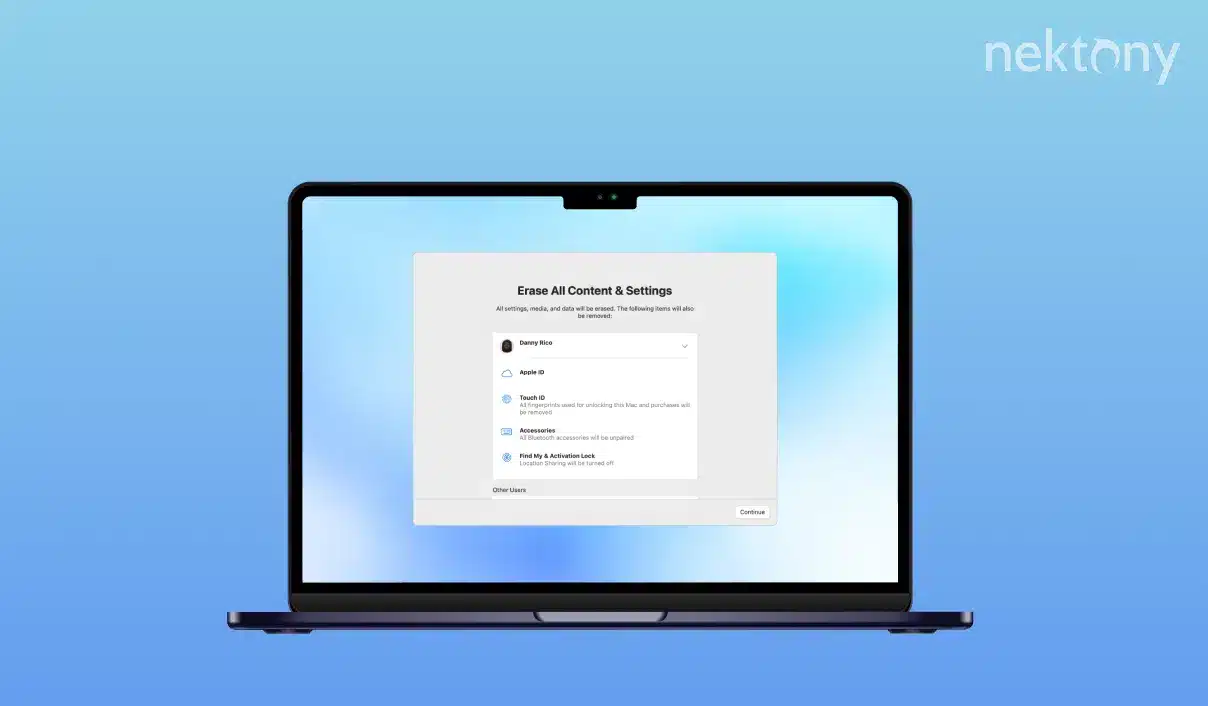
MacBook Pro Factory Reset

If you’re planning to sell your MacBook Pro, struggling with some software issues, or just want to start fresh, doing a factory reset is the way to go. Doing a factory reset is like hitting the refresh button on your laptop. It’ll erase everything you’ve got saved, log you out of your Apple ID, and reinstall macOS. Basically, it’s going to make your laptop just like it was when you first took it out of the box.

If you want to reset your MacBook Pro to factory settings, I’ve got a simple guide for you. Just follow these easy steps, and you’ll be all set!


Before You Reset: Important Preparations

A factory reset is a big deal because you can’t take it back, so make sure to do these steps to back up your data and avoid problems down the line.

  1. Back Up Your Data

When you reset your Mac, it clears everything off it, so make sure you save your files beforehand!

  • Time Machine Backup: Just plug in an external drive and let Time Machine do its thing to back up your stuff.
  • iCloud Storage: You can easily upload your important docs and media to iCloud for safekeeping.
  • Manual Copying: If you want, you can simply drag and drop important files onto a USB drive or an external hard drive.
  1. Sign Out of Your Apple ID & Other Accounts

Before you reset your device, make sure to sign out of Apple services to avoid problems like Activation Lock. It’s a good move!

  • iCloud: Just head to System Settings, then Apple ID, and click on Sign Out.
  • iMessage: Open up Messages, go to Settings, hit iMessage, and log out from there.
  • FaceTime & Other Services: Make sure you’re signed out of FaceTime, iTunes, and any other apps you might be using.
  1. Unpair Bluetooth Devices (If Giving Your Mac Away)

  • Just head over to System Settings, then click on Bluetooth, and remove any devices you’ve linked up before.


Step-by-Step: How to Factory Reset a MacBook Pro

Step 1: Enter macOS Recovery Mode

For Apple Silicon (M1, M2, M3 Macs)

  • First, make sure to turn off your Mac completely.
  • Then, press and hold the Power button until you see the “Loading startup options” screen pop up.
  • After that, click on Options and then hit Continue to get into Recovery Mode.

For Intel-Based Macs

  • Just restart your Mac and as soon as it starts up again, hold down Command (⌘) + R.
  • You can let go of the keys once you see the Apple logo or a spinning globe pop up.


Step 2: Erase Your Hard Drive

  • First, open up the macOS Utilities window and pick Disk Utility. After that, click on Macintosh HD, which is your main disk.
  • Then, hit the Erase button. For the format, go with APFS if you’re on a newer Mac, or choose Mac OS Extended (Journaled) if you have an older one.
  • You can just leave the name as “Macintosh HD.”
  • Finally, click Erase to wrap it up and confirm everything.


Step 3: Reinstall macOS

  • Just close Disk Utility and head back to the macOS Utilities window.
  • Just click on Reinstall macOS and then hit Continue.
  • Then follow the steps to get a fresh version of macOS installed.
  • Sit tight while it installs—it’ll restart your Mac when it’s done.


Step 4: Set Up or Leave It Ready for the Next User

Once you restart your Mac, you’ll see the Setup Assistant pop up.

  • If you’re keeping your Mac, just follow the prompts to log in with your Apple ID and set your preferences the way you like.
  • But if you’re selling it or giving it away, hit Command (⌘) + Q on the welcome screen and then shut down the Mac. This way, the next person can start fresh with their own setup.


How PC Fix London Can Assist You

Feeling a bit overwhelmed about resetting your MacBook Pro? No worries! At PC Fix London, we’ve got everything you need! Our team knows how to safely wipe your data and get macOS reinstalled smoothly, so you don’t have to stress about it. Just bring it in and let us take care of everything!

  • Secure Data Erasure & Factory Reset
  • macOS Reinstallation & Optimization
  • No Fix, No Fee Guarantee
  • Same-Day Service (Subject to Availability)

If you need a hand resetting your MacBook Pro, come on by and see us today!

PC Fix London – Sinclair House, Thanet St, Kings Cross, London WC1H 9PZ

Call: 020 7018 7490

Email: contact@pcfixlondon.com

MacBook Pro Battery Replacement

Is your MacBook Pro’s battery draining quickly or shutting down unexpectedly? PC Fix London is here to help. As experts in battery replacement for all Apple MacBook Pro models, our certified technicians ensure a seamless process to restore your MacBook Pro’s performance. Trust PC Fix London to get your MacBook Pro running at its best again.


Common Causes for Reduced Battery Life:

Apple MacBook Pro laptops can unexpectedly lose battery life due to many reasons. Here are several common causes:

  • Battery Age: Batteries naturally wear out and lose their charging capacity over time. If your MacBook Pro has been around for a while, its battery might be close to its life’s end.
  • High Cycle Count: Apple measures battery life in charge cycles, typically around 1000. Each cycle means one complete drain and re­fill of battery power. The battery’s power gets weaker as you get close to this limit.
  • Software Updates: New software updates some­times demand more power because of incompatible features or extra unseen tasks.
  • Background Processes: When apps are running without being in use, mainly if they’re constantly updating information or running strenuous tasks, they can suck power fast.
  • Hardware Issues: If parts like the logic board or battery sensor aren’t working correctly, this can cause unusual battery drain.
  • Power-Hungry Applications: Some apps need a lot of proce­ssing grunt and can thus eat up battery life.
  • Battery Settings: If power settings are wrong, this can misuse battery power. Things like screen brightness and energy-saving options need to be set right.
  • Environmental Factors: Extreme heat or cold can harm battery performance. Using the MacBook in harsh conditions can drain power quickly and bring lasting battery harm.
  • Charging Habits: Constantly having the MacBook on a charge also harms battery life. Regular battery use helps keep the battery in good shape.
  • Faulty Battery: Some times, the battery is flawed from the start due to factory errors or damage.


Why Choose PC Fix London for MacBook Pro Battery Replacement?

  • Certified Technicians: We’ve got skilled and accredited technicians and experts in Apple products. They’ll take superb care of your MacBook Pro.
  • Genuine Parts: Only genuine Apple batteries enter our workshop. We believe in maintaining your MacBook Pro’s optimum performance.
  • Speedy Service: We know how crucial your device is. Striving for lightning-fast service, we often finish battery replacements on the same day.


Our Battery Replacement Process:

 Diagnosis: We begin by deep-diving into your MacBook Pro to make sure it needs a new battery

  • Changing the Battery: Our staff starts with replacing the old battery when you confirm. They follow Apple’s safety rules and ensure its working.
  • Testing: We do strict checks after the swap to make sure­ your MacBook Pro and the new battery are working well.
  • Post Service Care: We guide you on how to make the battery last longer and give tips on keeping your MacBook Pro in top shape for years.


Models We Service:

  • MacBook Pro 13-inch (all generations)
  • MacBook Pro 15-inch (all generations)
  • MacBook Pro 16-inch


Why Replace Your MacBook Pro Battery?

  •  Boosted Performance: New batteries can genuinely extend your MacBook Pro’s power length, reducing how often you charge.
  • Reliability: Worn-out batteries can lead to unexpected shutdowns or irregular actions. Replace­ments bring back reliability to your gadget.
  • Eco-Friendliness: It’s vital to dispose of old batteries correctly for our planet. We follow green measures in battery disposal.


Contact PC Fix London Today!

Don’t let an unpredictable battery hinder your work. Contact PC Fix London now to schedule your MacBook Pro battery change. Our supportive team is prepared to help with any enquiries and to arrange your appointment swiftly.


Location and Hours:

  • Opening Hours: Monday to Friday 10:00-18:00 – walk-in workshop.
  • Address: Sinclair House, Thanet St, Kings Cross, London WC1H 9PZ
  • Phone: 020 7018 7490
  • Email: contact@pcfixlondon.com


About PC Fix London:

PC Fix London is a well-known help in the London community. We fix laptops, desktops, custom-built PCs, and gaming PCs with a reliable, professional touch. We are known for troubleshooting big brands like Apple, Dell, and HP.

Needing a MacBook Pro battery boost? Trust PC Fix London. We’ll reignite your MacBook Pro’s power with a fresh battery. Get in touch with us today to kick-start the process.


common software problems on MacBook Pro

MacBook Pro is a reliable and efficient device that is favored by many users worldwide. However, despite its reliability, you may still experience software issues that could disrupt your productivity. Whether it’s a frozen application, a spinning beach ball, or a system crash, these software problems can be frustrating.

Here are some signs and symptoms that could indicate a problem with your MacBook Pro software issue:

  1. Your MacBook Pro is running slow or lagging.
  2. Applications are crashing frequently or freezing.
  3. You are encountering error messages when trying to open or use specific applications.
  4. Your MacBook Pro is not responding to specific commands or actions.
  5. You are experiencing frequent system crashes or kernel panics.
  6. Your MacBook Pro needs to be connected to Wi-Fi or Bluetooth devices properly.
  7. You see unusual pop-ups or ads on your screen.
  8. You are unable to update your software or download new applications.
  9. Your MacBook Pro is running out of storage space or experiencing issues with file organization.
  10. Your battery life is shorter than usual, or your MacBook Pro is overheating.

If you encounter any of these signs or symptoms, it’s important to troubleshoot the issue as soon as possible to prevent any further damage to your MacBook Pro. Some possible solutions include updating your software, uninstalling and reinstalling applications, clearing cache and temporary files, and resetting your MacBook Pro to its factory settings. However, it’s important to note that some issues may require professional help from an PC FIX London repair centre.

There are several common causes of MacBook Pro software issues, including:

Operating system updates: Updating your MacBook Pro’s operating system can sometimes cause issues, such as apps not working correctly or slow performance.

Third-party software: Installing third-party software on your MacBook Pro can cause conflicts with other software or the operating system.

Malware or viruses: Malware can infect your MacBook Pro and cause performance issues, crashes, and data loss.

Corrupted system files: If your MacBook Pro’s files become corrupted, it can cause issues with the software and the operating system.

Hard drive or storage issues: If your MacBook Pro’s hard drive or storage becomes full or starts to fail, it can cause software issues such as slow performance or data loss.

Outdated software: Running outdated software on your MacBook Pro can cause compatibility issues with the operating system or other software.

User error: Sometimes, software issues can be caused by user error, such as accidentally deleting important files or incorrectly configuring settings.

To take care of your MacBook Pro software problems and avoid frequent repairs, here are some tips:

Regularly update your operating system: Keeping your macOS updated is essential to ensure it has the latest security patches and bug fixes. To check for updates, go to the Apple menu and click on “System Preferences” > “Software Update”.

Back up your data: It’s important to regularly back up your data in case something goes wrong with your MacBook Pro. You can use Apple’s built-in Time Machine backup feature or a third-party backup solution.

Avoid installing unknown software: Installing software from unknown sources can introduce malware and viruses to your MacBook Pro. Only install software from trusted sources such as the Mac App Store or the developer’s website.

Keep your apps updated: Like your operating system, it’s essential to keep them updated to ensure they are secure and bugs bug-free can check for updates in the App Store or within the app.

Delete unnecessary files and apps: Too many files and apps on your MacBook Pro can slow down your computer and cause software issues. Regularly delete files and apps so you no longer need to free up space.

Use antivirus software: While macOS is generally considered more secure than other operating systems, protecting your MacBook Pro from malware and viruses is still essential.

Following these tips, you can take care of your MacBook Pro software and avoid frequent repairs. However, if you encounter software problems, it’s always best to seek the help of a professional technician.

MacBook Pro Software problems: Why PC Fix London?

PC Fix London is a reputable and reliable repair service provider for MacBook Pro software problems. Here are some reasons why you should consider choosing PC Fix London:

Experienced technicians: At PC Fix London, we have a team of highly experienced and skilled technicians who are trained to diagnose and fix a wide range of MacBook Pro software issues.

Quick turnaround time: We understand the importance of your MacBook Pro, so we offer fast and efficient repair services. We can fix your MacBook Pro software problem within 24 hours.

Quality parts: We use only genuine and high-quality parts for MacBook Pro repairs, ensuring your device functions properly and lasts longer.

Competitive pricing: At PC Fix London, we offer the highly competitive and best pricing for our MacBook Pro software repair services and no fix, no-fee guarantee.

Customer satisfaction: We are committed to providing excellent customer service and satisfaction. Our technicians are friendly and always ready to answer your questions and concerns.

In summary, PC Fix London is a reliable and trustworthy repair service provider for MacBook Pro software problems. With our experienced technicians, quick turnaround time, quality parts, competitive pricing, and customer satisfaction guarantee, you can trust us to handle your MacBook Pro software problems.

In conclusion, software problems can be frustrating, but with the steps outlined in this guide, you can troubleshoot and resolve most issues on your MacBook Pro. Still, If the problem persists, you may need to seek help from expert certified technicians from PC Fix London.

Warning:

Please note that the guideline instructions provided may not always apply to the symptoms your computer is experiencing. Sometimes, symptoms or behavior can be the same, but the underlying reason or fault can be completely different.

The fastest way we can assist customers is by bringing computers to our workshop, where technicians have the tools to diagnose faults accurately. After checks, if parts are found to be faulty or damaged, we proceed to replace them with high-quality original parts.

No appointments are required; you can drop off your computer at our workshop during working hours.

If you have more queries about our laptop repair and upgrade services, please feel free to contact us at 020 7018 7490 or email us at contact@pcfixlondon.com

macbook-pro-overheating-issue

It is a common problem for MacBook Pro users to face heat-related issues. When you are using your MacBook Pro for a long time, you can also meet the situation. You do not need to worry because you can solve the problem quickly. In this write up we will talk about how to cool down my overheated MacBook Pro.

Guide To Cool Down Your Overheated MacBook Pro

We can’t say for sure what’s causing your MacBook to overheat, so we recommend you try all of the troubleshooting recommendations below. I hope one of the tips will provide the solution you’re looking for for a long time.

Step 1: Check Activity Monitor

Certain apps may occasionally stop responding or begin to function poorly. Other apps, even when they perform correctly, are too resource-hungry. These variables place a strain on your Mac’s processor (CPU), leading it to consume more energy and generate heat, causing your MacBook to overheat.

You need to find and close resource-hungry apps in the below process:

  • First, go to “Finder,” then “Applications,” and after that, “Utilities.”
  • Now open Activity Monitor
  • Then go to the CPU tab
  • You have to use the stop button to quit the apps with the highest percentage.

Step 2: Test Fans

There’s a potential that your MacBook is overheating because something is amiss with the cooling fan. A hardware diagnostic tool is built into your Mac to check that. Restart your MacBook while removing all external peripherals and holding down the D key to launch either diagnostic tool. To begin the hardware test, you need to follow the on-screen instructions. The usual test is merely a few minutes long and will identify hardware faults. You can click a box to run an extended test that will take an hour or more to complete if you want a more thorough investigation.

Step 3: Keep Your MacBook Updated

The update-related issues can also cause your MacBook Pro heat problem. On the other hand, upgrading to the most recent version of macOS addresses software issues and improves program performance.

Here’s how you can update Mac OS:

  • You have to open “System Preferences.”
  • Go to the Software Updates page
  • Check for available updates
  • Now, click Update Now

Step 4: Reduce Memory Load

Another reason your fans may be working overtime is that your laptop has a common memory space. If your Mac is being strained, it’s time to lessen the RAM load. Another great approach to keep your MacBook cool is to wipe out excess garbage from your system, freeing up valuable space for your Mac to use.

Step 5: Avoid Low-quality Mac Chargers

Counterfeit chargers are another prevalent cause of MacBook overheating. Use the original charger that came with your MacBook, or if you need a new one, go to an authorized Apple store.

Step 6: Never Block The Air Vents

It’s never a good idea to use a MacBook in bed or on your lap or stomach, no matter how tempting it may be. It covers the air vents and prevents the fans from cooling the processor.

Step 7: Get Rid of Malware

Macs can still be infected with malware despite excellent integrated security protection, especially if your operating system is outdated.

Viruses can take over your Mac’s resources, utilize them to mine cryptocurrency, attack other computers, and do other tasks that can cause your MacBook to overheat.

Unfortunately, manually scanning every software and file on your Mac is difficult. Instead, it is more economical to utilize a specialist security tool to detect and remove malware automatically.

Step 8: Reset Your SMC

If your laptop’s fans are getting louder by the second, it is the right be time to reset your SMC (System Management Controller). Many of your Mac’s physical components, including the fans, are controlled by this chip. A fast restart can sometimes address noisy whirring fans and your hot Mac problem.

How to reset your System Management Controller:

  • First, you have to shut your Mac down.
  • Then for 10 seconds, press and hold the Shift + Option + Control + Power buttons.
  • After that, turn your Mac back on.

Step 9: Clean Your Mac

Sometimes it’s indispensable to look under the hood. Remove the bottom panel of your MacBook with a little Phillips-head screwdriver to wipe out any debris, dust, and grime accumulated over the year. This technique will help you to get rid of heat-related issues.

Conclusion

These are the management techniques to avoid heat-related issues with your MacBook Pro laptop. I hope these tips will help you to solve your laptop’s heat-related problems. After applying these tricks, if you are unable to solve the issue, you can also visit our Macbook repair shop to resolve any issue, including this.

Please note that the guideline instructions provided may not always apply to the symptoms your computer is experiencing. Sometimes, symptoms or behavior can be the same, but the underlying reason or fault can be completely different.

The fastest way we can assist customers is by bringing computers to our workshop, where technicians have the tools to diagnose faults accurately. After checks, if parts are found to be faulty or damaged, we proceed to replace them with high-quality original parts.

No appointments are required; you can drop off your computer at our workshop during working hours.

If you have more queries about our laptop repair and upgrade services, please feel free to contact us at 020 7018 7490 or email us at contact@pcfixlondon.com