Mac OS X
By Bilal / Mac Repair / 0 Comments

Keeping your Mac’s operating system up to date is really important for staying safe, making sure everything runs well, and getting access to new features. If you’re asking yourself, “How do I update macOS X?”, don’t worry! This guide is here to help you out, step by step. Whether you want to upgrade to the newest macOS version or just want your current setup to work better, we’ve got your back!

Why Should You Update macOS?

Regular macOS updates bring:

  • Security Upgrades – Keep your Mac safe from viruses, malware, and other online threats.
  • Bug Fixes – Get rid of those annoying software issues and make your system run smoother.
  • Performance Boosts – Make your Mac faster, extend battery life, and just overall work better.
  • New Features – Check out the latest tools, design tweaks, and app updates from Apple.

If you haven’t updated in a bit, your Mac could be missing some important fixes and improvements.

How to Check Your macOS Version

Before you update, it’s a good idea to see which macOS version you have right now. Just do this:

  • Click on the Apple logo at the top-left corner of your screen.
  • Choose “About This Mac.”
  • You’ll be able to see which version you’re on (like macOS Ventura, Monterey, or Big Sur).

If an update is available, follow the steps below.

Step-by-Step Guide to Updating macOS X


  1. Back Up Your Mac (Highly Recommended)

Before you go ahead with the update, it’s smart to back up your stuff. You never know when something might go sideways and you could end up losing some important files. Better safe than sorry!

Use Time Machine:

  • First, plug in your external hard drive.
  • Then, head over to System Settings and find Time Machine. Click on “Backup Now” to start the backup.
  • Just wait for it to finish, and you’re all set!

Another option is to use iCloud, or you can just move your important files to an external drive yourself.


  1. Ensure Your Mac is Compatible with the New macOS

Not every Mac is compatible with the newest macOS versions. To see if yours can handle it:

You can easily check out which Macs are compatible with macOS by heading over to Apple’s official website. Or, if you prefer, just search for “macOS [version] compatible Macs” online, and you’ll find what you need!


  1. Connect to Wi-Fi and Plug in Your Mac

To download updates smoothly, you really need a good internet connection. And if you’re on a MacBook, it’s a good idea to keep it plugged in so you don’t run into any hiccups.


  1. Update macOS Using System Settings

If you’re using macOS Ventura, Monterey, or Big Sur:

  • Just click on the Apple logo  and head over to System Settings.
  • After that, just select General and head over to Software Update.
  • If there’s an update waiting for you, hit Update Now or Upgrade Now.
  • After that, just follow the instructions on the screen and hang tight while it installs.

For macOS Catalina or older:

  • Just open up the App Store.
  • Look for the newest macOS version.
  • Hit Download, and then go ahead and install the update.

It might take anywhere from 30 minutes to a few hours, depending on how fast your internet is.


Troubleshooting macOS Update Issues

If you’re running into issues while trying to update, here are some easy fixes you can try:

  • Running out of space? Just clean up some files you don’t need. Make sure you have at least 20 GB free for those big updates.
  • Experiencing difficulties with the download process? Try restarting your Mac and see if that helps.
  • Not seeing the update? Check if your Mac can actually handle the new version. If it’s pretty old, it might not be able to support the latest macOS.
  • If the installation isn’t going smoothly, you might want to give Safe Mode a try. Just hold down the Shift key when you turn on your Mac and see if that helps. After that, give the update another go!

How PC Fix London Can Help with macOS Updates

If you’re feeling a bit confused about updating your macOS or if you’re having some problems, no worries! PC Fix London is here to support you. Our friendly tech experts are here to help you out with:

  • Get Your Mac Upgraded – We’ll help you update your Mac to the newest version safely and smoothly.
  • Data Backups & Recovery – We make sure your important files are backed up before we touch anything.
  • Troubleshooting & Fixes – Having trouble with updates, slow speeds, or errors? We’ll figure it out and get things back on track.
  • Same-Day Service (If Possible) – Need a quick update? We’ll do our best to get it done the same day when we can!

For hassle-free macOS updates, visit PC Fix London today!


Need Help Updating macOS? Contact PC Fix London!

Address: Sinclair House, Thanet St, King’s Cross, London WC1H 9PZ

Call: 020 7018 7490

Email: contact@pcfixlondon.com

Why is my Mac So Slow
By Bilal / Mac Repair / 0 Comments

A slow Mac can really get on your nerves, right? Whether you’re working on something important or just scrolling through the web, it can be super annoying. Even the best Macs can start to lag over time. If you find yourself asking, “Why is my Mac so slow?” – trust me, you’re not the only one! Let’s look at some of the usual culprits that cause your Mac to slow down and chat about how to make it run faster.


Common Reasons Why Your Mac Is Running Slow


1. Too Many Background Apps and Processes

If you’ve got a Mac, it might be running a bunch of apps and background stuff that eats up memory and CPU power. This can really slow things down over time.

Here’s a simple solution: Open up Activity Monitor (you’ll find it in Applications > Utilities) to check which apps are hogging your resources. If you spot any that you don’t need right now, you can force quit them to help speed things back up.


2. Low Storage Space on SSD or HDD

When your Mac is almost out of space, it can really slow down. Having a bunch of random files, downloads, and junk sitting around makes everything laggy.

Here’s a simple solution: First, clear out any files you don’t really need. Don’t forget to empty the Trash once you’re finished! Also, it might be a good idea to move some bigger files to an external drive or iCloud to clear up some space. You can also check out the built-in Storage Management tool on your Mac to help tidy things up.


3. Outdated macOS or Software

If you’re using an older version of macOS, you might notice some bugs or issues that can really slow down your Mac. Plus, having outdated apps can make things sluggish, too.

So, here’s a quick tip: just go to System Settings, then hit Software Update, and check if your Mac has the latest macOS version. Easy peasy! Also, don’t forget to update your apps through the App Store or directly from the developer’s site.


4. Too Many Startup Programs

If your Mac is taking ages to start up, it might be because there are too many apps opening up when you boot.

Here’s a simple fix: Go to System Settings, then General, and look for Login Items. From there, you can switch off any apps you don’t really need to start up when you log in. Easy peasy!


5. Overheating and Poor Ventilation

When your Mac gets too hot, it can slow down, and this usually happens if there’s a lot of dust in the cooling fans or if you’re running heavy apps for too long. When it overheats, it struggles to keep up.

Here’s a simple fix: Make sure your Mac has plenty of airflow, clean out the vents, and maybe think about getting a cooling pad to help it stay cool.


6. Insufficient RAM for Heavy Applications

If you regularly use demanding apps like Final Cut Pro, Photoshop, or Logic Pro, your Mac might start feeling a bit slow because it’s running low on memory.

What you can do: Just close any apps you’re not using, think about upgrading your RAM if your Mac is a bit older, or take a look at macOS’s Memory Management feature to free up some space.


7. Malware or Adware Infection

Even though it’s not super common, Macs can still catch malware and adware, which can really bog down your system.

To fix it: just run a scan with Malwarebytes or another reliable security tool to kick out any unwanted stuff.


8. Failing Hard Drive or SSD

If your Mac keeps crashing, is slow to open files, or you hear weird clicking sounds from the drive, it could mean your storage drive is on its way out.

What you can do: Run Disk Utility and use the First Aid option to check the drive’s health. If it looks bad, you might need to think about getting a new hard drive.


How PC Fix London Can Help Speed Up Your Mac

At PC Fix London, we’re all about helping you get your Mac running smoothly again. If your Mac is feeling sluggish, we’ve got your back. Here’s what we can do to help:

  • Expert Diagnostics: Our techs will give everything a good check to figure out what’s making things slow.
  • Storage Upgrade & Cleanup: If you need to swap out your SSD, tidy up your disks, or just need more space, we’re here to help!
  • macOS Optimization: We’ll check to see if your macOS and apps are up to date, get rid of any apps that might be making your startup slower, and adjust a few settings to help your system run more smoothly.
  • RAM Upgrade & Hardware Fixes: If your Mac needs more memory or any part fixed, we’ve got you covered. We use top-notch replacement parts that are original, so you know you’re getting the best!
  • Virus & Malware Removal: If your Mac has caught any viruses, don’t worry! We’ll handle the malware and ensure your system stays safe from any future issues.
  • Same-Day Repairs (If We’ve Got the Parts): We do our best to get things sorted out quickly, so if we have the parts, we usually fix performance issues on the same day.

If your Mac’s running slow and you’re tired of trying to fix it yourself, swing by PC Fix London! Our friendly team is here to help get your Mac running like new again.


Need Help Fixing Your Slow Mac? Contact Us Today!

Visit Us: Sinclair House, Thanet St, King’s Cross, London WC1H 9PZ

Call: 020 7018 7490

Email: contact@pcfixlondon.com

MacBook-wont-Turn-On
By Bilal / Mac Repair / 0 Comments

MacBooks are reliable machines, but sometimes they won’t turn on. This issue can be a frustrating experience, especially if you need your MacBook for work or personal use. In this comprehensive guide, we’ll discuss the possible reasons why your MacBook won’t turn on and what you can do to fix the problem.

Symptoms of MacBook that won’t turn on:

Here are some signs and symptoms that could indicate a problem with your MacBook that won’t turn on:

  1. No response when pressing the power button.
  2. A blank or black screen when turning on the MacBook.
  3. The MacBook turns on but gets stuck on the loading screen.
  4. The MacBook turns on but shuts down immediately or unexpectedly.
  5. When turned on, the MacBook makes unusual sounds, such as beeps or clicking noises.
  6. The MacBook has a flashing folder with a question mark on the screen.
  7. The MacBook has a gray or blue screen that won’t go away.
  8. The MacBook has a battery that won’t charge or drains quickly.
  9. The MacBook has a power adapter that won’t charge the battery or power the MacBook.

If you are experiencing any of these symptoms, it may indicate a problem with your MacBook that requires professional diagnosis and repair.

Reasons why a MacBook won’t turn on:

There could be several reasons why a MacBook won’t turn on, including the following:

Battery issues: If the battery is completely drained, the MacBook may not turn on.

Power adapter issues: If the power adapter is faulty or insufficient, the MacBook may not turn on.

Software issues: Sometimes, a software problem or glitch can prevent a MacBook from turning on.

Hardware issues: If there is a problem with the hardware, such as a faulty logic board or damaged display, the MacBook may not turn on.

Overheating: If the MacBook has overheated, it may not turn on until it cools down.

Water damage: If the MacBook has been exposed to water or other liquids, it may not turn on.

Physical damage: If the MacBook has been dropped or is physically damaged, it may not turn on.

Tips to take care of your MacBook that won’t turn on and avoid frequent repairs:

Here are some tips to take care of your MacBook and avoid frequent repairs for MacBook that Won’t Turn On:

  1. Keep your MacBook updated with the latest software updates and security patches.
  2. Use a good quality charger and avoid using third-party chargers.
  3. Avoid exposing your MacBook to extreme temperatures, direct sunlight, and humidity.
  4. Keep your MacBook clean by regularly cleaning the keyboard, screen, and ports.
  5. Avoid using your MacBook on an uneven surface or your lap for extended periods.
  6. Keep your MacBook away from liquids, foods, and other potential hazards.
  7. Shut down your MacBook properly instead of putting it in sleep mode when not in use for extended periods.
  8. Use a good quality surge protector to protect your MacBook from power surges.
  9. Keep enough storage space on your MacBook by regularly removing unnecessary files and applications.
  10. Avoid downloading and installing suspicious software or files on your MacBook.

By following these tips, you can take good care of your MacBook and avoid frequent repairs for MacBook that Won’t Turn On.

PC Fix London is a professional repair service specializing in fixing Apple devices, including MacBooks. There are several reasons why you might choose PC Fix London to select your MacBook if it doesn’t turn on:

Expertise: PC Fix London has a team of trained and experienced technicians who are well-versed in diagnosing and fixing various hardware and software issues that could cause your MacBook not to turn on.

Quality Parts: PC Fix London uses only high-quality replacement parts for your MacBook if any parts need to be replaced. These parts are sourced from reputable suppliers and come with a warranty.

Fast Service: PC Fix London understands the importance of having a functioning MacBook, mainly if you rely on it for work or school. That’s why they offer fast repair turnaround times, so you can return to using your MacBook as soon as possible.

Competitive Prices: PC Fix London offers competitive prices for their repair services. They provide a quote upfront, so you know exactly how much the repair will cost before you agree to it.

Convenience: PC Fix London offers in-store and mail-in repair services, making it easy and convenient to get your MacBook fixed regardless of location.

In conclusion, a MacBook that won’t turn on can be a frustrating experience, but there are many reasons why it might be happening. While some issues can be resolved with basic troubleshooting, others require professional diagnosis and repair. It’s essential to take good care of your MacBook by following the above-mentioned tips. Still, if you experience any issues, it’s best to seek the help of a professional repair service like PC Fix London. Don’t hesitate to contact us call: 020 7018 7490 or contact@pcfixlondon.com for fast and efficient repairs or bring to workshop.

Warning: 

Please note that the guideline instructions provided may not always apply to the symptoms your computer is experiencing. Sometimes, symptoms or behavior can be the same, but the underlying reason or fault can be completely different.

The fastest way we can assist customers is by bringing computers to our workshop, where technicians have the tools to diagnose faults accurately. After checks, if parts are found to be faulty or damaged, we proceed to replace them with high-quality original parts.

No appointments are required; you can drop off your computer at our workshop during working hours.

If you have more queries about our laptop repair and upgrade services, please feel free to contact us at 020 7018 7490 or email us at contact@pcfixlondon.com

Apple Mac Keyboard Repair

At some stage of using their computer, any Mac user can experience a keyboard that is not working. With your Apple Mac, it can be a little more complicated than with many other keyboards as there is only one type of keyboard. All Apple desktop computer keyboards are of the same design and layout.

One of the most common problems involving the Mac keyboard is when keys have become stuck. So if you have an Apple Mac and a few keys are not working or are missing, don’t panic. There are simple methods to fix your keyboard problems with the following steps.

The causes of MacBook keyboard malfunctions

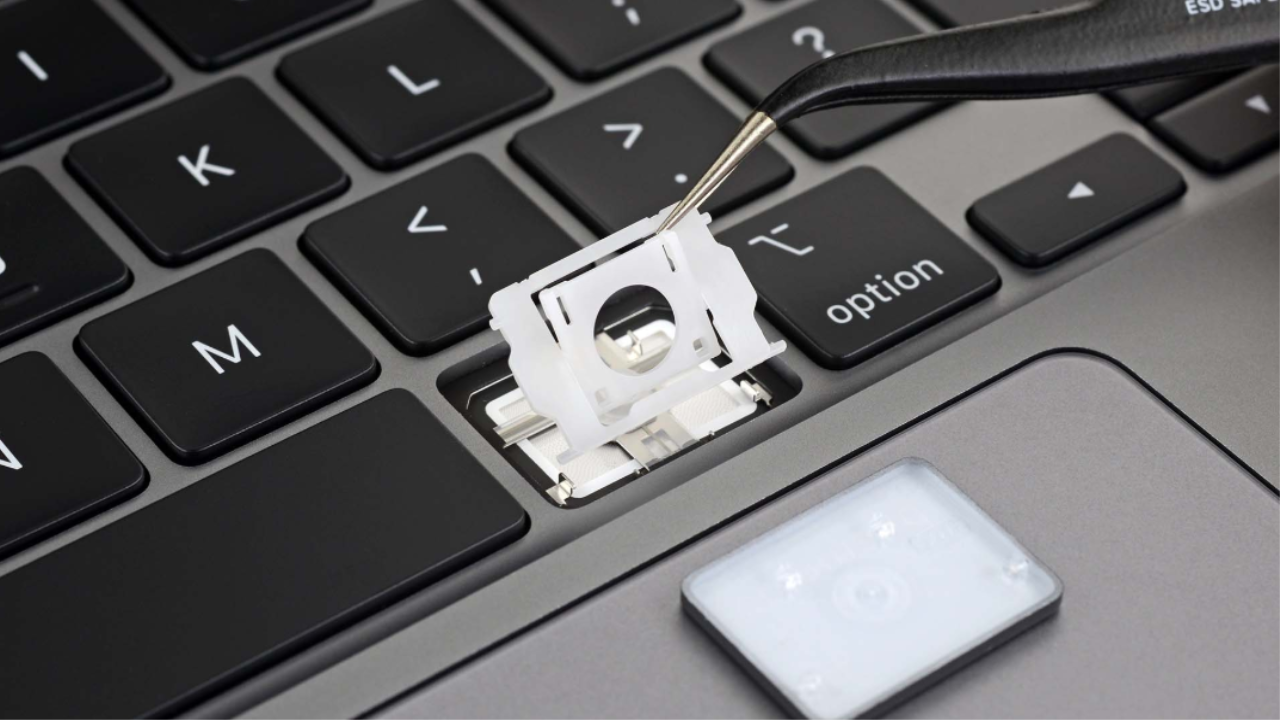
Many MacBook Air and MacBook Pro customers have occasionally had trouble with the keyboards. This is particularly relevant to former butterfly keyboards. Ever worried about how Apple’s laptops are so delicate? This incorporated the butterfly keyboard function, whereas most keyboards feature a scissor process that applies pressure to the keys so that they will snap back into position as quickly as you’re finished typing.

Its title comes from Apple’s design of a minimalist button that is as graceful and thin as a butterfly. Sadly, the butterfly keyboard is rather flimsy. Even the smallest dust below a key or inside the mechanism can lead to issues like a key repeating, jamming, or not even detecting strikes at all.

There may be issues even with a new keyboard. The most visible one is dust that builds up a lot on your keyboard, but there may be other, less evident problems, such as malfunctioning hardware. You can identify and fix any issue with the help of the following suggestions.

How to restore the keyboard on a MacBook?

It is an excellent concept to get in touch with the Authorized Apple Service Supplier to have your keyboard serviced if it immediately stops functioning. Why not give it a shot, though? Most keyboard troubles are surprisingly simple to repair. Here is the guide to fixing it.

Step 1: Test An Alternative USB Port

Test another USB port after unplugging your keyboard from the present one. You can repeat it in the original port if it succeeds. You might want to reset your computer’s USB devices if it only functions in one of the ports.

Step 2: Remove your keyboard

Initiate thoroughly cleaning your keyboard because dust and other particles are the most frequent causes of disabling MacBook keyboards. Apple suggests the following course of action:

  • Position the MacBook at a 75-degree angular position on a table or the floor so that the base is parallel to the surface.
  • Try to Use a straw to direct pressured air; blow between the keys from top to bottom and from left to right.
  • Turn the MacBook so that the right side moves downward, then blow once again in the same direction as before—from left to right and from top to bottom.
  • While maintaining your MacBook’s 75-degree tilt, spin it again so that the left side is downward and blow as you did the first time.

Step 3: Examine the System Analysis

When troubleshooting your Apple Mac keyboard, it is essential to examine the system analysis. The system analysis will help you determine if there is a problem with the computer or if there is a problem with the keyboard. The system analysis will also help you troubleshoot any errors you may receive from your Apple Mac keyboard.

Select any of this Mac on the Apple menu (placed at the top of the display), then select the System Report button. Tap on USB in the Hardware area of the left sidebar after the System Report box has appeared.

Step 4: Keep updating macOS

You can update your Mac with the following steps:

Choose Apple menu > System Preferences. Click Software Update. If there are updates available for your computer, they will be listed here. Click the Update button to start downloading the update, or click Later if you don’t want to download it or have already downloaded an earlier version.

Step 5: Ensure Mouse Keys and Slow Keys Are Off

If you have an Apple keyboard with the mouse or slow keys enabled, these features may cause problems with your keyboard. To fix this issue, disable both settings by going to System Preferences > Keyboard > Modifier Keys and uncheck the box next to Slow Keys and Mouse Keys. If these options are turned off, try using your keyboard again.

Step 6: Reset Your Keyboard

If disabling the slow and mouse keys didn’t solve the problem, then resetting your keyboard could also be a good idea. Restart your computer while holding down Shift + Option + Command + R on your keyboard until you hear three tones from the startup chime (about 15 seconds). Afterward, press returns once and see if that solves the problem with your Mac’s built-in keyboard or not.

Step 7: Removing preferences

Documents with the .plist extensions are used by macOS to store preferences. By restoring settings that may be the root of the issue, deleting.plist records can assist with a variety of issues. However, just in case, you might want to perform a Time Machine backup of your Mac before deleting any .plist files.

  • Click Cmd + Shift + G to launch Finder.
  • Choose Go after typing /Library/Preferences.
  • Look for and remove the file com. apple.keyboardtype.plist
  • Reboot your Mac again.

On your Mac, there are a ton of others.plist files. Other difficulties, like mouse issues on your Mac, can be resolved with this deleted. If necessary, macOS will rebuild them.

Final Words

Repairing your keyboard is easy and can be done in less than 20 minutes, either during or after work. This guide covers how to get the correct replacement for your Apple Keyboard, disassemble the keyboard, remove broken keys, clean and replace all the necessary parts, put the keyboard back together, reattach it to the Mac, and reconnect the keyboard to the computer. If you face any doubts or difficulties, you can bring to us your apple mac for repair.

Please note that the guideline instructions provided may not always apply to the symptoms your computer is experiencing. Sometimes, symptoms or behavior can be the same, but the underlying reason or fault can be completely different.

The fastest way we can assist customers is by bringing computers to our workshop, where technicians have the tools to diagnose faults accurately. After checks, if parts are found to be faulty or damaged, we proceed to replace them with high-quality original parts.

No appointments are required; you can drop off your computer at our workshop during working hours.

If you have more queries about our laptop repair and upgrade services, please feel free to contact us at 020 7018 7490 or email us at contact@pcfixlondon.com

slow-running-mac

If you use your Mac for a long time, it may run slowly. Mac users often run into this problem when they use their laptops for years. There are some simple issues on Macs that cause them to run slowly.

You can follow some simple tips and tricks which can solve the problem. In this write-up, we will share how to fix performance issues for a slow-running Mac.

Expert Guide to Fix Performance Issues for a Slow-Running Mac

Here are the solutions you should follow to solve a slow-running mac.

Step 1: Close Unnecessary Apps

The best way to start solving a slow-running mac is by shutting down background programs.

A mac that hasn’t been shut down in a while may allocate memory and CPU space to unused software instead of the apps you need. Glancing at the Dock at the bottom of the screen is a simple method to see active apps.

Step 2: Edit Preference Panes

Open System Preferences of your laptop and check the box on the bottom row. This is where you can add custom items to your System Preferences. You need to close the unnecessary items that you’re not using. The reason is that they hog your CPU’s resources without any need.

Take out an item from the preference pane by right-clicking on it and select remove.

Step 3: Empty Mac Disk

Nothing slows down a Mac more than having too much on your hard drive. If you can increase available disc space on your Mac, you’re sure to see an increase in your Mac’s speed. The problem is cleaning out your system and determining what can be safely removed to make extra room. The process of doing this manually is more complicated than it seems. The easiest part is cleaning out old movie files, arranging your desktop, and searching your Mac for old files you don’t want. Using Mac cleaner software is the best solution for you to delete unnecessary files.

Step 4: Update Mac OS

Mac’s OS X is essential to how well your laptop operates. Older OS X versions often drive slower, which is why Apple releases new OS X versions every year or so. Your Mac will run more smoothly after you have installed the most recent OS X version. Update only your Mac’s operating system can solve your problem of slow running.

Step 5: Use Activity Monitor

You may launch Activity Monitor by doing a spotlight search for it. What you want to do is click on CPU and then sort by most significant percentage CPU. You can take a rest and notice which apps are using most of your Mac’s processing power. Perhaps this is one of the reasons why your Mac is running slowly. If you are not using the app, close it to boost your laptop performance.

Step 6: Clean Browser Cache and History

Even simple tasks can take a long time while using your laptop. You may wonder, “Why have I wasted my money on this stupid device?” Sometimes you can solve the problem behind a slow-running laptop very quickly. You have to clear browser cache and history that can speed up your laptop.

Step 7: Run Maintenance Scripts

Maintenance Scripts are useful under-the-hood optimizations that your Mac OS uses to keep itself clean. This technique rotates specific libraries and system logs to your laptop.
Furthermore, update old file paths for hundreds of minor operations to shake up and freshen the system.

When your Mac becomes slow and tired, you can force the Maintenance Scripts to run.

Step 8: Empty The Trash & Downloads

Emptying the trash is a simple way to free up space on your Mac. You have to right-click on trash in the Dock and then choose “Empty Trash.”

You should also remove any items from the downloads folder that you are unlikely to need. If your Mac OS is up to date, you can make the trash automatically erase objects regularly.

Step 9: Turn off Visual Effects

With most Macs, Mac OS will run without any problem. However, you can turn off some features that might be slowing your Mac down. This will help a little to function your Mac OS faster.

Conclusion

These are the ways you should follow to speed up your Mac. Hope the tips and tricks will help you to boost the performance of your machine. If you don’t find a solution after applying these techniques, you can come for an expert at our Mac repair shop.

Please note that the guideline instructions provided may not always apply to the symptoms your computer is experiencing. Sometimes, symptoms or behavior can be the same, but the underlying reason or fault can be completely different.

The fastest way we can assist customers is by bringing computers to our workshop, where technicians have the tools to diagnose faults accurately. After checks, if parts are found to be faulty or damaged, we proceed to replace them with high-quality original parts.

No appointments are required; you can drop off your computer at our workshop during working hours.

If you have more queries about our laptop repair and upgrade services, please feel free to contact us at 020 7018 7490 or email us at contact@pcfixlondon.com