
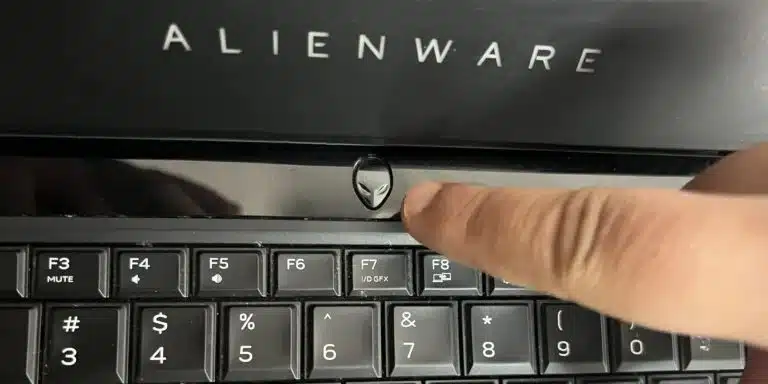
Alienware laptops, including their keyboards, are known for their high performance and unique design. However, Alienware keyboards can develop issues over time for various reasons, like any other keyboard. Here are some common causes and symptoms of Alienware keyboard issues:
Alienware Keyboard Issues Common Causes:
- Dust and debris: Accumulating dust and debris inside the keyboard can cause key failure or stickiness.
- Liquid spills: Accidental spills of liquids such as water, coffee, or soda on the keyboard can damage the internal components and cause keys to malfunction.
- Physical damage: Dropping the laptop or applying excessive force while typing can cause physical damage to the keyboard.
Alienware Keyboard Issues Common Symptoms:
- Unresponsive keys: Keys may not respond or may respond intermittently when pressed.
- Sticking keys: Keys may stick and not return to their original position after being pressed.
- Repeating keys: Keys may repeat continuously without being pressed repeatedly.
- Non-functional keys: Certain keys may stop working altogether.
Identifying the cause of the issue is crucial in determining the most effective solution for fixing the keyboard problem. However, regardless of the cause, there are ways to fix Alienware keyboard issues.
Next, we will discuss how to fix Alienware keyboard key problems, fix one key on the keyboard, and fix unresponsive keyboard keys.
Alienware keyboards can also encounter problems such as unresponsive keys or broken keys. If you’re experiencing issues with your Alienware keyboard, don’t worry! Here are some tips on how to fix Alienware keyboard keys.
How To Fix Alienware Keyboard Key:
If you have a broken key on your Alienware keyboard, to inspect, follow the below:
- Remove the keycap
- Inspect the switch
- Clean the switch
- Replace the keycap
How Do I Fix One Key On My Keyboard?
If only one key on your Alienware keyboard is not working, you can try the following steps:
- Restart your laptop
- Check for software issues.
- Clean your keyboard
- Try an external keyboard
How Do I Fix Unresponsive Keyboard Keys?
If your Alienware keyboard keys are unresponsive, here are some steps to try:
- Clean your keyboard
- Check the drivers
- Check for physical damage
Why do you need PC Fix London for the Alienware Keyboard issue?
If you are experiencing issues with your Alienware laptop keyboard, seeking professional assistance is highly recommended. PC Fix London is a reputable laptop repair service specializing in fixing various laptop issues, including Alienware keyboard problems. Here are some reasons why you should consider using PC Fix London for your Alienware keyboard issue:
- Expertise: The technicians at PC Fix London have extensive experience and expertise in repairing laptops, including Alienware laptops. They have the necessary skills and knowledge to diagnose and fix keyboard issues accurately and efficiently.
- Quality Service: At PC Fix London, we prioritize providing high-quality service to our customers. We use only genuine replacement parts and ensure every repair job is done to the highest standard.
- Convenience: We understand that laptop issues can disrupt your daily routine. That’s why we offer a quick and convenient repair service. You can drop off your laptop at our repair center or request a pickup and delivery service.
- Competitive Prices: We offer competitive and best prices for our repair services. Our pricing is transparent, so you can be assured that there are no hidden costs.
In conclusion, if you are experiencing issues with your Alienware laptop keyboard, seeking professional help from PC Fix London is highly recommended. Our expertise, quality service, convenience, affordable prices, reliable and trusted choice for laptop repair services. Don’t hesitate to contact PC Fix London at call: 020 7018 7490 or contact@pcfixlondon.com for fast and efficient repairs or bring to workshop .
Conclusion:
The following information is intended to assist Alienware laptop users in identifying the causes of keyboard issues, including unresponsive or broken keys, and finding solutions to fix them.
Please note that the guideline instructions provided may not always apply to the symptoms your computer is experiencing. Sometimes, symptoms or behavior can be the same, but the underlying reason or fault can be completely different.
The fastest way we can assist customers is by bringing computers to our workshop, where technicians have the tools to diagnose faults accurately. After checks, if parts are found to be faulty or damaged, we proceed to replace them with high-quality original parts.
No appointments are required; you can drop off your computer at our workshop during working hours.
If you have more queries about our laptop repair and upgrade services, please feel free to contact us at 020 7018 7490 or email us at contact@pcfixlondon.com

Recent Comments