MacBook pro screen repair

In the MacBook Pro series of computers, Apple has used two different types of screens that are light-emitting display and a liquid crystal display. Both the screens have their pros and cons, they both use different technologies and both may face any type of error problems regarding hardware or software.

The most common problem arising out with all the MacBook pro users nowadays is, a horizontal line is appearing on the screen which causes disturbance and also hinders its flawless working. Without having sufficient knowledge to fix it if you do so, this may cause multiple problems in your device including horizontal lines.

Fix Macbook pro horizontal lines on screen:

Are you tired of those annoying horizontal lines ruining your MacBook Pro’s display? Well, you’ve come to the right place. In this video, we’ll show you how to fix those pesky lines and get your screen back to its pristine condition.

YouTube video

Understanding the MacBook Pro Display

The MacBook Pro has an LCD or LED screen connected to the video card located inside the laptop’s chassis. The display works through a process where binary data is processed by the CPU and then translated by the video card into an image that appears on the screen. Faulty settings, damaged components, or improper connections between hardware and the display can cause errors, including horizontal lines on the MacBook Pro.

Temporary Fix: Adjust Screen Position

Sometimes, horizontal lines appear due to loose connections between the display and internal hardware. A quick way to test this is by adjusting the screen’s position:

  • Close and open the MacBook Pro’s screen.
  • Try changing the angle of the display until the horizontal lines disappear.

If this adjustment doesn’t resolve the issue, it’s likely a software or hardware problem that requires further troubleshooting.

Tips to Fix Horizontal Lines Appearing on Your MacBook Pro

Most of the MacBook Pro owners are reporting their complaints about the appearance of horizontal lines in their devices. This problem is likely to be a hardware issue. So, here are some tips to fix the issue: –

Step 1: Reset the System Management Controller (SMC)

Resetting the SMC can resolve issues related to power management and display errors.

  • For models with a T2 chip:
    1. Turn off your MacBook Pro.
    2. Press and hold the Control (left), Option (left), Shift (right), and Power buttons simultaneously for 7-10 seconds.
    3. Release all keys and wait for 30 seconds, then turn on your MacBook.
  • For models without a T2 chip:
    1. Turn off your MacBook Pro.
    2. Press and hold the Shift (left), Control (left), Option (left), and Power buttons for 10-12 seconds.
    3. Release the keys, wait for 30 seconds, and turn on your MacBook.

Step 2: Reset NVRAM

Resetting the NVRAM can help fix display settings-related issues.

  1. Restart your MacBook.
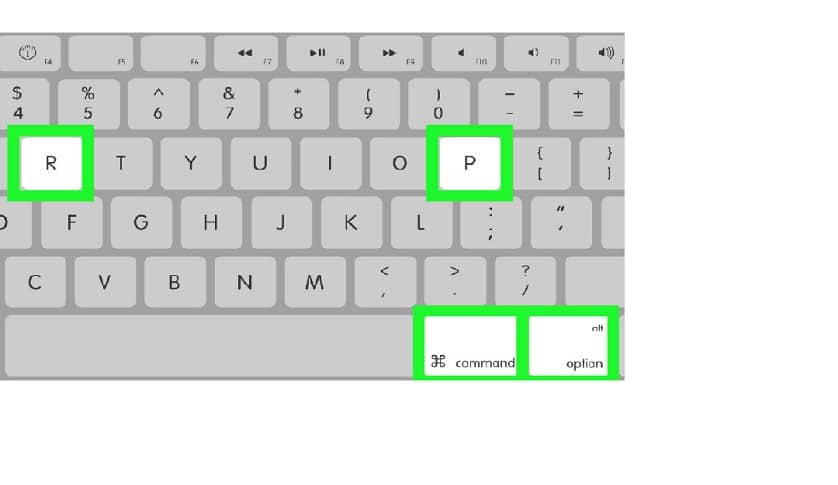
  2. Immediately press and hold Command + Option + P + R.
  3. Release the keys after the startup sound plays twice or when the Apple logo appears and disappears twice (for T2 models).

Step 3: Run Apple Diagnostics

Apple Diagnostics can identify hardware issues causing horizontal lines.

  1. Turn off your MacBook.
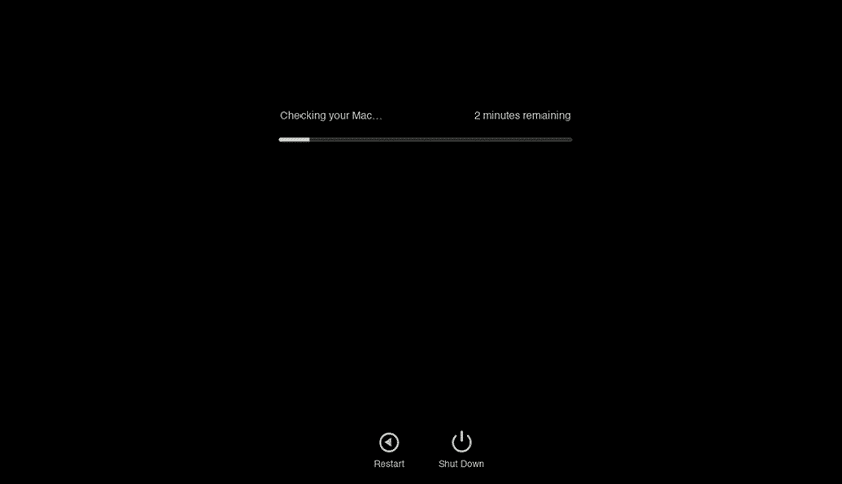
  2. Turn it on and press and hold the D key until a diagnostic screen appears.
  3. Follow the on-screen instructions to identify any errors.

Step 4: Boot in Safe Mode

Safe Mode can isolate software-related issues.

  1. Restart your MacBook while holding the Shift key.
  2. Log in to your MacBook and check if the horizontal lines persist.

Step 5: Update macOS and Graphics Drivers

Outdated macOS or graphics drivers can lead to display issues.

  1. Go to the Apple Menu > System Preferences > Software Update.
  2. Install any available updates and restart your MacBook.

Step 6: Attach an External Display

This step helps determine whether the issue is with the screen or the GPU.

  1. Connect your MacBook Pro to an external monitor using an HDMI, Thunderbolt, or USB-C cable.
  2. Observe if horizontal lines appear on the external screen.
  • If lines appear on both screens: The GPU is likely faulty.
  • If lines appear only on the MacBook Pro: The display panel may be damaged.

Step 7: Reset the Display Resolution

Improper resolution settings can cause display errors.

  1. Go to System Preferences > Displays.
  2. Select Scaled and choose a different resolution.

Step 8: Run Disk Utility to Repair Disk Errors

Corrupt files or disk errors can cause display glitches.

  1. Restart your MacBook in Recovery Mode by holding Command + R during startup.
  2. Select Disk Utility, choose your startup disk, and click First Aid.

Step 9: Inspect for Dust or Loose Connections

Dust accumulation or loose cables inside the MacBook can affect the display.

  • Clean the vents and inspect internal connections.
  • Ensure that the display cable is securely attached.
  • Note: This step requires technical expertise. Consult a professional if needed.

Step 10: Replace Thermal Paste

Overheating can lead to GPU-related display issues. Replacing the thermal paste between the CPU/GPU and heatsink can improve cooling.

  • Note: Only a certified technician should perform this step.

Step 11: Perform a Clean macOS Reinstall

If none of the above steps work, reinstalling macOS may help.

  1. Backup your data using Time Machine.
  2. Restart your MacBook in Recovery Mode (Command + R).
  3. Select Reinstall macOS and follow the on-screen instructions.

When to Seek Professional Help

The Macbook Pro screen repair may cause you to experience a number of operational issues. This may cause your MacBook display to work inefficiently and occasionally cause glitches. To figure out what’s wrong, you’ll need to troubleshoot your MacBook. If you’ve tried all these steps and the problem persists, the issue is likely hardware-related. Contact our  service center for a professional diagnosis. Horizontal lines can result from a failing GPU or a damaged display panel, both of which require expert repair.

Please note that the guideline instructions provided may not always apply to the symptoms your computer is experiencing. Sometimes, symptoms or behavior can be the same, but the underlying reason or fault can be completely different.

The fastest way we can assist customers is by bringing computers to our workshop, where technicians have the tools to diagnose faults accurately. After checks, if parts are found to be faulty or damaged, we proceed to replace them with high-quality original parts.

No appointments are required; you can drop off your computer at our workshop during working hours.

If you have more queries about our laptop repair and upgrade services, please feel free to contact us at 020 7018 7490 or email us at contact@pcfixlondon.com


horizontal or vertical line on macs screen

If you own a Mac, you may have experienced the frustrating issue of horizontal or vertical lines appearing on your screen. Various factors, including hardware problems, software glitches, or environmental factors like temperature and humidity, can cause this issue. Whatever the cause, these lines can make it difficult or impossible to use your Mac and even indicate more serious underlying issues with your hardware.

Fortunately, there are several solutions you can try to fix horizontal or vertical lines on your Mac’s screen. In this comprehensive guide, we will explore the causes of this issue and provide step-by-step solutions for all Mac products, including MacBook Pro, MacBook Air, iMac, and Mac Mini. We’ll also provide tips on preventing this issue from happening in the future and how to check for hardware issues that may be causing the problem. With this guide, you can troubleshoot and resolve horizontal or vertical line issues on your Mac with confidence.

Why are there lines on Mac’s screen?

Several issues can cause horizontal or vertical lines on Mac’s screen. Common causes include:

  • A faulty graphics card
  • A loose or damaged display cable
  • A hardware issue
  • A software issue
  • A Physical damage
  • An Environmental factors

A faulty graphics card:

One of the most common causes of horizontal or vertical lines on Mac’s screen is a faulty graphics card. This component is responsible for processing and rendering visual information on your Mac, and when it malfunctions, it can cause visual artifacts like lines, distortions, or flickering.

A loose or damaged display cable:

Another common cause of line issues on Mac’s screen is a loose or damaged one. This cable connects the display panel to the logic board, and if it’s not properly connected or damaged, it can cause visual anomalies like lines or flickering.

Hardware issues:

Problems with Mac’s graphics card, monitor, or other hardware components can cause lines to appear on the screen.

Software issues:

Corrupted or outdated software, drivers, or firmware can also lead to horizontal or vertical lines on the screen.

Physical damage:

Drops, bumps, or other physical impacts can damage Mac’s hardware, causing lines or other visual issues.

Environmental factors:

Temperature and humidity can also affect your Mac’s display and cause lines or other visual issues to appear. For example, if your Mac gets too hot, it may cause thermal expansion, damaging the hardware or loosening connections. Conversely, if your Mac gets too cold, it may cause condensation that can damage the hardware.

Simple Solutions to Fix Horizontal or Vertical Lines on Your Mac’s Screen

Solution 1: Restart Your Mac

restart-your-mac

Sometimes, simply restarting your Mac can fix the issue. Here’s how to restart your Mac:

  1. Just click on the Apple menu in the top left corner of your screen.
  2. Select “Restart” from the drop-down menu.
  3. Wait for your Mac to restart and see if the lines have disappeared.

Solution 2: Update the macOS

Update the macOS

If a software issue causes the lines on your Mac’s screen, updating macOS can fix the problem. Here’s how to update macOS:

  1. Just click on the Apple menu in the top left corner of your screen.
  2. Select “System Preferences” from the drop-down menu.
  3. Click on “Software Update.”
  4. If an update is available, please click on “Update Now” to update.
  5. Follow the on-screen instructions to complete the update.

Solution 3: Reset the PRAM/NVRAM

Reset the PRAM NVRAM

Resetting the PRAM/NVRAM can sometimes fix your Mac’s display issues. Here’s how to reset the PRAM/NVRAM:

  1. Shut down your Mac.
  2. Just press the power button to turn on your Mac.
  3. Press and hold the Command + Option + P + R keys immediately after you hear the startup sound.
  4. Hold the keys until your Mac restarts, and you hear the startup sound again.
  5. Release the keys and see if the lines have disappeared.

Solution 4: Reset the SMC

Reset the SMC

Resetting the SMC (System Management Controller) can fix issues with your Mac’s hardware, including the display. Here’s how to reset the SMC:

For MacBook Pro (2018 or later):

  1. Shut down your Mac.
  2. Hold the power button for 10 seconds.
  3. Release the power button, then wait a few seconds.
  4. Just press the power button again to turn on your Mac.

For MacBook Pro (2017 or earlier), MacBook Air, and MacBook:

  1. Shut down your Mac.
  2. Hold down the Shift + Control + Option keys and the power button for 10 seconds.
  3. Release all the keys.
  4. Just presses the power button again to turn on your Mac.

For iMac, Mac mini, and Mac Pro:

  1. Shut down your Mac.
  2. Unplug the power cord.
  3. Wait for 15 seconds.
  4. Plug the power cord back in.
  5. Wait for five seconds, then turn on your Mac normally.

Solution 5: Check for Hardware Issues

Mac Hardware Issue

If none of the above steps or solutions work, the lines on your Mac’s screen may be caused by a hardware issue. In such cases, contacting the repair center for repair or replacement is best. However, before you do that, you can try the following steps:

  1. Check the cables: Ensure all cables connecting your Mac to the display are properly plugged in and not damaged.
  2. Run Apple Diagnostics: Apple Diagnostics can help you identify hardware issues on your Mac. Here’s how to run it:

For MacBook Pro (2018 or later):

  • Shut down your Mac.
  • Turn on your Mac, then immediately press and hold the D key.
  • Follow the on-screen instructions to run Apple Diagnostics.

For MacBook Pro (2017 or earlier), MacBook Air, and MacBook:

  • Shut down your Mac.
  • Turn on your Mac, then immediately press and hold the D key.
  • Follow the on-screen instructions to run Apple Diagnostics.

For iMac, Mac mini, and Mac Pro:

  • Shut down your Mac.
  • Turn on your Mac, then immediately press and hold the D key.
  • Follow the on-screen instructions to run Apple Diagnostics.
  1. Test with an external display: If you have an external display, connect it to your Mac and see if the lines appear on it. If they appear, the issue is likely with your Mac’s graphics card, and you should give Mac for repair or replacement.

Mac Product-Specific Solutions

While the above solutions should work for most Mac products, some product-specific solutions may help. Here are some additional solutions for specific Mac products:

  1. MacBook Pro with Retina Display: If you’re experiencing lines on your MacBook Pro’s Retina display, Apple recommends resetting the display’s System Management Controller (SMC). Here’s how to do it:
    • Shut down your MacBook Pro.
    • Hold down the Shift + Control + Option keys and the power button for 10 seconds.
    • Release all the hold keys at the same time.
    • Just press the power button again to turn on your MacBook Pro.
  1. iMac Pro: If you’re experiencing lines on your iMac Pro’s display, Apple recommends resetting the display’s System Management Controller (SMC). Here’s how to do it:
    • Shut down your iMac Pro.
    • Unplug the power cord.
    • Wait for 15 seconds.
    • Plug the power cord back in.
    • Wait for five seconds, then turn on your iMac Pro normally.
  1. Mac Pro: If you’re experiencing lines on your Mac Pro’s display, Apple recommends resetting the display’s System Management Controller (SMC). Here’s how to do it:
    • Shut down your Mac Pro.
    • Unplug the power cord.
    • Wait for 15 seconds.
    • Plug the power cord back in.
    • Wait for five seconds, then turn on your Mac Pro normally.

Tips to Prevent Horizontal or Vertical Lines from Appearing on Your Mac’s Screen in the Future

Here are some tips to help prevent lines from appearing on your Mac’s screen in the future:

  1. Handle your Mac carefully: Avoid dropping or jostling your Mac, and keep it away from sources of heat or moisture.
  2. Keep your Mac’s software Updated: Regularly check for updates and install them promptly. It can help prevent software-related issues that may cause lines to appear on your screen.
  3. Use a surge protector: A surge protector or uninterruptible power supply (UPS) protects your Mac from power surges or fluctuations that can damage the hardware.
  4. Clean your Mac’s screen regularly: Use a microfiber cloth and gentle cleaning solution to remove dust and smudges from your Mac’s screen. Avoid using harsh chemicals or abrasive materials that may result in scratches on the screen.
  5. Use a protective case: If you frequently transport your Mac, consider using a protective case or sleeve to prevent damage from bumps and scratches.

By following the above tips and taking good care of your Mac, you can reduce the risk of horizontal or vertical lines appearing on your screen. However, if you experience lines or other visual issues, try the above solutions to troubleshoot the issue. If the issue persists, contact the PC Fix London repair center for further assistance.

Disclaimer:

Please note that the guideline instructions provided may not always apply to the symptoms your mac is experiencing. Sometimes, symptoms or behavior can be the same, but the underlying reason or fault can be completely different.

The fastest way we can assist customers is by bringing computers to our workshop, where technicians have the tools to diagnose faults accurately. After checks, if parts are found to be faulty or damaged, we proceed to replace them with high-quality original parts.

No appointments are required; you can drop off your computer at our workshop during working hours.

If you have more queries about our laptop repair and upgrade services, please feel free to contact us at 020 7018 7490 or email us at contact@pcfixlondon.com

FAQ:

Q: What causes a horizontal/vertical line to appear on a Mac screen?

A: A horizontal or vertical line on a Mac screen can be caused by various factors, such as a faulty graphics card, a damaged display cable, or hardware issues with the screen itself. Sometimes, it can also be caused by software issues.

Q: How do I fix a horizontal/vertical line on my Mac screen?

A: The solution to fixing a horizontal or vertical line on a Mac screen depends on the cause of the issue. Some common troubleshooting steps include resetting the PRAM/NVRAM, running hardware diagnostics, updating the software, or resetting the SMC. However, if a hardware problem causes the issue, taking the Mac to a repair shop is recommended.

Q: Should I take my Mac to a repair shop if there’s a horizontal/vertical line on the screen?

A: If common troubleshooting steps fail to fix the issue, or if the cause of the problem is unknown, it is recommended to take the Mac to a repair shop. Attempting to fix the issue yourself can further damage the Mac.

Q: How much does fixing a horizontal/vertical line on a Mac screen cost?

A: The cost of fixing a horizontal or vertical line on a Mac screen can vary depending on the problem’s cause and Mac’s model. It is always recommended to get a quote from the repair shop.

Q: Is a horizontal/vertical line on my Mac screen covered under warranty?

A: If the Mac is still under warranty and a hardware problem causes the issue, the repair may be covered under the warranty. It is recommended to check the terms and conditions of the warranty or contact the manufacturer for more information.

Q: Can a software update fix a horizontal/vertical line on my Mac screen?

A: Sometimes, a software update can fix issues with the Mac screen, including horizontal or vertical lines. It is recommended to check if there are any available software updates and install them to see if it fixes the issue.

Q: Is a horizontal/vertical line on my Mac screen a sign of a serious problem?

A: A horizontal or vertical line on a Mac screen can indicate a serious problem, especially if a hardware issue causes it. It is recommended to get the Mac checked by a repair shop to diagnose the cause of the problem.

Q: Can I prevent a horizontal/vertical line from appearing on my Mac screen in the future?

A: You can prevent a horizontal or vertical line from appearing on a Mac screen in the future. It is recommended to avoid exposing the Mac to extreme temperatures, physical damage, or excessive pressure. Regularly updating the software and running hardware diagnostics can also help prevent issues from occurring.

Q: What are some common troubleshooting steps to fix a horizontal/vertical line on a Mac screen?

A: Common troubleshooting steps to fix a horizontal or vertical line on a Mac screen include resetting the PRAM/NVRAM, running hardware diagnostics, updating the software, or resetting the SMC. However, if a hardware problem causes the issue, taking the Mac to a repair shop is recommended.

Q: Does the brand of the Mac affect the likelihood of a horizontal/vertical line appearing on the screen?

A: The brand of the Mac does not necessarily affect the likelihood of a horizontal or vertical line appearing on the screen. However, different models may have different hardware components that can affect the likelihood of the issue occurring.